
Optimizing A2P Messaging with Multi Brand and Campaign Support
This feature introduces robust support for managing multiple A2P (Application-to-Person) brands and campaigns, enhancing your messaging capabilities. This allows better organization and optimization of your sending strategies, making it easier to manage and scale your campaigns effectively.
How-to Steps:
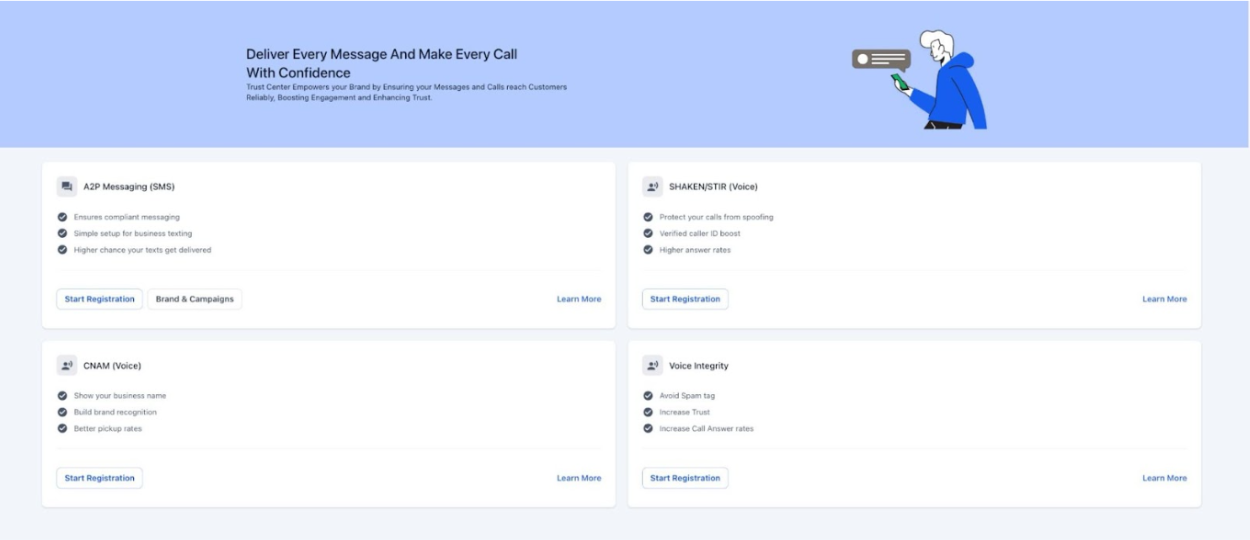
1. Accessing the Trust Centre:
- Navigate to the Trust Centre section.
- You will see tabs for listing the brands and campaigns.
- Trust Centre section with new tabs for brands and campaigns.
2. Upgrading A2P Brand:
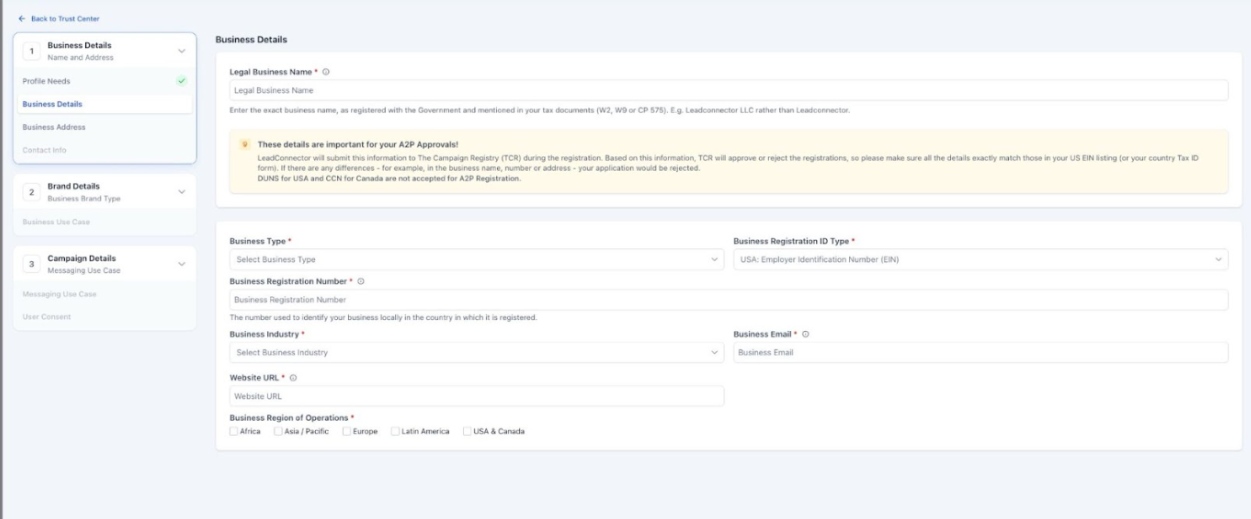
- Go to the Brands tab.
- Click on the "Upgrade Brand" CTA to change from Sole Prop to Standard/High-volume Standard brands.
- You can maintain multiple brands for one subaccount.
- Brands tab with the 'Upgrade Brand' CTA highlighted.
3. Creating Multiple Campaigns:
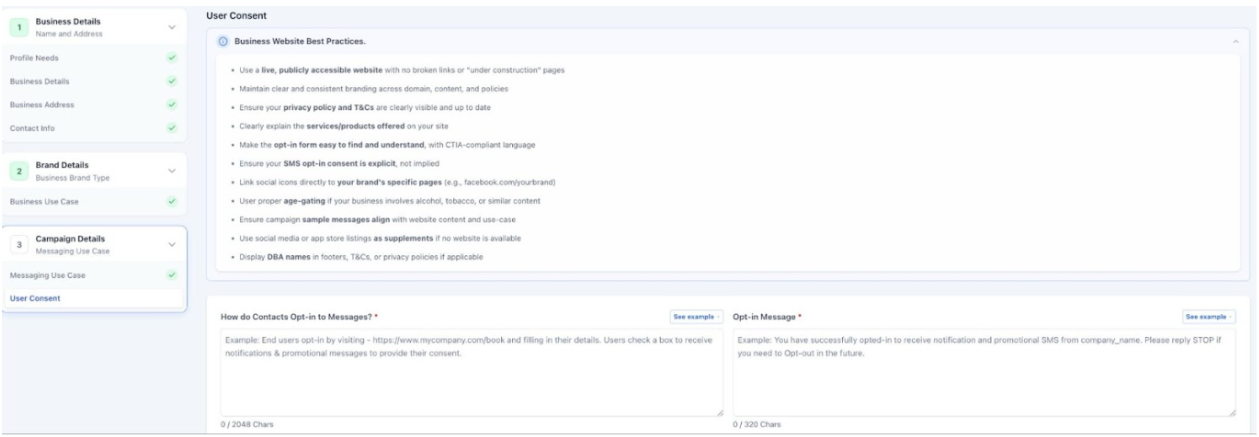
- Open the Campaigns tab.
- Click on the "Create Campaign" CTA to start a new campaign using an approved brand.
- Specify different use cases for each campaign.
- Campaigns tab with the 'Create Campaign' CTA highlighted.
4. Linking Phone Numbers:
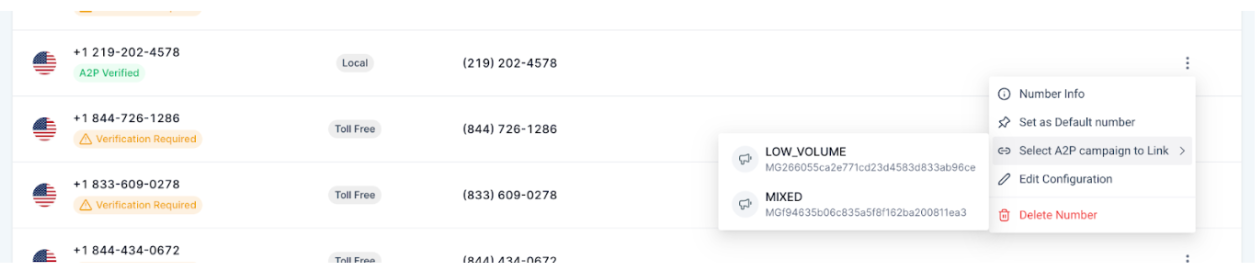
- Go to the Manage Numbers page.
- Link different phone numbers to different campaign use cases.
- Manage the Numbers page with linked phone numbers.
5. Auto-Submission of A2P Campaigns After Brand Approval
- Once a brand is approved, the associated A2P campaign is automatically submitted, removing the need for manual action and speeding up the process. This reduces confusion, delays, and manual effort, ensuring a smoother registration experience.
Benefits:
- Improved Organization: Manage multiple brands and campaigns from a centralized location, making it easier to keep track of your messaging efforts.
- Scalability: Easily scale your operations by creating multiple campaigns with different use cases under the same brand.
- Flexibility: Link different phone numbers to specific campaigns, allowing for targeted communication strategies.
- Simplifies the registration process and reduces manual effort, making the entire campaign submission more efficient.
Pro Tips:
- Brand Upgradation: Regularly review and upgrade your A2P brands to ensure they meet your messaging needs and regulatory requirements.
- Campaign Management: Utilize the ability to create multiple campaigns under one brand to segment your audience effectively and tailor your messages.
FAQs
Question: Why can't I create a new campaign?
Answer: Ensure your brand is approved and not older than five days. If it is, you need to manually initiate the campaign submission.
Question: How do I manage phone numbers for different campaigns?
Answer: Use the Manage Numbers page to assign phone numbers to specific campaign use cases, ensuring accurate and efficient message delivery.
Question: How does auto-submission work?
Answer: After your A2P brand is approved, the associated campaign is automatically submitted, eliminating the need for any manual action.
Question: Do I need to take any action to enable this?
Answer: No action is required. The auto-submission process is triggered once your brand approval is completed.
Question: What should I do if my brand approval is older than five days?
Answer: If the brand approval is older than five days, you will need to manually submit the campaign from the Campaigns section.
Question: Can I disable auto-submission if I prefer manual control?
Answer: Auto-submission is applied by default after brand approval. Manual submission is only required in specific cases, such as expired approval windows.
Question: How often should I check my A2P brand status?
Answer: It is recommended to regularly review your brands in the Trust Centre to ensure they still meet your current messaging needs and remain compliant with the latest regulatory requirements.
Question: Can I have more than one A2P brand within a single Mastermind?
Answer: Yes. The system allows you to maintain and manage multiple brands for one Mastermind providing better organization for diverse business needs.
Question: Can I move a phone number from one Campaign to another?
Answer: Yes. On the Manage Numbers page, you can unbind a number from an existing campaign and link it to a different one. Note that it may take a few minutes for the mobile carriers to recognize the change in use-case association.