
Troubleshooting Custom Values in MMS Workflows
Q1: How do I attach Custom Values URLs to SMS messages?
A: Attaching custom values to SMS messages is a straightforward process. Follow these steps:
1. Set up your custom value URL:
- Navigate to your settings and find the Custom Values section.
- Click + Add Custom Value, and then input the MMS URL you wish to use.
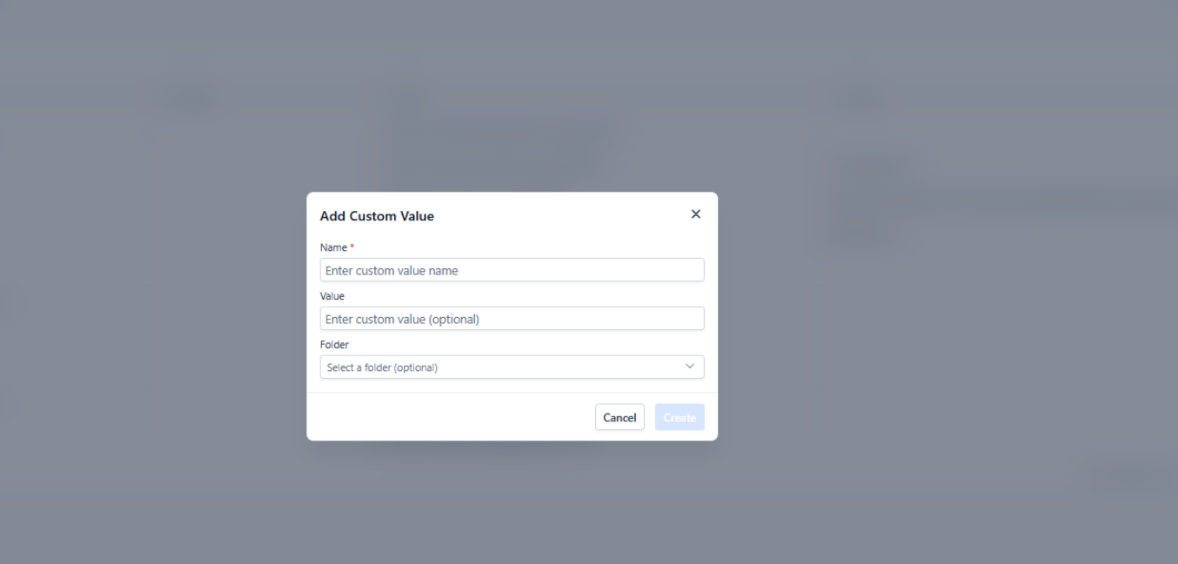
2. Attach the custom value in your workflow:
- Open the workflow where you want to send the MMS.
- Locate the step where the MMS message is triggered, and paste the custom value URL as an attachment.


Q2: What is the maximum MMS size when sending SMS messages?
A: Different carriers have specific size limitations for MMS messages. Be sure to check these requirements before sending MMS messages to avoid issues. Here's a quick guide:
- AT&T: 0.6 MB
- Sprint: 1.4 MB
- T-Mobile: 1.5 MB
- Verizon: 0.675 MB

Q3: What file types are supported for MMS when sending via SMS?
A: When sending MMS messages, these are the supported file types:
- JPEG
- PNG
- GIF
Tip: Ensure the file is in one of these formats before uploading it to the MMS URL.
Q4: My custom value is not working when the message is sent. What should I do?
A: If your custom value isn't working as expected, follow these troubleshooting steps:
- Check for spaces in your custom value URL:
- Sometimes, extra spaces can cause issues. Test this by adding the custom value to a dummy funnel and previewing the page. If the MMS appears correctly, the custom value is working fine.
- Ensure the MMS URL meets the carrier's size requirement:
- Check the MMS size limits based on the carrier (refer to the previous question for the size limits). Ensure your MMS file does not exceed the limit for the carrier you're sending to.
Q5: How do I know if my custom value meets the carrier's size requirements?
A: To avoid issues, always verify the size of the MMS file before sending it. If the file exceeds the carrier's size limit, it will fail to deliver. Use the size limits mentioned earlier to ensure compliance.
Q6: Can I use multiple custom value URLs in one SMS workflow?
A: Yes, you can attach multiple custom values to different steps in the workflow, but each MMS must individually comply with the carrier’s size and format requirements.
Q7: Why is my MMS not sending even though the file size and format are correct?
Answer: If your file meets size (under 0.6 MB for safety) and format requirements but still fails to deliver, the issue is likely with the hosting URL. Ensure that:
- The URL is Public: The link must be publicly accessible. If it is hosted behind a login or on a private drive (like a restricted Google Drive link), the carrier’s server cannot "fetch" the image to send it.
- Direct Image Link: The URL must point directly to the image file (ending in .jpg or .png) rather than a webpage or viewer containing the image.
- HTTPS: Most carriers require the URL to be secured with HTTPS to successfully process the attachment.
Q8: Can I send videos or PDF files via MMS using Custom Values?
Answer: While some carriers support small video files (MP4), it is not recommended due to strict size limits. PDFs are not supported as MMS attachments. For videos or documents, it is best to paste a shortened URL in the text so the user can click and download the file instead.