
Workflow Notes, Action Notes & Sticky Notes
Adding notes within workflows is an essential way to improve collaboration and enhance clarity for all team members involved. The Workflow Notes, Action Notes, and Sticky Notes feature provides flexible options to add context, comments, and key information directly within workflows.
Key Features and Benefits
- Centralized Communication: Easily add important notes to workflows, actions, and the workspace.
- Enhanced Collaboration: Ensure all team members have access to relevant information and updates.
- Streamlined Management: Customize and organize notes for improved workflow efficiency and reference.
- Branding and Documentation: Utilize visual elements to brand your automation logic or provide deep documentation for complex branches.
1. All-New Sidebar Navigation
The sidebar now provides quick access to key views and features, allowing users to navigate efficiently.
- Stats View Toggle: Click the Stats View icon to turn it on or off. When active, the icon highlights for quick recognition.
- Notes and Sticky Notes Access: Easily access Workflow Notes, Action Notes, and Sticky Notes from the sidebar.

2. Workflow-Level Notes
Workflow-Level Notes allow users to add context or general instructions at the workflow level, visible to everyone involved in the workflow.
Steps to Use Workflow-Level Notes
- Access Workflow Notes:
- While in a workflow, click on the Notes icon in the sidebar to open the notes panel.
- Add Your Note:
- Enter descriptions, context, or instructions that will help all users understand the workflow’s objectives.
- Automatic Saving:
- Notes are automatically saved when the workflow is saved, so no details are lost.
- Tracking and History:
- Each note displays information about who created and last edited it, providing transparency and an audit trail.

3. Action-Level Notes
Attach notes directly to specific actions within a workflow, providing detailed commentary on individual steps.
Steps to Use Action-Level Notes
- Hover Over an Action:
- When you hover over any action in the workflow, a notes icon appears in the top-right corner.
- Click to Add Note:
- Click the icon and type your notes to provide instructions, feedback, or details specific to that action.
- Permanent Visibility:
- Once added, the notes icon remains visible on the action, indicating that additional context is available.
- Centralized Notes View:
- All Action-Level Notes are also accessible in the main Notes section, allowing for easy review and management.

4. Sticky Notes
Sticky Notes provide highly visible notes in the workflow builder, ideal for communicating essential reminders or instructions.
Steps to Use Sticky Notes
- Access Sticky Notes:
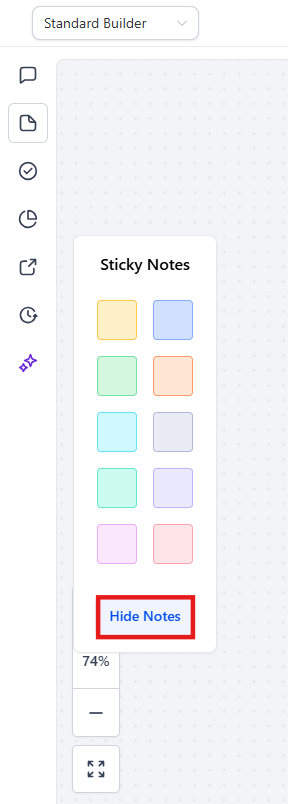
- Click the Sticky Notes icon in the sidebar to begin.
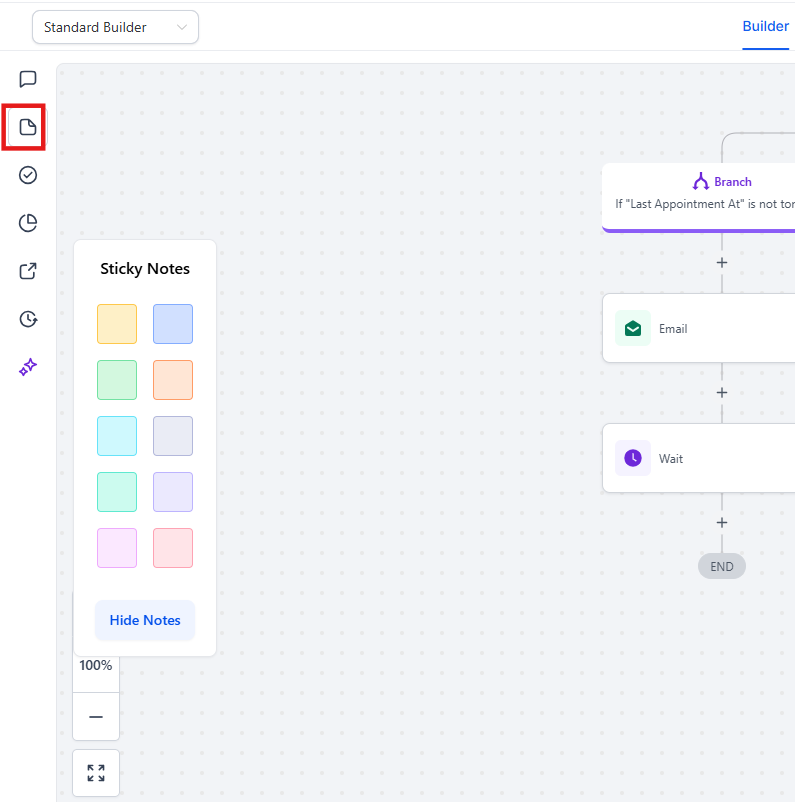
2. Placement and Resizing: You can drop notes anywhere on the canvas, resizing and positioning them specifically to label different branches or sections of your logic.
3. Customize Note Appearance: Select a color for the note to help differentiate tasks or categories.
4. Color-Coded Branches: Use specific colors to visually organize and categorize different paths or branches within your automation.
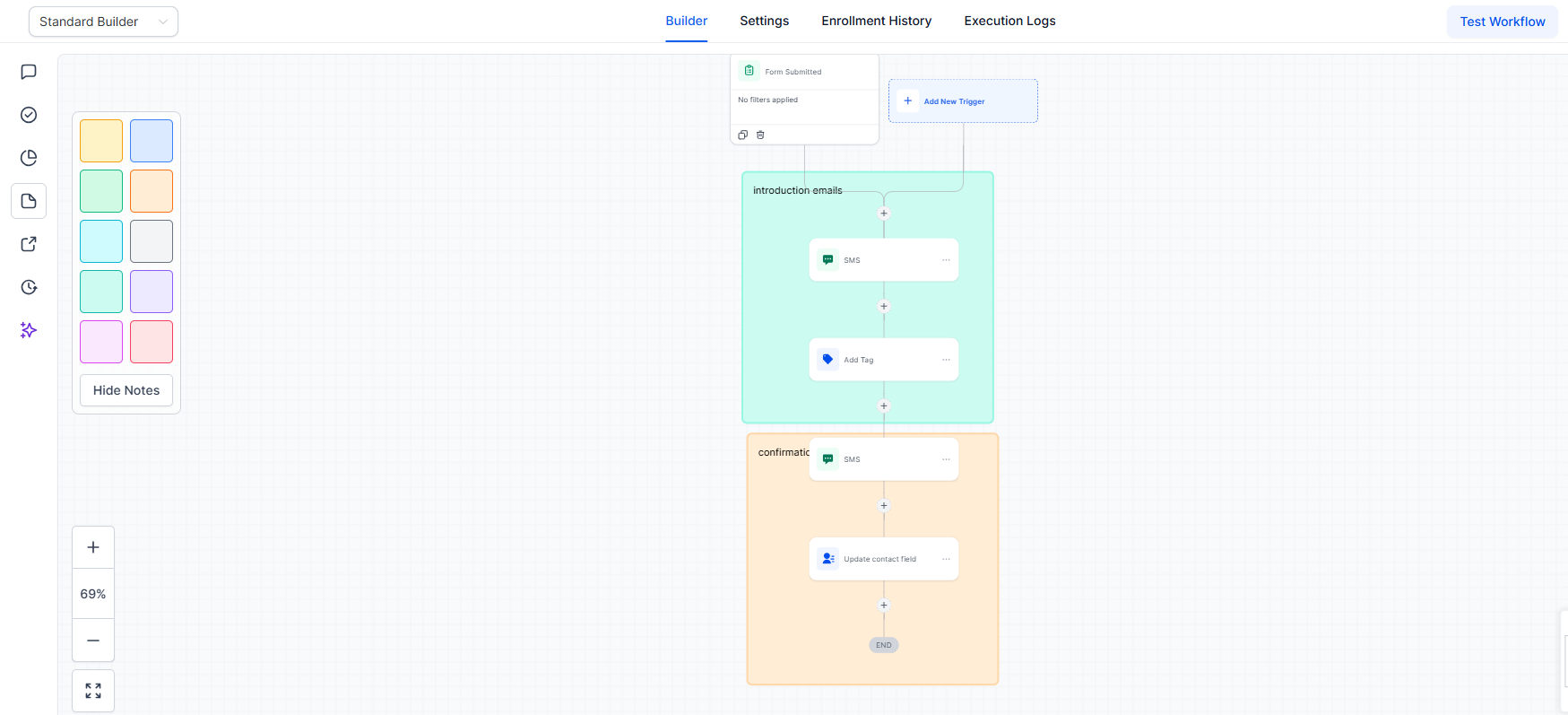
5. Add Content with Rich Text Editor: Use the built-in rich text editor to format text and emphasize key points.
6. Embedded Media and Branding: Beyond standard text, you can embed images, logos, or functional links directly into your notes to provide better context or brand your workspace.
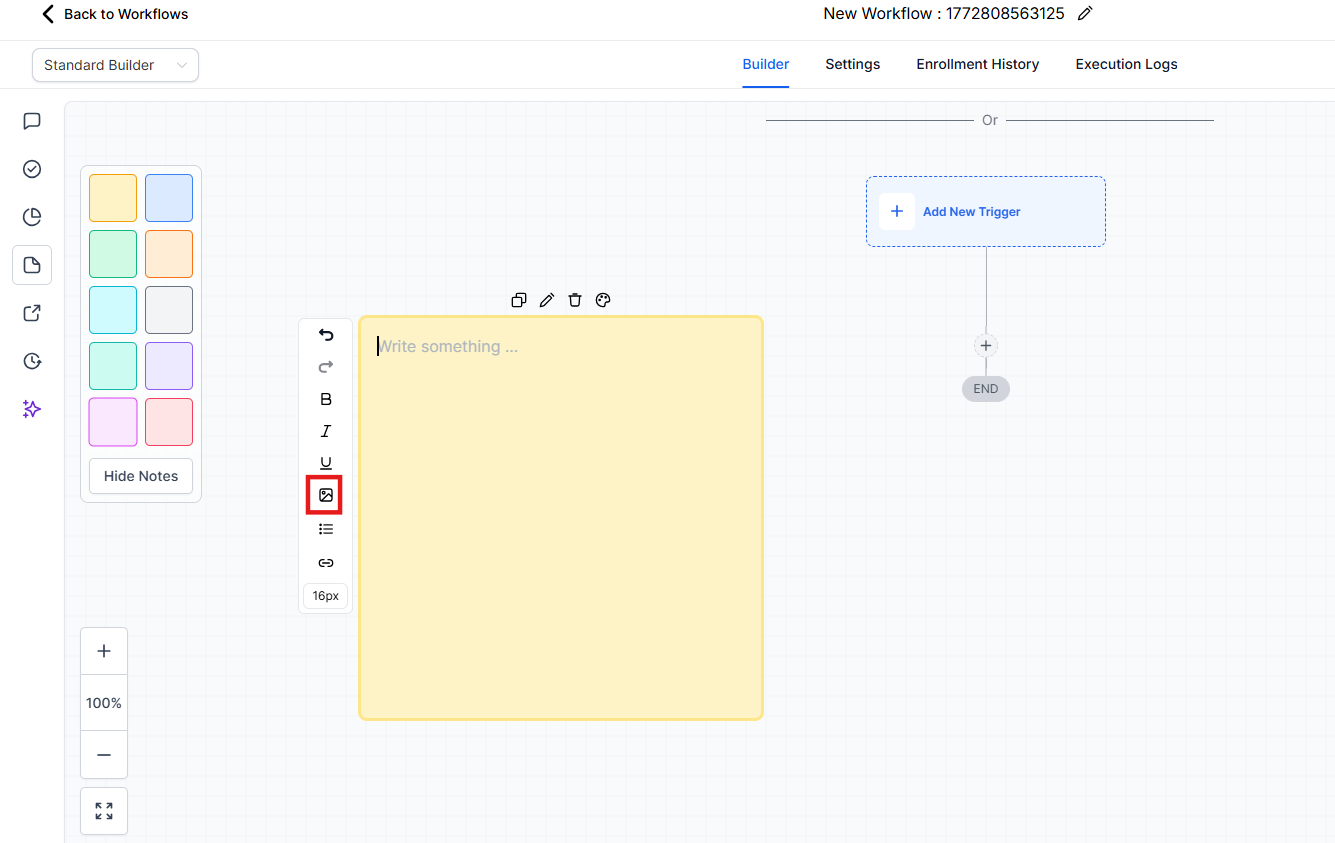
7. Attach Images: For a more visual approach, you can attach images to enhance the information.
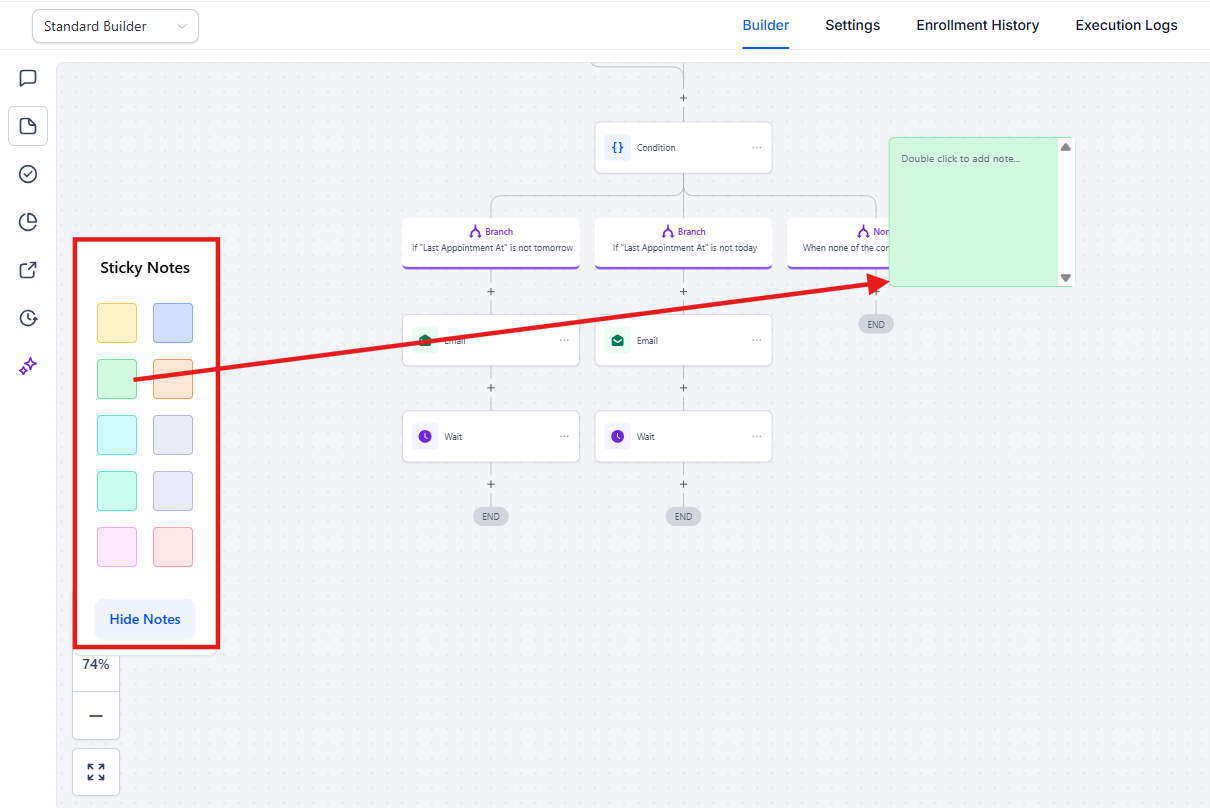
8. Toggle Visibility: To control note visibility, use the Hide Notes button. This is helpful when you need a clean workspace without removing the notes permanently.
Note: Sticky Notes are purely visual aids for documentation and do not interfere with or change the actual automation logic of the workflow.
5. Use Cases
- Workflow-Level Notes: Ideal for adding descriptions, objectives, and context, making it clear to all team members what the workflow is intended to accomplish.
- Sticky Notes: Perfect for visual task lists, reminders, or onboarding guidance. The color-coded feature helps organize notes by priority or category.
- Branded Documentation: Use the ability to add logos and images to create professional, branded instruction sets for clients or team members directly on the build canvas.
- Action-Level Notes: Attach instructions or explanations to individual actions, ensuring that everyone understands the purpose and details of each step.
FAQ
Question: Can everyone add notes at the workflow level?
Answer: Only admins can add Workflow-Level Notes, ensuring control over high-level descriptions and context.
Question: How are Action-Level Notes different from Workflow-Level Notes?
Answer: Action-Level Notes are attached to individual actions within a workflow, providing specific context for that action, while Workflow-Level Notes apply to the entire workflow.
Question: Can I hide Sticky Notes temporarily?
Answer: Yes, you can toggle Sticky Note visibility with the Hide Notes button, helping you declutter the view when needed.
Question: How can I tell who last edited a note?
Answer: Each note includes tracking details, showing who created and last edited it, along with timestamps.
Question: Are Sticky Notes customizable in color and format?
Answer: Yes, Sticky Notes allows for color selection and text formatting, helping you create visually organized notes.
Question: If I have a very long workflow, do I have to scroll to the top to see all my Action-Level Notes?
Answer: No. While you can see the notes by hovering over a specific action, all Action-Level Notes are also centralized in the main Notes section of the sidebar for easy review and management.
Question: Can I add my company logo or an image to a Sticky Note?
Answer: Yes! The updated Sticky Notes feature allows you to embed images or logos directly onto the note for better branding and visual context.
Question: Do Sticky Notes change how my automation runs?
Answer: No. Sticky Notes are purely for visual documentation and collaboration; they do not affect the underlying automation logic or triggers