
Workflow Trigger: Funnel/Website PageView
The Page View trigger focuses on monitoring customer visits to specific web pages or URLs. When a page view event occurs, the trigger initiates a series of automated actions tailored to the customer's behavior, offering a seamless and personalized experience. In this article, we'll explore the step-by-step process of leveraging the Page View trigger to enhance your marketing efforts and drive meaningful engagement with your audience.
How to use the Page view trigger:
Navigate to Automation:
- Navigate to Tools & Reporting > Automations > Workflows
Access Workflow Builder:
- Click on the option to create a new workflow or edit your preferred workflow.

Add Trigger:
- Search for the " Funnel/Website PageView" trigger under the events category.
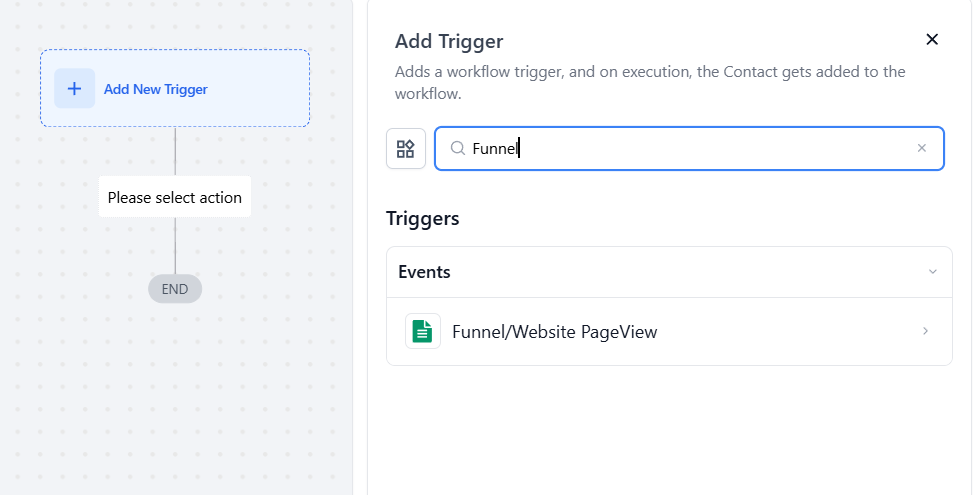
- Give it a Name: Choose a descriptive name for the trigger, like "Funnel Page Visit - Checkout."
Select Filters:
- Funnel/Website: Choose the specific funnel or website you wish to track.
- Page: Optionally, specify the exact page you want to monitor.
- UTM Parameters: Apply filters such as UTM Campaign, Source, or Medium to refine the conditions for tracking page views.
- Add Multiple Filters: Click on "Add filters" to include additional filters for tracking specific pages, paths, or UTM campaigns as needed.
Setting Up Your Page View Trigger
Choose Funnel or Website:
- Select the specific funnel or website you want to track.

Specify Page or Page URL (Optional):
- Define the page or URL you wish to monitor for visits, for example:

Add UTM Parameters (Optional):
- Include UTM parameters to further refine your tracking criteria.

Saving the workflow:
- Press Save in the top right corner of your browser to save the workflow
- If your Workflow is ready to be enabled, make sure the toggle switch under Save is set to Publish
- Be sure to test your Workflow to make sure it is set up correctly using the Test Workflow button next to the Publish toggle switch.

NOTE: For an in-depth overview of Workflow Testing see our article, “Using the Testing Features in Workflows”
Exploring Use Cases
Lead Nurturing: Target leads who visit specific pages but haven't taken desired actions, such as booking a call or making a purchase.
E-commerce Optimization: Monitor product pages visited by customers to tailor follow-up communication and drive conversions.
Proactive Customer Support: Reach out to customers who visit your contact page in real-time to provide assistance or initiate communication.
Example
Scenario: You want to track when visitors reach the “Checkout” page of your funnel and send them a follow-up email if they abandon their cart.
- Trigger: Funnel/Website PageView
- Funnel/Website: Select the Funnel Name (e.g., Bookkeeper Funnel)
- Page: Is equal to "Checkout"
- Action: Send a follow-up email offering assistance after a certain period if no purchase is completed.
This setup helps you re-engage customers who may have abandoned their cart at the final stage of the purchase process.

Frequently Asked Questions (FAQs)
Question: What is a Page View trigger and how does it work?
Answer: A Page View trigger is an automated mechanism used in workflow automation platforms to track when a user visits a specific web page or URL. Once a page view event occurs, the trigger can initiate a series of automated actions, such as sending emails, updating Mastermind records, or personalizing user experiences based on the page viewed. This allows for a more tailored interaction with users based on their behavior on your website.
Question: How do I set up a Page View trigger in my workflow?
Answer:
- Navigate to Automation: Log in to your workflow automation platform.
- Access Workflow Builder: Click on the option to create a new workflow.
- Add Trigger: Search for and select the "Page View" trigger under the events category.
- Select Event: Choose "Funnel & Website Page view" as the trigger.
- Choose Funnel or Website: Select the specific funnel or website you want to monitor.
- Specify Page or Page URL (Optional): Define the specific page or URL you wish to track.
- Add UTM Parameters (Optional): Include UTM parameters to refine tracking criteria.
- Save Workflow: Press Save and ensure the toggle switch is set to Publish if you want to activate it.
- Test Workflow: Use the Test Workflow button to ensure it operates as expected.
Question: What is the benefit of using Page View triggers for e-commerce optimization?
Answer: For e-commerce, Page View triggers help you track which product pages customers visit. This data can be used to personalize follow-up communications, such as sending product recommendations, special offers, or reminders, thereby increasing the likelihood of conversions and improving the overall shopping experience.
Question: Can I add multiple filters to a Page View trigger?
Answer: Yes, you can add multiple filters to track specific pages, paths, or UTM campaigns.
Question: How do I test my Page View trigger workflow?
Answer: To test your workflow, use the "Test Workflow" button located next to the Publish toggle switch. This allows you to simulate the trigger and ensure that the automated actions are executed as expected. Make sure to review the test results to confirm that everything is functioning correctly.
Question: If a customer visits the same page five times, will the workflow trigger five times?
Answer: This depends on your Workflow Settings. If "Allow Re-enrollment" is turned ON, the contact will enter the workflow every time they visit the page. If it is OFF, they will only enter the first time they visit.
Question: How can I use this trigger to provide "Proactive Customer Support"?
Answer: You can set the trigger to monitor your Contact Us page. When a customer visits that page, the workflow can immediately alert a team member or initiate a real-time message to offer assistance before the customer even submits a form.