
Reviews Dashboard Overview - 101
This article provides an in-depth understanding of the Reputation Overview Dashboard and the Client Check-In functionality. By the end of this guide, you'll be equipped with the knowledge and tools to effectively manage your online reputation.
Automated Review Link Configuration:
To ensure a frictionless experience, Mastermind automatically configures your review destination links as soon as a primary public profile is integrated (for example, for GBP).
For GBP:
- If a single profile is connected, it is instantly set as the default destination.
- If multiple profiles are connected, the system intelligently selects the first one as the default. This eliminates manual setup for the vast majority of users, allowing you to begin collecting feedback in under a minute.
Smart Dashboard Notifications:
The dashboard features clear status messaging to guide your workflow:
- Linked Status: An indicator confirms when your review link is active and ready.
- Action Required: If a link is not yet configured, a prominent notification will alert you, ensuring you never send requests to a broken or missing destination.
Reputation Overview Dashboard:
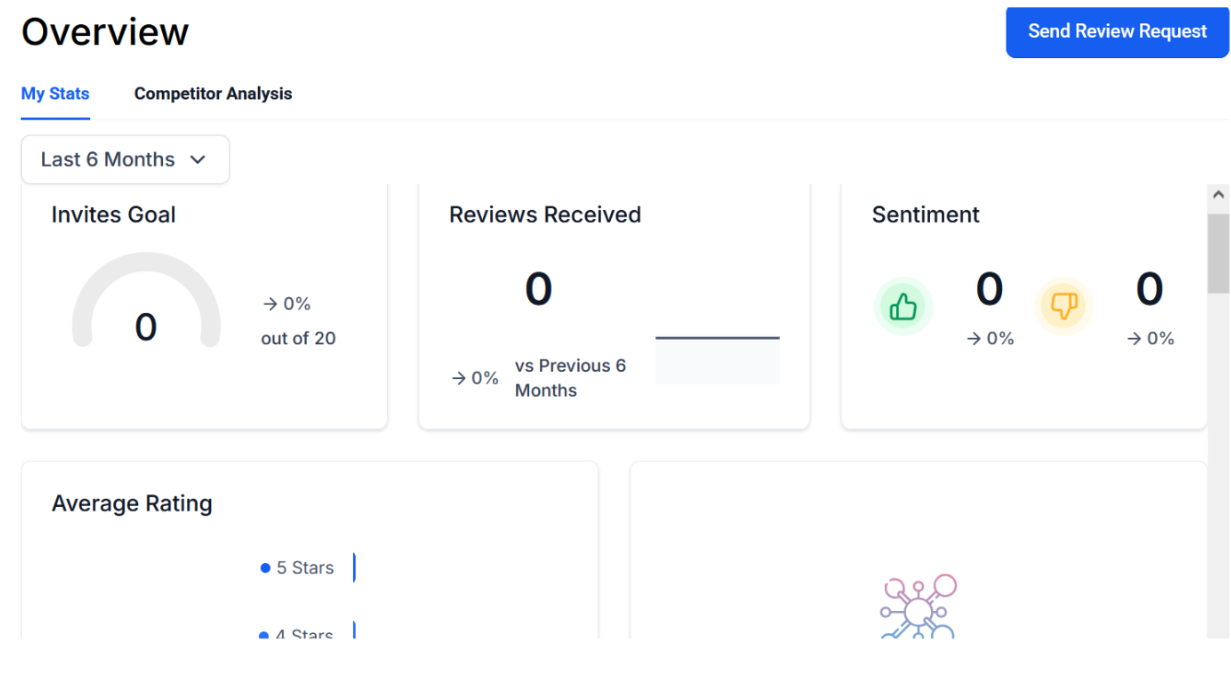
The Reputation Overview Dashboard is a robust tool that offers insights and analytics to help you monitor and manage your online reputation effectively. To access it, simply go to the Reputation > Overview tab within your account.
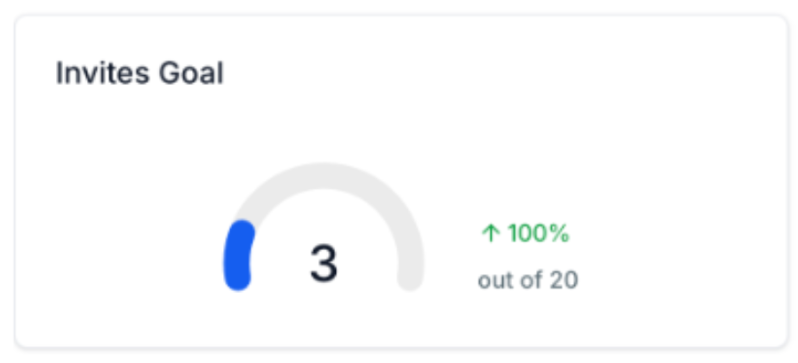
Invite Goals:
The "Invite Goals" section sets predetermined incremental amounts (not editable) that increase as each goal is achieved. These goals serve as motivation to continually improve your reputation management efforts.
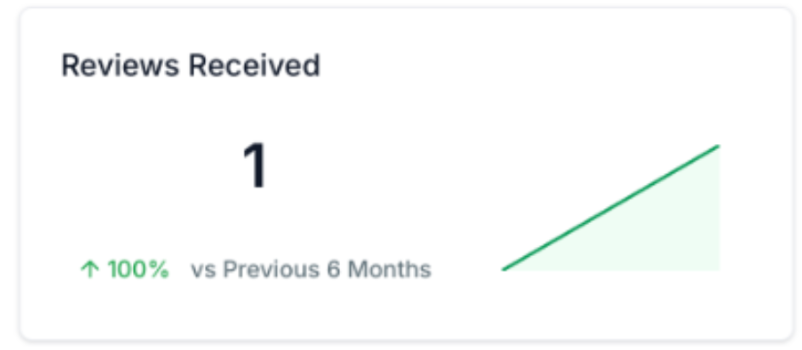
Reviews Received:
In this section, you can view the number of reviews received within the selected time filter. The system pulls in both new and old reviews from Google and Facebook. Ensure that you have integrated each channel within account settings > integrations to retrieve reviews for Google or Facebook.
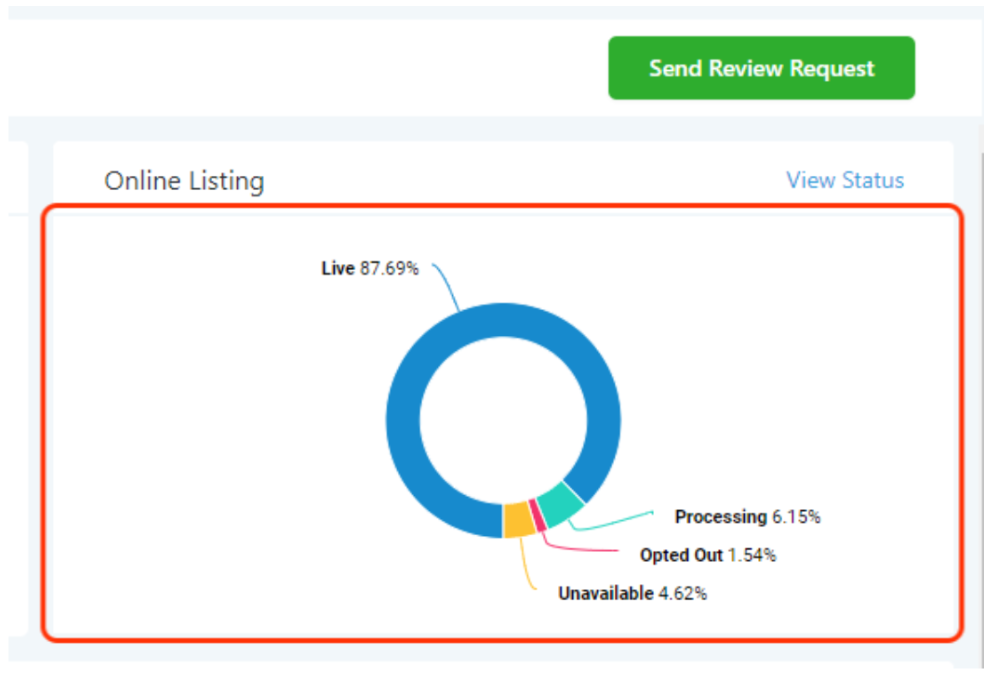
Online Listings (when applicable):
For accounts with Yext enabled and subscribed to location, the "Online Listings" tab provides an overview of your listings in the dashboard. Click on "View Status" in the top right-hand corner for more detailed information.
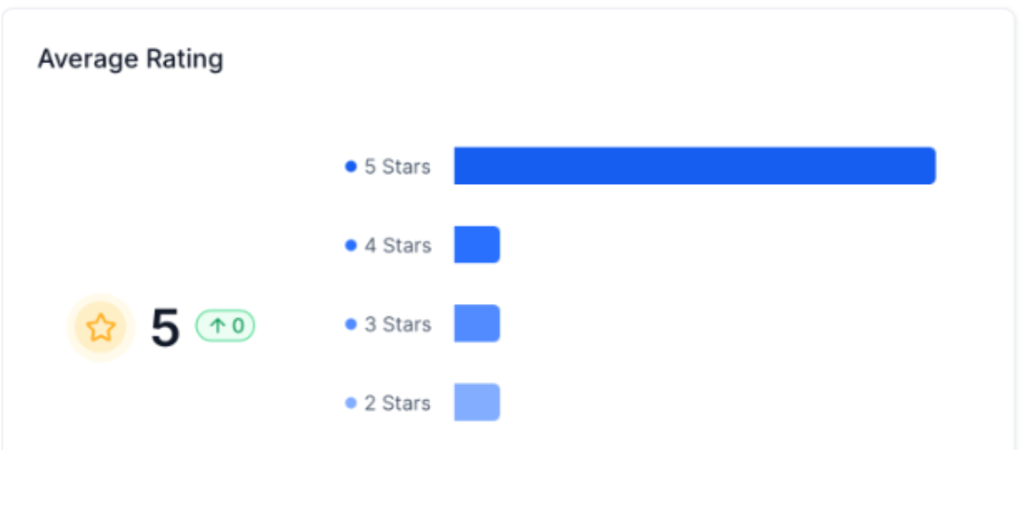
Avg Rating:
The "Avg Rating" represents the total number of stars given within the given time filter divided by the total number of reviews. This metric offers valuable insights into your overall rating.
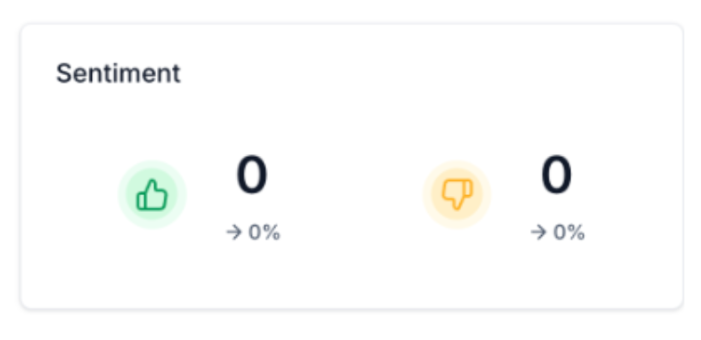
Sentiment:
The "Sentiment" tile utilizes advanced AI to analyze reviews, determining whether they are positive, negative, or neutral. This feature provides a clear breakdown of customer perception and overall feedback tone.
AI Feedback Summaries:
The system can instantly generate concise summaries of customer feedback using AI. These summaries can be adjusted based on selected sources, pages, and date ranges to provide a quick overview of the general consensus without reading every individual review.
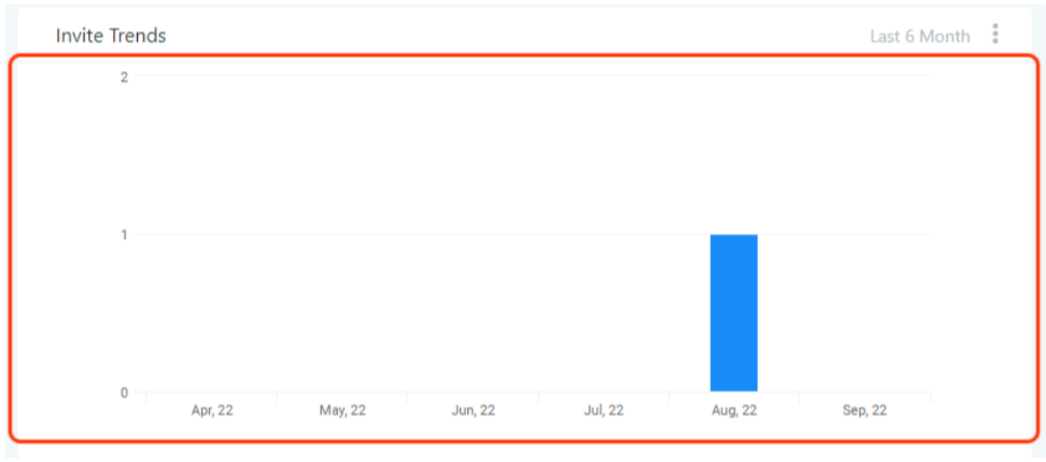
Invite Trends:
The "Invite Trends" section displays the total outbound reviews requested by the account across SMS and email channels within the selected time frame.
Review Requests Analytics:
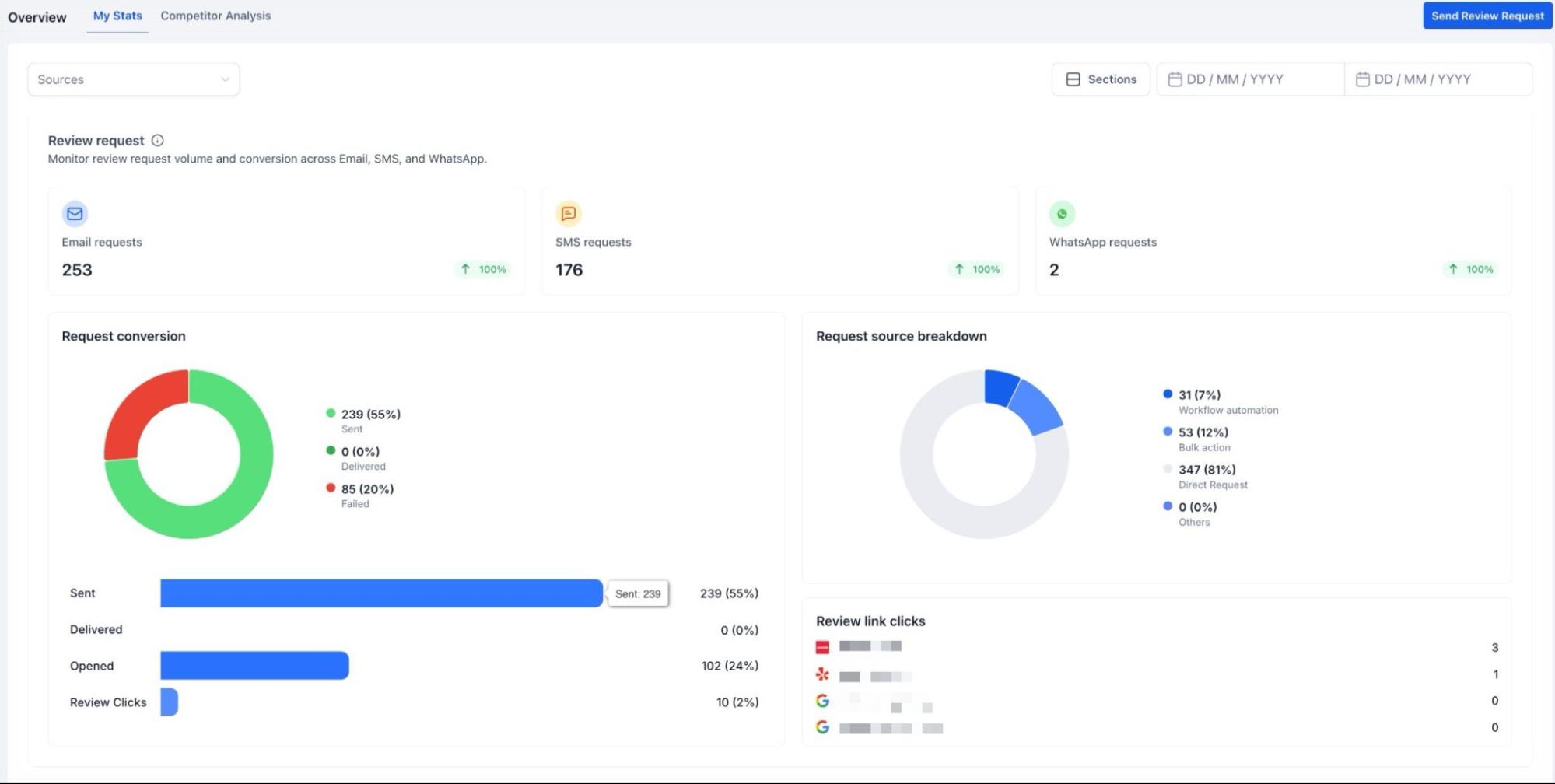
Beyond simple trends, you can monitor the entire performance funnel for review requests. This includes tracking metrics from the moment a request is sent to when it is opened, clicked, and converted into a review. You can also view a breakdown of how requests were initiated, such as through automated workflows, bulk actions, or direct sends.
Review Trends:
The "Review Trends" tile presents a visual bar graph illustrating the reviews received by the system month over month. This graph allows you to track review trends effectively.
Latest Review Requests:
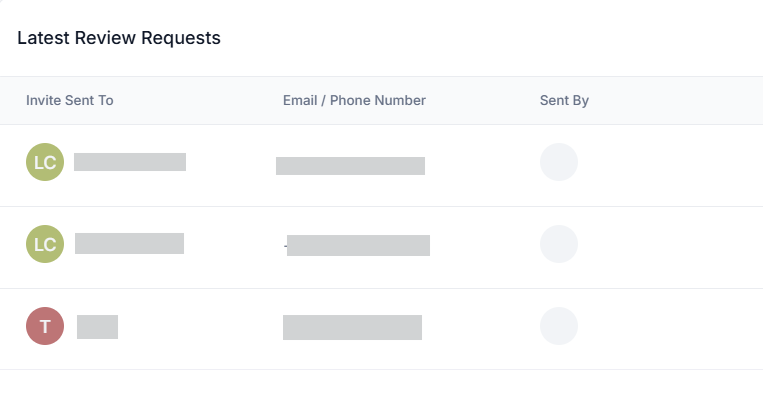
Stay informed with the "Latest Review Requests" tile, which includes details about the invites sent, the channel used (SMS/Email/Whatsapp), and the date of sending.
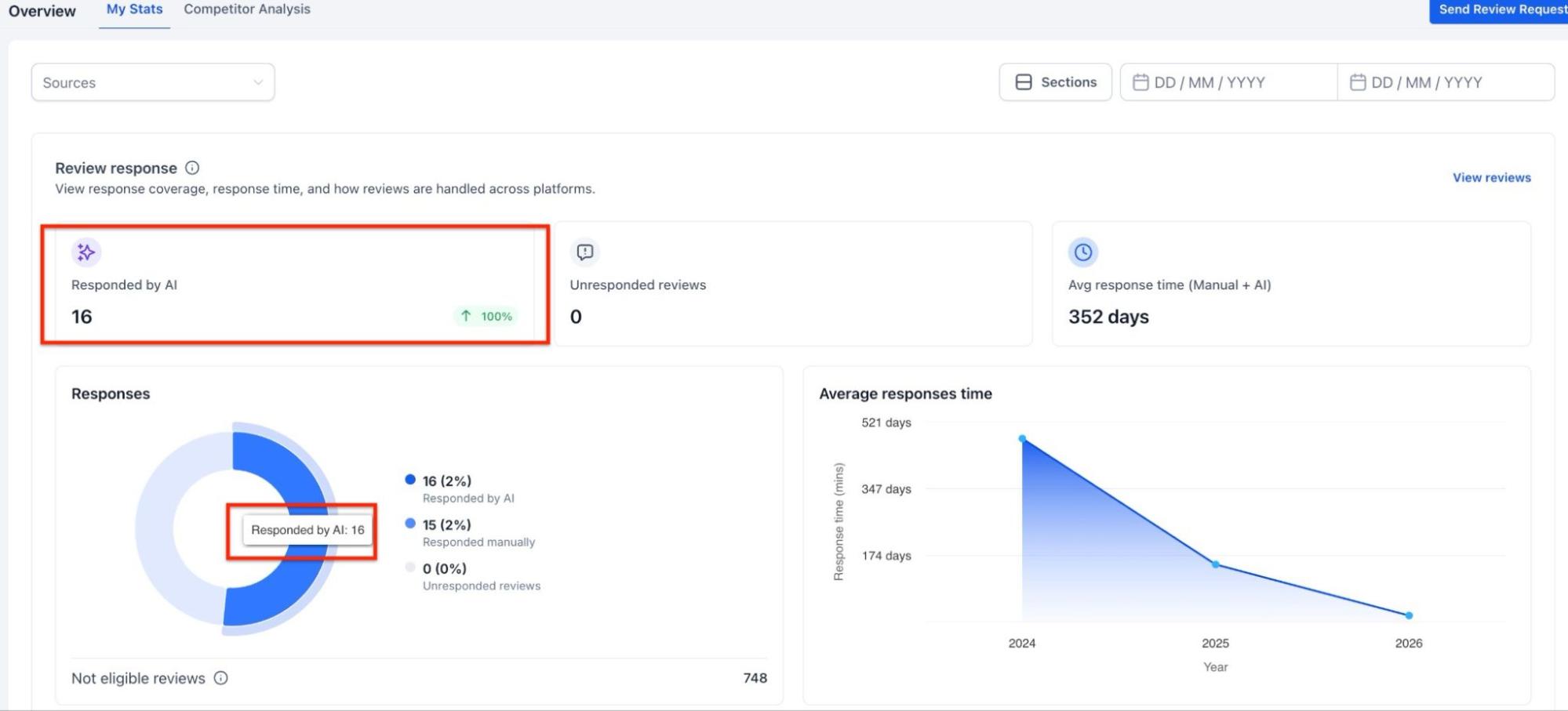
Review Response Insight:
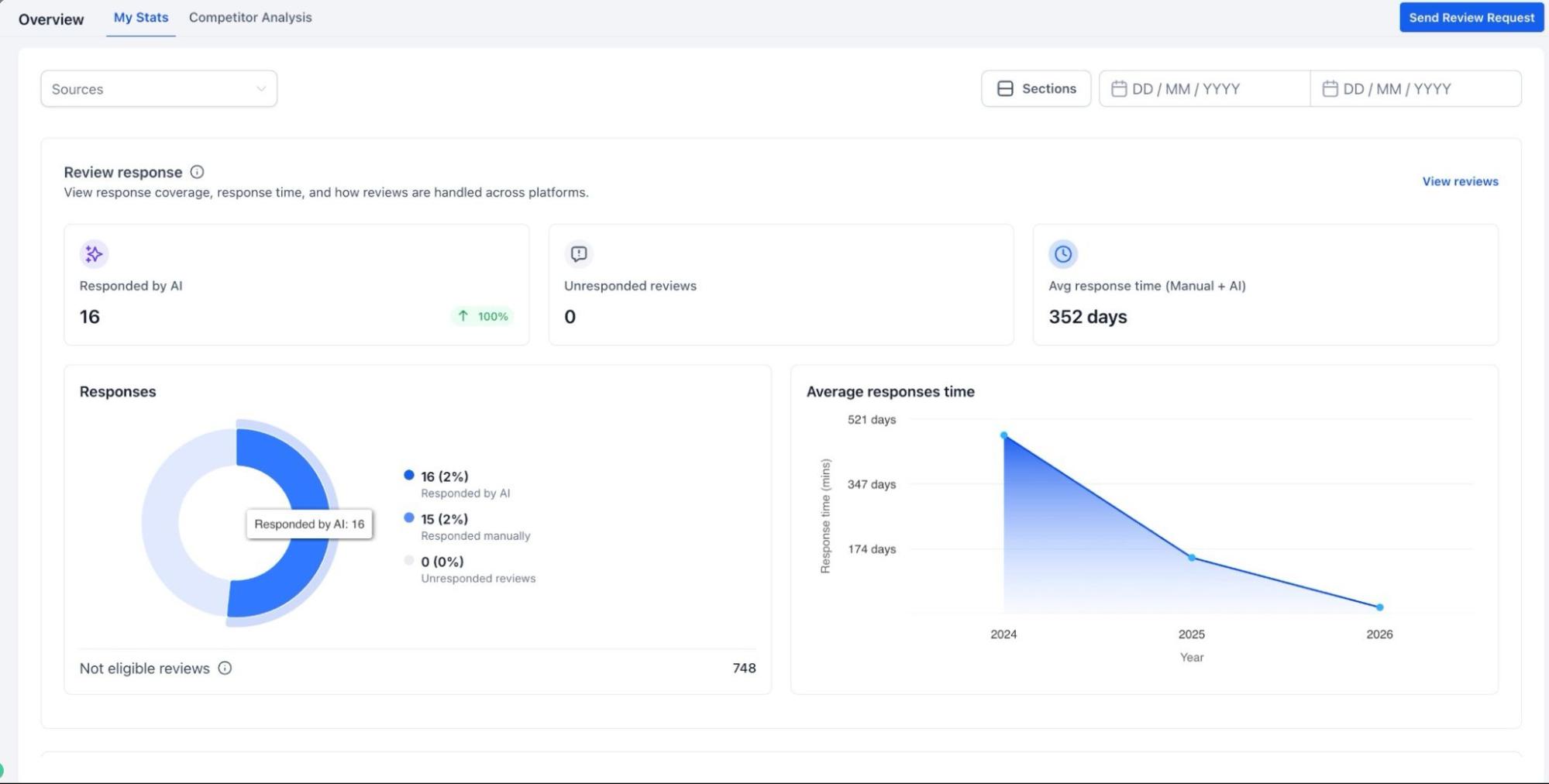
Track how effectively feedback is being handled by measuring response rates and average response times. The dashboard also distinguishes between AI generated responses and manual ones, while highlighting any reviews that have not yet received a reply.
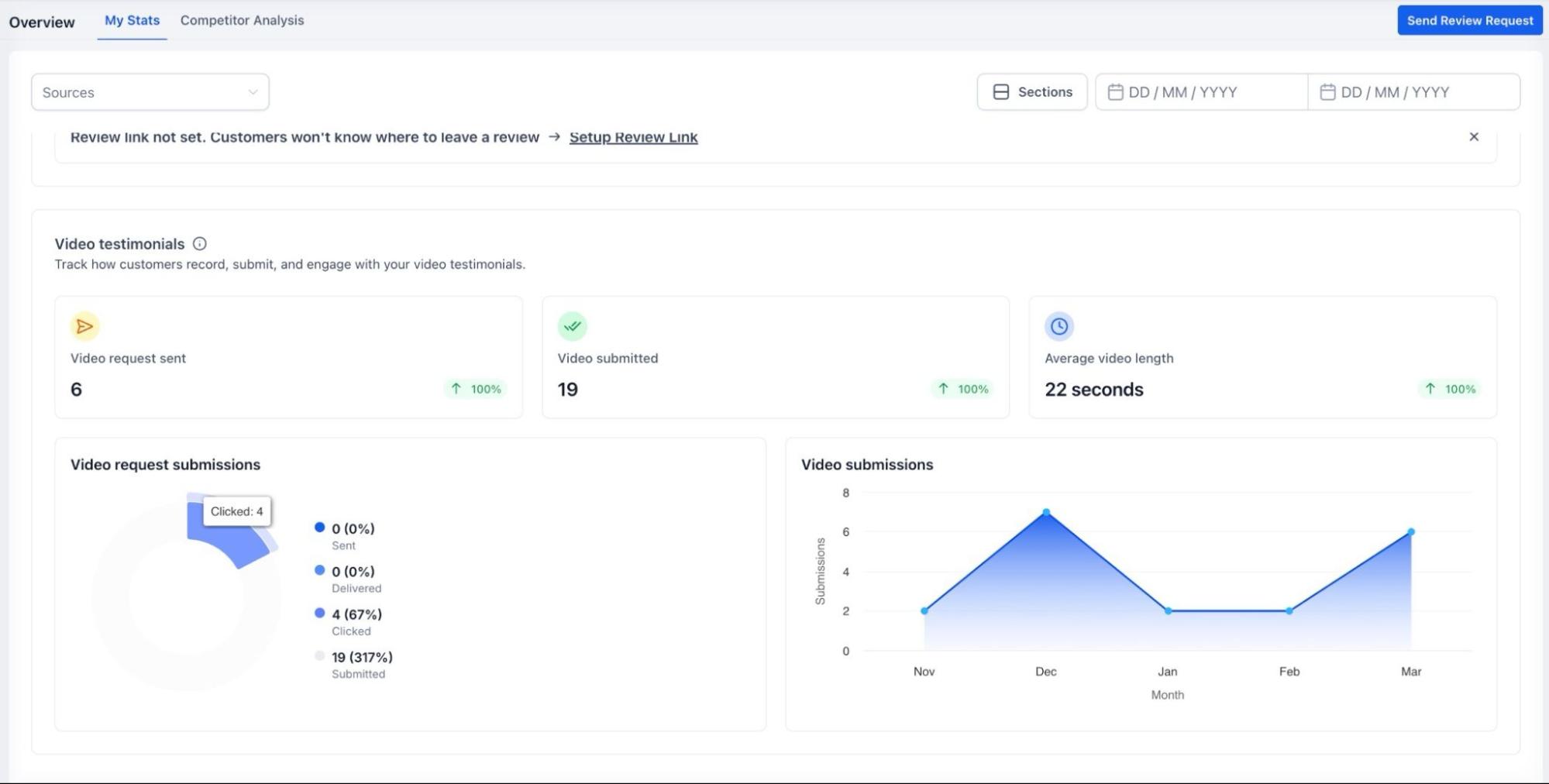
Video Testimonials Tracking:
For accounts utilizing video feedback, the dashboard monitors requests sent, successful submissions, and engagement levels. You can track conversion performance, average video length, and overall submission trends.
Contextual Setup Prompts:
You will encounter "Configure Review Link" calls-to-action (CTAs) across key areas of the platform, such as the Requests Page. This ensures that you are prompted to finalize your destination settings exactly when and where it matters most, before you hit send.
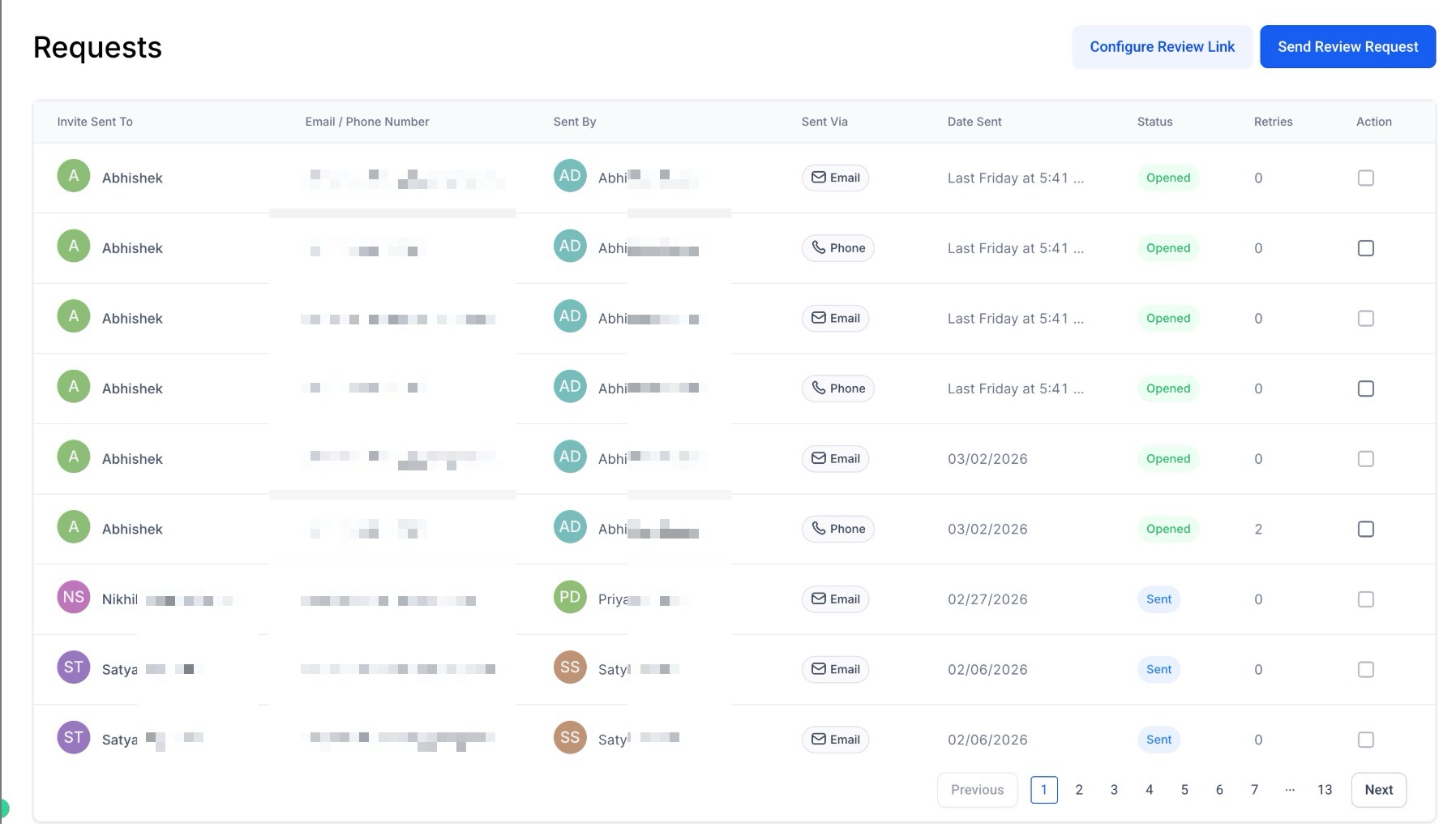
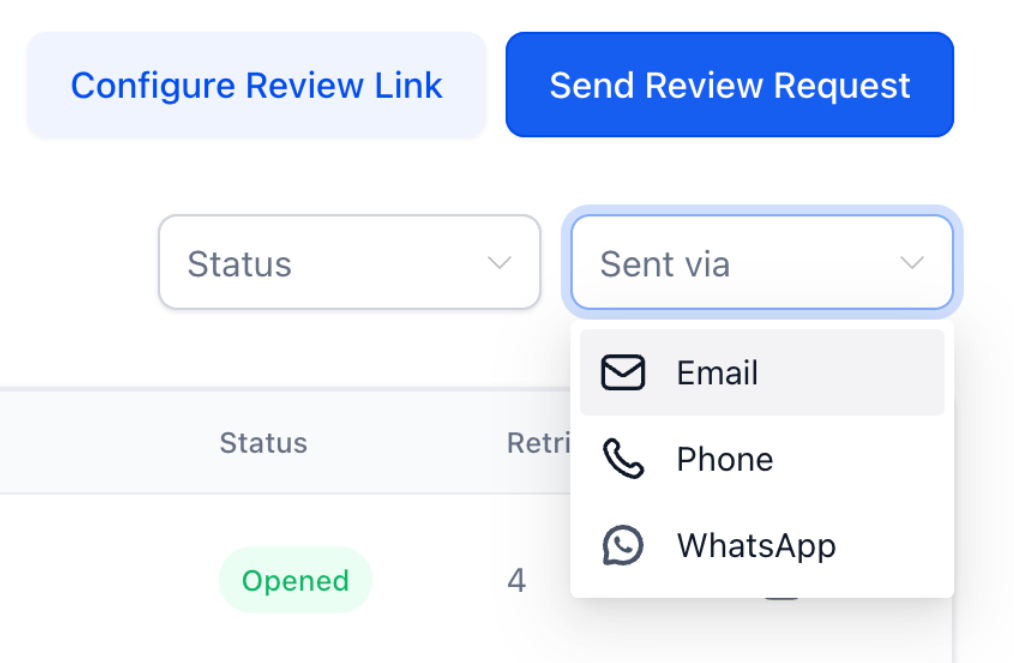
Note: The Review Request page offers powerful search and filtering capabilities, enabling faster and more accurate request management.
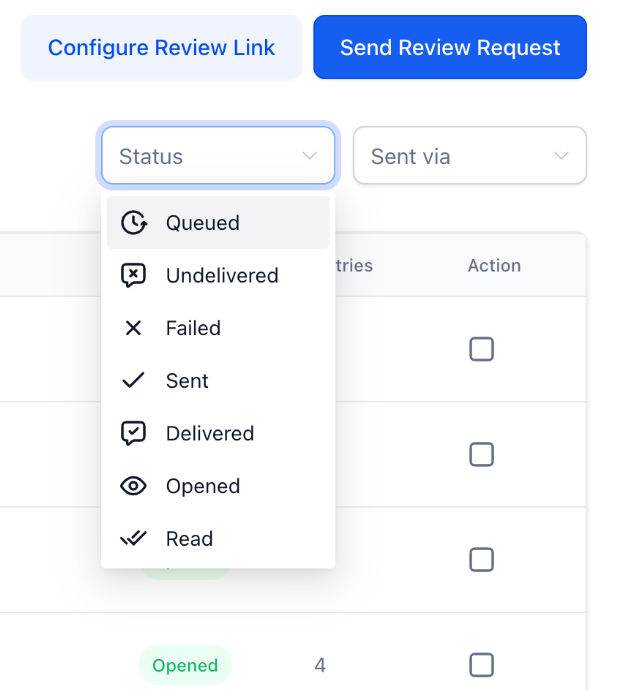
Introduced filters for:
Channels: WhatsApp, Email, and Phone
Statuses: Failed, Undelivered, Sent, Opened, and other supported states
Search: Case-insensitive to ensure easier and more flexible matching
Dynamic Results: Automatically update without requiring a page reload
Pagination: Remains accurately synchronized with filtered and search results
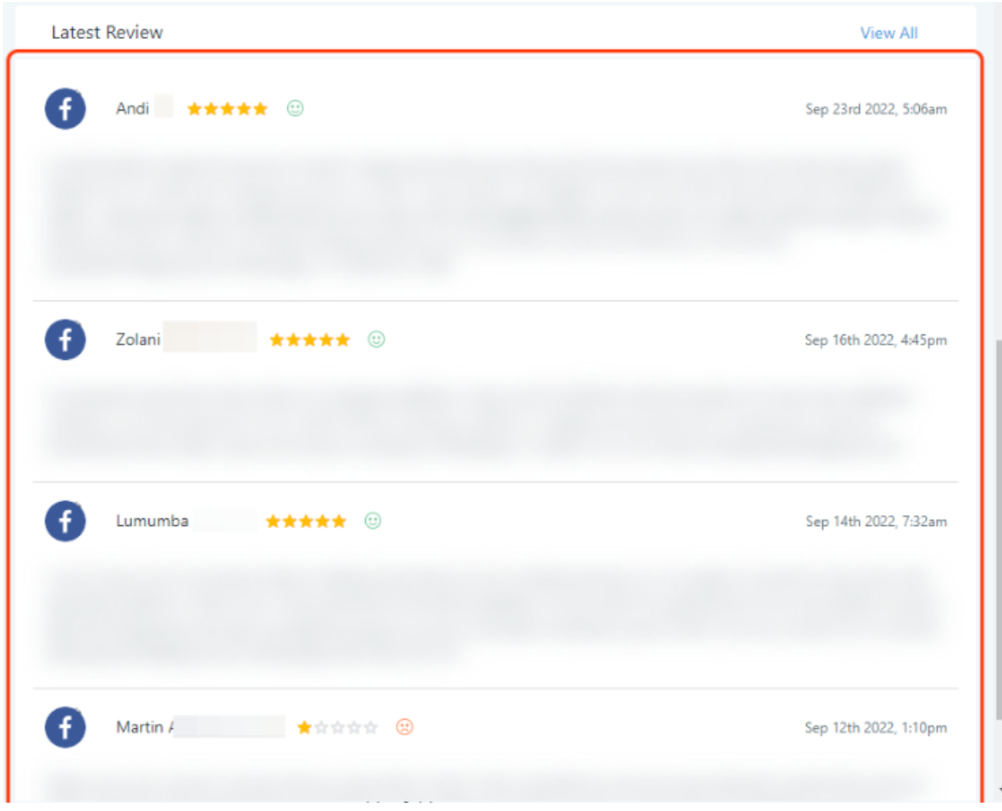
Latest Review:
The "Latest Review" section lists the most recent reviews received, including the contact that left the review on Facebook and Google.
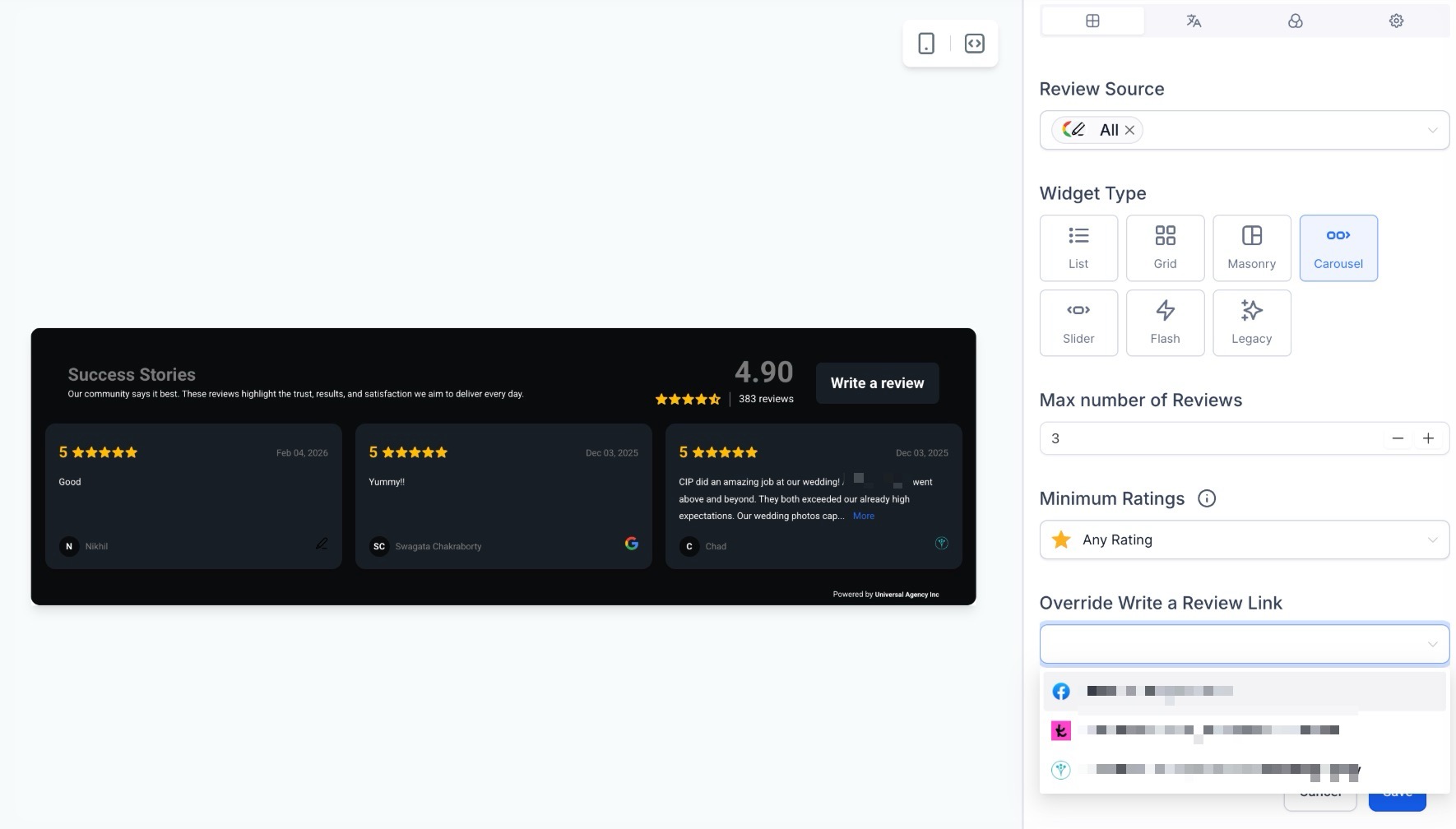
Review Widget Integration:
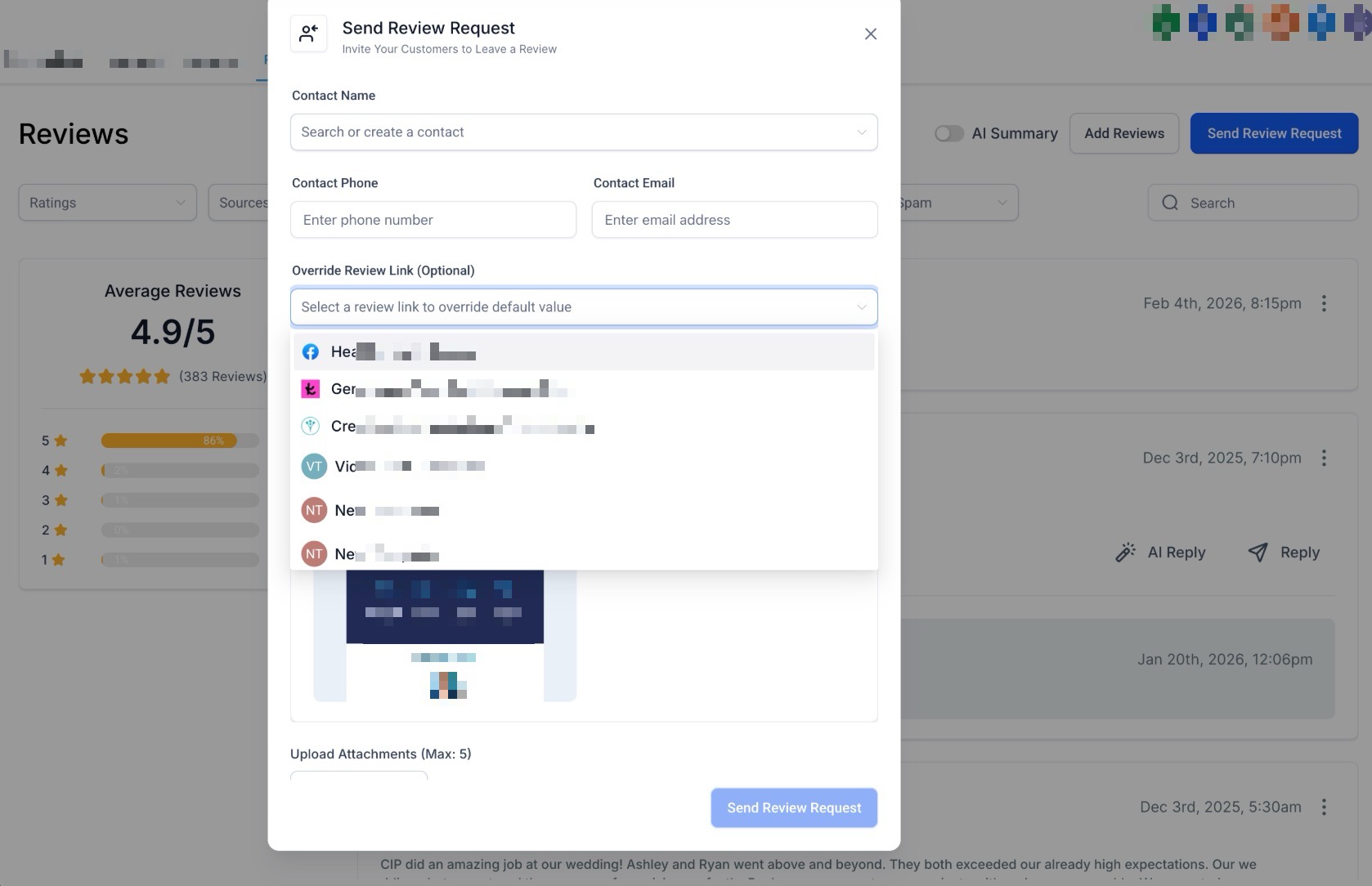
Within the Widget management settings, you can view, select, and override review links directly. This ensures that your website widgets always direct customers to the correct and most relevant review destination.
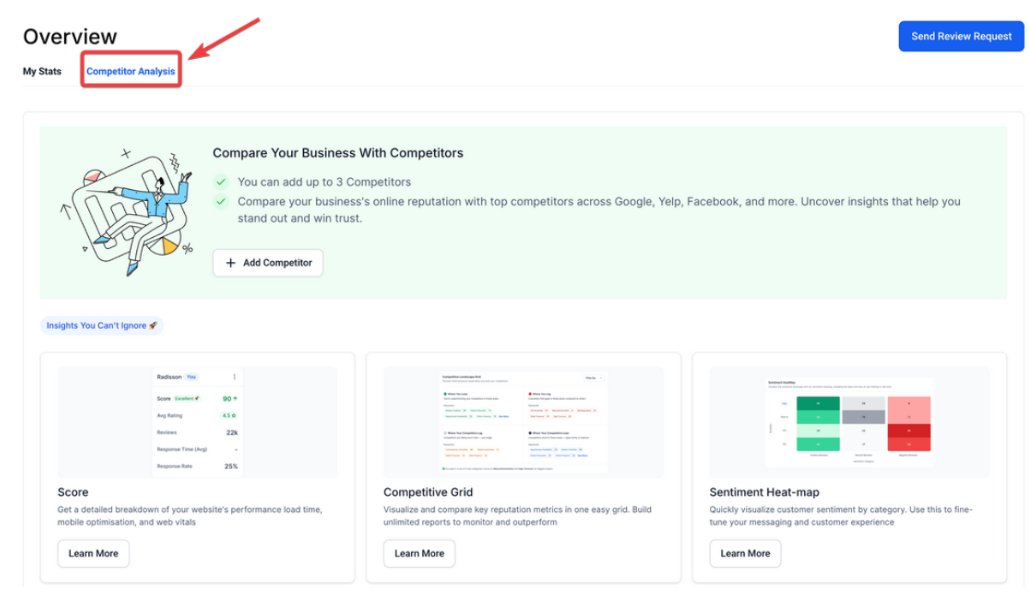
Competitor Analysis
This lets you compare your business’s reputation with up to three competitors across multiple review platforms. You get insights like star ratings, review counts, and response times to see where you stand and spot areas to improve. Just pick your competitors and generate the report.
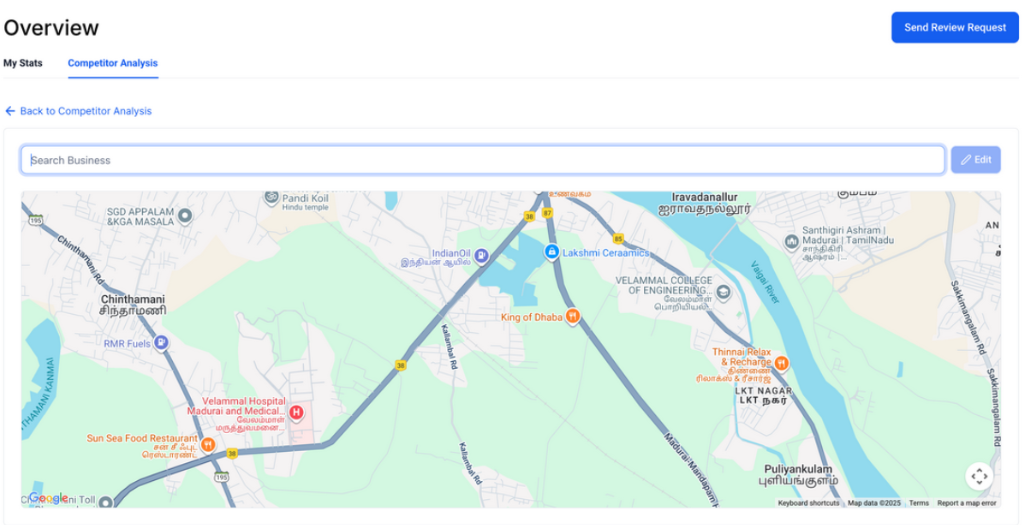
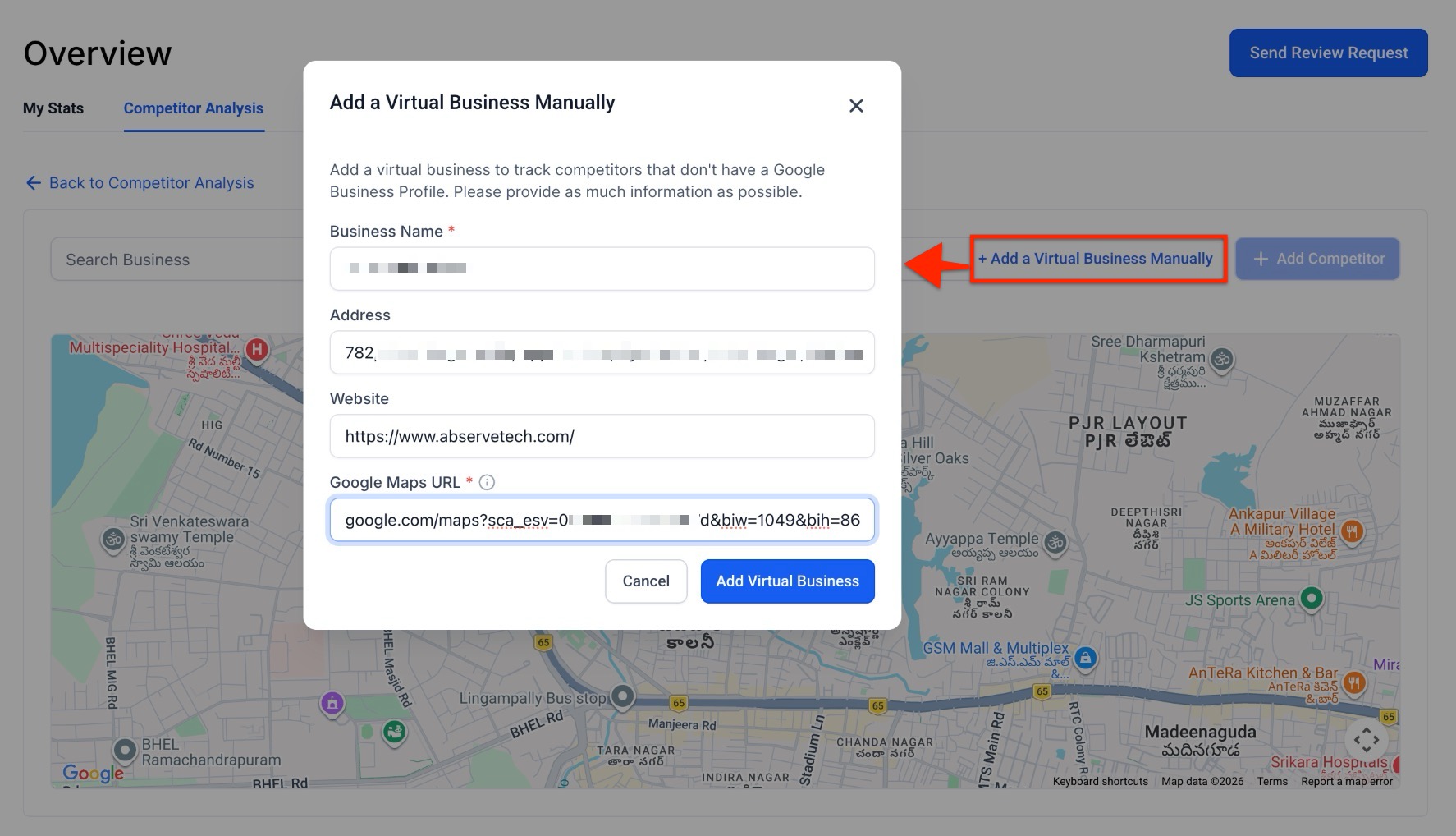
- Virtual Business Support: You can manually add virtual businesses or service-area providers using their website URLs, service regions, or virtual addresses.
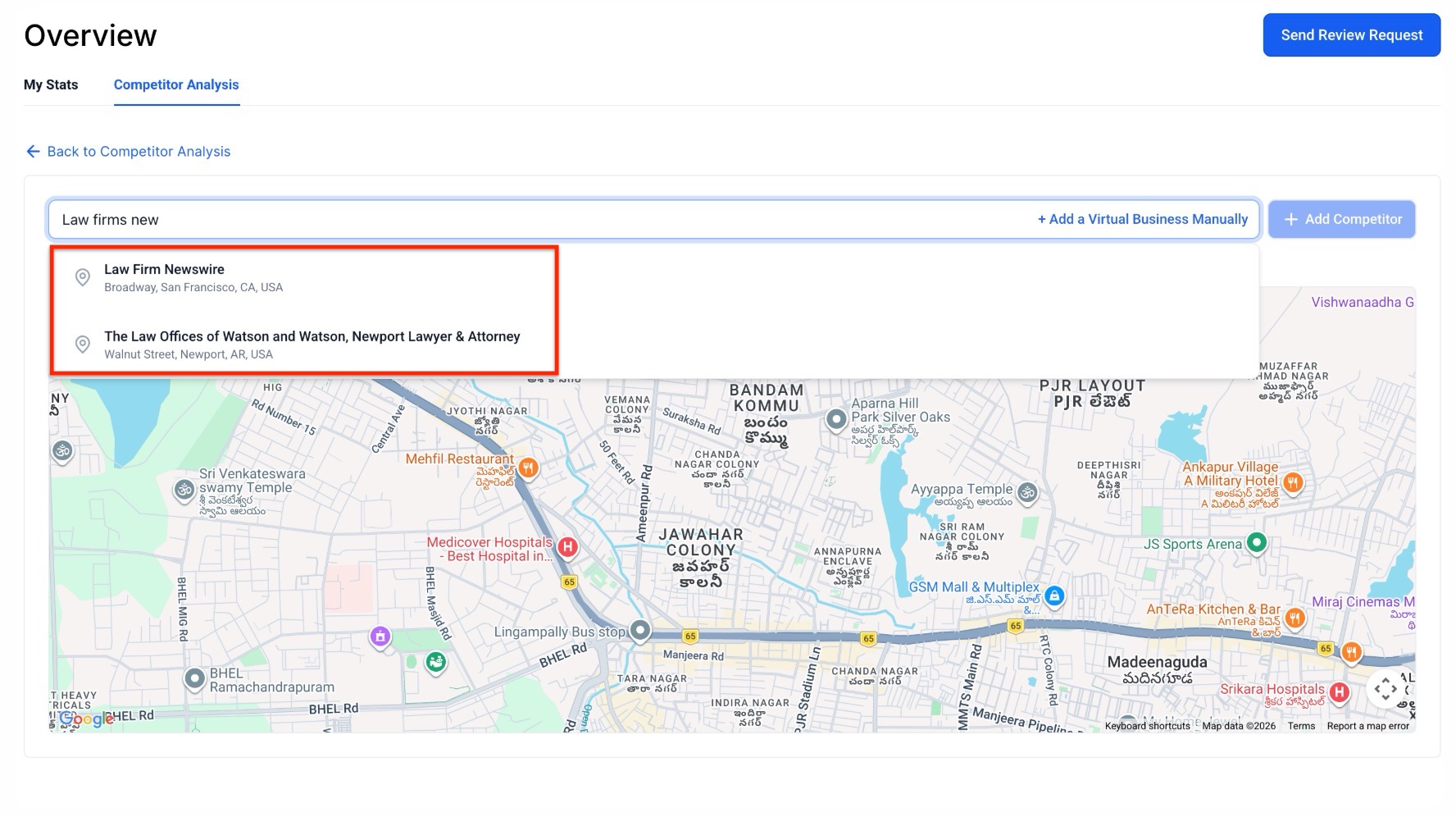
- Streamlined Onboarding: Adding competitors is quite fast with an intuitive search flow. As you type a business name, the system provides instant suggestions to auto-populate details.
- Comprehensive Data: Virtual competitors are fully integrated into all reporting metrics, including keyword share tracking, review benchmarking, and overall rating comparisons.
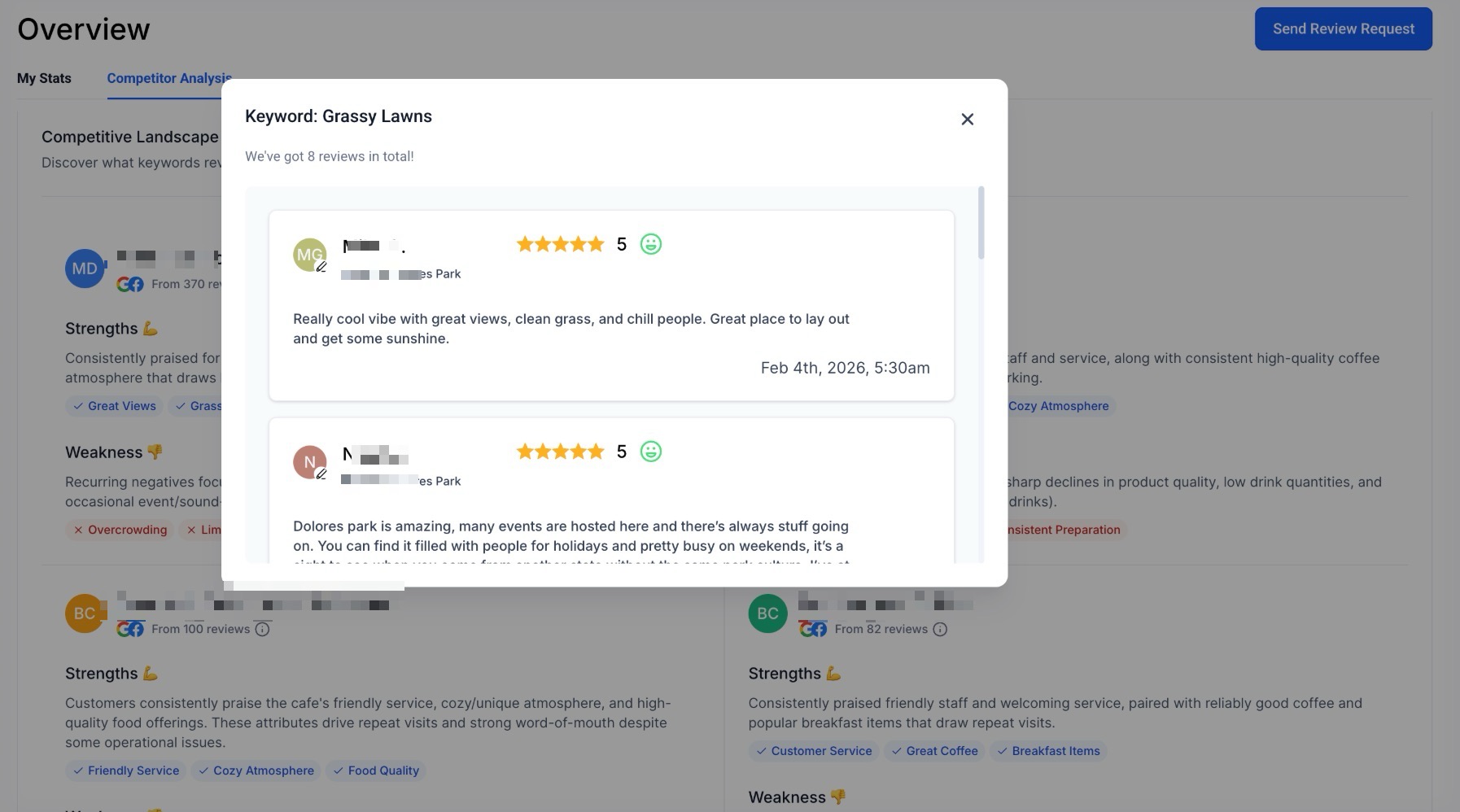
Note: data depends on public information available on review sites
Should you have any questions or need further assistance, our support team is ready to help.
FAQs
Question: What is the Reputation Overview Dashboard?
Answer: The Reputation Overview Dashboard is a tool that provides insights and analytics to monitor and manage your online reputation. It offers a snapshot of reviews, invites, trends, and ratings to help you improve and track your online presence.
Question: Can I customize what I see on the dashboard?
Answer: Yes. You can use the "Sections" control to show or hide specific modules and reorder them to fit your preferred workflow.
Question: How do I access the Reputation Overview Dashboard?
Answer: Go to the Reputation > Overview tab within your account to access the dashboard.
Question: What are "Invite Goals"?
Answer: Invite Goals are incremental, non-editable targets that motivate you to continuously improve your reputation management. Each goal achieved sets a new target to aim for, helping you keep track of your progress.
Question: How can I see the number of reviews received over time?
Answer: The "Reviews Received" section shows the number of reviews collected within a selected time frame. Ensure you’ve integrated Google and Facebook in account settings > integrations to pull reviews from these platforms.
Question: Can I change the review link before sending a request?
Answer: Yes. When sending a review request, you can view the current link and choose to override or change it instantly within the request modal for better customization.
Question: What is the average rating, and how is it calculated?
Answer: The average rating represents your average star rating over a specific period. It’s calculated by dividing the total stars received by the number of reviews.
Question: How do I know if my review link is configured correctly?
Answer: The dashboard features "Smart Notifications." If a link is set, you’ll see a success indicator. If it isn’t, a notification will prompt you to take action. You will also see "Configure" prompts on the Requests page.
Question: How does the Sentiment feature work?
Answer: The Sentiment tile uses Google’s AI to analyze the tone of reviews from Google and Facebook, indicating whether the feedback is positive or negative. This helps you understand customer sentiment at a glance.
Question: What is the Invite Trends section?
Answer: Invite Trends shows the total number of review requests sent out via SMS, Emails & WhatsApp within a selected period, giving insights into your outreach activity.
Question: How can I track Review Trends over time?
Answer: The Review Trends tile displays a bar graph of monthly review volumes, allowing you to visualize changes in review frequency.
Question: What information does the Latest Review Requests section provide?
Answer: This section shows recent review invites sent, including the channel used (SMS/Email/WhatsApp) and the date of each request.
Question: Where can I find the most recent reviews received?
Answer: The Latest Review section lists the most recent feedback left on Google and Facebook, including details of the contact who posted it.
Question: How can I compare my reputation with competitors?
Answer: You can use the "Competitor Analysis" feature to compare your business’s reputation against up to three competitors. This tool provides insights into star ratings, review counts, and response times, helping you understand your position in comparison and identify areas for improvement.
Question: Is WhatsApp included in review invite tracking?
Answer: Yes, if enabled, WhatsApp invites are included in Invite Trends and Latest Review Requests alongside SMS and email.