
How to use Text2Pay
The “Text 2 Pay” feature allows you to send a payment link directly to a contact for them to pay you for products or services. You can do this through an individual contact record or the Conversations tab. The available link will include an option for them to click directly there to make a payment to you. This is a great and convenient way to process payments. Follow the steps below to start using the “text 2 pay” feature.
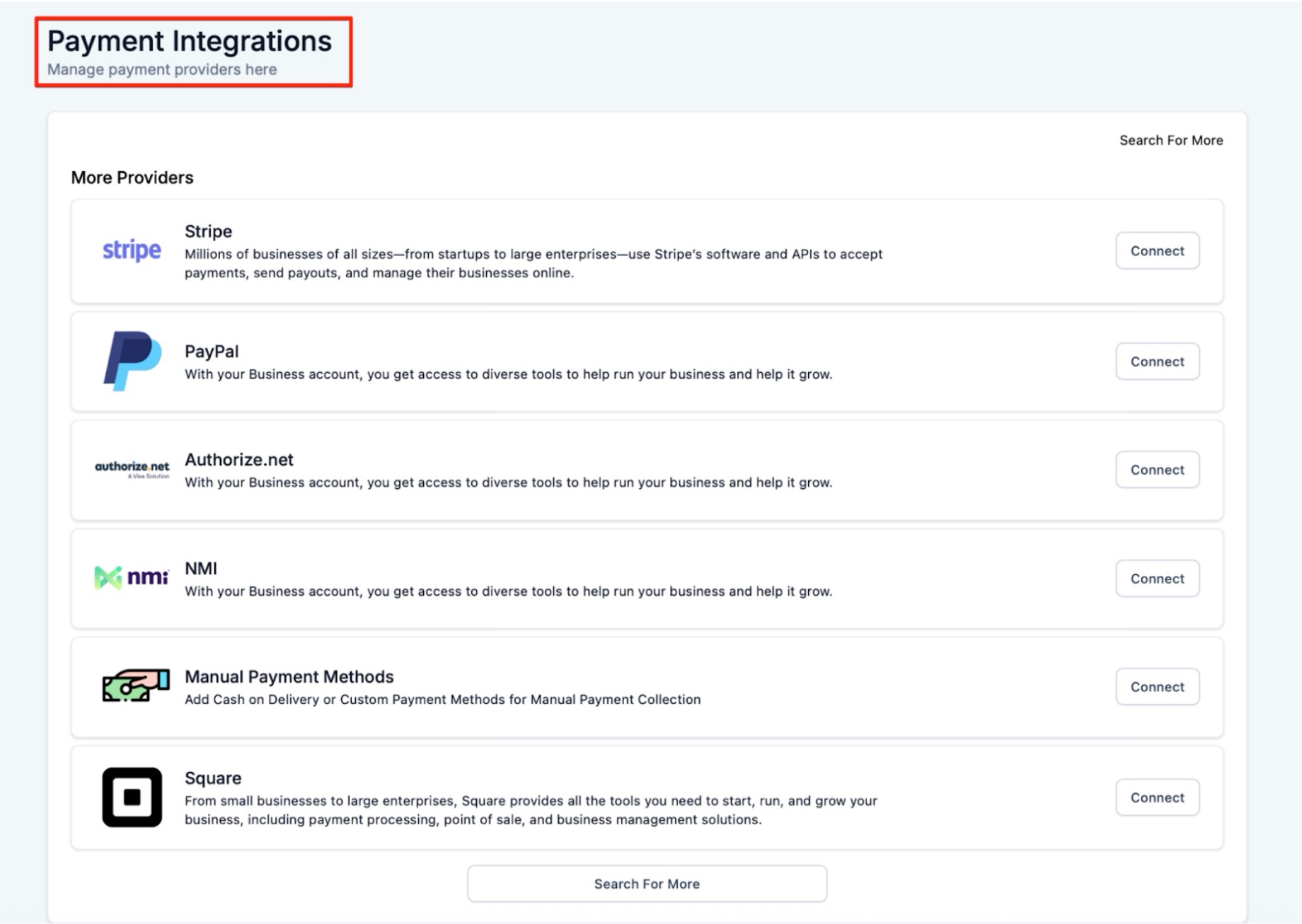
Step 1: Ensure your Stripe, Authorize.net, or Network Merchants Inc. account is integrated.
- Navigate to Marketing & Sales > Payments > Integrations
- Connect your payment gateway and choose a default.
Step 2: Create the invoice link.
- Navigate to Conversations and choose a contact, or navigate to Contacts and click on the contact record.
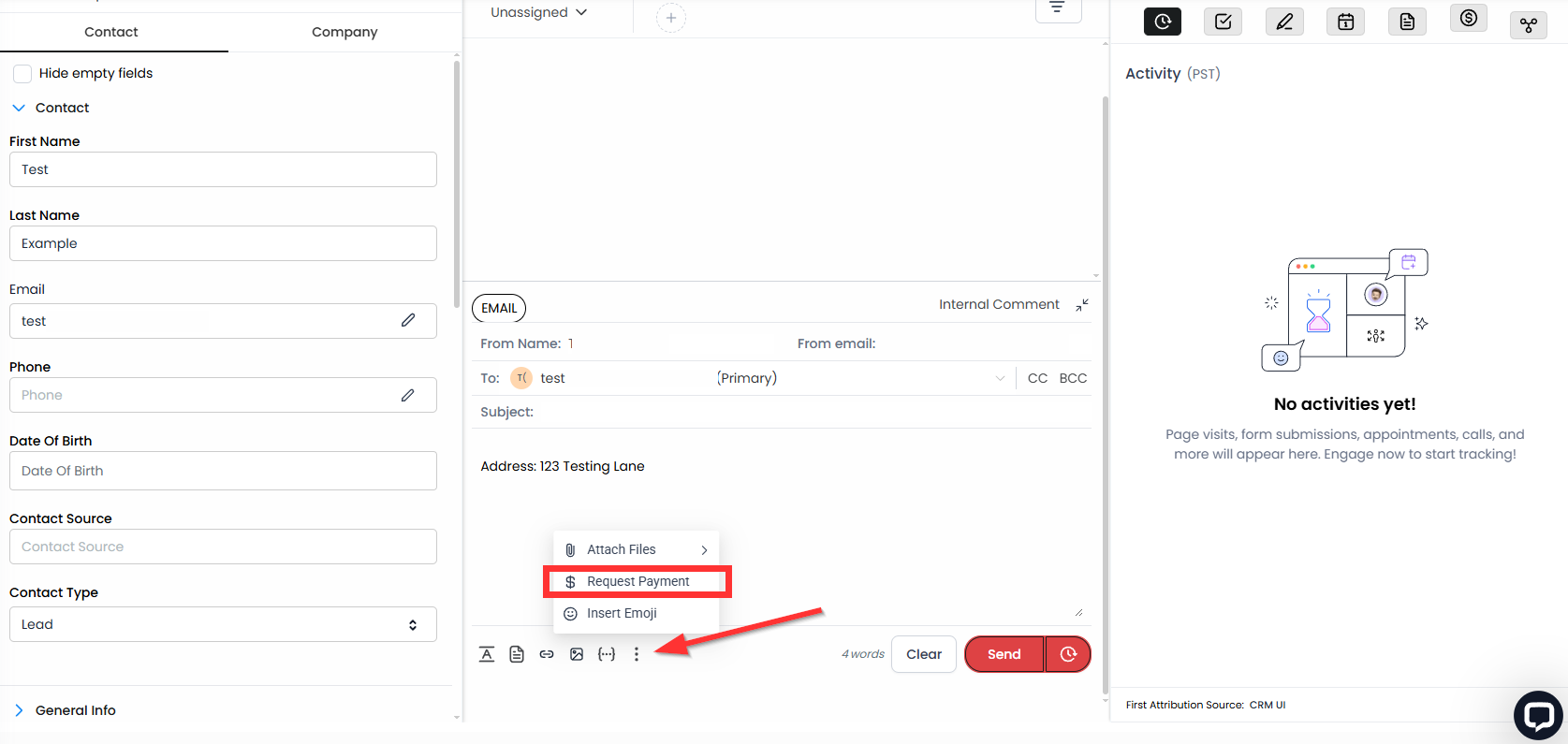
- Within the messaging section, select the 3 dots shown below. This will bring up an option to Request Payment:
- A pop-up window will appear that looks like this:
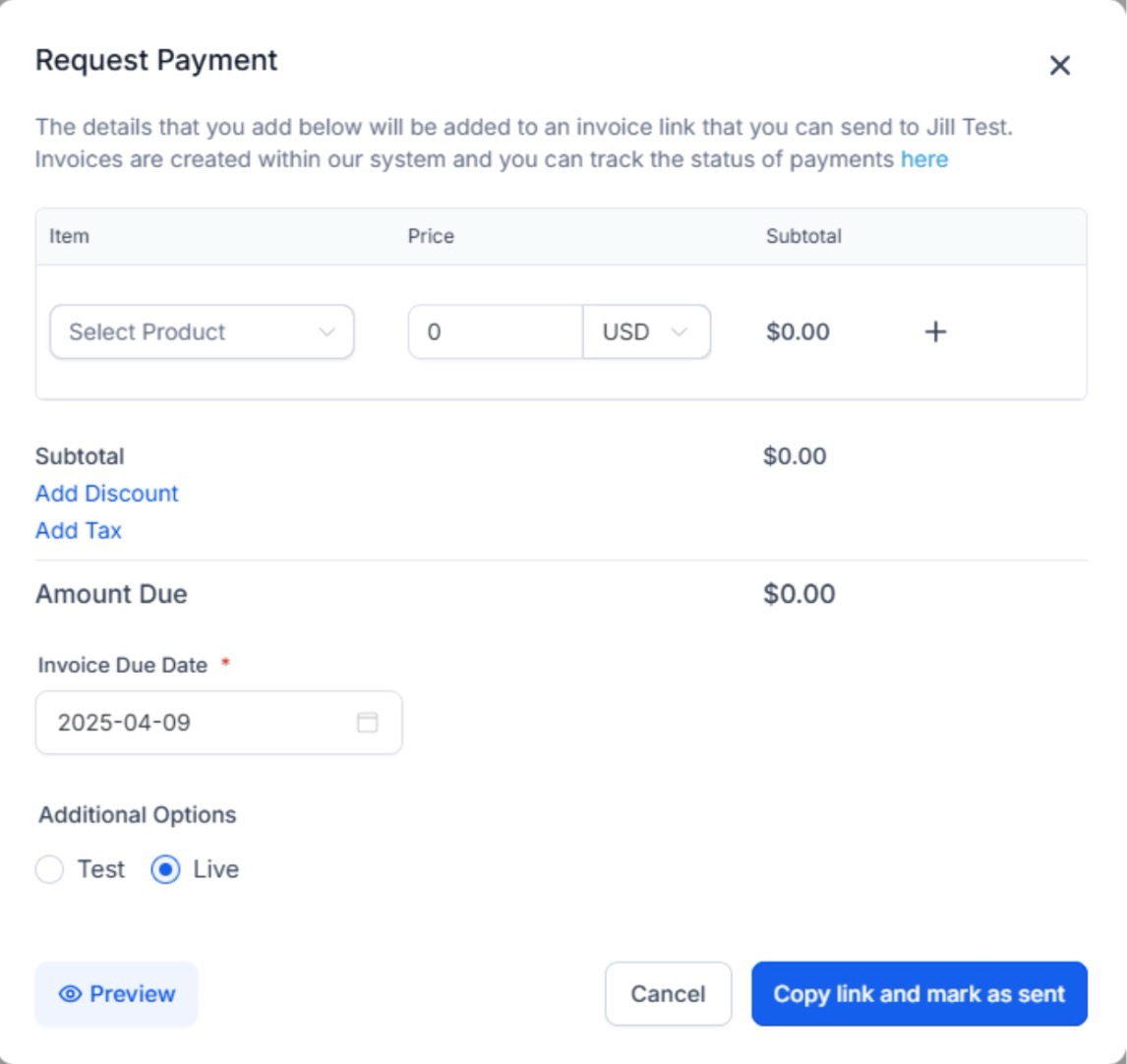
- You can add a product with a name and cost.
-
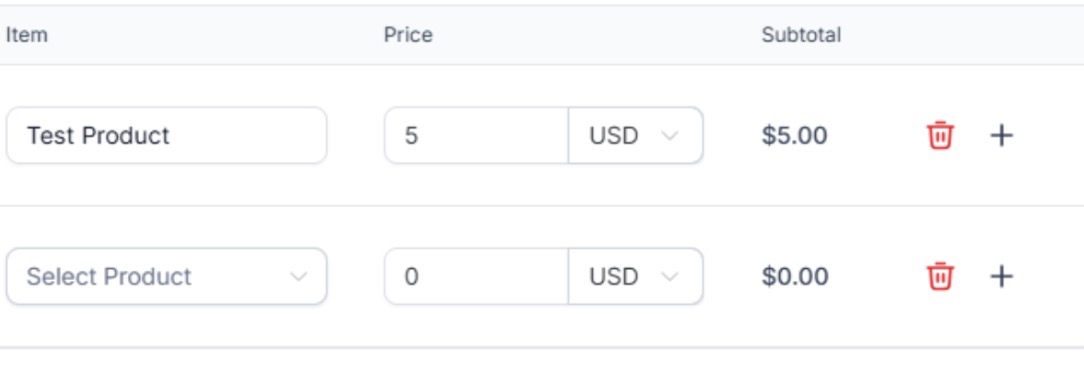
Click on Select product and choose an available product from the dropdown to add it, or click the trash icon to delete any you wish to remove.
-
Add taxes and discounts directly from the payment model. Users can also modify the payment due date.
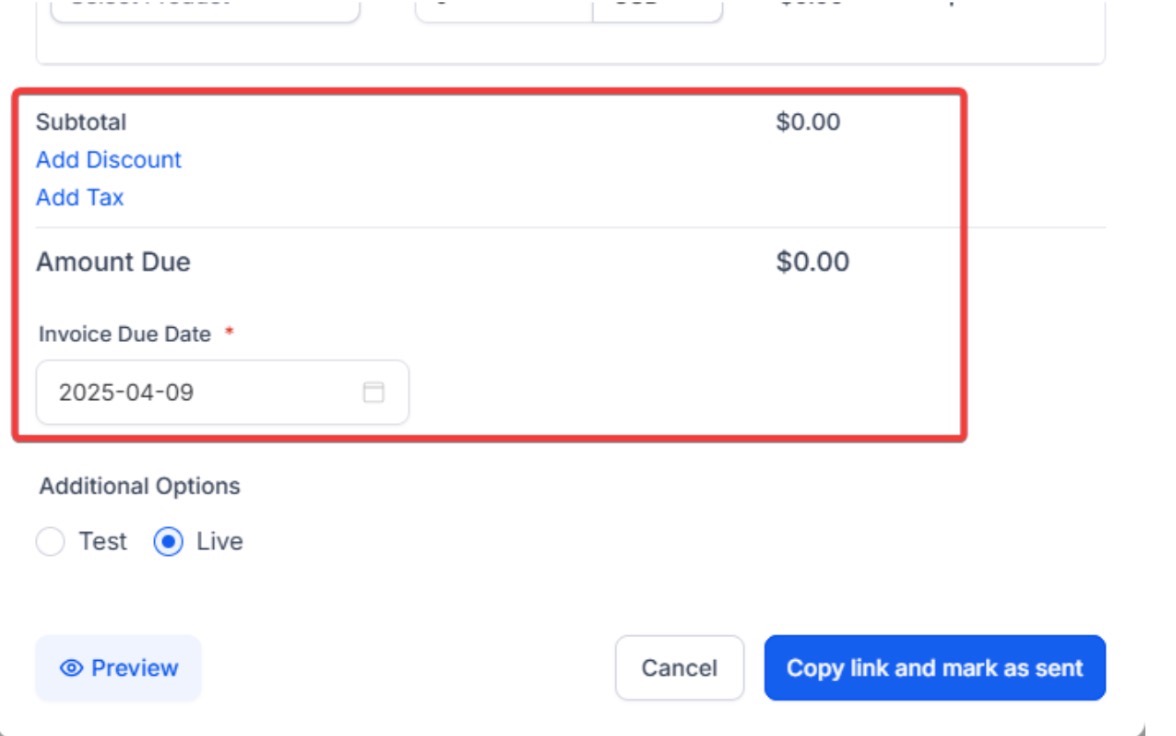
- You’ll see the total added up under the list of items.
- The invoice number will be automatically generated.
Step 3: Send the SMS Message
- The payment link will be created in the SMS draft.
- Add Additional Text: Include any extra information or instructions in the SMS draft.
- Send Your Message: Review and send the SMS to the contact.
FAQs on Using the “Text 2 Pay” Feature
Question: What is the "Text 2 Pay" feature?
Answer: The "Text 2 Pay" feature allows you to send a payment link directly to a contact via SMS, enabling them to make a payment for products or services.
Question: Which payment gateways can I use with this feature?
Answer: You can integrate Stripe, Authorize.net, or Network Merchants Inc. to use the "Text 2 Pay" feature.
Question: How do I create an invoice link?
Answer: Navigate to Conversations, choose a contact, click on the Request Payment icon (a circle with a dollar sign), then add a product, taxes, and discounts, and review the total before sending the SMS.
Question: Can I modify the payment due date?
Answer: Yes, you can modify the payment due date directly from the payment model when creating the invoice link.
Question: How do I send the payment link?
Answer: Once the payment link is created, it will be added to an SMS draft. You can add additional text, review the draft, and then send it to the contact.
Question: Can I edit or cancel a payment request after sending it?
Answer: You can delete or void an invoice from the Payments dashboard before it’s paid. However, once sent via SMS, the link cannot be edited directly from the conversation thread.
Question: Can recipients pay directly from their mobile device?
Answer: Yes, the link sent via SMS allows recipients to complete their payment directly on their mobile device.
Question: Can I use Text 2 Pay for one-time and recurring charges?
Answer: Text 2 Pay is best suited for one-time payment requests. Recurring billing typically requires setting up a separate recurring payment or subscription flow.
Question: Can I send a Text 2 Pay link via Email instead of SMS?
Answer: Yes. While it is called "Text 2 Pay," the "Request Payment" icon is also available when you are drafting an email to a contact. Clicking the icon will generate a similar link that can be embedded in your email message.
Question: How is the invoice number for a "Text 2 Pay" request determined?
Answer: The invoice number is automatically generated by the system once you create the payment link.
Question: Does the payment link appear automatically in my message box?
Answer: Yes. Once you finish configuring the items in the pop-up and click to proceed, the system automatically generates the payment link and places it into your SMS draft.
Question: Can I add multiple items or taxes to a single Text 2 Pay request?
Answer: Yes. The pop-up window allows you to select multiple products from a dropdown menu, delete items using the trash icon, and add specific taxes or discounts before the total is calculated.