
Workflow Actions: Create, Update and Clear Fields of Associated Records
With the help of Automation, businesses can create, update, and clear fields of associated custom object records within contact-based workflows. This eliminates the need for manual data entry, ensuring records remain accurate and up to date while improving efficiency.
Key Features
- Create Associated Records Automatically – Generate custom object records dynamically when a workflow is triggered.
- Update Custom Object Fields – Modify specific fields within an associated record when conditions are met.
- Clear Outdated Data – Reset selected fields without deleting the entire record.
How to Use the New Workflow Actions
Step 1: Access the Workflow Builder
- Navigate to Tools & Reporting > Automations > Workflows in your Mastermind account.
- Start a new workflow or open an existing one.

Step 2: Select the Action Type
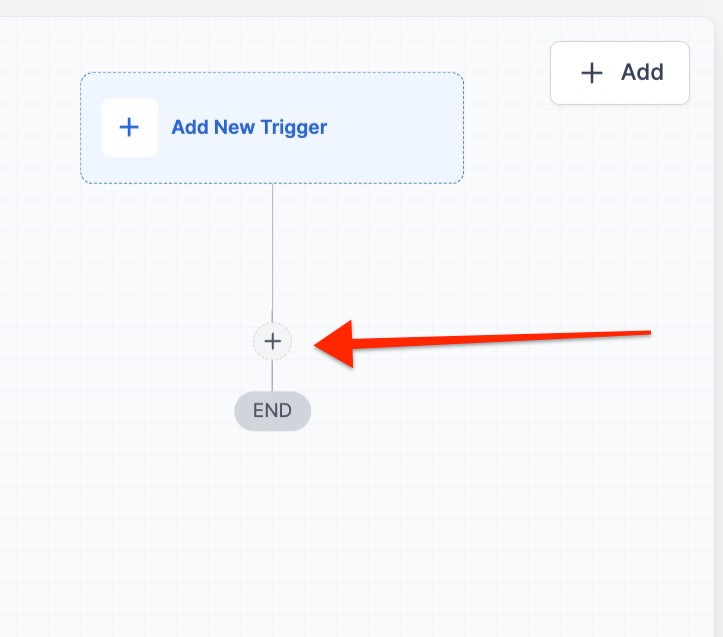
- Click the + icon to Add Action and choose one of the custom object management options:
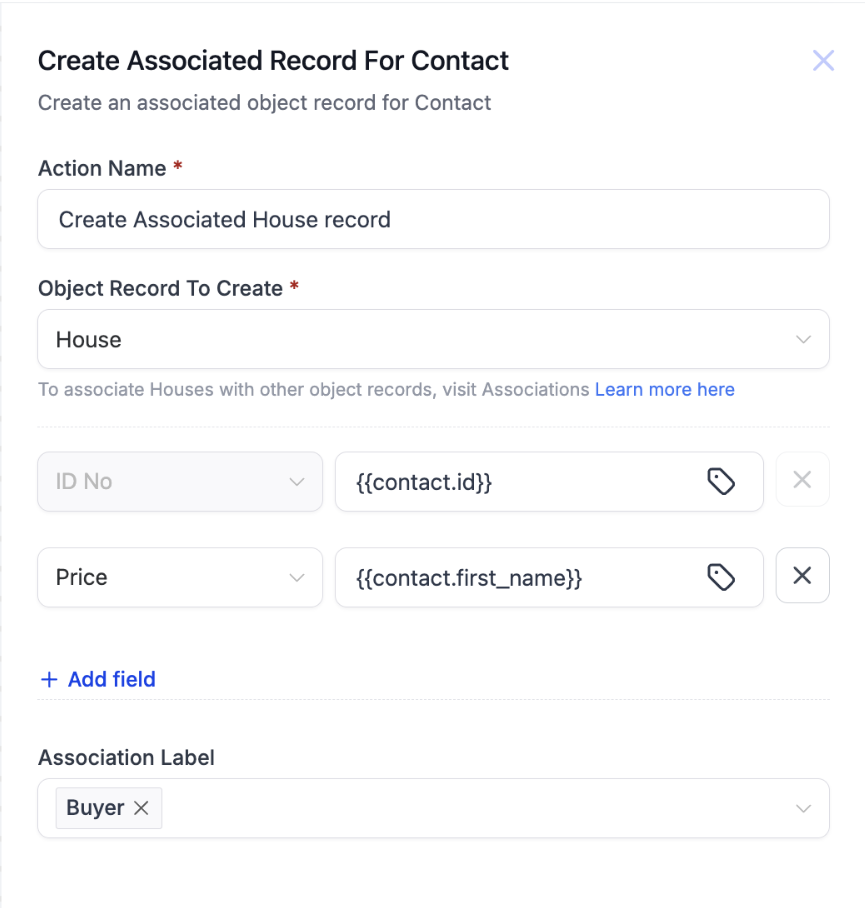
- Create an Associated Record – Generates a new custom object record. Associate the newly created record with a contact using a predefined association label.
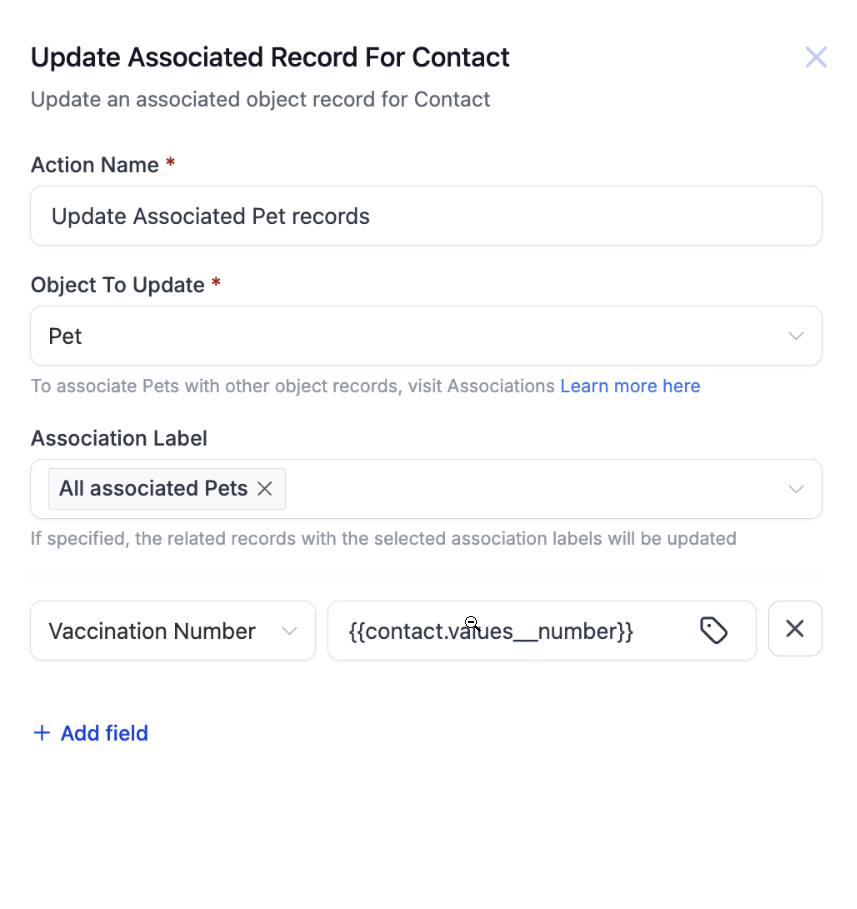
- Update an Associated Record – Modifies fields within an existing associated record. Update specific fields within the associated record when certain conditions are met.
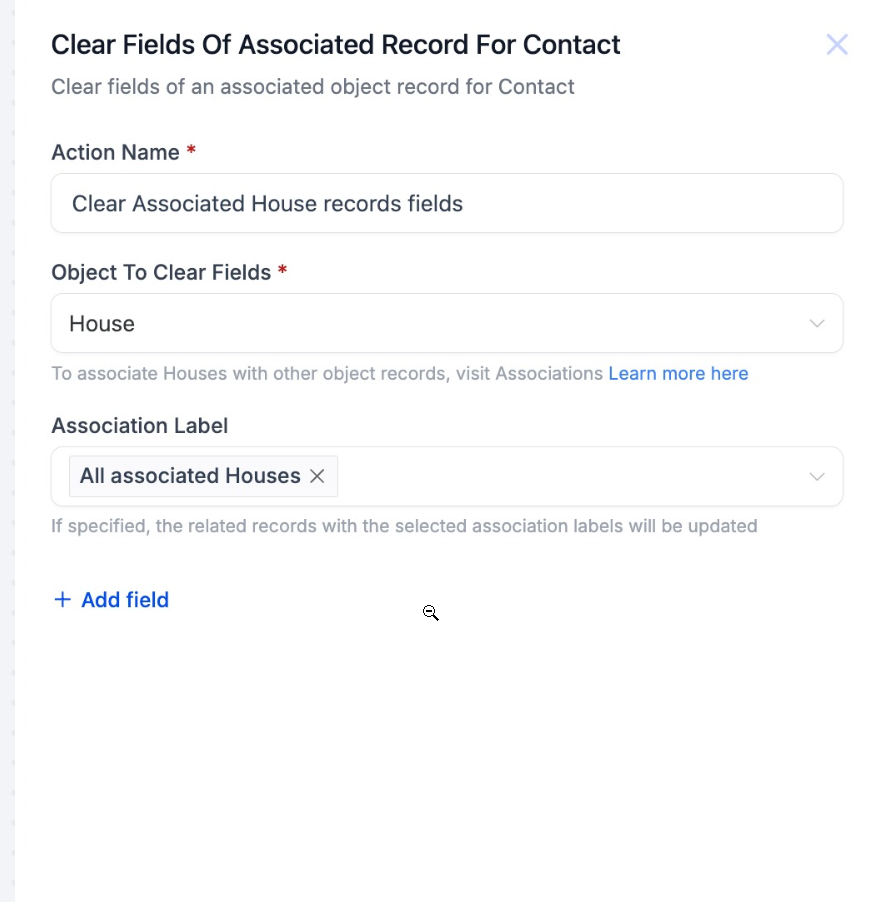
- Clear Fields of an Associated Record – Resets specific fields without deleting the record.
Step 3: Save and Activate the Workflow
- Once configured, save the workflow and activate it to automate custom object management.
- The system will now dynamically handle records based on workflow triggers.
Pro Tips
- Use clear association labels to ensure accurate record linkage within workflows.
- Regularly review automated updates to maintain data integrity and prevent errors.
- Combine these actions with conditional logic to refine automation based on specific triggers.
- Test before deployment by running workflows in a test environment before applying them to live data.
FAQs
Question: Can I create multiple associated records for the same contact in a workflow?
Answer: Yes, you can configure workflows to create multiple associated records by defining different triggers for each record creation.
Question: What happens if I update a field that already has data?
Answer: The workflow will overwrite the existing data with the new value specified in the update action.
Question: Can I undo a cleared field in an associated record?
Answer: No, once a field is cleared, the data is removed. Consider backing up important information before enabling this action.
Question: Is it possible to automate updates based on specific conditions?
Answer: Yes, you can set conditions in the workflow to trigger updates only when certain criteria are met.
Question: Do these actions work with all custom objects?
Answer: Yes, they apply to all custom objects created in your Mastermind account, as long as they are linked to contacts.
Question: How do I ensure that fields in associated records remain up to date in workflows?
Answer: To ensure fields remain up to date, regularly review your workflows and make use of conditional logic to automate updates only when necessary. Testing workflows in a test environment before applying them to live data can also help maintain data integrity.
Question: How does the system know which record to link to a contact when a new one is created?
Answer: When you use the "Create an Associated Record" action, you must define a predefined association label. This ensures the new record is accurately linked to the specific contact that triggered the workflow.
Question: Can I combine these custom object actions with other workflow features?
Answer: Yes. You can use conditional logic (if/then branches) to refine when these records are created, updated, or cleared based on specific triggers.