
Personality Style Quizzes and Editor
Quizzes are powerful tools for engagement, education, and insight gathering. This article explores the upgraded features of personality-style quizzes, highlighting how enhanced customization, multimedia support, and dynamic content options allow you to create more interactive and personalized experiences. Whether you're designing personality assessments, learning modules, or engaging surveys, these functionalities provide flexibility and control over the user experience.
Key Features and Benefits
- Individual Category Section for Personality-Type Quizzes
- Assign users a personality type, style, or persona based on their highest and lowest scoring categories.
- Ideal for segmentation, personalized results, and deeper user insights.
- Rich Text Editor
- Format content with bold, italics, lists, links, and more.
- Enhances storytelling and clarity within questions and results.
- Custom Fields, Values, Quiz Tags & Timestamp Tags
- Add dynamic fields to quizzes for personalized experiences.
- Segment users, customize results pages, or track completion times effectively.
- Multimedia Support and CTA Text
- Embed images, videos, and interactive elements within questions or results.
- Include call-to-action text to encourage engagement or conversions.
- Personalization and Automation
- Use metadata and tagging to create targeted follow-ups or automate user journeys.
- Improve engagement by showing content that aligns with users’ quiz results.
How to Set Up a Personality-Style Quiz
Step 1: Open a Quiz
Navigate to Marketing & Sales > Funnels & Pages > Quizzes > + Add Quiz (or select an existing quiz).
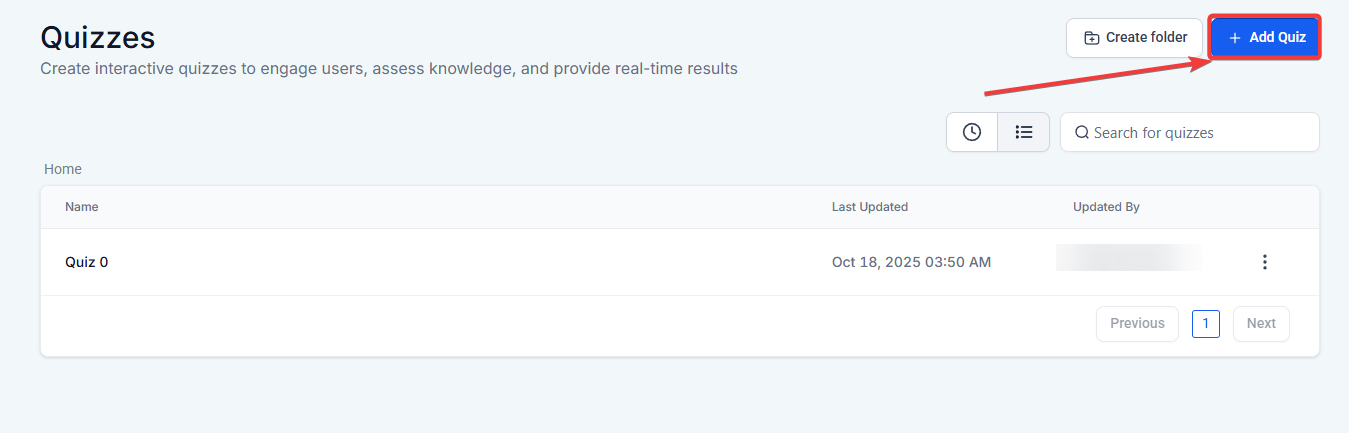
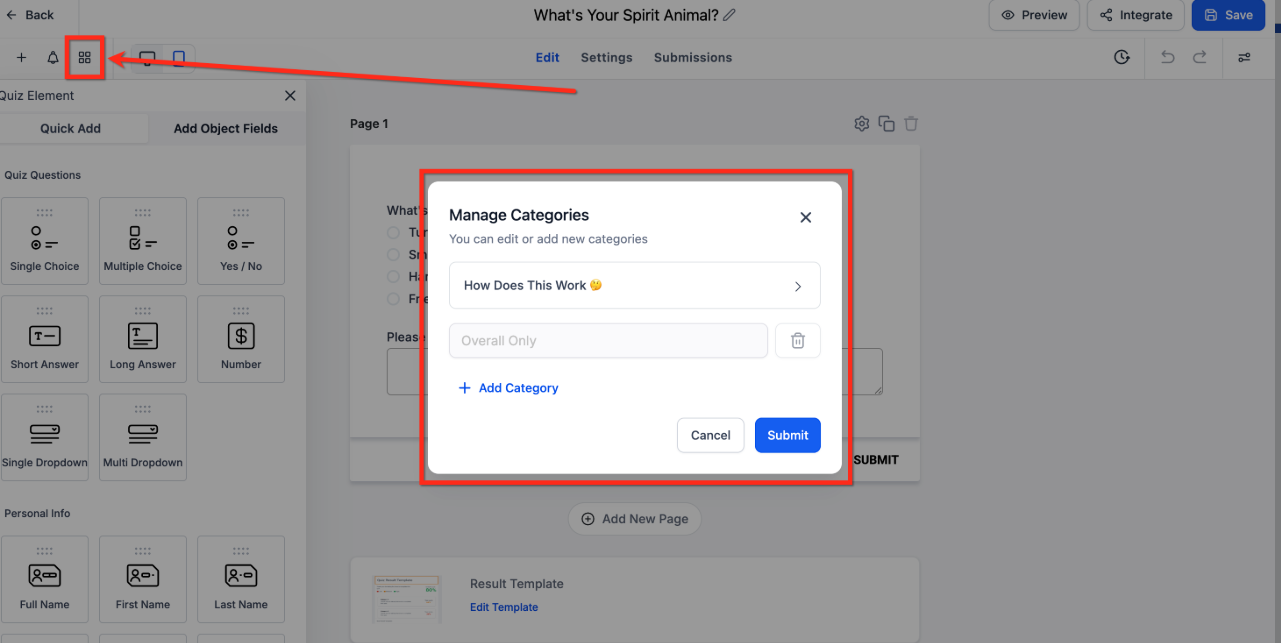
Step 2: Create Categories
Click Manage Categories and add the categories that represent different personality traits or skills.
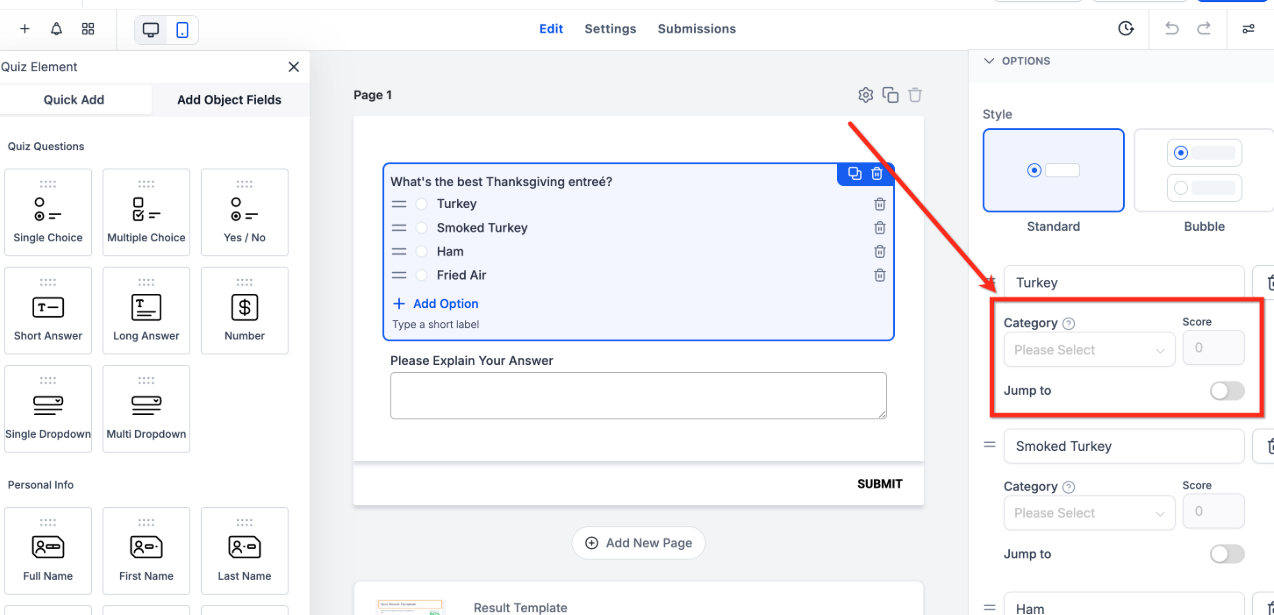
Step 3: Assign Categories & Scores
In the quiz builder, select a question and assign a category and score to each answer option.
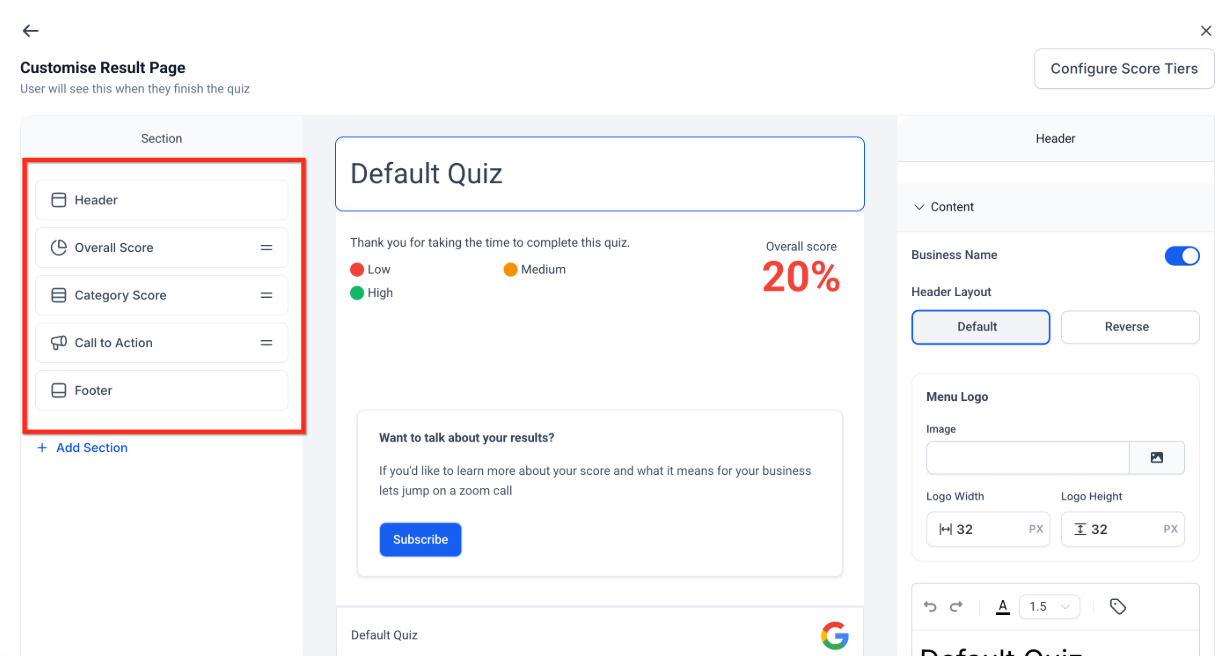
Step 4: Build the Results Page
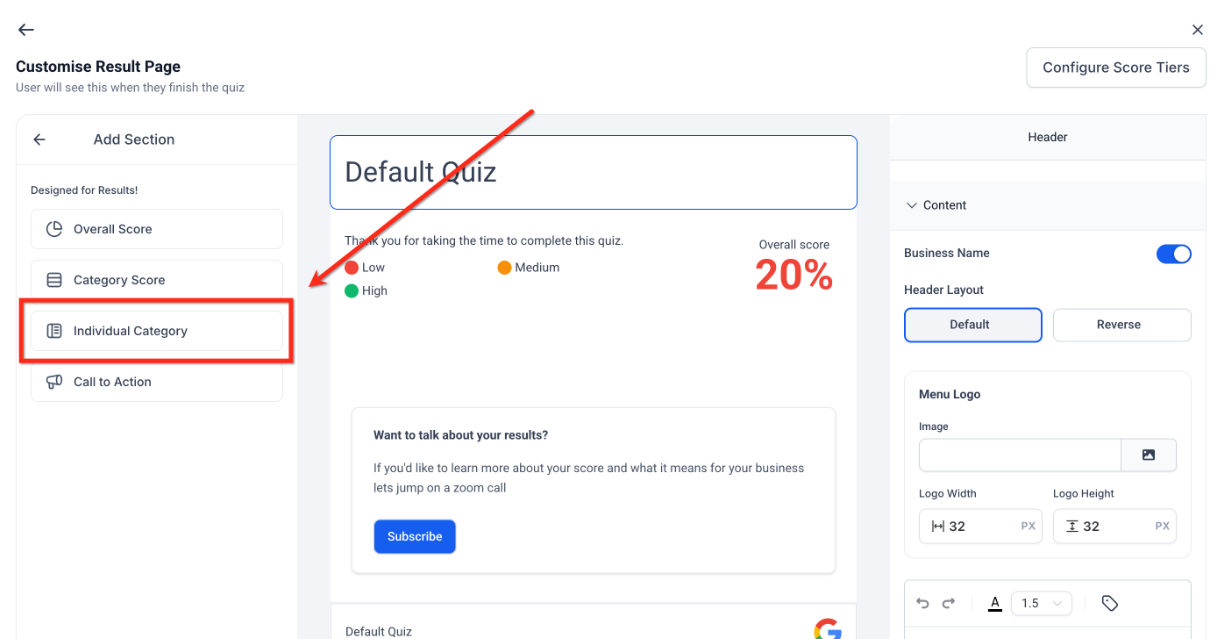
Use the Result Page editor to customize what users see after completing the quiz. Sections include:
- Header: Add title, logo, or business name toggle
- Overall Score: Displays total percentage with optional Low/Medium/High ranges
- Category Score: Shows breakdown across all categories
- Individual Category: Displays only the highest or lowest scoring category
- Call to Action: Add buttons like Subscribe or Book a Call
- Footer: Include disclaimers, copyright, or links
Step 5: Show Highest or Lowest Category
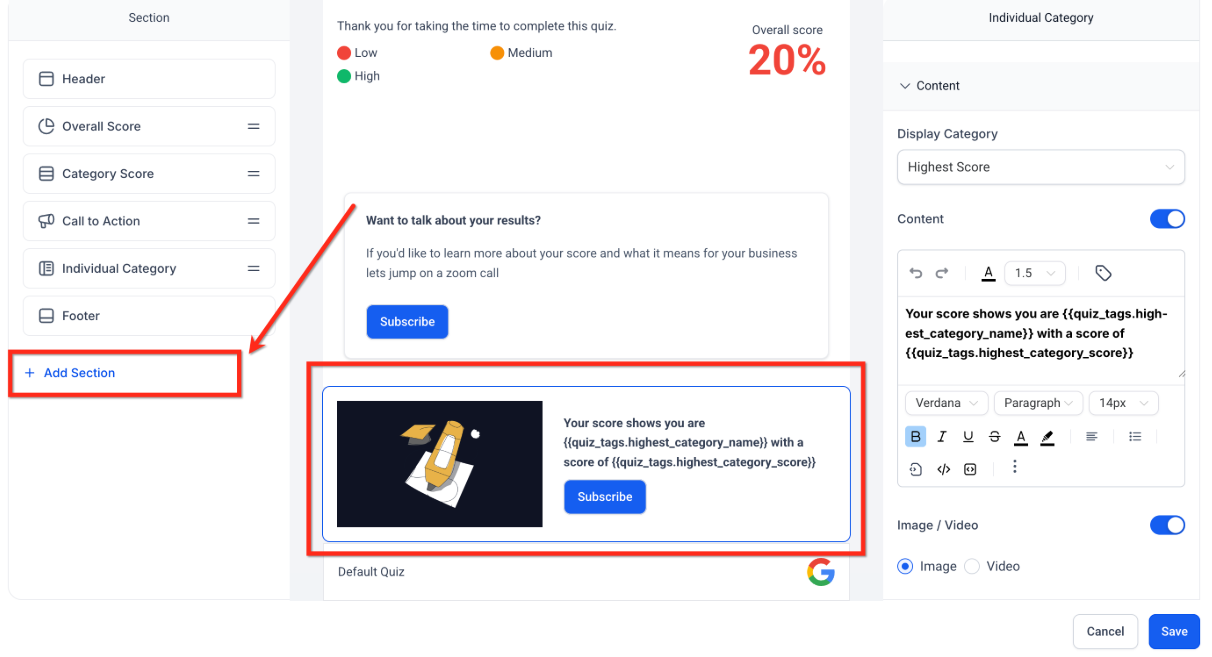
- Click + Add Section → Individual Category
- In section settings, select:
- Highest Category: Displays the top-scoring category
- Lowest Category: Displays the lowest-scoring category
- Add text and dynamic tags:
- {{quiz_tags.highest_category_name}}
- {{quiz_tags.highest_category_score}}
- {{quiz_tags.lowest_category_name}}
- {{quiz_tags.lowest_category_score}}
- Example:
- Highest → “Your strongest area is {{quiz_tags.highest_category_name}} ({{quiz_tags.highest_category_score}}%).”
- Lowest → “Your weakest area is {{quiz_tags.lowest_category_name}} ({{quiz_tags.lowest_category_score}}%).”
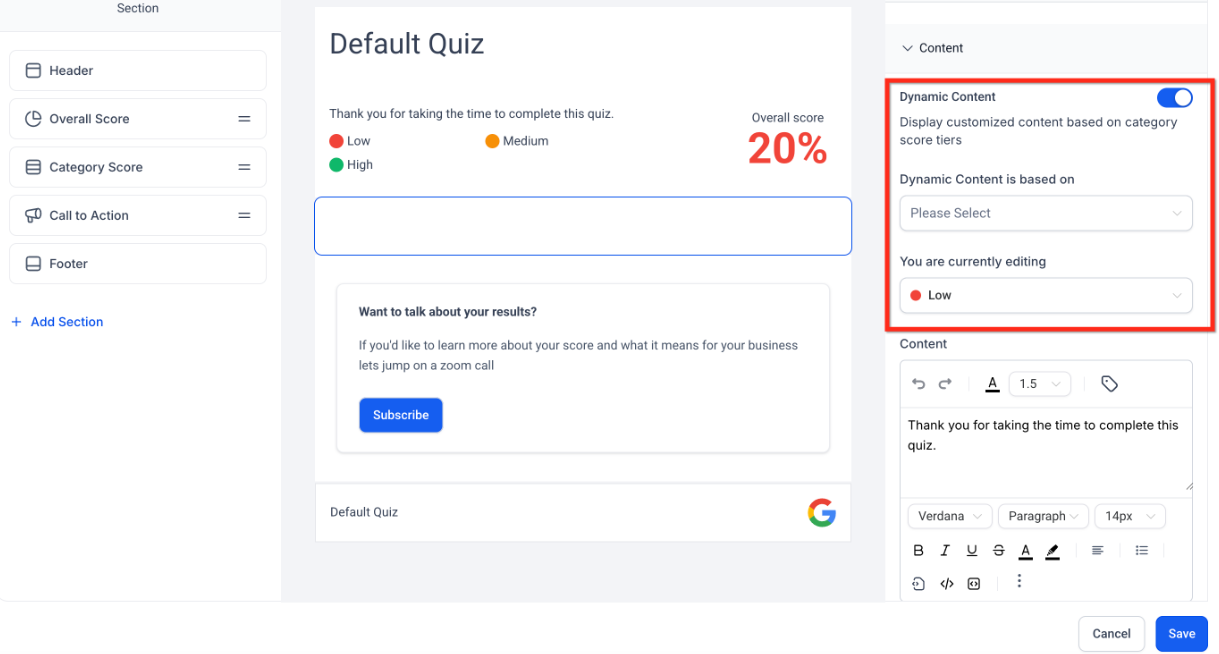
Step 6: Add Dynamic Score Ranges (Optional)
- Configure score tiers (Low, Medium, High) in the Overall Score or Category Score sections
- Example:
- Low = 0–40%
- Medium = 41–70%
- High = 71–100%
- Add messages for each tier, such as encouragement or recommendations
Step 7: Save and Preview
- Click Save and use the Preview option to test:
- Scores calculate correctly
- Highest/Lowest categories display as expected
- Messages and CTAs appear in the proper sections
Pro Tips
- Use Clear Category Names: Short, descriptive names make results easier to understand.
- Leverage Visuals: Adding images, GIFs, or videos can increase user engagement.
- Combine Sections: Use Individual Category with Category Score or Overall Score sections for richer insights.
- Test Different Scenarios: Preview multiple answers to ensure accurate category scoring and display.
- Dynamic Tags: Use dynamic tags to personalize results with contact information or other custom values.
FAQ’s
Question: Can I create quizzes that assign multiple personality types?
Answer: Yes. The Individual Category Section allows evaluation of responses across multiple categories, enabling assignment of both the highest and lowest scoring types.
Question: Are images and videos supported in all quizzes?
Answer: Yes. You can embed multimedia in both questions and result sections to make quizzes more interactive and engaging.
Question: How do custom fields and tags enhance personalization?
Answer: Custom fields, quiz tags, and timestamp tags allow you to segment users, track behavior, and display dynamic content on the results page.
Question: Can I format quiz content with links or lists?
Answer: Absolutely. The upgraded Rich Text Editor supports bold, italics, lists, links, and other formatting options for professional, clear content presentation.
Question: Will the media uploads affect quiz performance?
Answer: No. All media is automatically optimized to ensure smooth performance across desktop and mobile devices without compromising load times.
Question: What are some best practices for creating effective personality quizzes?
Answer: Use clear category names, leverage visuals like images or videos, test different scenarios, and use dynamic tags to personalize results and enhance engagement.
Question: What happens if two categories have the same "Highest Score"?
Answer: In the event of a tie between two categories, the system typically displays the category that was created first in the "Manage Categories" section. To avoid this, you can assign slightly different point weights to key questions to ensure a clear winner.
Question: What is the difference between an "Overall Score" and a "Category Score" on the results page?
Answer: The Overall Score displays the user's total percentage across the entire quiz, while the Category Score provides a granular breakdown of how the user performed in every individual trait or skill you’ve defined.
Question: How does the "Individual Category" section help with personality assessments?
Answer: This section is specifically designed for personality-type quizzes. It identifies the user's specific persona or style by automatically filtering and displaying only their Highest Category or Lowest Category rather than showing every single score.