
How to Use the Prospecting Tool to Analyze and Convert Leads
Prospecting in your account unlocks advanced features, enabling you to discover new leads, nurture prospects, and automate outreach all in one place. In this guide, we’ll walk you through the key benefits of using the Prospecting Tool in your account and how to make the most out of it to streamline your lead management.
Key Benefits of Using the Prospecting Tool in Your Account
1. Search Options
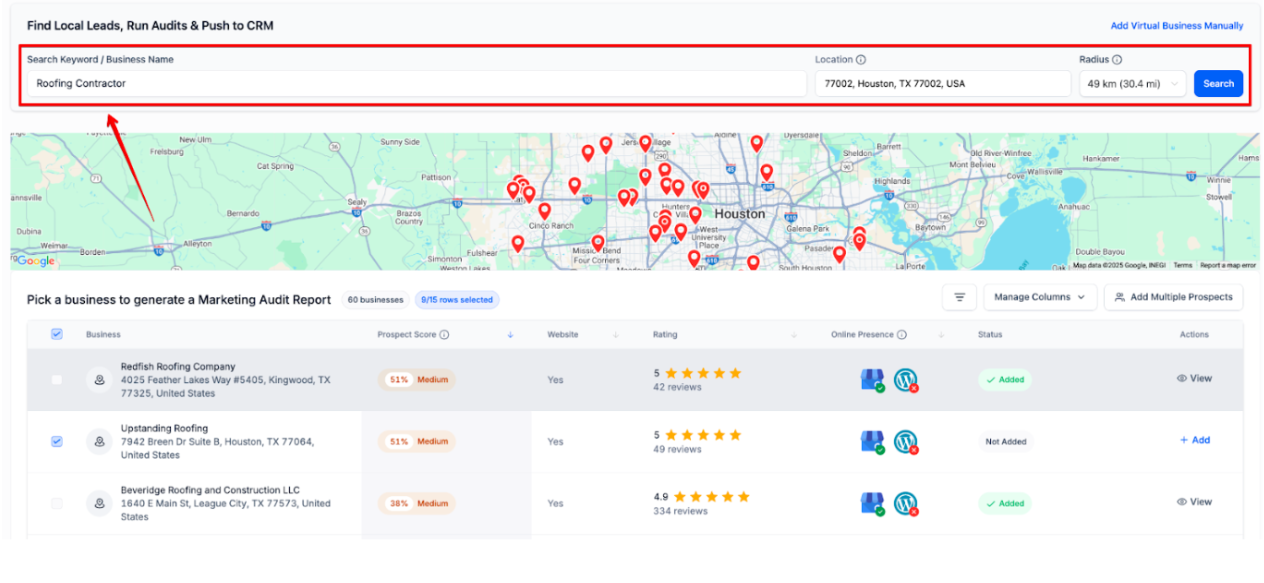
Click on Add Prospect Button. You will be redirected to the search page. You have multiple ways to search for leads:
A. Keyword Search
- Enter any business type or keyword (e.g., “Dentist”, “Real Estate Agent”, “Contractor”).
- You can also enter a specific brand name (e.g., “KFC”) to find exact matches.
B. Location Search
- Enter a location like a city, postal code, or full address (e.g., 77024, Houston, TX 77024, USA).
- You can also select a location directly on the map.
- If you want to find leads near your current location, type “near me” — we’ll use your IP location for the search.
C. Set Search Radius
- Choose the radius from your center location (up to 30 miles)
2. Add Prospects to Your Contacts
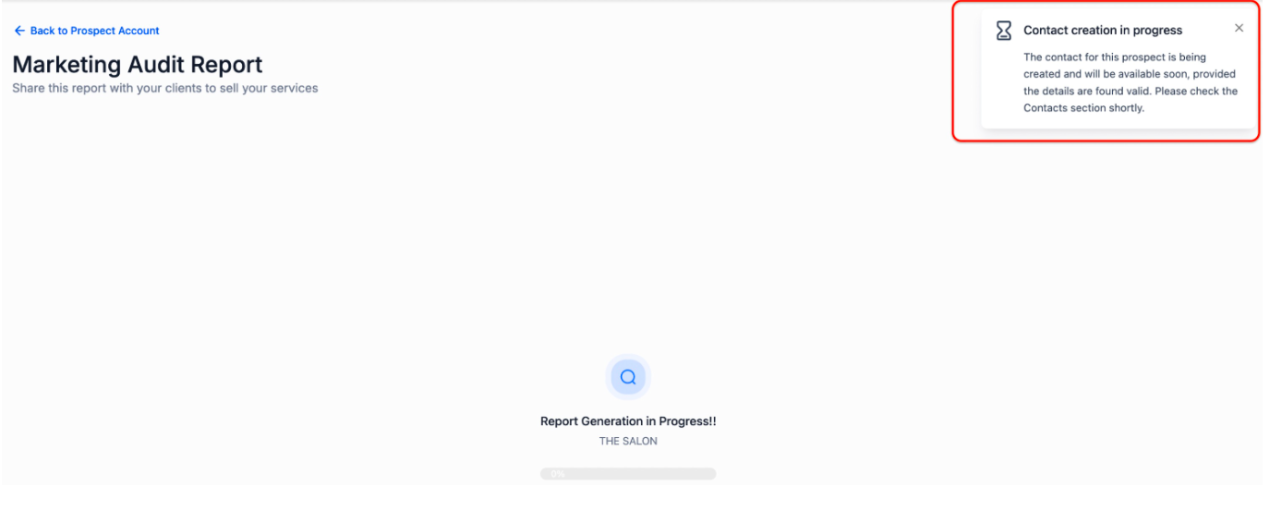
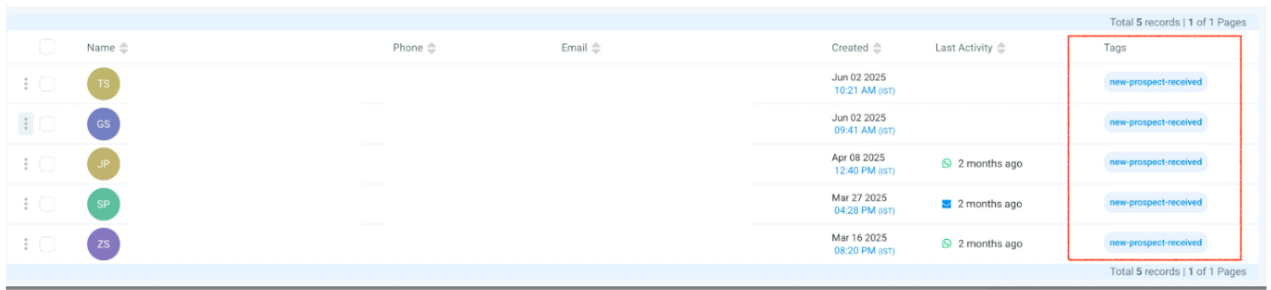
Prospects generated within the account are automatically added to your Mastermind contacts, allowing you to nurture them effectively. This includes prospects created manually, through prospecting widgets, or through AI-based prospecting.
- How it works:As soon as a prospect is created, it is added to your contact list without needing manual intervention.
3. Set Up Workflows for New Prospects
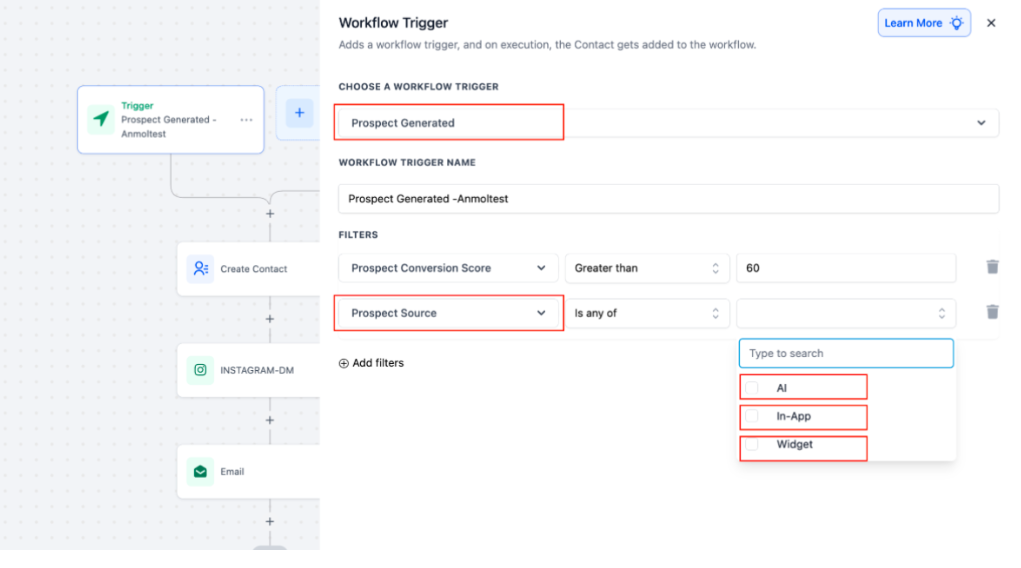
The prospecting tool in accounts allows you to trigger workflows automatically for each new prospect. You can set up workflows for welcome emails, auto-adding prospects to opportunities and pipelines, and much more.
How it works:
- Go to the Workflows in your account.
- Create new workflows, such as welcome emails or lead nurturing sequences triggered by new prospects.
- Set the workflow to be triggered automatically when a prospect is added to your system.
4. Send Prospecting Audit Reports to Clients
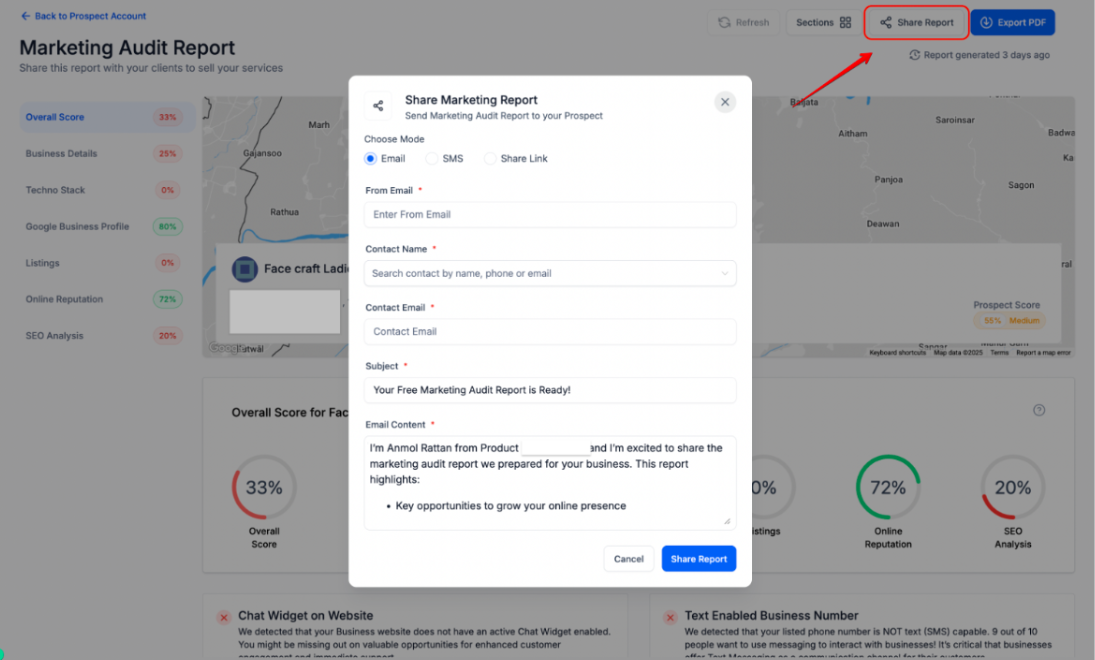
Once you’ve gathered information on your prospects, you can send prospecting audit reports via email. These reports provide valuable insights into the prospect’s current status and how you can help them improve.
- How it works:
- Navigate to the Prospecting Tool in Mastermind
- Select the Send Audit Report option.
- Choose the email template and include custom fields for the prospect’s information.

- Send the report directly to your prospect via email.
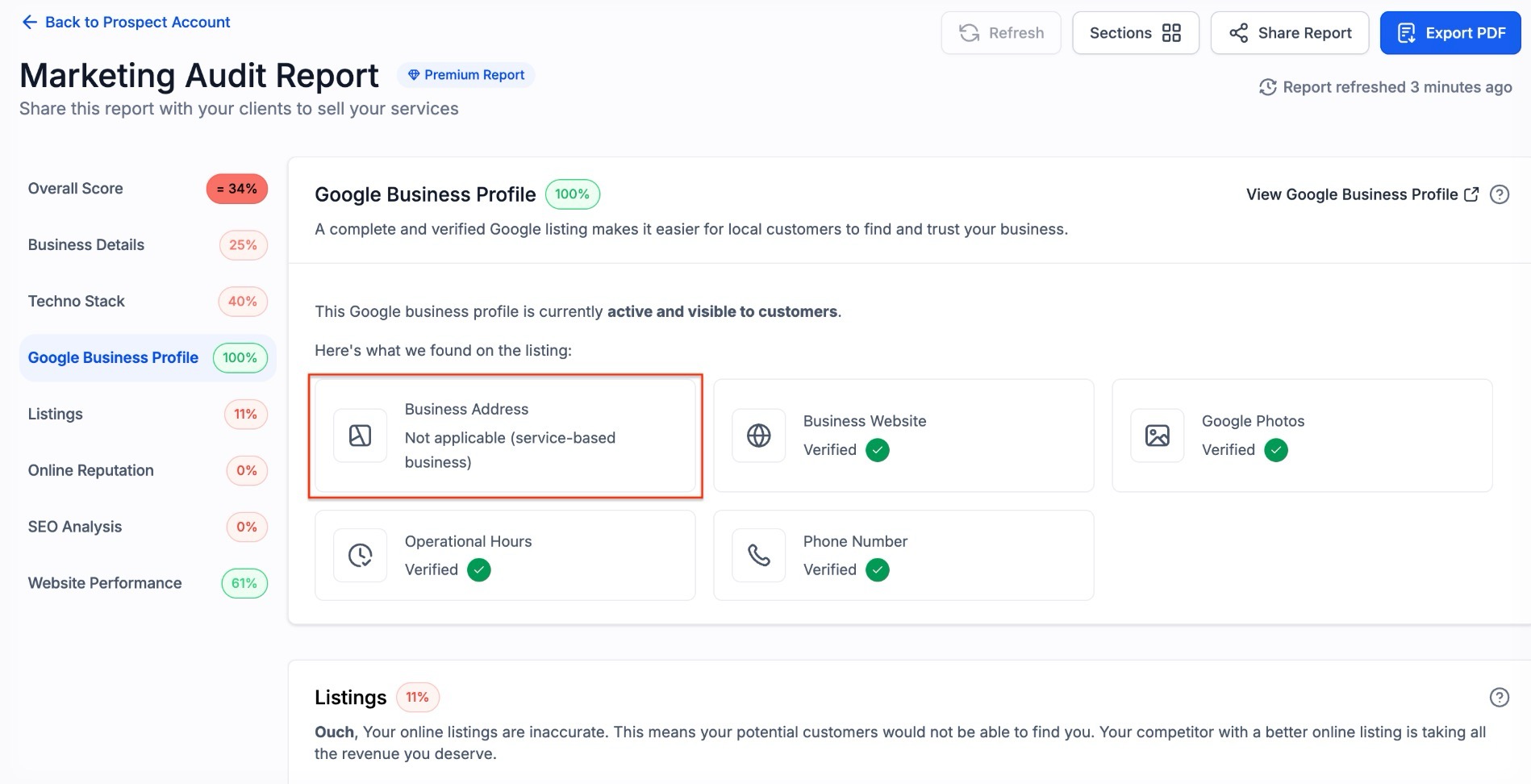
- Customized Scoring for Service Area Businesses: Audit reports use intelligent logic to evaluate businesses based on their type. For service-based businesses without a storefront, the "Business Address" parameter is automatically excluded from the profile scoring. This ensures that the overall health score remains accurate and is not unfairly penalized for a missing physical location.
- Local SEO Heatmaps for SABs: You can generate full Local SEO Heatmaps for Service Area Businesses. These heatmaps allow you to visualize search visibility for service-based prospects just as you would for any storefront business.
FAQs
Question: What search options are available in the Prospecting Tool?
Answer: You can search for leads using keyword search, location search, and by setting a search radius. (Discussed in section "Search Options")
Question: How can I add prospects to my contacts?
Answer: Prospects are automatically added to your contacts once they are created, either manually or through AI-based prospecting. (Discussed in section "Add Prospects to Your Contacts")
Question: Can I set up workflows for new prospects?
Answer: Yes, you can create and automate workflows for new prospects, such as welcome emails and lead nurturing sequences. (Discussed in section "Set Up Workflows for New Prospects")
Question: How can I send prospecting audit reports to clients?
Answer: You can send prospecting audit reports to clients via email, including custom fields and email templates. (Discussed in section "Send Prospecting Audit Reports to Clients")
Question: Is there a way to find leads near my current location?
Answer: Yes, by typing "near me" into the location search, the system will use your IP location to find leads nearby. (Discussed in section "Location Search")
Question: How do I trigger a workflow only for specific types of prospects?
Answer: You can use Filters or Tags within your workflow. For example, you can set a workflow to only trigger if a prospect is tagged with a specific industry (like "Plumber") or if they were found in a specific city.
Question: What is the purpose of the Prospecting Audit Report?
Answer: The Audit Report provides valuable insights into a prospect’s current digital status. It is designed to show them how your services can help improve their specific situation, making it a powerful tool for outreach.
Question: What is the purpose of the Prospecting Audit Report?
Answer: The Audit Report provides valuable insights into a prospect’s current digital status. It is designed to show them how your services can help improve their specific situation, making it a powerful tool for outreach.