
Workflow Overview Dashboard: Measure & Monitor Automations
Automation is a powerful tool but without visibility, it’s easy to lose control. The Workflow Overview Dashboard provides a centralized, visual summary of your automation performance, allowing users to track activity, identify issues, and optimize workflows all in one place. This article explains how to access and use the dashboard, its key features, and how it empowers smarter automation management across your account.
Key Features and Benefits
-
Total Workflow Overview
View the total number of workflows, how many are published, and total enrollments giving you an operational snapshot at a glance.
-
Workflow Enrollments Over Time
See how workflows are performing week over week to identify trends, growth, or sudden drops in engagement.
-
Trigger Analysis Filter
Filter data by trigger type (form, survey, or other sources) to drill into the effectiveness of individual triggers within workflows.
-
Error Review Summary
Instantly identify workflows with misfires, logic errors, or broken conditions minimizing downtime and lost opportunities.
-
Custom Date Range & Timezone Sync
Analyze workflow data within any selected time period, displayed according to your account’s local time.
How to Use the Workflow Overview Dashboard
Step 1: Access the Dashboard
- Go to Tools & Reporting → Automations → Overview
- The dashboard will appear with real-time metrics and visualizations.
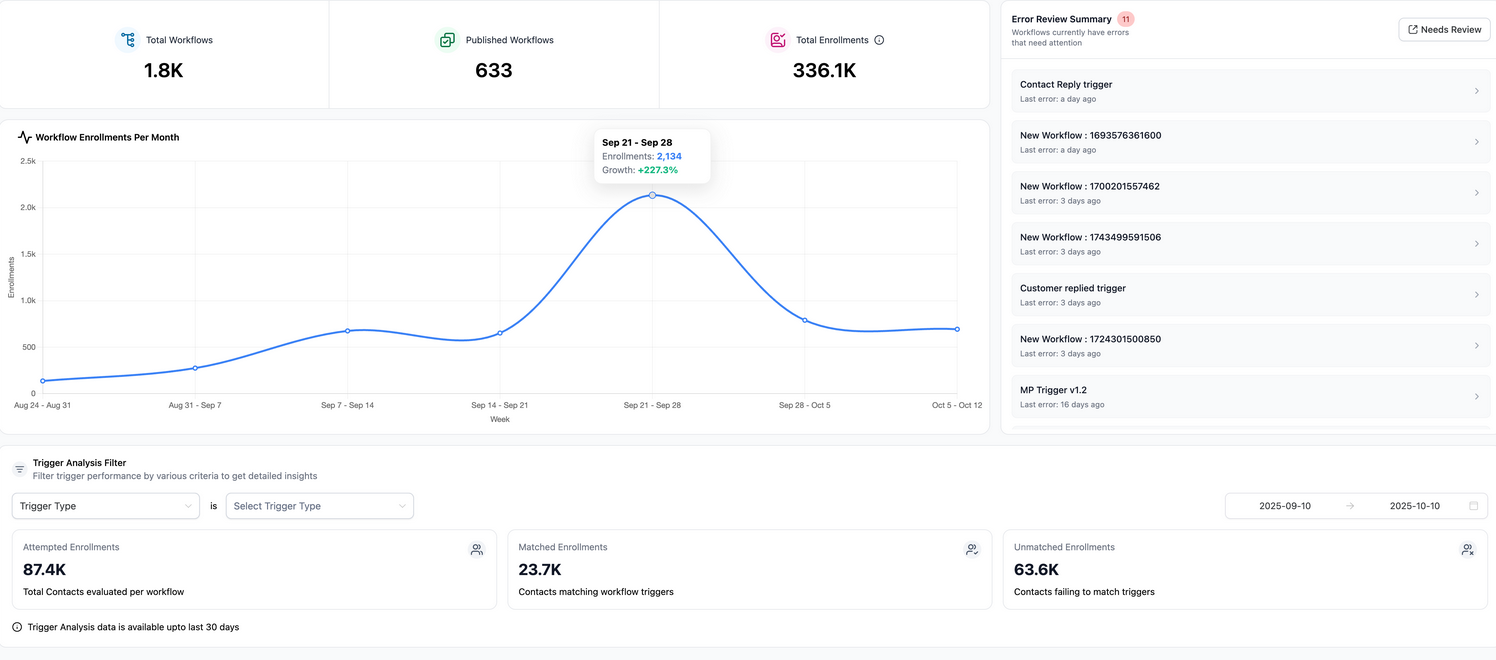
Step 2: Analyze Performance
- Review total workflows, enrollment volume, and trends.
- Use filters to narrow down data by trigger source or workflow.
- Scroll to the Error Review Summary to identify workflows marked as “Needs Review.”
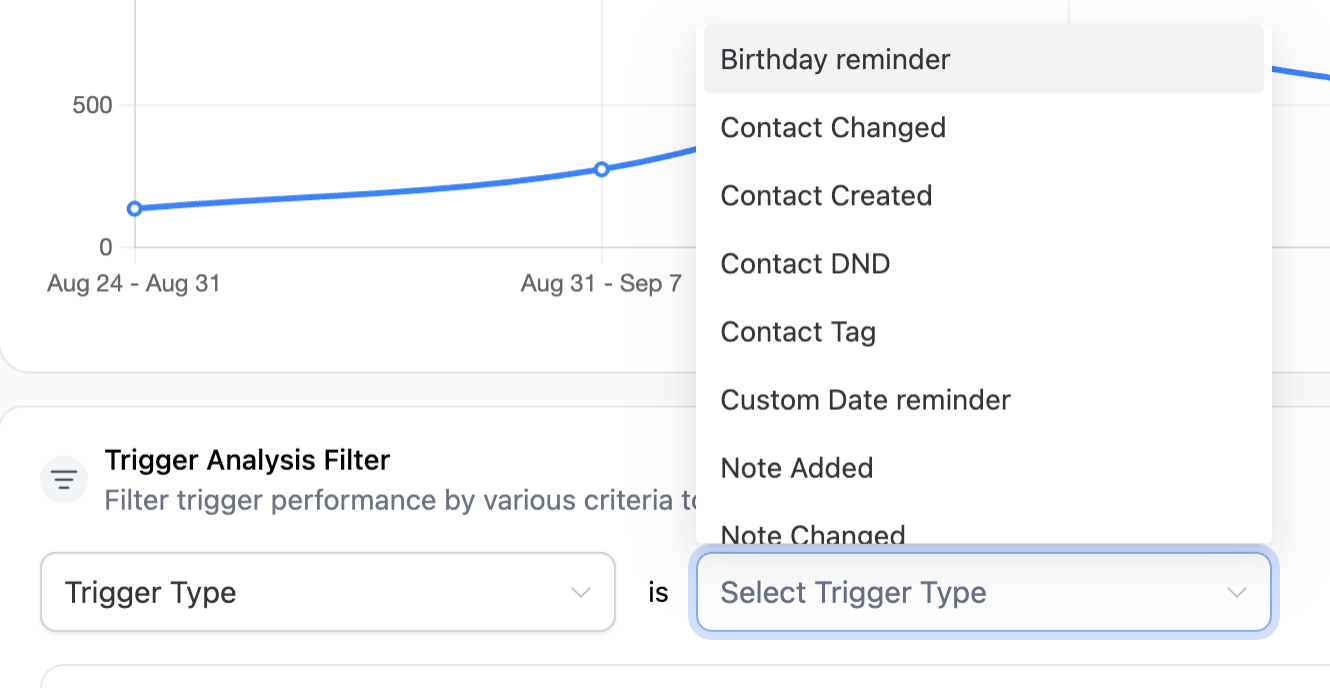
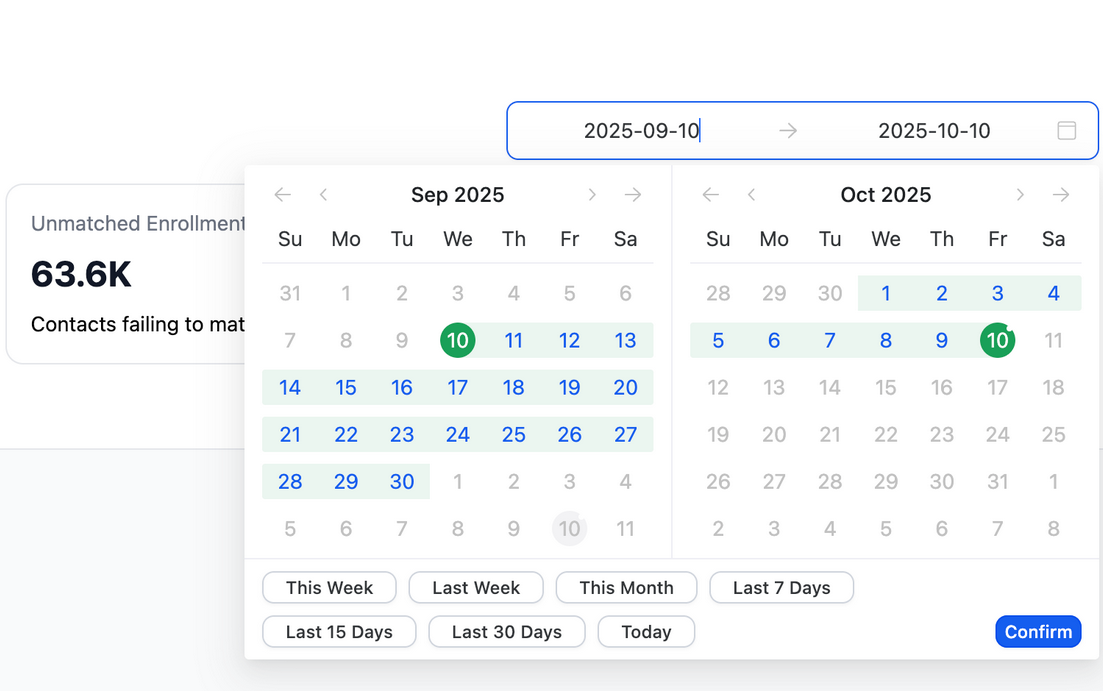
Step 3: Investigate Errors
- Click on the Needs Review label to see affected workflows.
- Examine error types and root causes to make necessary adjustments.
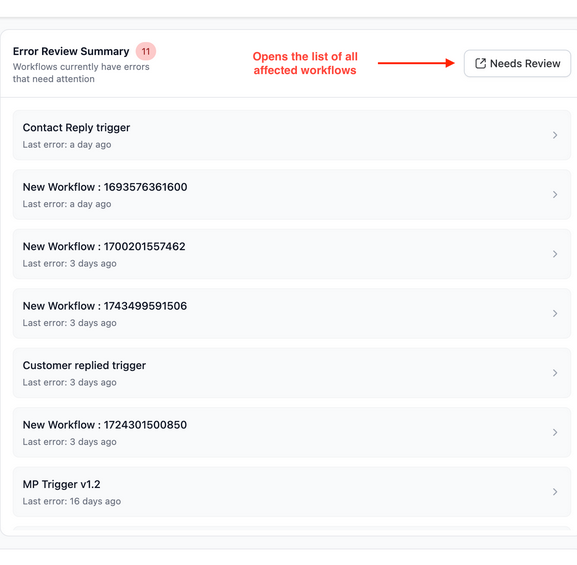
FAQ's
Question: Do I need admin access to view the dashboard?
Answer: Yes, dashboard visibility is typically restricted to users with permission to manage workflows and automations.
Question: What types of triggers can I filter by?
Answer: You can filter by standard triggers like form submissions, survey completions, and others, depending on what's active in your workflows.
Question: How do I fix a workflow marked “Needs Review”?
Answer: Click the tag to see the error message. Common issues include missing conditions, outdated form fields, or deactivated steps.
Question: Does this dashboard affect existing workflows?
Answer: No, the dashboard is read-only. It simply visualizes data without changing your existing workflows or logic.
Question: Can I export dashboard data for reporting purposes?
Answer: In most cases, yes. You can export summary metrics or filtered data to CSV or PDF formats to share with your team or for offline analysis
Question: What is the Error Review Summary?
Answer: The Error Review Summary highlights workflows that have misfires, logic errors, or broken conditions, allowing you to quickly identify issues that need attention.
Question: If I delete a workflow, will its historical data disappear from the dashboard?
Answer: Typically, once a workflow is deleted, its metrics are removed from the active dashboard view. If you want to keep the data for reporting, it is recommended to "Unpublish" or "Archive" the workflow instead of deleting it.
Question: If I fix an error, does the "Needs Review" tag disappear immediately?
Answer: Once you correct the error and save the workflow, the system re-validates the logic. In most cases, the tag will clear on the next dashboard refresh. If it persists, ensure that you have also cleared any "Failed Executions" in the individual workflow's enrollment history.
Question: How can I change the time period or timezone used for the dashboard data?
Answer: You can use the Custom Date Range & Timezone Sync feature to analyze your automation data within any selected time period. The dashboard will automatically display this data according to your account’s local timezone.