
Version History & Restore Functionality in Workflows
This article provides a comprehensive guide to the Version History and Restore Functionality, a feature that allows users to effortlessly track, review, and restore previous versions of their workflows. Whether you're editing automations, testing logic, or experimenting with new configurations, this ensures full control over your workflow history with added flexibility, transparency, and safety.
Key Features & Benefits
-
Detailed Version Tracking
Automatically captures workflow versions at key milestones, including timestamps, editor names, and status (Draft or Published).
-
One-Click Restore
Reopen any previous version as a new draft or create a new workflow from a past version, ideal for testing and reverting changes safely.
-
Editing Safety Net
Works in tandem with Auto-Save and Undo/Redo, forming a complete safety system for workflow management and recovery.
Important: Auto-saved changes don’t automatically create new versions.
How to Use Version History & Restore Functionality
Step 1: Access Version History
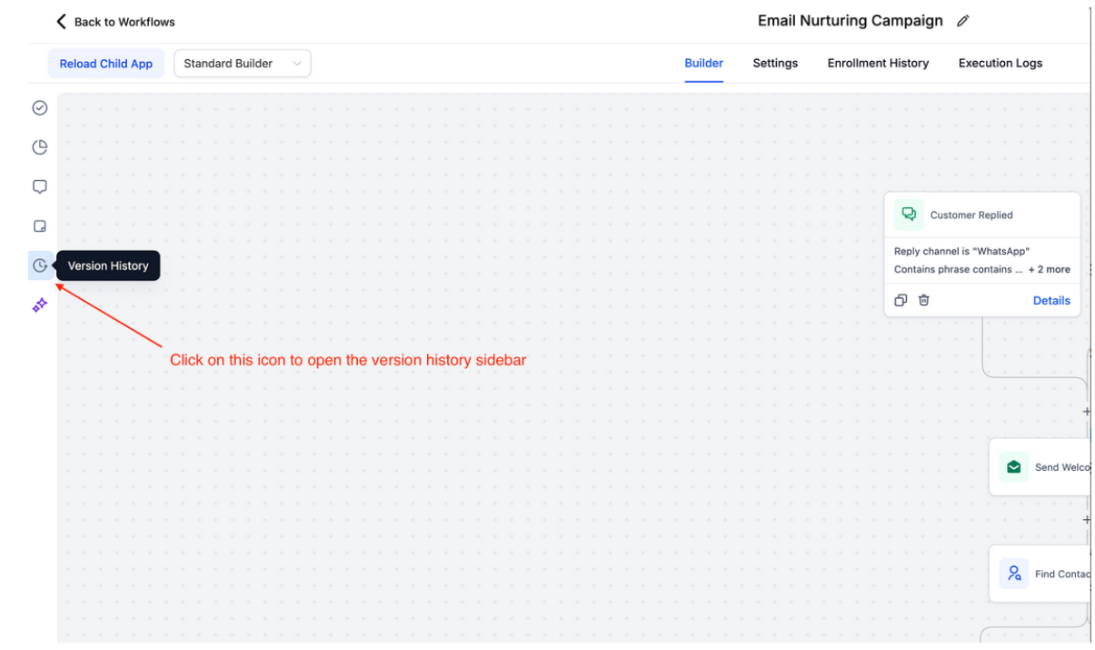
- Navigate to Tools & Reporting > Automations, open a workflow, and click the Version History icon located in the left sidebar.
Step 2: Review Versions
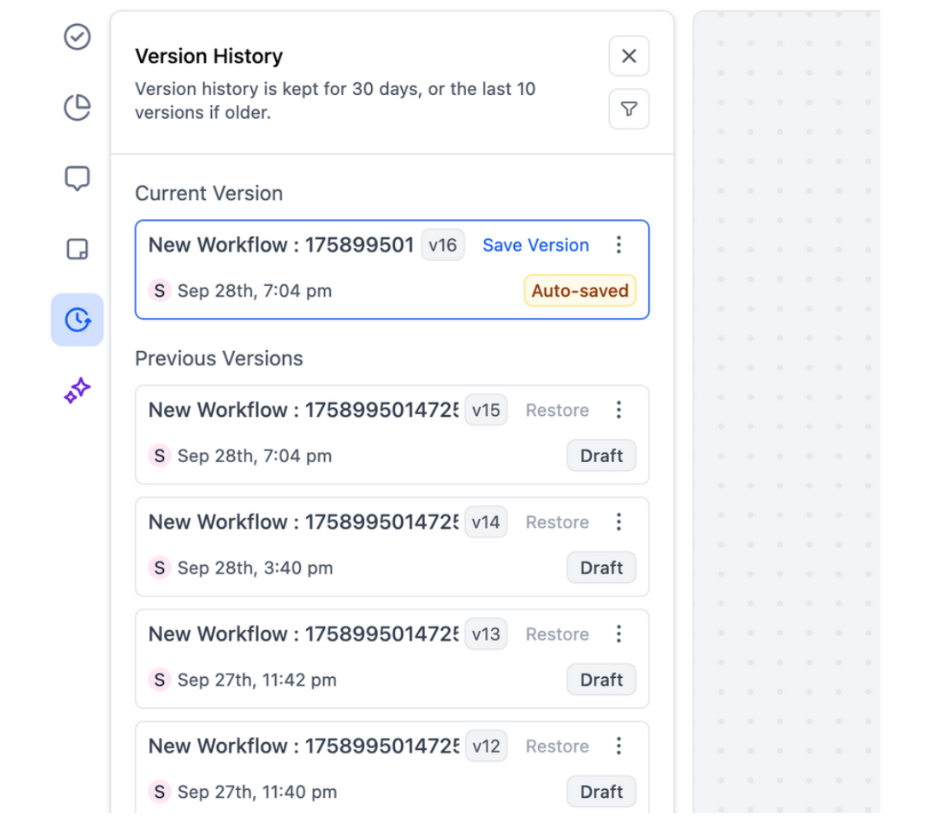
- View up to 10 versions or 30 days of saved history (whichever comes first).
- Each version displays:
- Workflow Name
- Version Number (e.g., v12, v13)
- Timestamp
- Editor Name
- Workflow Status
Step 3: Save a Version Manually
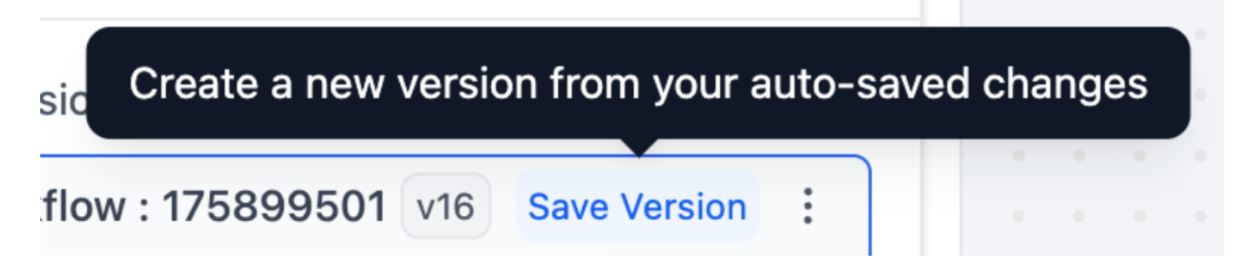
- Click Save Version in the builder to snapshot your latest auto-saved state.
Step 4: Restore or Create from a Version
- Click Restore to open the selected version as a new draft.
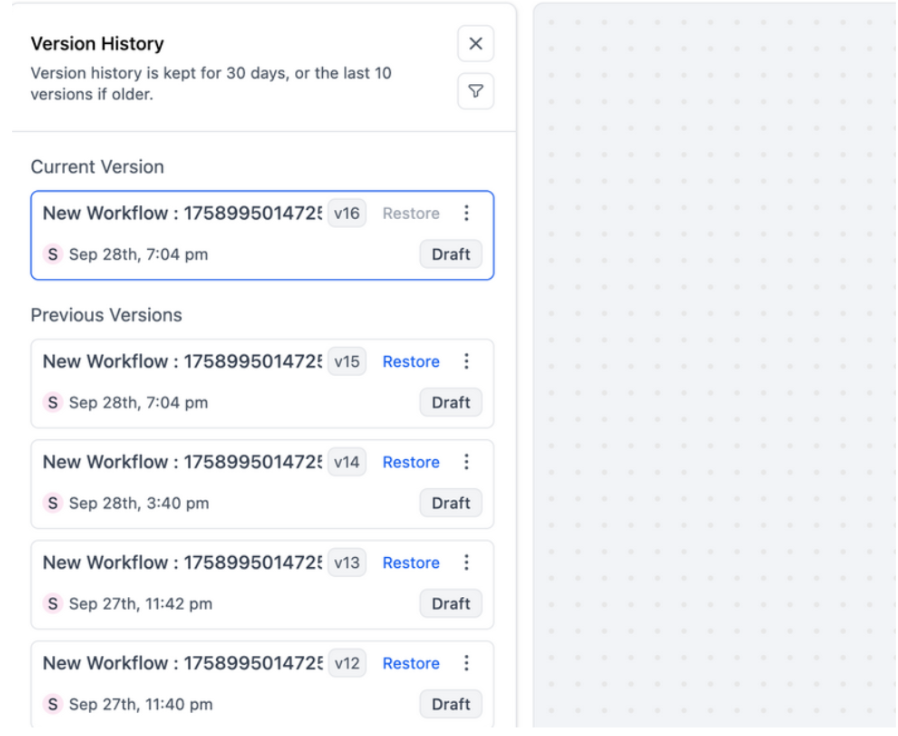
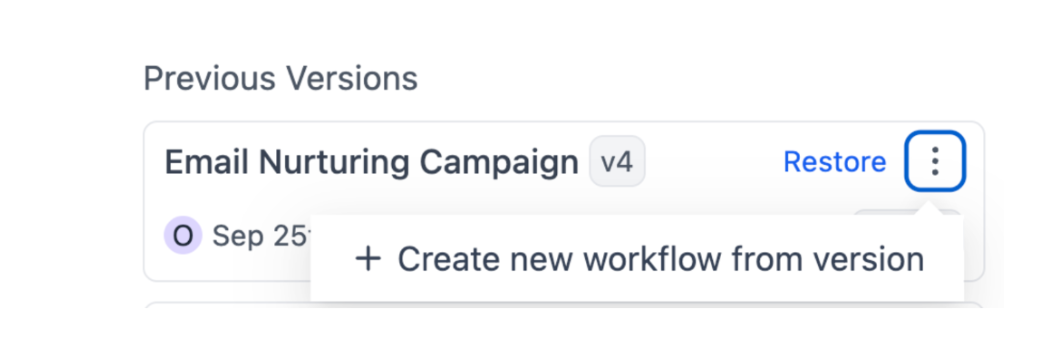
Alternatively, click Create new workflow from version to duplicate it into a separate workflow.
- Once you're satisfied, publish your restored draft to make it live.
FAQ’S
Question: Does restoring a version delete my current workflow?
Answer: No. Restoring creates a new draft version while keeping your current live workflow intact until you choose to publish.
Question: Can I restore a version if contacts are active in the workflow?
Answer: No. To restore a version, all enrolled contacts must first be removed or allowed to complete the workflow.
Question: How many versions can I see in Version History?
Answer: You can view up to 10 saved versions or 30 days of history, whichever limit is reached first.
Question: Do autosaves create versions in history?
Answer: No. Autosaves preserve your work but do not appear in version history unless you manually use Save Version.
Question: What happens when I click “Create new workflow from version”?
Answer: It creates a separate workflow using the chosen version as a base, perfect for branching or testing without altering your current workflow.
Question: Will I lose unsaved changes when restoring a version?
Answer: If you have unsaved changes, make sure to save or publish before restoring. Restoring always creates a new draft and does not overwrite unsaved work unless you choose to replace it.
Question: Can I use restored versions for testing new logic or automations?
Answer: Yes, restoring a version as a new draft allows you to test changes or experiment without affecting your live workflow.
Question: What happens if two people are editing the same workflow and both save a version?
Answer: Each manual "Save Version" action creates a unique entry in the history, stamped with the specific Editor’s Name. This transparency allows you to see exactly who made which changes, making it easier to revert to a specific team member's work if needed.
Question: Does the system only save versions when I manually click "Save Version"?
Answer: No. While you can save versions manually, the system also automatically captures workflow versions at key milestones, such as when a workflow status changes between Draft and Published.