
Shipping Charges Based on Product & App Shipping Profiles
With Shipping Profiles, merchants can customize shipping rates with ease, offering a tailored experience for both store owners and their customers. This article will dive into how Shipping Profiles work, how you can set them up, and the benefits they bring to your business operations.
Key Features and Benefits
1. Multiple Custom Shipping Profiles
Shipping Profiles allow you to create and manage multiple shipping profiles, each tailored to specific products, product groups, or even app integrations. This enables you to set custom rates based on product characteristics, weight, price, or even specific shipping zones.
2. Flexibility in Defining Shipping Rates
You can define a variety of rate types, such as flat rates, weight-based, price-based, or even offer free shipping, depending on the profile. This flexibility makes it easier to cater to different shipping needs and improve the customer experience by offering relevant shipping options.
3. Default General Profile
If no custom profile is assigned to a product, it will default to the general shipping profile. This ensures that all products are covered, even if they aren't associated with a specific shipping profile, and simplifies the shipping setup process.
4. App Integration
For those using third-party applications, Shipping Profiles can integrate seamlessly. Apps can define their own shipping rates via an API, but you also have the option to override these rates with your custom profiles, allowing you full control over shipping options.
5. Combined Shipping Rates for Mixed Carts
When customers add multiple products from different profiles to their cart, the system calculates the shipping cost for each profile and combines them accordingly. If the profiles share the same name, the rates are summed up and displayed under the shared name. If they have different names, the system will display “Shipping” as the default rate name.
How to Set Up Shipping Profiles
Setting up Shipping Profiles is a straightforward process. Here’s a step-by-step guide:
1- Access the Shipping Settings
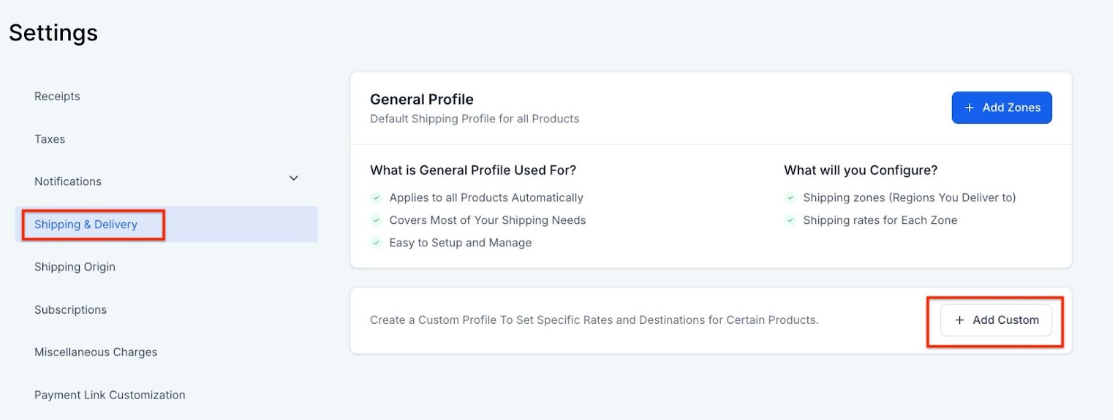
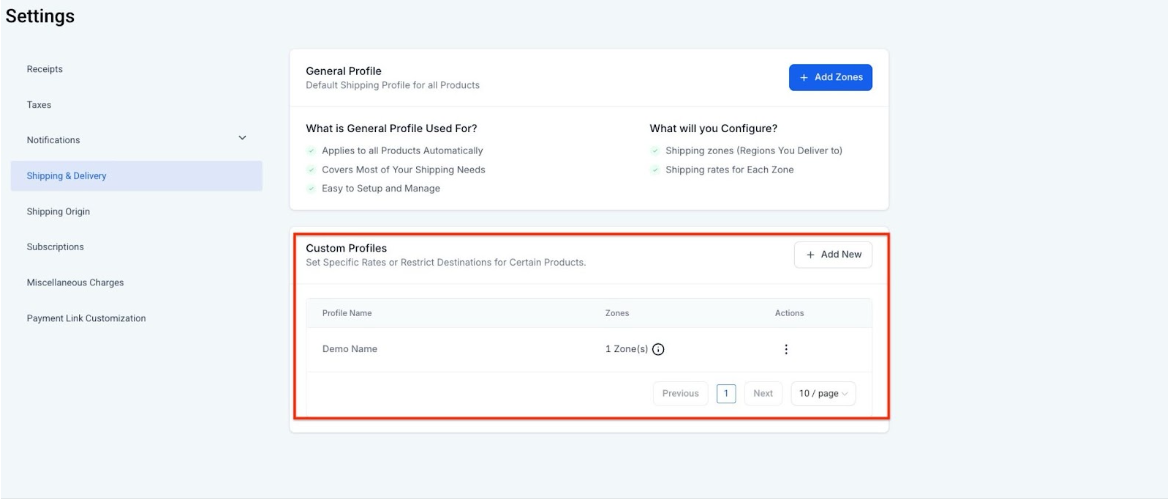
Go to the Marketing & Sales > Payments section, then navigate to Settings > Shipping & Delivery, and finally, Custom Profiles.
2- Create a New Profile
Click on the "Add Custom" button to create a new shipping profile.
3- Enter Profile Details
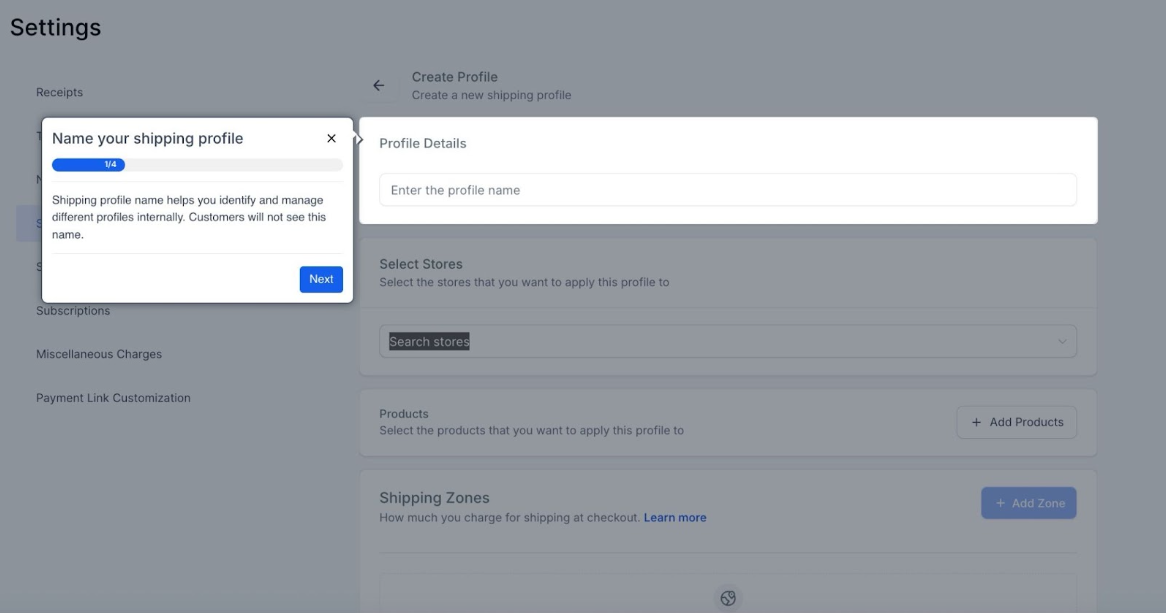
Give the profile a unique name and select the relevant stores and products to associate with this profile.
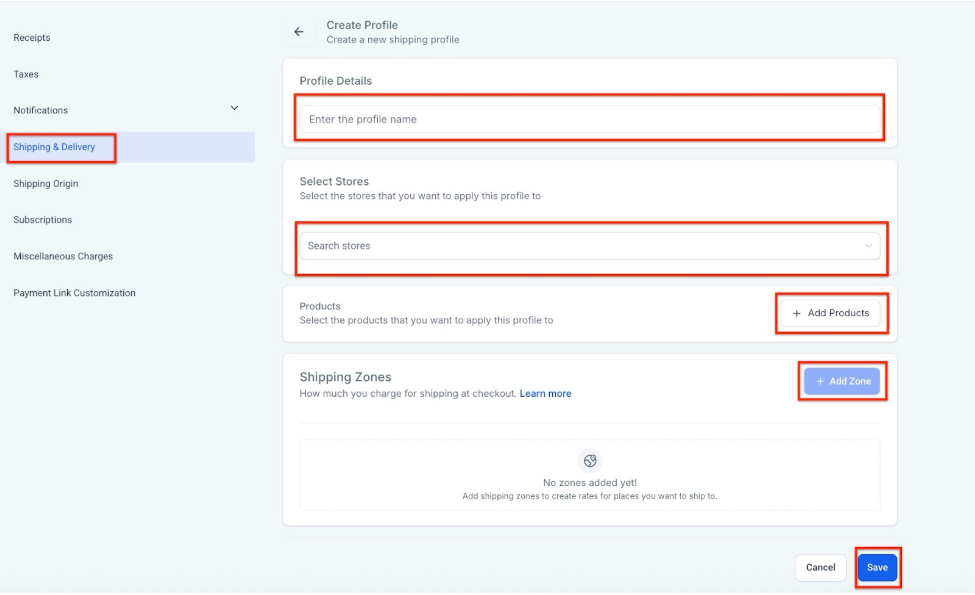
When you fill out all the information, you will then have the option to add the Zone.
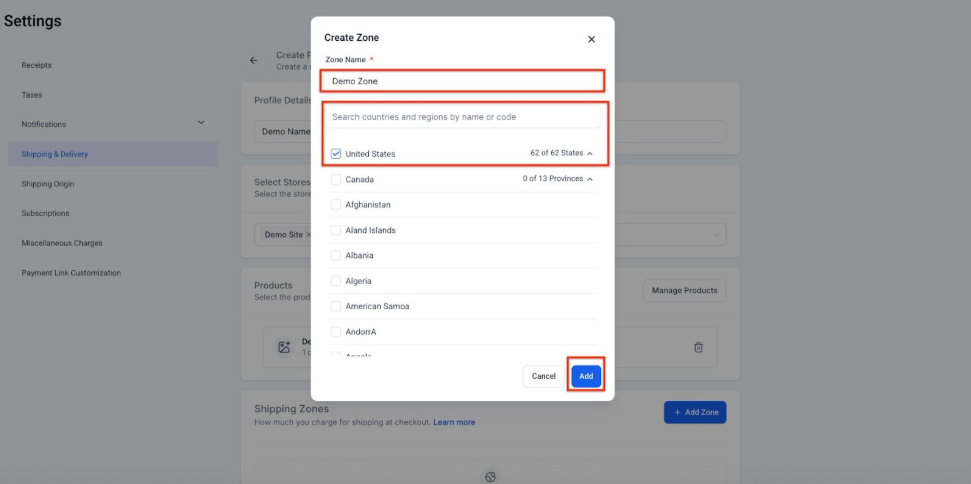
As soon as you add the Zone, your Custom Profile will automatically be created and saved.
Pro Tips
- Test Profiles Regularly: After creating custom profiles, always test them with sample orders. This will ensure that everything is working as expected and that customers receive the correct shipping options during checkout.
- Custom Names for Profiles: Make sure each custom shipping profile has a unique name to avoid any conflicts. This is especially helpful when managing multiple profiles for different product categories or regions.
- App Overrides: If using third-party applications that define shipping rates, consider overriding those rates with your custom profiles to maintain full control over your shipping options.
FAQ's
Question: Can I assign a product to multiple shipping profiles?
Answer: No, a product can only be assigned to one custom shipping profile at a time. If you need to reassign a product, its current profile will be overridden.
Question: What happens if I don’t assign a product to a custom profile?
Answer: Any product that is not assigned to a custom profile will fall back to the General Shipping Profile.
Question: How does the system handle mixed-cart scenarios?
Answer: If multiple products from different profiles are in the cart, the shipping rates for each profile are calculated and displayed accordingly. If the profiles share the same name, their rates are combined and shown under that shared name.
Question: Can I use free shipping with custom profiles?
Answer: Yes, you can define a free shipping rate as part of your custom profile settings, offering a seamless and cost-effective option for your customers.
Question: What if a third-party app fails to return shipping rates?
Answer: If an app fails to provide shipping rates, the system will default to a safe fallback rate to ensure the checkout process can continue without any issues.
Question: Can I assign different shipping rates to different product groups?
Answer: Yes, with Shipping Profiles, you can create custom shipping rates for specific product groups. This allows you to cater to different shipping needs based on product characteristics, weight, price, or even shipping zones. By using multiple profiles, you can tailor the shipping experience to each product group.
Question: Can I override shipping rates set by third-party apps?
Answer: Yes. While third-party apps can define their own rates via an API, you have the option to override these rates with your custom Shipping Profiles. This ensures you maintain full control over the shipping options presented to your customers.
Question: If I delete a custom shipping profile, what happens to the products assigned to it?
Answer: If a custom profile is deleted, all products previously linked to it will automatically move back to the General Shipping Profile. No product will ever be left without a shipping method.
Question: Is there a way to ensure my products are always covered by a shipping method?
Answer: Yes. The system includes a Default General Profile. If you haven't assigned a product to a custom profile, or if you delete a custom profile, the product automatically falls back to the General Profile so it is never left without a shipping option.
Question: What name is displayed to the customer at checkout if their cart contains products from different shipping profiles with different names?
Answer: If a customer has a mixed cart with products from profiles that have different names, the system will display "Shipping" as the default rate name instead of the individual profile names.