
Workflow Triggers: Call Transcript Generated
In today's fast-paced communication environment, the ability to act instantly on conversation outcomes is essential. The Call Transcript Generated trigger enables automation the moment a call transcript becomes available, giving your team immediate access to post-call data across voice channels. This feature is designed to streamline follow-ups, enhance personalization, and improve operational efficiency by turning conversation insights into actionable workflows.
Key Features & Benefits
-
Instant Workflow Activation
Automatically trigger actions as soon as a call transcript is ready, ensuring no time is lost between a conversation and the next step.
-
AI-Driven Personalization
Use keywords or phrases from the transcript to tailor communications, segment contacts, or initiate targeted follow-ups.
-
Multi-Channel Compatibility
Works across Voice AI, IVR, and standard call types, providing unified support for various communication methods.
-
Rich Transcript Data
Access detailed call metadata including full transcript, call duration, direction, user identity, location, and more.
-
Smarter Task Management
Automatically create tasks, assign users, or update Mastermind fields based on specific call content or outcomes.
How to Use the Call Transcript Generated Trigger
Step 1: Add the Trigger
- Go to Tools & Reporting → Automations → Workflows and click Create Workflow to start a new automation
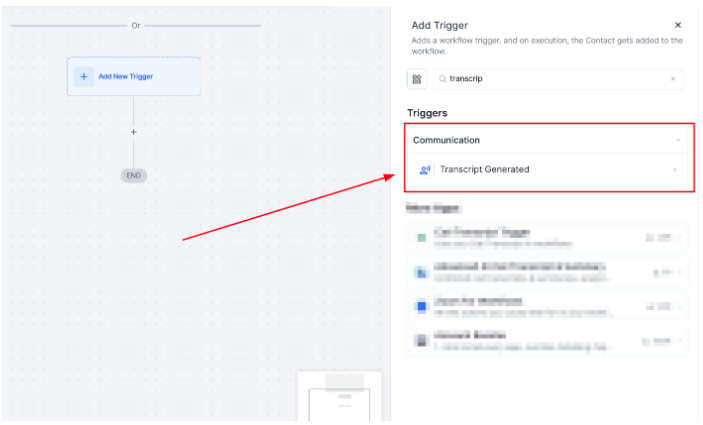
- In the workflow builder, select “Transcript Generated” from the list of available triggers.
- This trigger activates the workflow automatically once a call transcript is generated.
Step 2: Enable Transcription (If Not Active)
- IVR & Standard Calls: Use the CTA in the trigger configuration to activate call transcription manually.

Step 3: Configure Filters
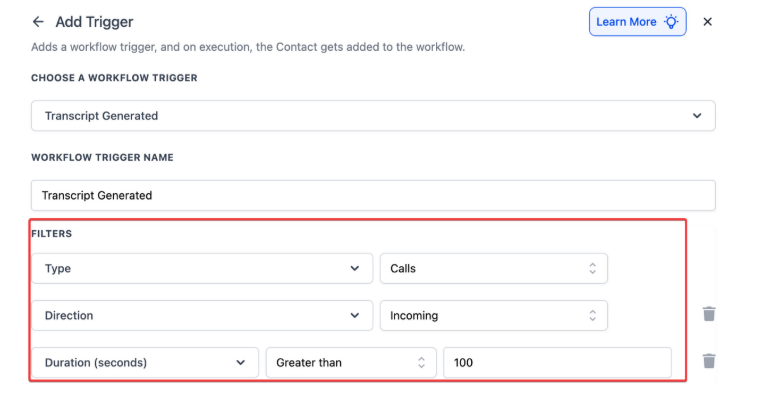
- Apply filters to control trigger behavior:
- Call Type: Voice AI, IVR, or Normal Call
- Call Direction: Inbound or Outbound (optional)
- Call Duration: Minimum time filter (optional)
Step 4: Utilize Transcript Data in the Workflow
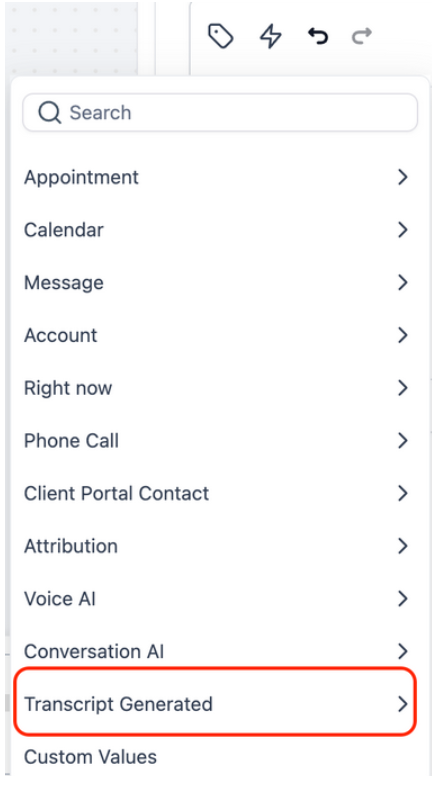
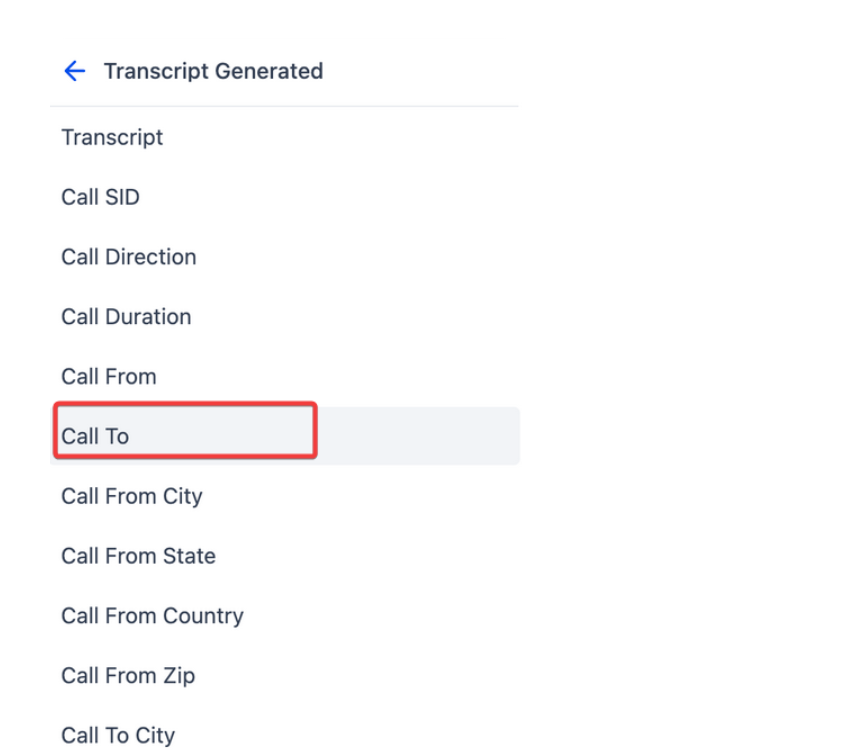
- Insert conditions or custom actions using:
- Full Call Transcript
- Call Metadata (status, timestamps, direction)
- Caller Location & User Info
- Access values using the Custom Value Picker or If/Else Conditions.
FAQ's
Question: Does the trigger work for both inbound and outbound calls?
Answer: Yes, the trigger supports both directions. You can filter by call direction if needed.
Question: Is transcription enabled automatically?
Answer: Transcription is enabled by default for Voice AI calls. For IVR and standard calls, you may need to enable it manually within the trigger setup.
Question: Can I access the full transcript in the workflow?
Answer: Yes, the full transcript is available through the Custom Value Picker and can be used in messages, tasks, or conditions.
Question: What if a call transcript contains sensitive information?
Answer: Ensure your automation respects privacy policies. Avoid sending full transcripts via insecure channels or to unauthorized users.
Question: Can I combine this trigger with others in the same workflow?
Answer: Yes, you can nest this trigger within larger workflows or chain it with other triggers for more complex automation flows.
Question: Can I automate task creation based on specific call content or outcomes?
Answer: Yes, you can automate task creation by using the data within the call transcript. For example, tasks can be automatically created, assigned to specific users, or updated based on certain keywords or outcomes within the call, improving operational efficiency.
Question: Can this trigger be combined with other workflow conditions or actions?
Answer: Yes. The Call Transcript Generated trigger can be used as part of larger, multi-step workflows and combined with additional logic, filters, and actions for advanced automation scenarios
Question: Is call Transcript available for multiple languages?
Answer: The transcription engine supports various languages. Ensure that your system's global voice settings are configured to the language your customers primarily speak to ensure the highest degree of accuracy in the generated transcripts.
Question: If a call is very short (e.g., under 10 seconds), will the transcript still trigger?
Answer: You can control this using the Call Duration filter. It is recommended to set a minimum duration (such as 20 seconds) to avoid triggering automations for hang-ups, wrong numbers, or voicemails where no meaningful conversation occurred.