
Inbox Settings: Set and Track Response Time Goals with SLAs
The Conversation SLAs (Service Level Agreements) feature helps teams set and track response time goals, ensuring that conversations are handled in a timely manner. With SLA timers displayed directly in the Conversations inbox, agents can quickly assess whether they are on track or if a response is overdue. Here's how you can leverage this feature to enhance your team's efficiency and customer satisfaction.
Key Features and Benefits of Conversation SLAs
-
Set Clear Response Expectations
SLAs allow you to define specific response times for your team, making it clear what “fast” means for your business. This ensures that everyone in your organization understands the urgency of responding to customer inquiries promptly.
-
Channel Flexibility
You have the option to apply a single SLA across all communication channels or set different response times for individual channels like Email, SMS, or social media. This flexibility ensures that each channel is treated according to its unique urgency and nature.
-
Live SLA Timers
A timer appears next to each conversation in the inbox, indicating whether the conversation is on track, nearing its deadline, or overdue. The color-coded system—grey for active, orange for due soon, and red for overdue—provides immediate visual cues, helping agents prioritize their responses accordingly.
-
Smarter Automation Management
You can control whether automated messages or responses from AI agents count toward your SLA. This feature helps you maintain accurate response tracking by excluding certain automated interactions from the SLA timer.
-
Advanced Filters and Sorting
Easily identify urgent conversations using filters for SLA status. You can sort conversations based on SLA priority, such as “Longest SLA Overdue” or “Next SLA Target,” enabling your team to focus on the most pressing matters.
How to Set Up and Use Conversation SLAs
Getting started with Conversation SLAs is simple and intuitive. Follow these easy steps to ensure your team stays on top of response times:
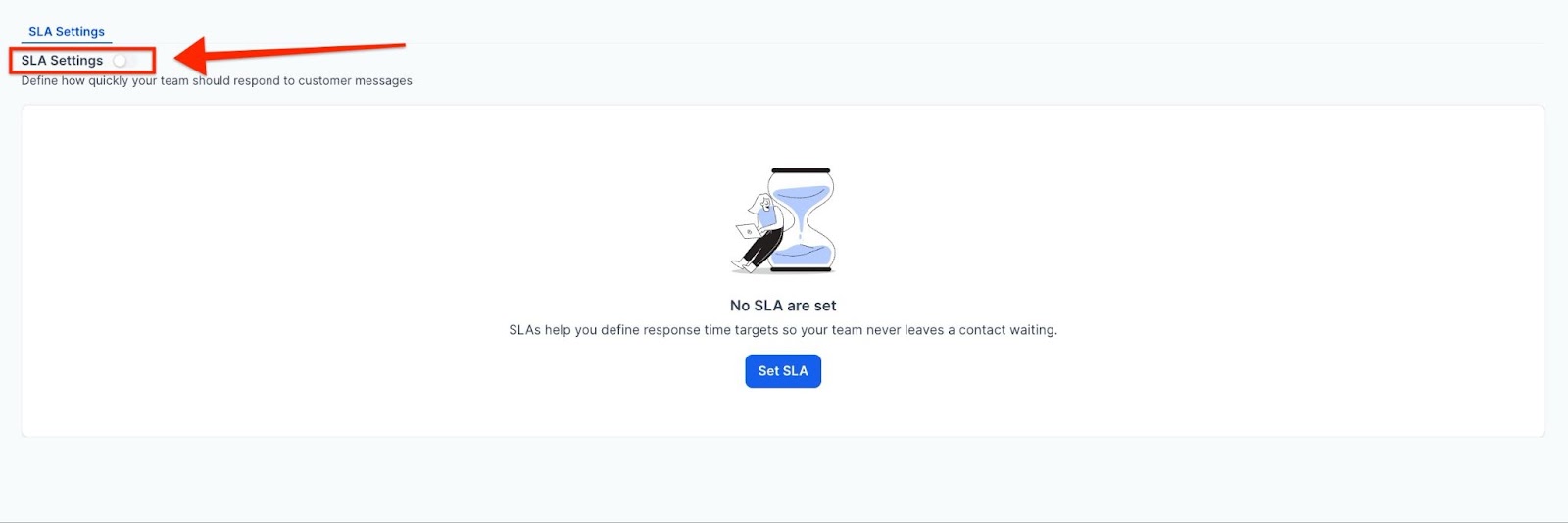
1- Navigate to SLA Settings
Go to the Marketing & Sales > Inbox section on the left and the Settings option at the top. Here, you can enable or disable the SLA feature for your account.
2- Choose Your SLA Type
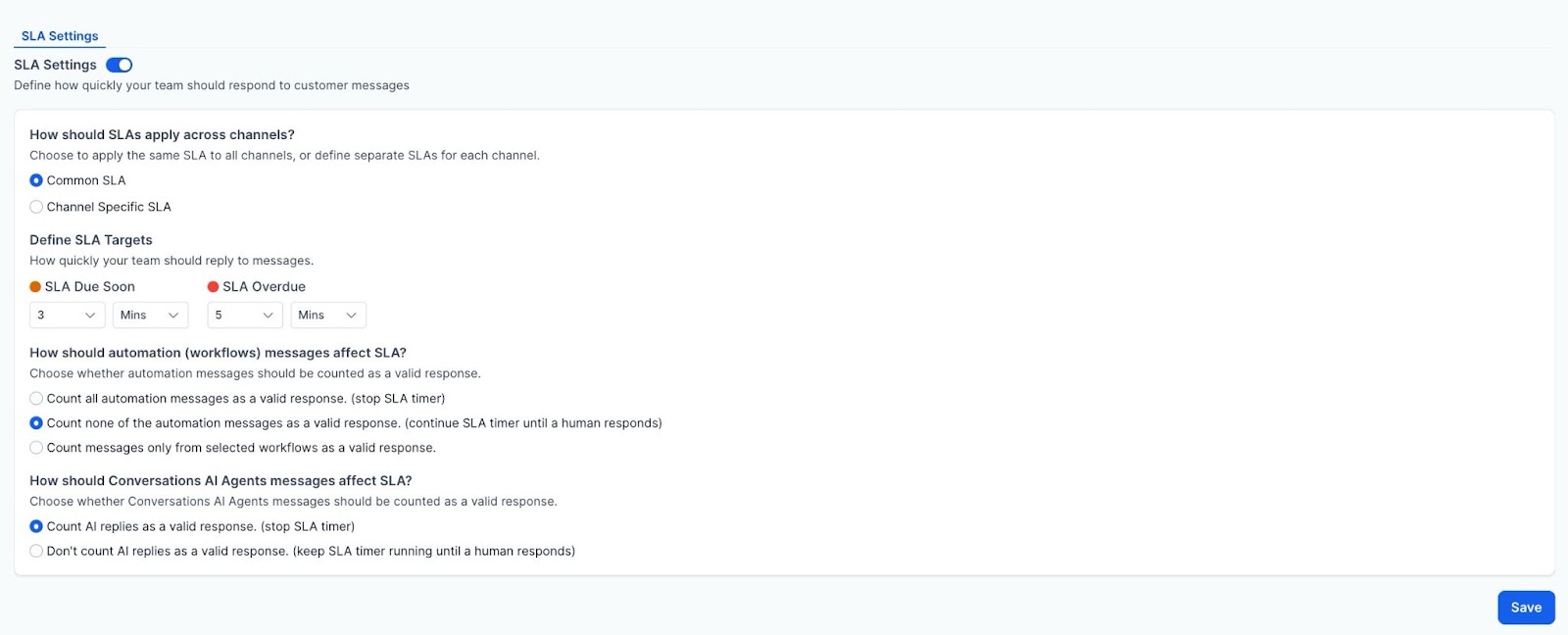
Select whether you want a common SLA across all channels or set channel-specific SLAs. Define your ideal response times and how they vary between channels, like email and social media.
3- Set Time Targets
Specify the time intervals for when conversations should be marked as “Due Soon” or “Overdue.” These targets will guide your team in ensuring no conversation goes unanswered for too long.
4- Adjust Automation Settings
Decide whether automated workflow messages or replies from AI agents should count toward the SLA timer. You can choose to exclude them or treat them as valid responses.
5- Save Your Settings
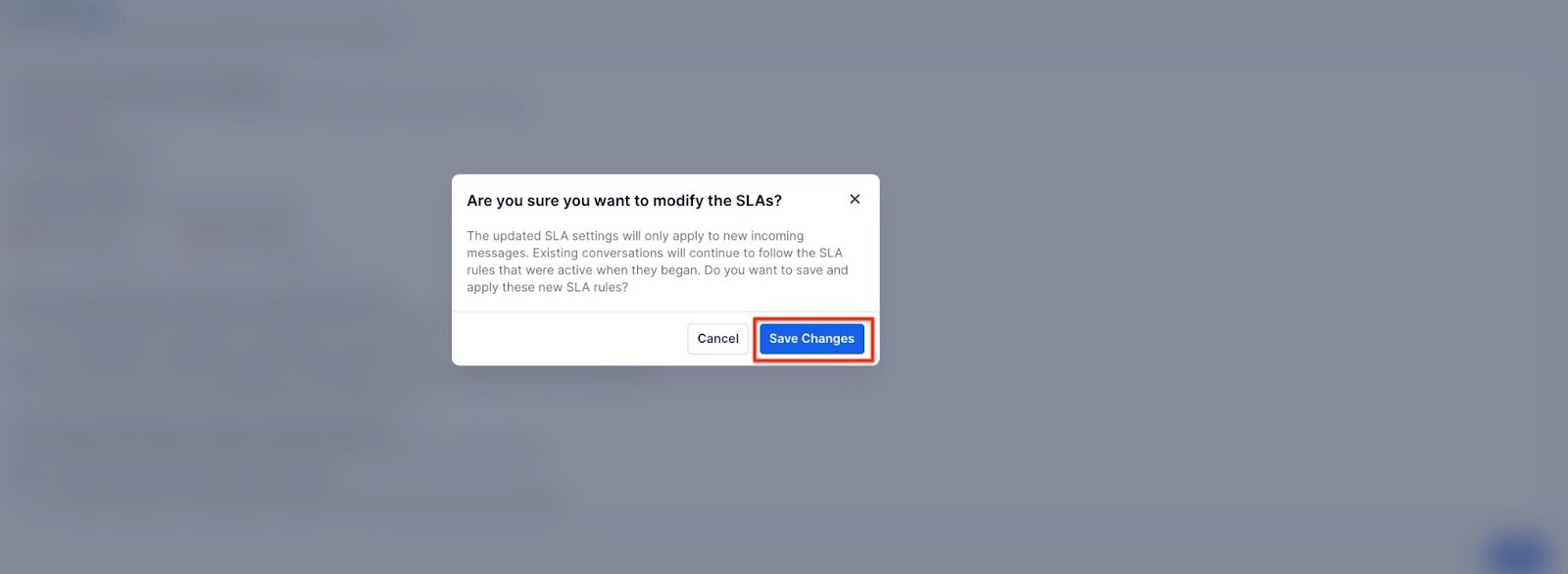
Once your SLA configurations are in place, click "Save." From this point onward, your team will see the SLA timers on all incoming conversations in the inbox.
6- Go back to the Conversations view
Here you can check how much time is left to respond.

Pro Tips for Managing SLAs
- Monitor SLA Compliance: Regularly review SLA compliance to identify bottlenecks and areas where response times can be optimized. This will help your team become more efficient in handling customer inquiries.
- Set Realistic Response Targets: Avoid setting overly ambitious response times that may not be sustainable for your team. A balanced approach will keep your team motivated without causing undue pressure.
- Use SLA Data for Insights: Leverage the data from SLA timers to analyze trends in response times. This can offer valuable insights into areas of improvement for your customer service processes.
FAQ's
Question: What happens if I miss an SLA?
Answer: If a conversation goes beyond the SLA target time, it will be marked as "Overdue" with a red timer. This helps agents quickly spot and prioritize missed responses.
Question: Can automated messages count toward SLAs?
Answer: You can choose whether automated workflow messages or replies from AI agents count towards your SLA timer. This option ensures that your SLA compliance is not affected by automated processes.
Question: How do I track SLA performance over time?
Answer: Many systems allow you to generate reports on SLA compliance, showing how well your team is meeting response targets over time. This data can be used to evaluate performance and make improvements.
Question: Can I set different SLAs for different communication channels?
Answer: Yes, you can customize SLAs for each communication channel, ensuring that each platform (email, SMS, social media) has a response time tailored to its urgency.
Question: How do I set up SLAs for different channels?
Answer: You can set SLAs for individual channels by going to SLA Settings and choosing either a common SLA for all channels or specific response times for channels like email, SMS, or social media.
Question: Can I change SLA settings after they are set up?
Answer: Yes, you can adjust SLA types, response targets, and automation settings anytime in the SLA Settings section.
Question: If a customer sends multiple messages in a row, does each one reset the SLA timer?
Answer: No. The SLA timer is usually linked to the oldest unreplied message in a conversation. This ensures that the customer who has been waiting the longest is prioritized, even if they continue to send follow-up messages.