
Color-Coded Opportunity Pipelines
In fast-paced sales environments, being able to assess deal priority at a glance is crucial. The Color-Coded Opportunity Pipelines feature, powered by Smart Tags, introduces a visual layer to your Mastermind workflows, allowing users to highlight important opportunities without relying on filters or searches. This article explores how this feature improves pipeline visibility, simplifies decision-making, and enhances productivity for individuals and teams.
Key Features and Benefits
-
Smart Tags Tab
Easily manage and customize tags from a dedicated section in each pipeline’s settings.
-
Custom Rule Builder
Create rule-based tags using any Opportunity field, such as deal value, stage, last contacted date, or custom fields, offering endless flexibility.
-
Pre-Built Tags
Get started quickly with 6 ready-to-use tags:
High Value, Stale Deal, New Lead, At Risk, No Next Step, Unassigned Deal.
-
Smart Card Layout Integration
Display Smart Tags on Opportunity cards through card customization for a clean, focused view.
How to Use Smart Tags
Step 1: Access Smart Tags
- Go to Opportunities Settings → Pipelines.
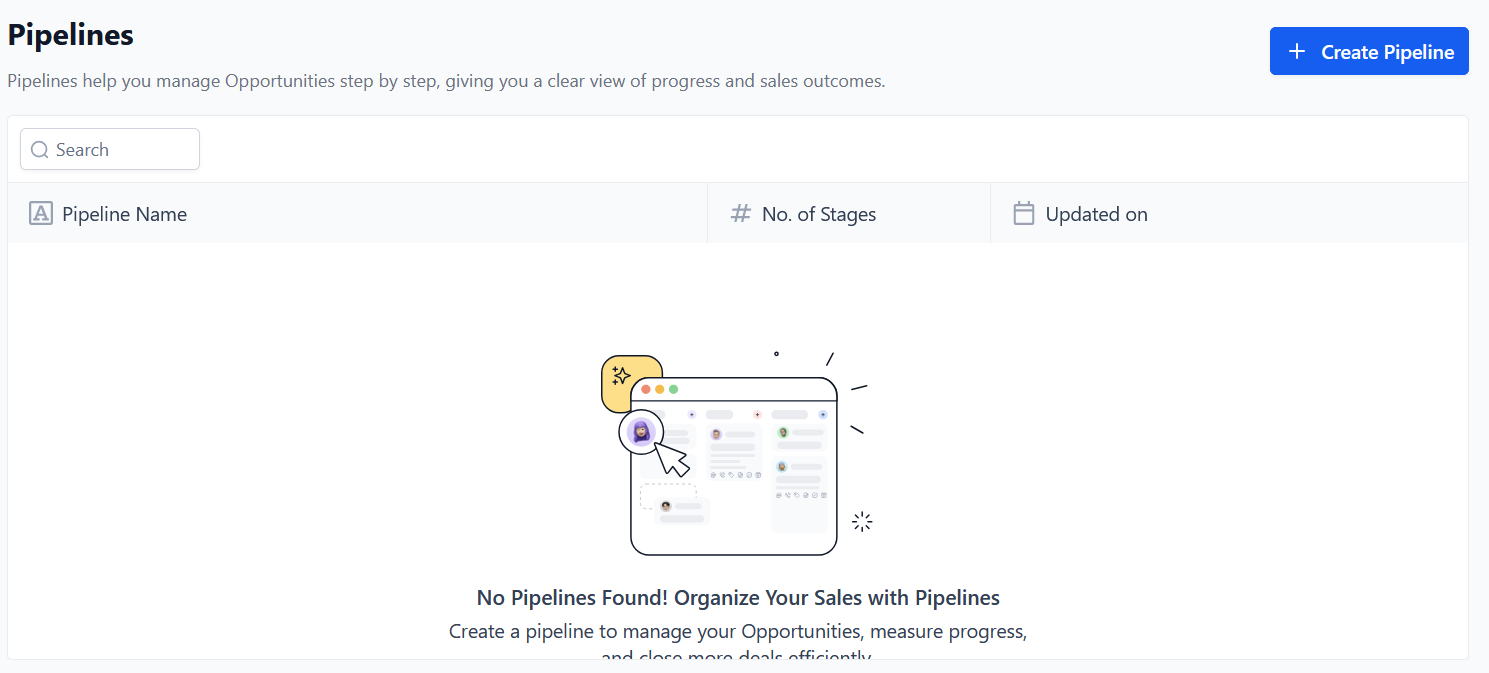
- Select a pipeline.
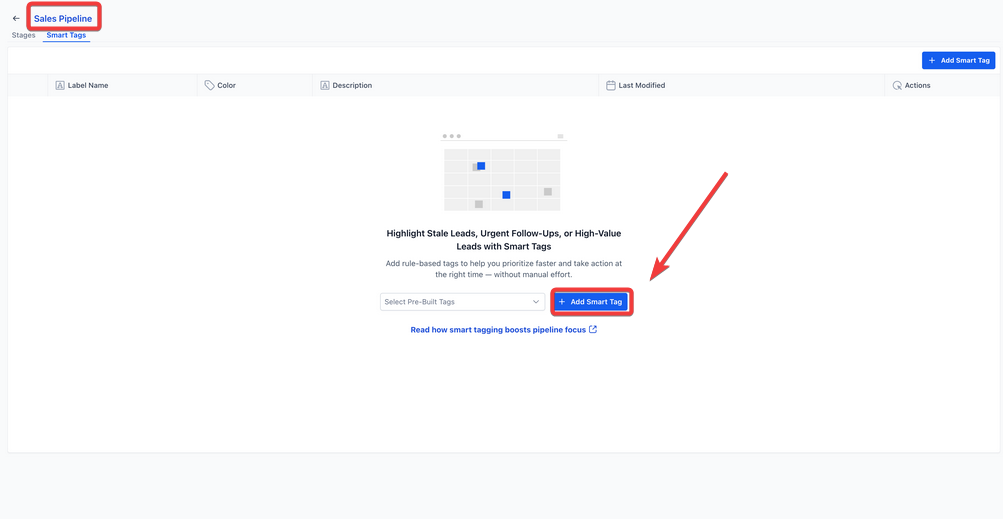
- Click on the Smart Tags tab.
Step 2: Create a Tag
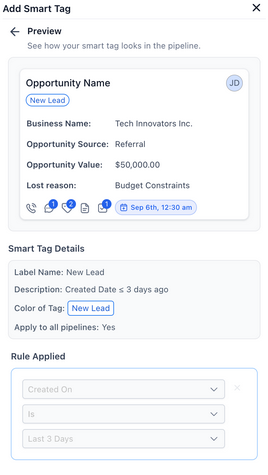
- Click Add Smart Tag.
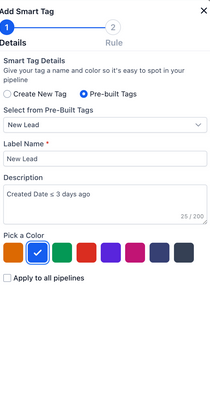
- Choose a color and name your tag.
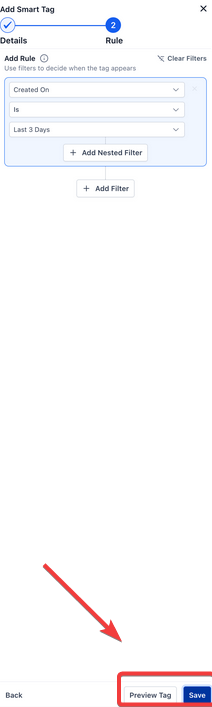
- Define the rule conditions (e.g., “Deal Value > 10,000” or “Last Contacted > 30 days”).
Step 3: Preview & Save
- Use the Preview Tag to see how the tag will look on a card.
- Click Save to apply.
Step 4: Display on Cards
- Go to the pipeline board.
- Click Customize Card Layout.
- Add Smart Tags to the card view to make them visible.
FAQ's
Question: How many Smart Tags can I create in one pipeline?
Answer: You can create multiple tags per pipeline, but it's recommended to limit them for clarity and performance.
Question: Can a single Opportunity have more than one tag?
Answer: Yes, Opportunities can display multiple tags if they meet multiple rule conditions.
Question: Are Smart Tags visible to all users?
Answer: Yes, once configured, tags appear on cards for all users with access to that pipeline.
Question: Do tags update automatically when data changes?
Answer: Yes, Smart Tags are dynamic and automatically update as Opportunity data changes.
Question: Can I use custom fields in Smart Tag rules?
Answer: Absolutely any Opportunity field, including custom ones, can be used to build tag conditions.
Question: How do I display Smart Tags on Opportunity cards?
Answer: After creating Smart Tags, go to the pipeline board, click Customize Card Layout, and add the Smart Tags to the card view. This ensures tags are visible for quick reference.
Question: Will Smart Tags help prioritize deals effectively?
Answer: Yes. By providing a visual, color-coded system directly on Opportunity cards, Smart Tags allow users to quickly assess priority, identify stale deals, and focus on high-value opportunities without additional searches or filters.
Question: Is there a limit to how many characters a Smart Tag name can have?
Answer: While there is no strict character limit, it is best to use short, impactful names (e.g., "VIP" instead of "Very Important Person") to ensure the tags remain readable and don't clutter the opportunity card.
Question: How many smart tags can I assign?
Answer: You can assign up to 60 smart tags.