
Seamless Ad Creation from WhatsApp & Social Planner
Creating high-performing ad campaigns no longer requires jumping between tools or platforms. With the introduction of inline ad creation breadcrumbs in messaging and social planning modules, marketers can launch ads directly from their daily workflows saving time, reducing friction, and boosting efficiency.
Whether you're engaging leads through messaging apps or managing a robust social media calendar, these tools enable instant ad creation using pre-filled data from your existing content. This article covers the full functionality, how to use it, and answers common questions to help you make the most of these powerful enhancements.
Key Features & Benefits
- Inline Engagement Ad Creation: Launch ads directly from WhatsApp and Social Planner without switching tools.
- Pre-Filled Campaign Data: Use existing post content (media, captions, etc.) to populate ad setup fields automatically.
- Smart Redirect Modals: Confirm your path and access Ad Manager with just one click.
- Subscription Gating: Clearly informs users if access requires activation, and guides them through the upgrade process.
- Enhanced Discoverability: Ad creation entry points are now embedded within familiar workflows—right where users need them.
How to Use: Step-by-Step
WhatsApp → Create Engagement Ad
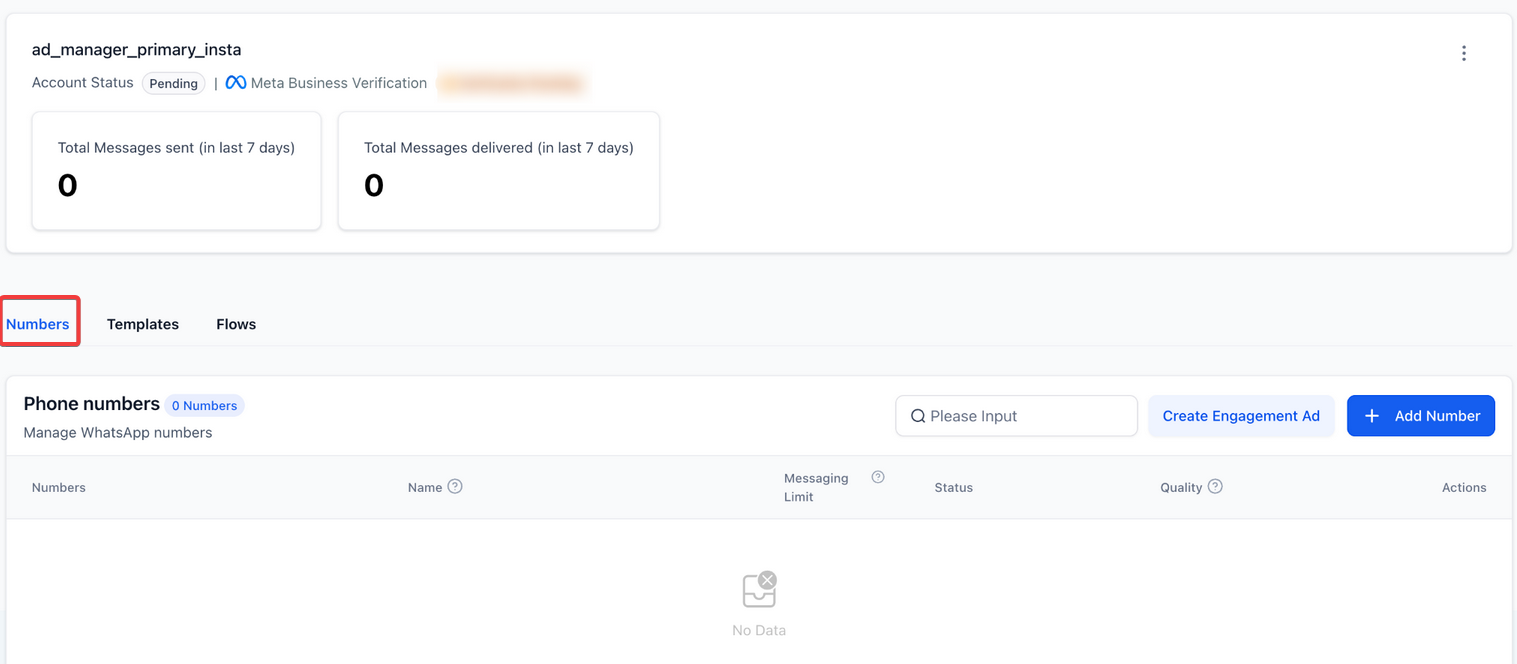
- Navigate to: WhatsApp > Numbers tab.
- Click the “Create Engagement Ad” button next to the “Add Number” option.
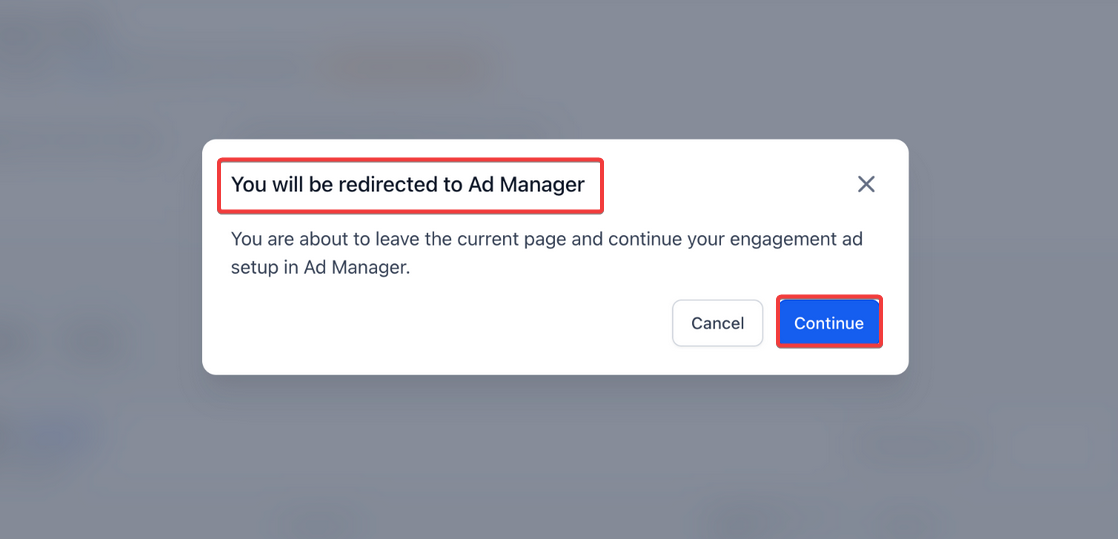
- A confirmation modal will appear. Click Continue.
- You’ll be redirected to the Ad Manager.
- The campaign setup opens with:
- Objective: Engagement (pre-selected)
- Destination: WhatsApp
- Proceed to configure your:
- Ad creatives (image/video)
- Target audience
- Budget and scheduling
- Finalize and launch the ad.
Note: If Ad Manager is not yet activated, you will see a subscription prompt with upgrade options and feature highlights.
Social Planner → Run as Ad
Available in multiple places for convenience:
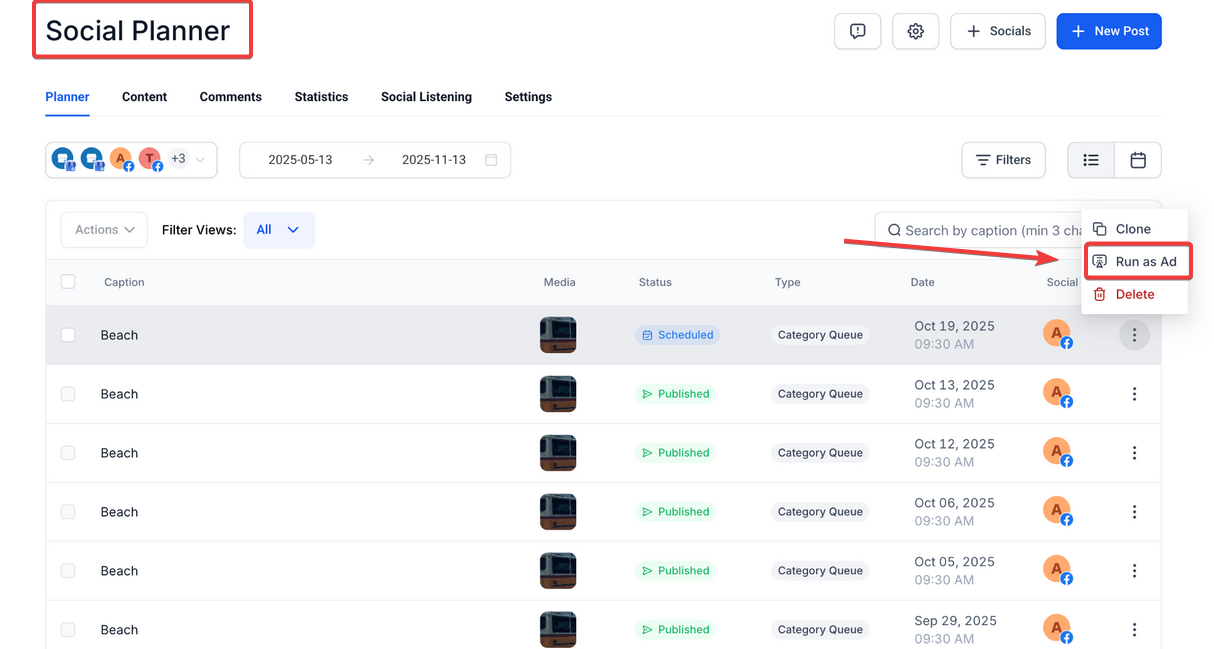
- Planner View: Click the ⋮ (three-dot menu) on a post > Select Run as Ad
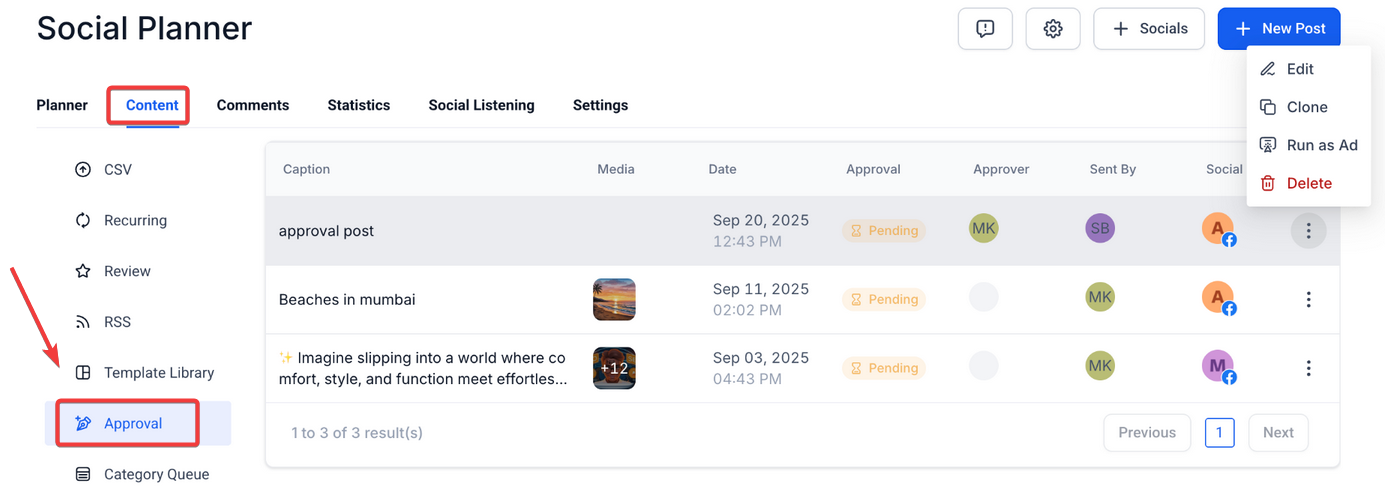
- Content > Approval Tab: Same option available in post action menu
- Post Details Sidebar: “Run as Ad” appears near the post’s status badge
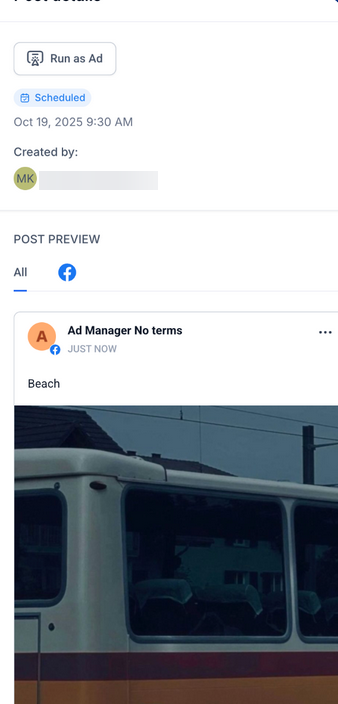
Supported Post Statuses:
- Published
- Scheduled
- In Review
Supported Platforms:
Flow:
- Click Run as Ad on an eligible post.
- Confirm via the redirect modal.
- Continue to be an Ad Manager.
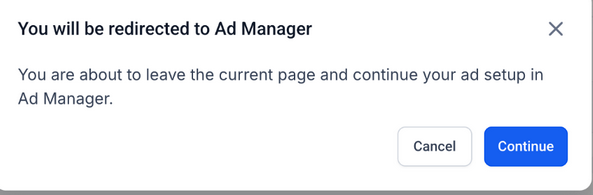
- The post’s media and caption are automatically pre-filled in the ad setup.
- If the post has no caption, you can manually enter ad copy in the campaign modal.
- Complete the campaign setup and launch.
FAQ’s
Question: What happens if I click “Create Engagement Ad” but don’t have Ad Manager enabled?
Answer: You’ll see a subscription modal that outlines the benefits of activating Ad Manager and gives you the option to proceed with setup.
Question: Can I edit the ad content after it's pre-filled?
Answer: Yes. Even though captions and media are pulled from existing content, you can modify any part of the ad campaign before publishing.
Question: Are video posts supported in “Run as Ad”?
Answer: Yes, video content is fully supported and will be included in the ad setup when selected from a Social Planner post.
Question: What types of campaigns are created using this feature?
Answer: Currently, it defaults to Engagement campaigns with the respective platform (WhatsApp, Facebook, or Instagram) as the destination.
Question: Can I choose between ad platforms (Google or Meta)?
Answer: Yes. Once in the Ad Manager interface, you can choose the platform you want to run the ad on, depending on your campaign goals.
Question: How does inline ad creation improve efficiency?
Answer: It reduces friction by embedding ad creation directly into your daily workflows, pre-filling campaign data, and eliminating the need to switch between tools, allowing faster ad launches.
Question: Does the ad creation process use existing post content?
Answer: Yes. Media and captions from the selected post are automatically pre-filled, though you can edit them before launching the campaign.
Question: What happens if my Social Planner post has multiple images (Carousel)?
Answer: The "Run as Ad" is designed to support the primary media of the post. For carousels, it will pull the images into the ad setup, but it is always recommended to review the ad preview in the Ad Manager to ensure the carousel format looks exactly how you want it on Facebook or Instagram.