
Manual & Smart Collections for Products
As a store owner, organizing your products efficiently can significantly improve customer experience and streamline your inventory management. With this in mind, we are excited to introduce Manual & Smart Collections for Stores, a feature that gives you powerful ways to group and categorize products. This article will guide you through how to use these collections effectively, highlighting key features, benefits, and offering helpful tips for maximizing their potential.
Key Features and Benefits of Manual & Smart Collections
1. Two Types of Collections:
- Manual Collections: These collections allow you to hand-pick and manually group products. This gives you complete control over what goes into the collection, making it ideal for store owners who want to curate product groupings based on personal preferences or seasonal changes.
- Smart Collections: These collections use rule-based logic to automatically include or exclude products based on specified criteria, such as price, stock levels, product variants, or titles. Smart Collections save time by automatically updating when product data changes.
2. Ease of Use:
- Manual Collections: You simply browse and select products to add, giving you full control over your store’s organization.
- Smart Collections: Define rules for inclusion (such as product price or availability) and let the system do the rest. The rules ensure products are grouped consistently, without needing constant attention.
3. Increased Efficiency:
- Smart Collections: These collections update automatically whenever relevant product data changes, reducing the time spent managing collections.
- Permanent Collection Types: Once created, the collection’s type—whether manual or smart—cannot be switched, ensuring clarity and consistency in your organization.
4. Validation & Error Prevention:
- For Smart Collections, any contradictory or invalid rules (such as "Price > 100 AND Price < 50") will trigger an error message during the save process, preventing mistakes and ensuring your rules are functional.
5. No Manual Overrides for Smart Collections:
- Once a Smart Collection is created, it is fully automated. You cannot manually adjust product selection within it, ensuring that product grouping always adheres to the set rules.
How to Create and Use Manual & Smart Collections
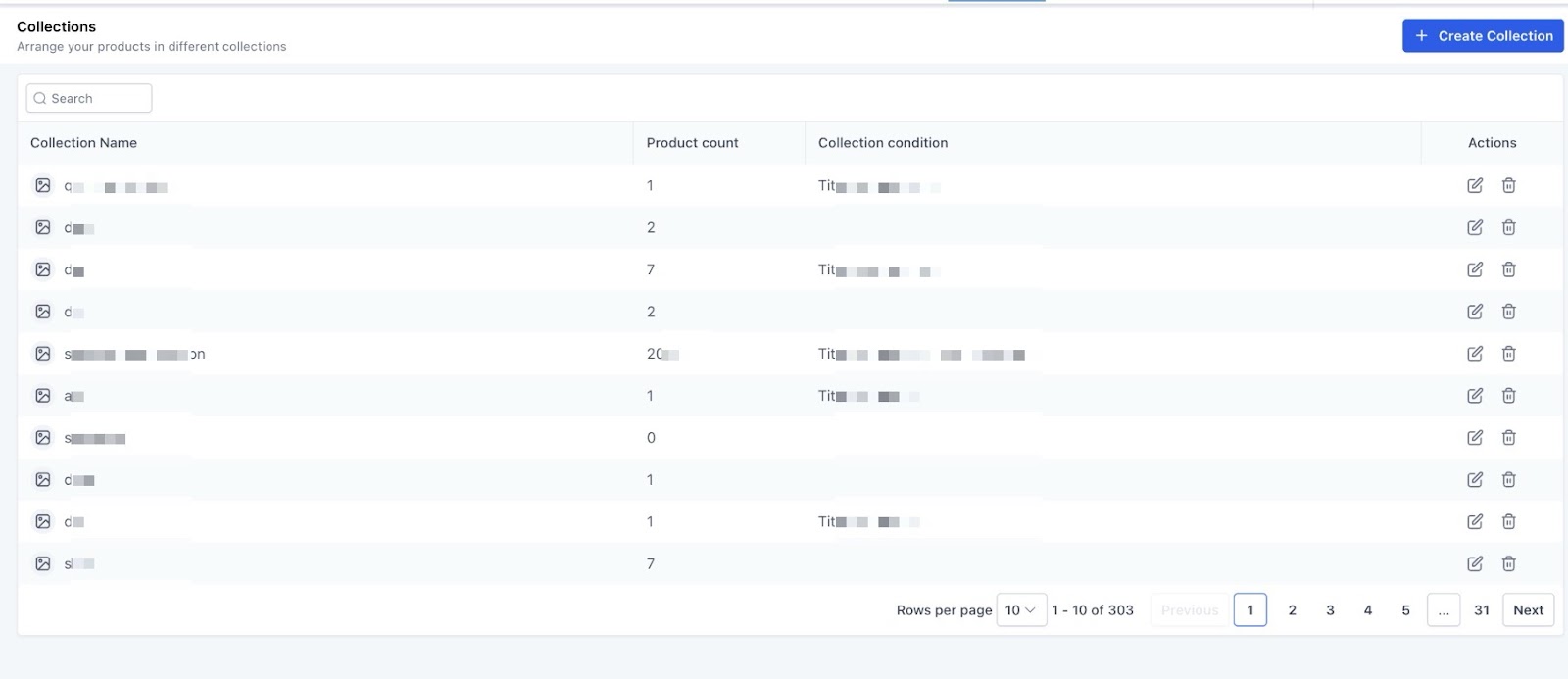
Step 1: Accessing Collections
To get started, navigate to the Collections section through the Products dropdown menu, then select Collections.
Step 2: Creating a New Collection
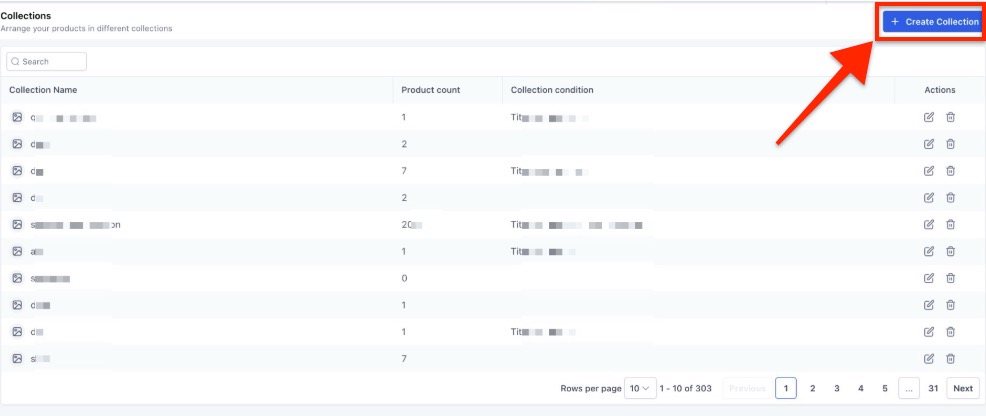
1- Click Create Collection.
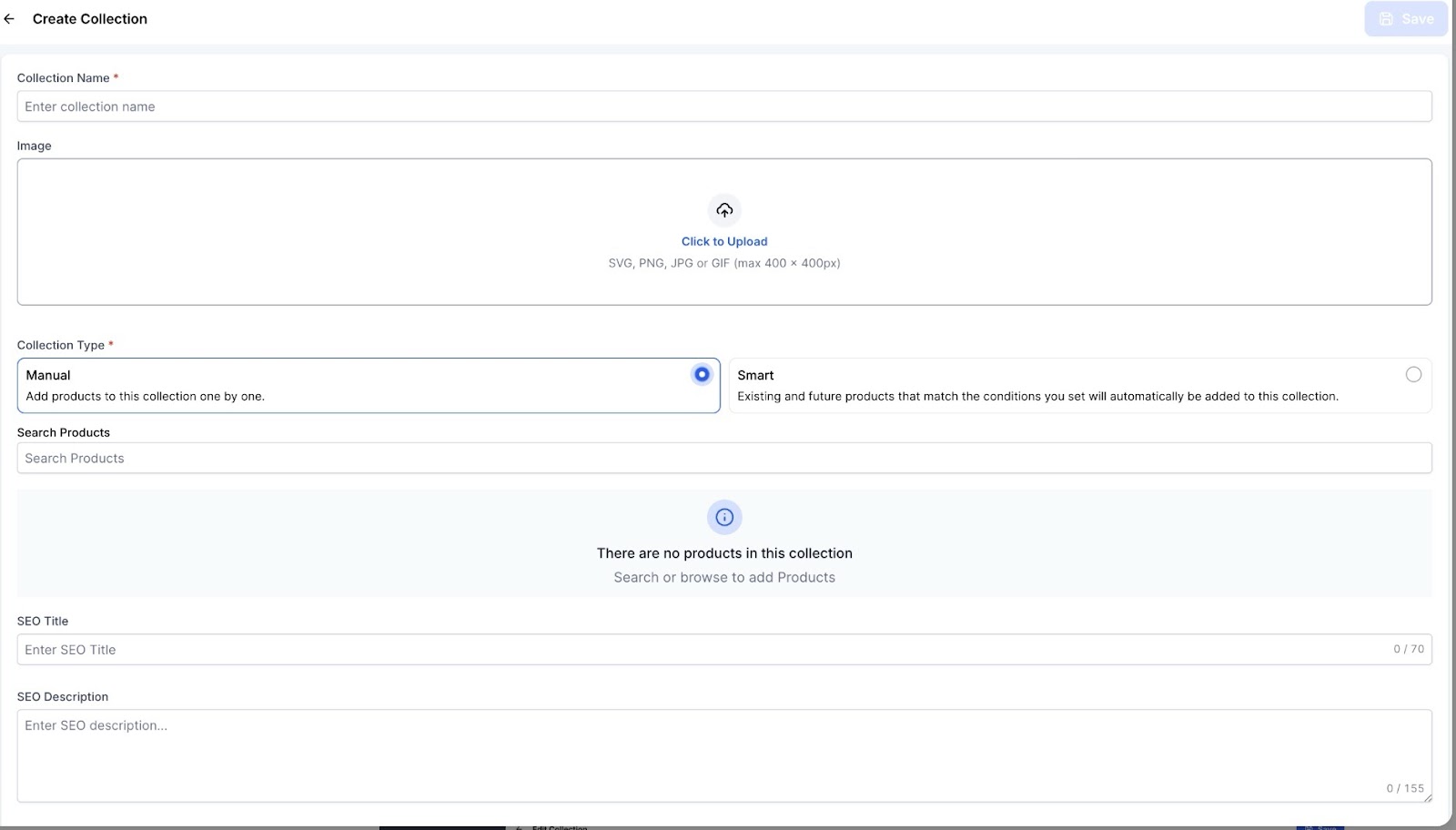
2- You will be prompted to enter the collection details, including:
- Name: Give your collection a descriptive title.
- Description (optional): Add details about what this collection includes.
3- Choose between a Manual or Smart collection:
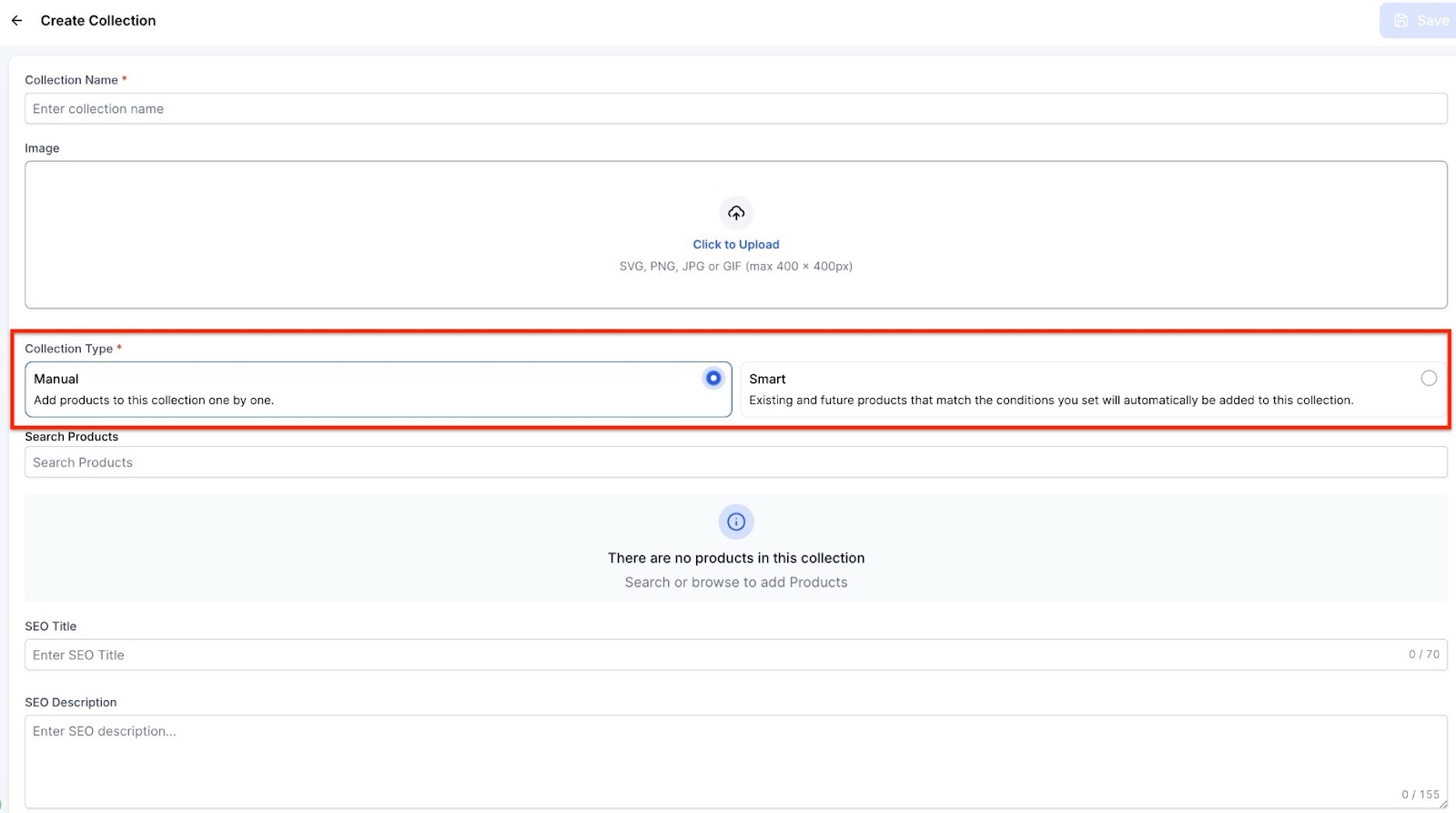
- Manual Collection: Simply search, browse, and select products to add to the collection.
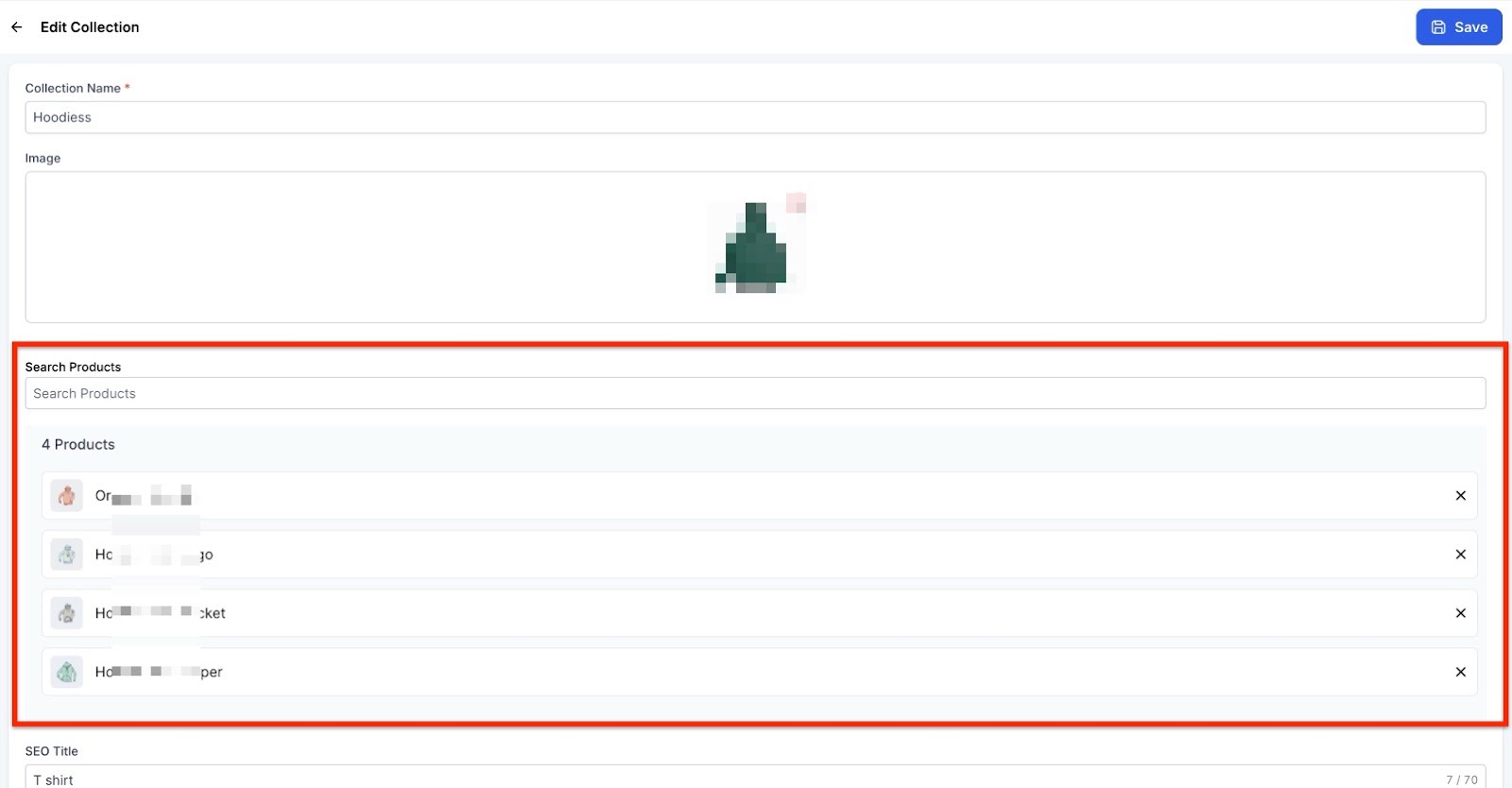
- Smart Collection: Define rules based on fields such as Title, Variant Title, Price, or Inventory. These conditions will determine which products are automatically included.
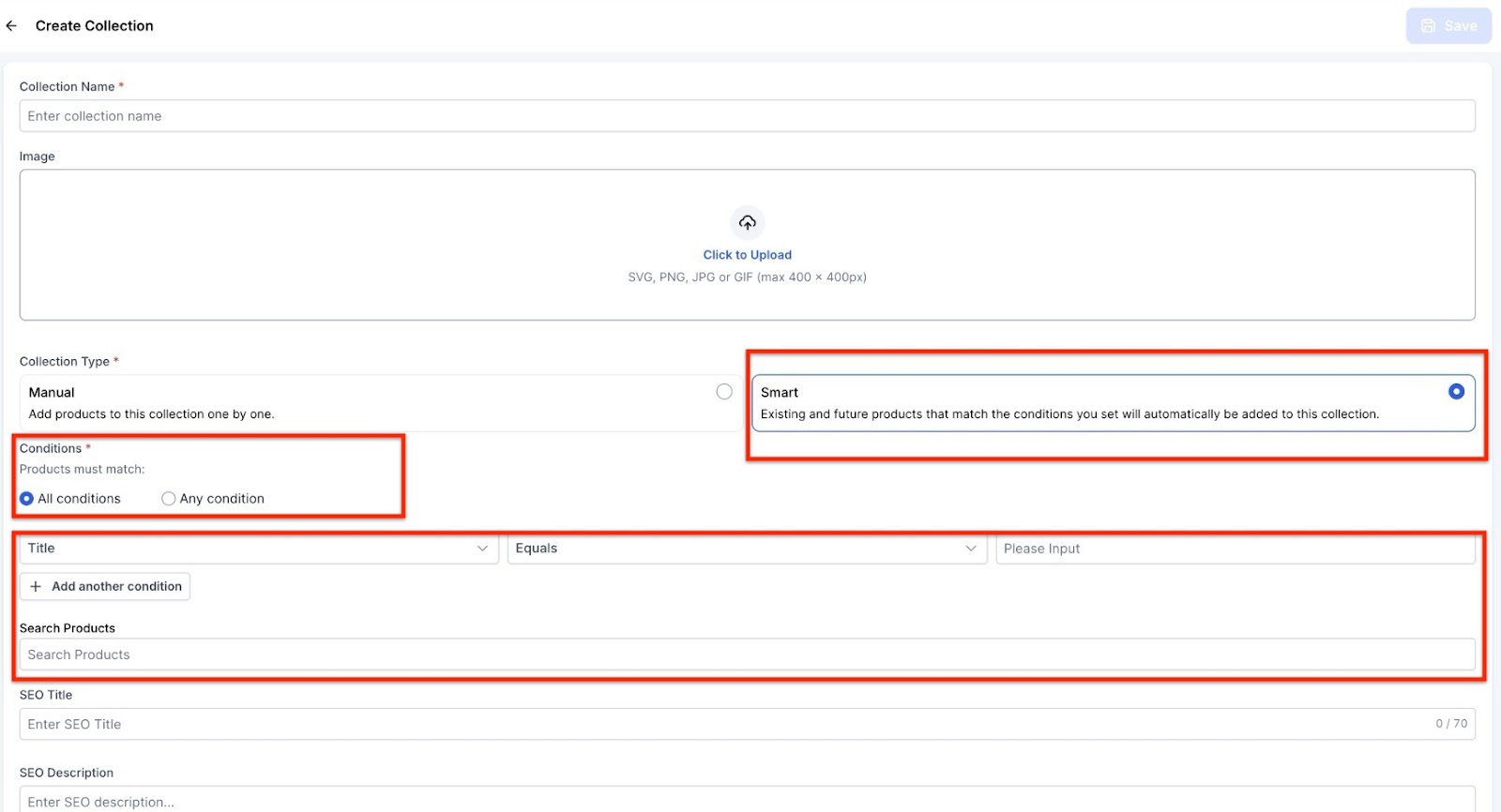
Step 3: Saving Your Collection
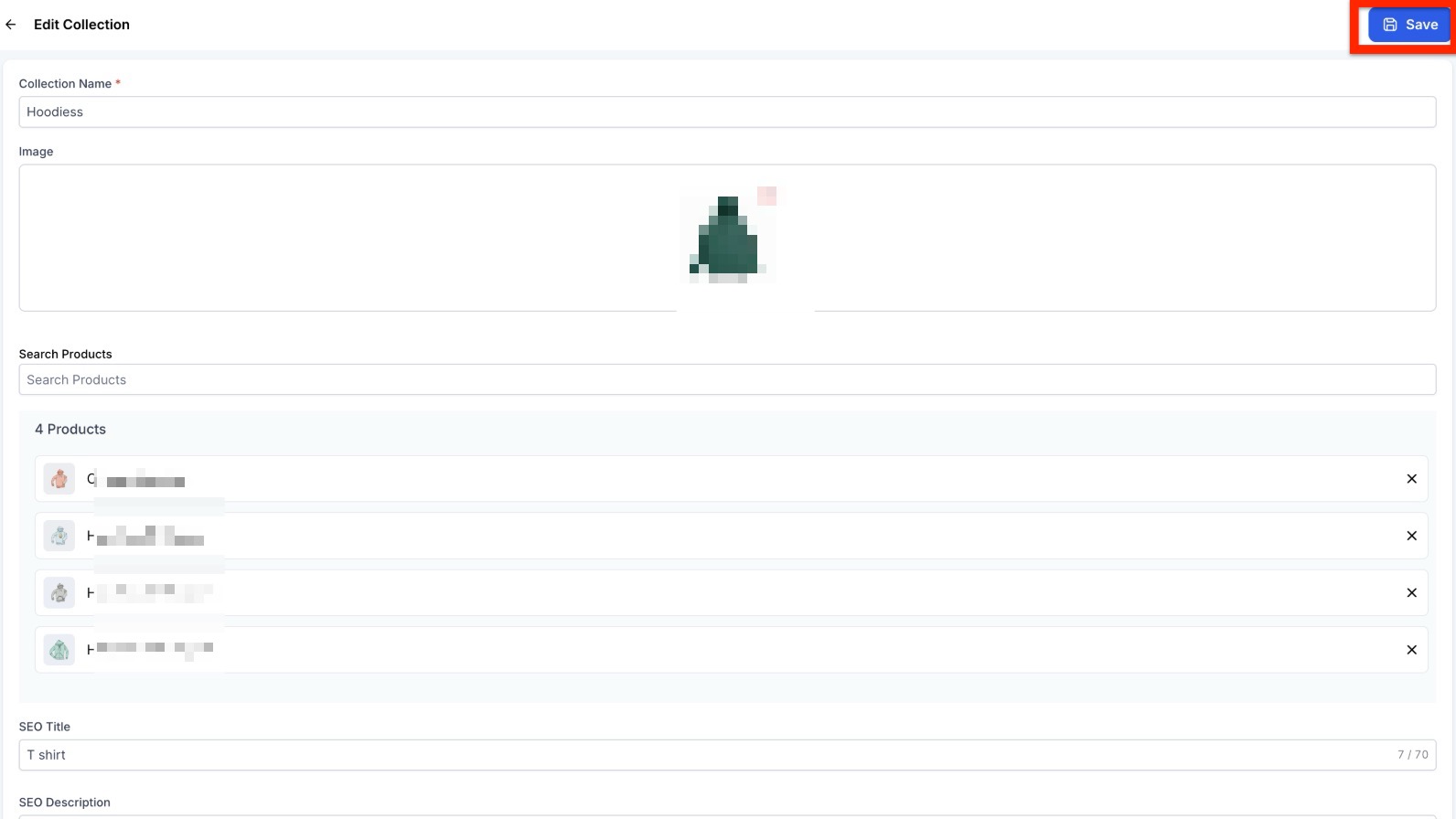
Once you've added the necessary products or defined the rules for a Smart Collection, click Save. For Smart Collections, the system will update the collection automatically whenever product data changes to match the rules you’ve set.

Pro Tips for Maximizing Collection Efficiency
- Use Smart Collections for Larger Inventories: If your store has a broad inventory, Smart Collections can save a lot of time. Automatically grouping products by criteria like price range, availability, or tags allows you to focus on other aspects of store management while ensuring products are organized effectively.
- Layer Your Collections: While a product can be included in multiple collections, think about how you layer these groupings. For instance, a product can belong to both a category-based collection (e.g., “New Arrivals”) and a pricing-based collection (e.g., “Sale Items”). This layered approach ensures visibility in different contexts.
- Use Manual Collections for Seasonal Groupings: For limited-time promotions or seasonal offers, Manual Collections allow for quick adjustments. You can swiftly group products based on specific needs (like “Winter Sale” or “Holiday Specials”) and adjust them as necessary.
- Be Mindful of Rule Overlaps: In Smart Collections, make sure your rules don’t contradict each other. For example, defining a collection that includes products where “Price > 100” and “Price < 50” will result in an error. Always check that your rules align logically before saving the collection.
- Leverage Smart Collections for Automation: If your store frequently updates product information (like seasonal stock levels), Smart Collections can handle the changes automatically. Set the right rules, and let the system manage product organization for you, saving time and reducing manual errors.
FAQs
Question: Can I change a Manual Collection to a Smart Collection?
Answer: No, once a collection type is selected (Manual or Smart), it cannot be changed. You will need to create a new collection if you wish to switch the type.
Question: What happens if no products meet the criteria for a Smart Collection?
Answer: If no products meet the Smart Collection’s rules, the collection will remain empty, but it is still valid and can be saved.
Question: Can I manually add or remove products from a Smart Collection?
Answer: No, Smart Collections cannot be manually edited. Products will only be added or removed based on whether they meet the conditions defined in the collection’s rules.
Question: How can I edit a Manual Collection after it's created?
Answer: You can edit a Manual Collection anytime by simply adding or removing products to/from the collection.
Question: Do Smart Collections update immediately when product data changes?
Answer: Smart Collections are processed in the background, so updates may not be reflected immediately, but they will update automatically as soon as the system processes the changes.
Question: When should I use Manual Collections versus Smart Collections?
Answer: Use Manual Collections for seasonal promotions, limited-time offers, or curated groupings. Use Smart Collections for large inventories or frequently updated products, as they automatically adjust based on rules like price, stock, or tags.
Question: What happens if my Smart Collection rules contradict each other?
Answer: If your Smart Collection contains contradictory rules (e.g., “Price > 100” and “Price < 50”), the system will display an error and prevent you from saving the collection. Always ensure your rules are logically consistent before saving.
Question: Will Smart Collections automatically remove a product if it goes out of stock? Answer: Yes, if you have set a rule based on Inventory/Stock Levels. If a product's stock falls below your defined threshold, the system will automatically move it out of that Smart Collection until the stock is replenished.
Question: Why does the system prevent me from changing a collection type after it's saved?
Answer: This ensures clarity and consistency in your store’s organization. Because the underlying logic for manual picking and automated rules is so different, locking the collection type prevents accidental data errors or organizational confusion.