
Calendars: Schedules Tab
Managing availability across multiple calendars and users can often become a time-consuming task, especially when every calendar requires individual adjustments. With a centralized scheduling system, this process is streamlined for greater ease and efficiency. This article provides a detailed guide to help you understand how the scheduling feature works, the benefits it offers, and how you can utilize it to simplify your scheduling process.
Key Features and Benefits
The scheduling system is designed to centralize the way availability is managed across multiple calendars and users. Here are the primary benefits:
-
Centralized Availability Management
Availability is managed from a dedicated scheduling section. Users can create, manage, and assign availability schedules for all staff members in one location, cutting down the need to adjust settings individually for each calendar.
-
Reusable Schedules
Once a schedule is created, it can be applied across multiple calendars. This eliminates the need to repeatedly set availability for each individual calendar, saving both time and effort.
-
Custom Calendar-Specific Schedules
For specific needs, such as seasonal shifts or unique work hours, users can create custom schedules within individual calendars. This flexibility ensures that all requirements are met while maintaining structure.
-
User-Level Default Schedule
Each user is provided with a default schedule, which is automatically applied to new calendars. This ensures consistency and a smooth setup process for all users.
-
Automatic Migration
All pre-existing calendar availability is migrated into custom schedules seamlessly, with no disruption to ongoing operations. This ensures a smooth transition without losing any important scheduling data.
How to Use the Scheduling System
Setting up and managing availability schedules is simple and user-friendly. Follow these easy steps to get started:
1- Access the Scheduling Tab
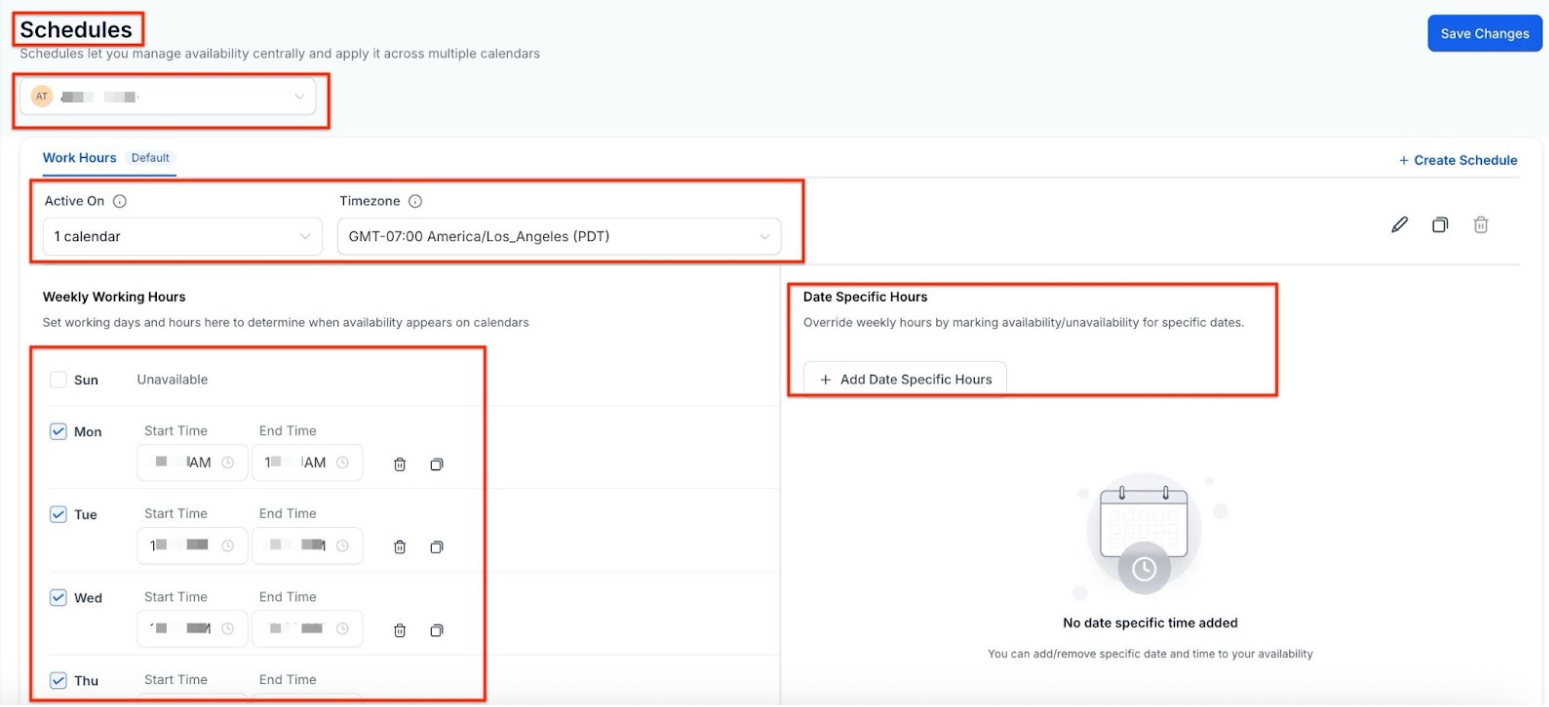
Navigate to Your Customers > Calendars > Settings and select the Availability section to find the Schedules tab.
2- Create and Manage Schedules
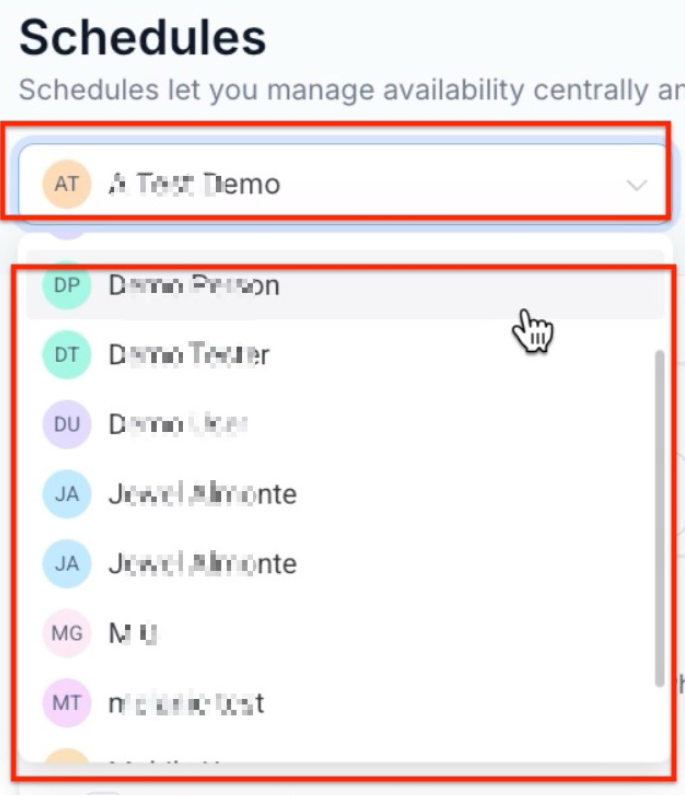
Use the staff selector to create and manage schedules for each user. You can set weekly working hours, date-specific overrides, and adjust time zones—all in one place.
3- Apply Schedules Across Multiple Calendars
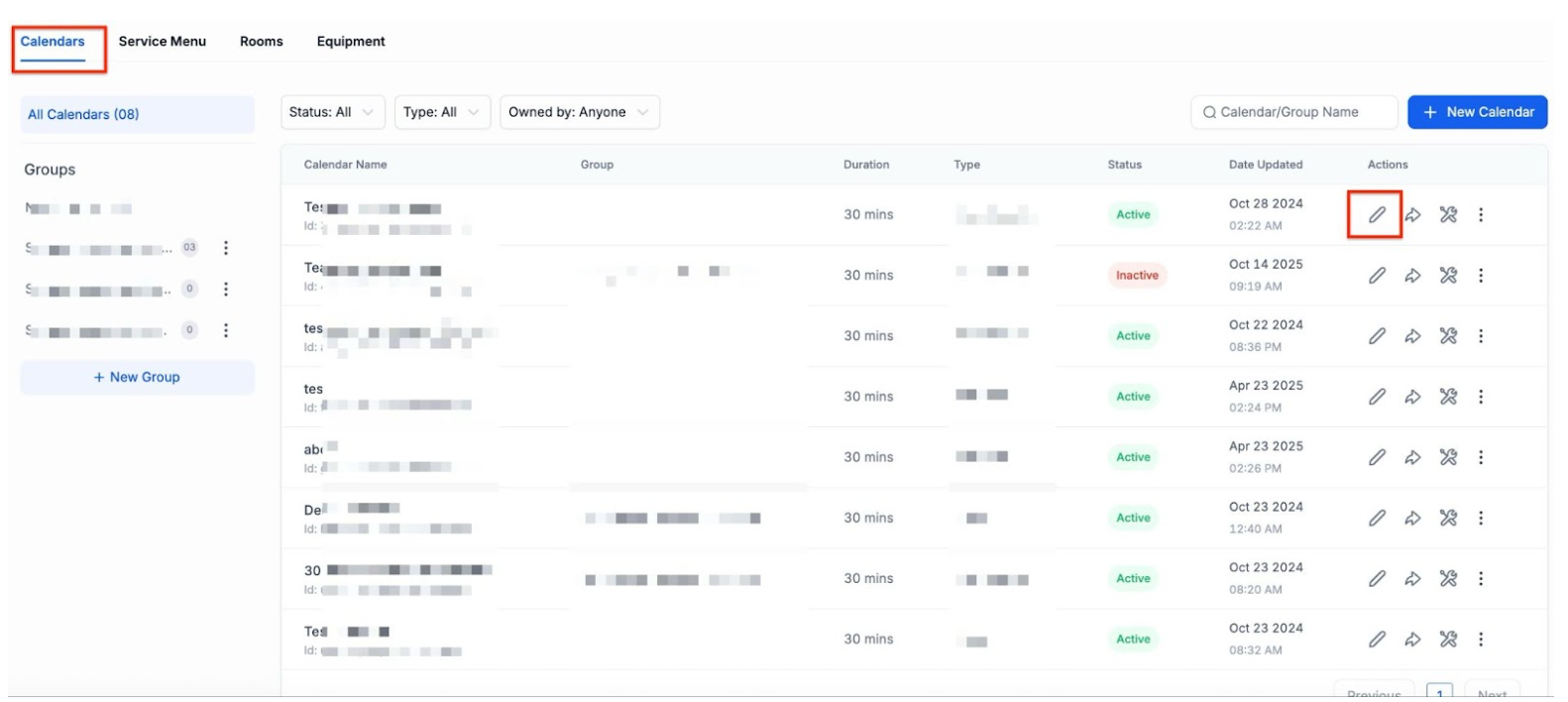
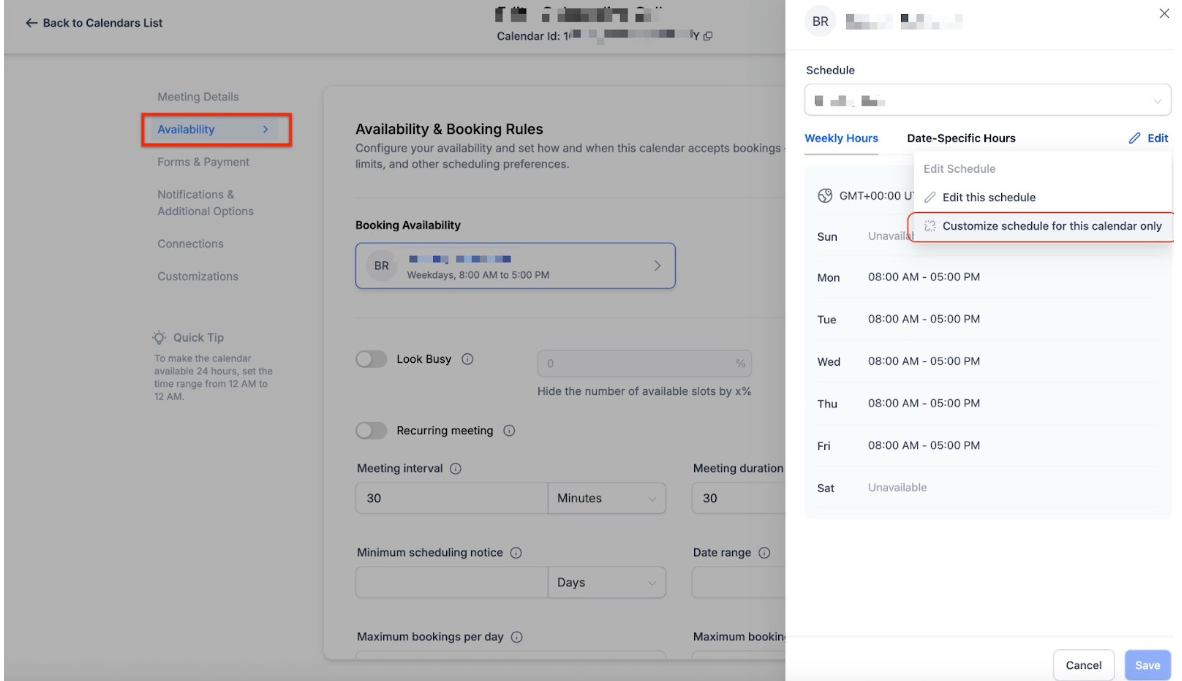
You’ll need to navigate back to the Calendar Settings> Select the calendar you want to make changes to > Click the pencil button to edit. In the availability section of the calendar, you can share a schedule across multiple calendars or customize directly within an individual calendar. Use the "Active On" feature to assign a schedule to one or more calendars.
Pro Tips
-
Use Default Schedules for Efficiency
Assign default schedules to each user to simplify the process of applying availability to new calendars. This ensures that no time is wasted setting up each new calendar individually.
-
Create Unique Schedules When Needed
While reusable schedules are perfect for the majority of use cases, don’t hesitate to create custom schedules for special circumstances such as holidays or irregular work hours. This flexibility will keep your scheduling process efficient and adaptable.
-
Regularly Review Schedules
Ensure that schedules are up-to-date by reviewing them periodically. This can prevent confusion in the future and ensure consistency for users and teams.
FAQs
Question: Can I create a schedule for a single calendar?
Answer: Yes, you can create custom schedules for individual calendars, allowing for unique scheduling needs when required.
Question: Is it possible to set different availability for different team members?
Answer: Absolutely. Each user can have their own availability schedule, and these schedules can be applied to multiple calendars.
Question: Can I adjust the time zone for specific schedules?
Answer: Yes, you can set a specific time zone for each schedule to ensure accuracy across different regions or locations.
Question: What happens to existing calendar availability?
Answer: Existing calendar availability is automatically migrated to the new scheduling system, so there will be no disruption to your current setup.
Question: Can I apply multiple schedules to the same calendar?
Answer: Each calendar can only have one active schedule per user at a time, but you can create different schedules for various users on the same calendar.
Question: How do reusable schedules work?
Answer: Once a schedule is created, it can be applied to multiple calendars, saving time by eliminating the need to set availability individually for each calendar.
Question: How often should I review schedules?
Answer: It’s recommended to review schedules periodically to ensure they remain up-to-date and consistent, preventing confusion and scheduling errors.
Question: What happens if a user's time zone is different from the calendar's time zone? Answer: The system is designed to handle this seamlessly. The schedule is typically set in the user's local time zone, and the system automatically calculates and displays the correct available slots to the lead based on the calendar's or the lead's time zone.