
Assign Categories and Scoring in Quizzes
Quizzes are a powerful tool for collecting feedback, assessing skills, and segmenting users based on their responses. By adding scores to your quiz, you can get detailed insights into how well participants performed. This guide will walk you through the process of adding scores, categorizing answers, and personalizing result messages to enhance the quiz experience.
Key Features and Benefits of Scoring in Quizzes
- Personalized Feedback: Display custom messages based on score ranges, ensuring quiz takers receive tailored responses.
- Detailed Assessments: Categorize answers to give more in-depth results, helping you segment responses into meaningful groups.
- Actionable Recommendations: Direct users to specific next steps (such as booking a call or downloading a report) based on their scores.
- Easy to Implement: Add scores and categories in just a few simple steps, with no need for technical expertise.
How to Add Scores in Quizzes
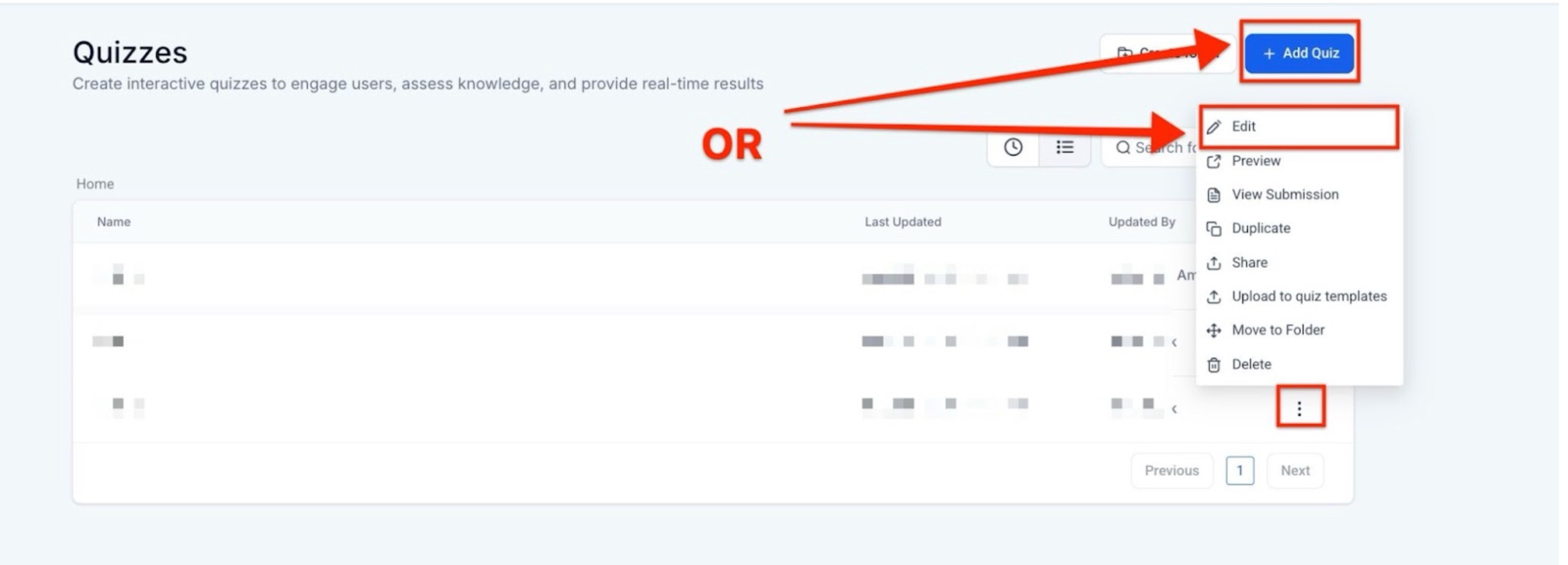
Step 1: Create or Edit a Quiz
1. Log in to your account.
2. Navigate to the Quizzes section.
3. Select an existing quiz to edit or click + New Quiz to create a new one.
Step 2: Add Questions to the Quiz
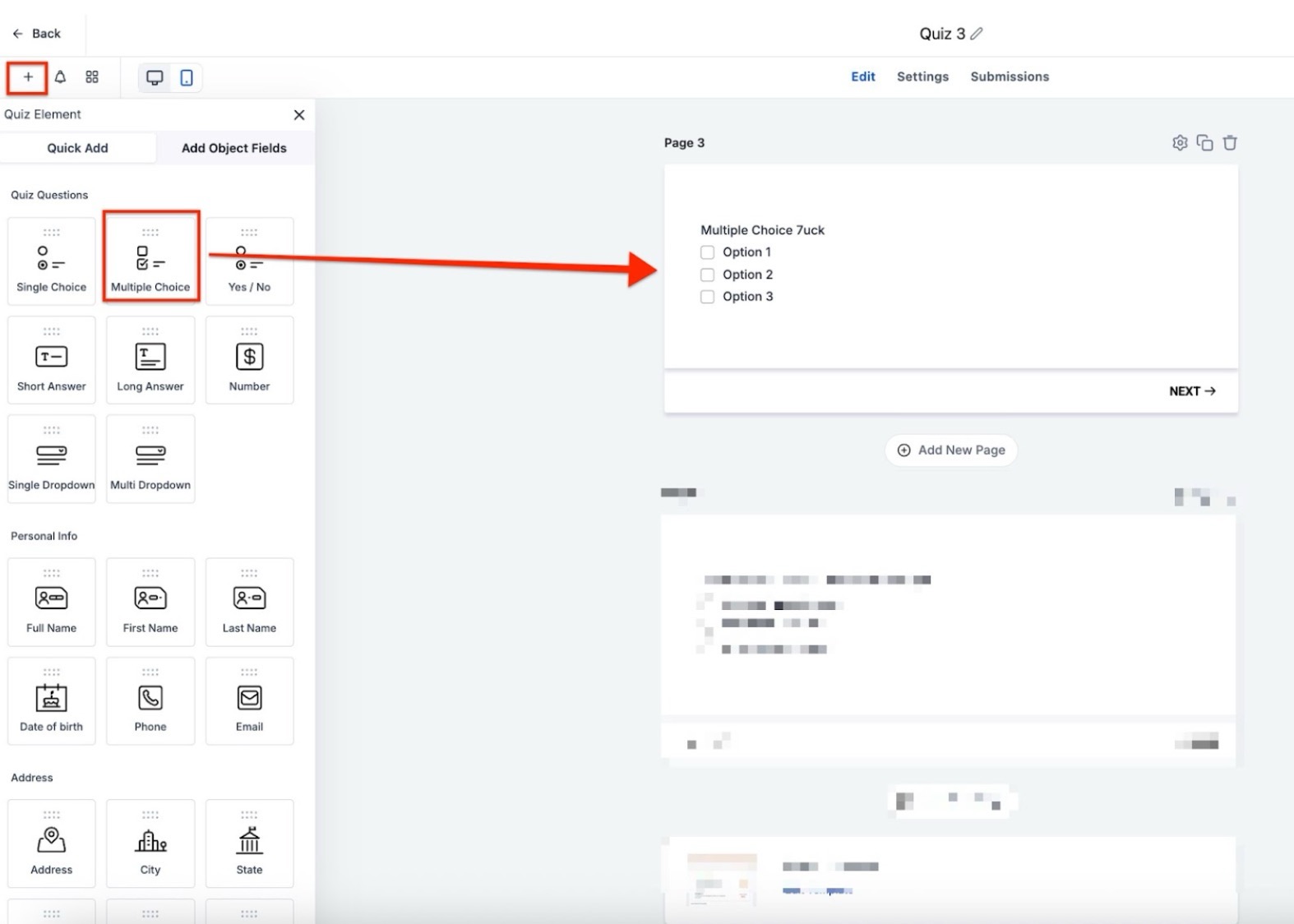
1. Click on Add Question and choose your preferred question type (Single Choice, Multiple Choice, Dropdown, etc.).
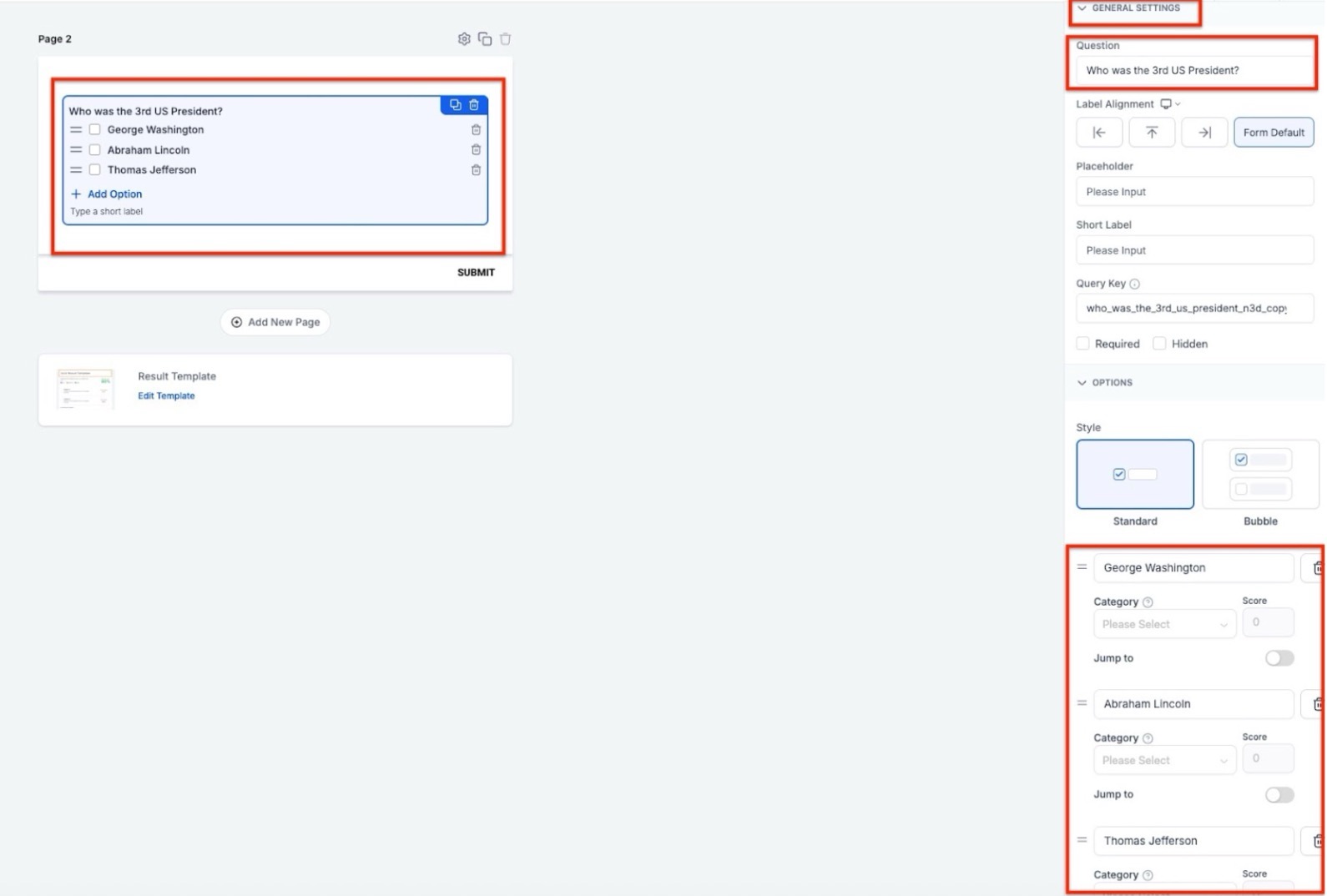
2. Enter the question and its answer choices.
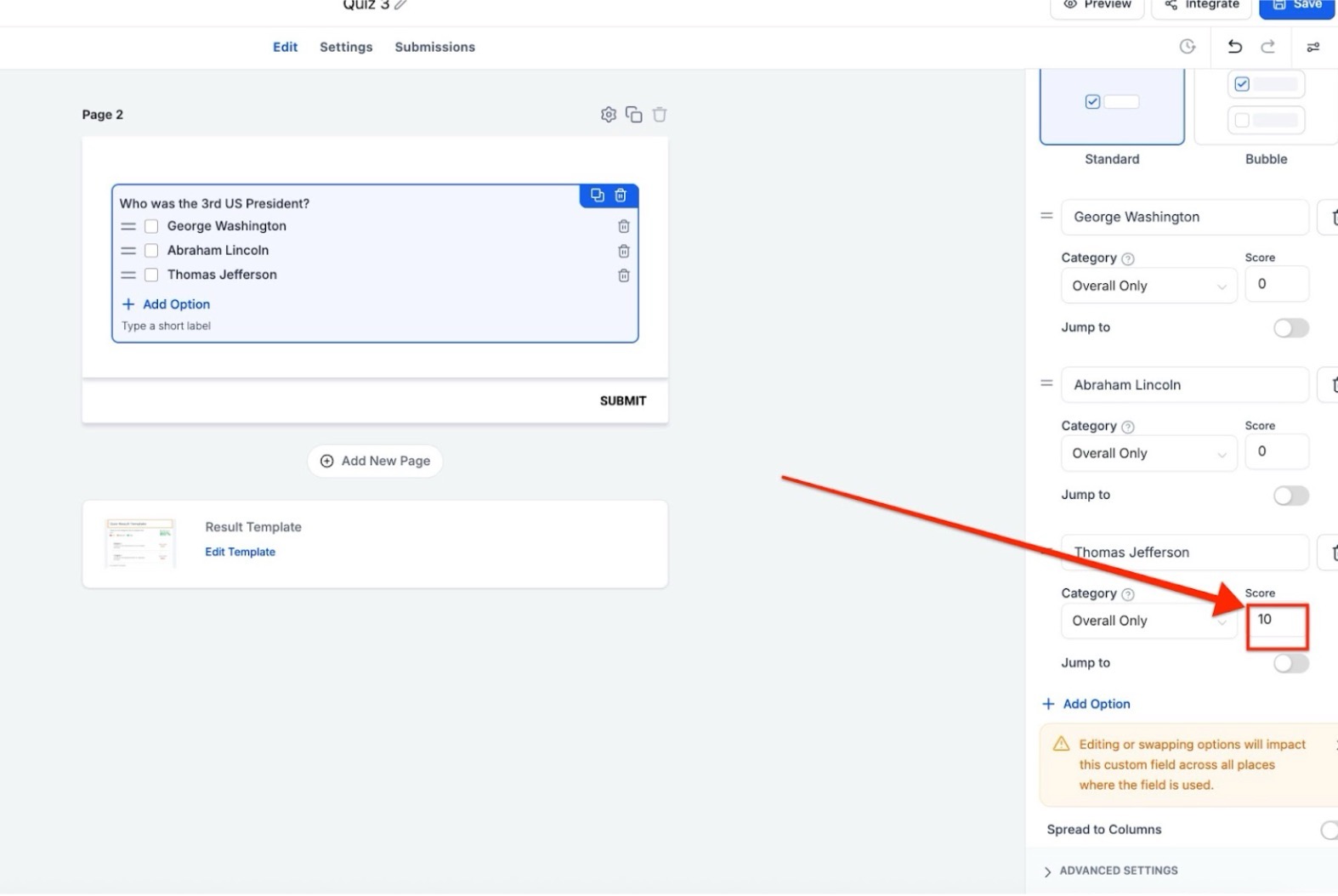
3. For each answer, assign a score value based on its weight. For example, a correct answer might be worth 10 points, and an incorrect one could be worth 0 points.
Step 3: Assign Scores to Categories
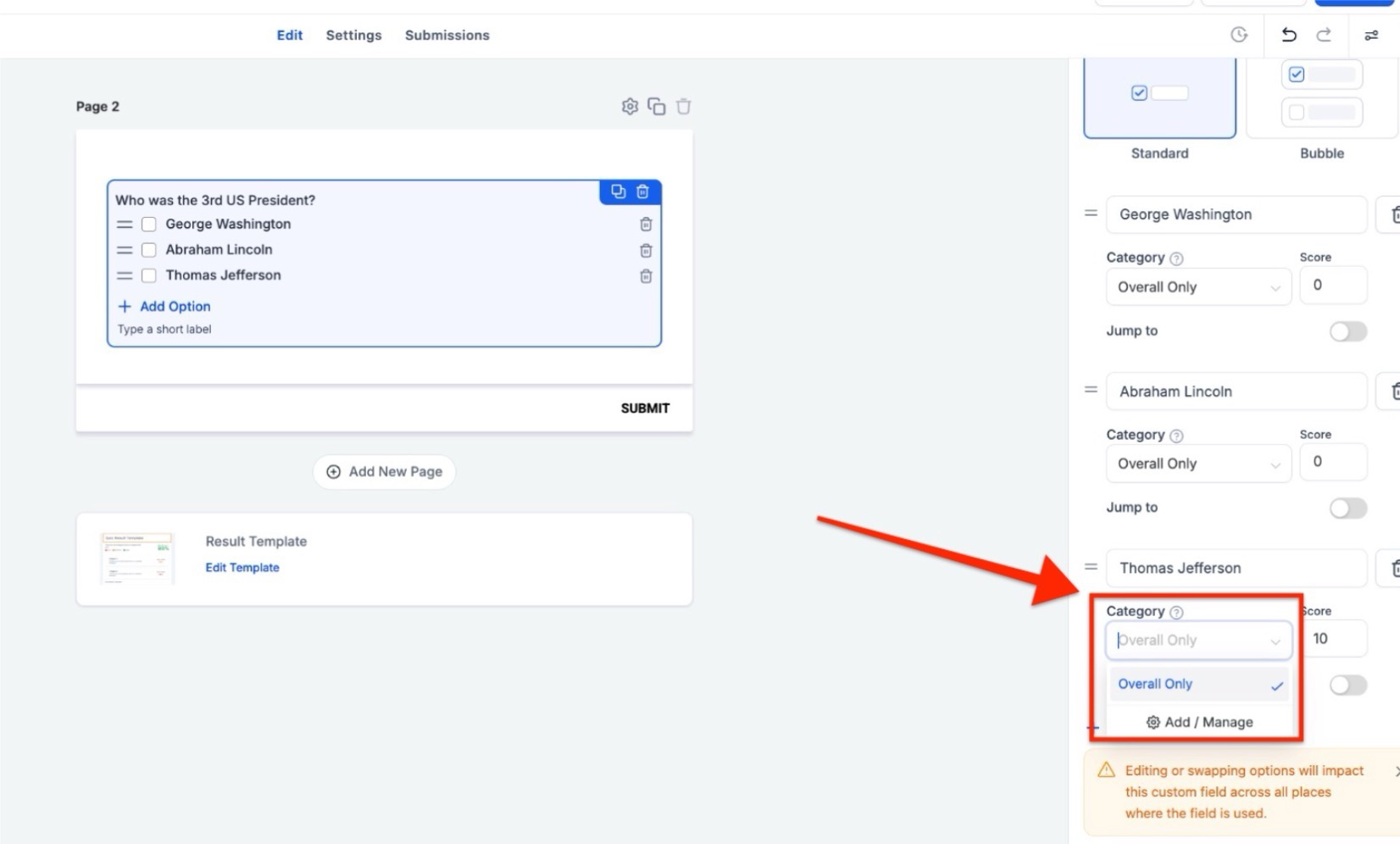
1. Create score categories (e.g., Category A, Category B).
2. Assign a score to each answer:
• For Single Choice or Dropdown questions, assign a fixed score per answer.
• For Multiple Choice or Multi Dropdown questions, assign scores per option, which will accumulate if multiple options are selected.
3. Ensure that each answer's score is assigned to the relevant category.
Step 4: Save and Preview
1. Click Save Quiz once all questions and scoring are set.
2. Use the Preview feature to test the quiz and confirm that scores are being calculated correctly.
How Quiz Scoring Works
Step 1: Set the Maximum Score for Each Question
Each question type has a maximum score:
• Single Choice/Dropdown: Only one answer can be selected, so the max score is fixed.
• Multiple Choice/Multi Dropdown: Multiple answers can be selected, so the max score is higher. It’s the sum of all answer options.
Example:
• A single-choice question might have a max score of 10.
• A multiple-choice question could allow a maximum score of 50, based on the number of answer options.
Step 2: Assign Scores to Answers
When a user selects an answer, it contributes to:
• Overall Score Only: Counts toward the total score but not any specific category.
• Category-Specific Score: Contributes to both the overall score and a specific category.
• Multiple Categories: An answer can count toward multiple categories.
Example:
If an answer is assigned to Category A, it will contribute to both Category A's score and the Overall Score.
Step 3: Calculating the Final Score
Once all answers are selected, the final score is calculated using the following formula:
Final Score = (Selected Score / Max Score) * 100
This is done for both the Overall Score and each individual category.
Example Calculation:
| Category | Selected Score | Max Score | Final % |
| Overall | 90 | 130 | 69.23% |
| Category A | 20 | 50 | 40.00% |
| Category B | 20 | 50 | 40.00% |
| Category C | 10 | 50 | 20.00% |
In this example:
- The quiz-taker scored 69.23% overall.
- They scored 40% in Category A and Category B and 20% in Category C.
Key Takeaways
- Overall, only answers are not linked to any specific category but contribute to the total score.
- Categories contribute to both their own scores and the overall score.
In this example:
- The quiz-taker scored 69.23% overall.
- They scored 40% in Category A and Category B and 20% in Category C.
Key Takeaways
- Overall, only answers are not linked to any specific category but contribute to the total score.
- Categories contribute to both their own scores and the overall score.
Add Dynamic Result Messages by Score Ranges
Tailor the quiz results to provide personalized feedback based on the user's score.
Steps:
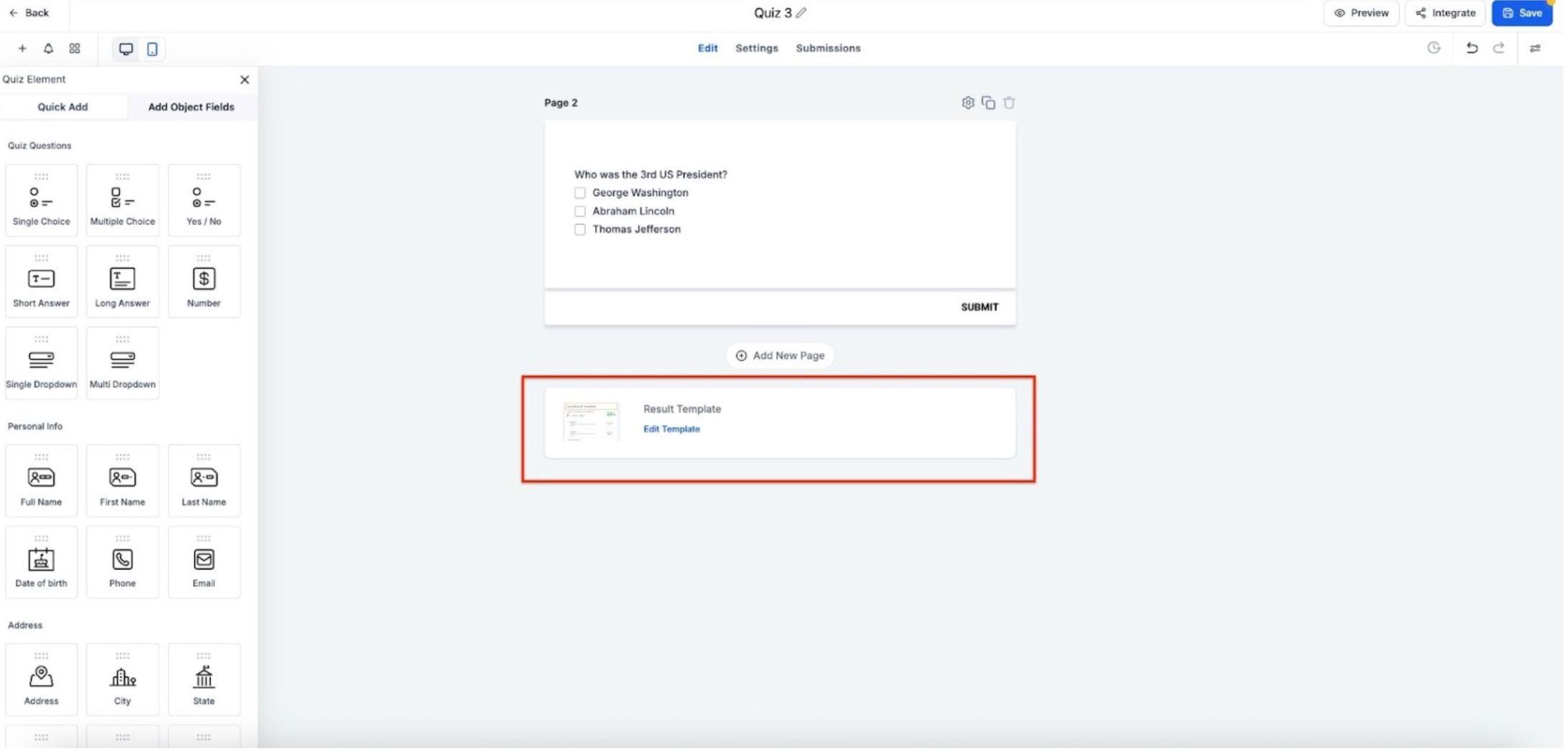
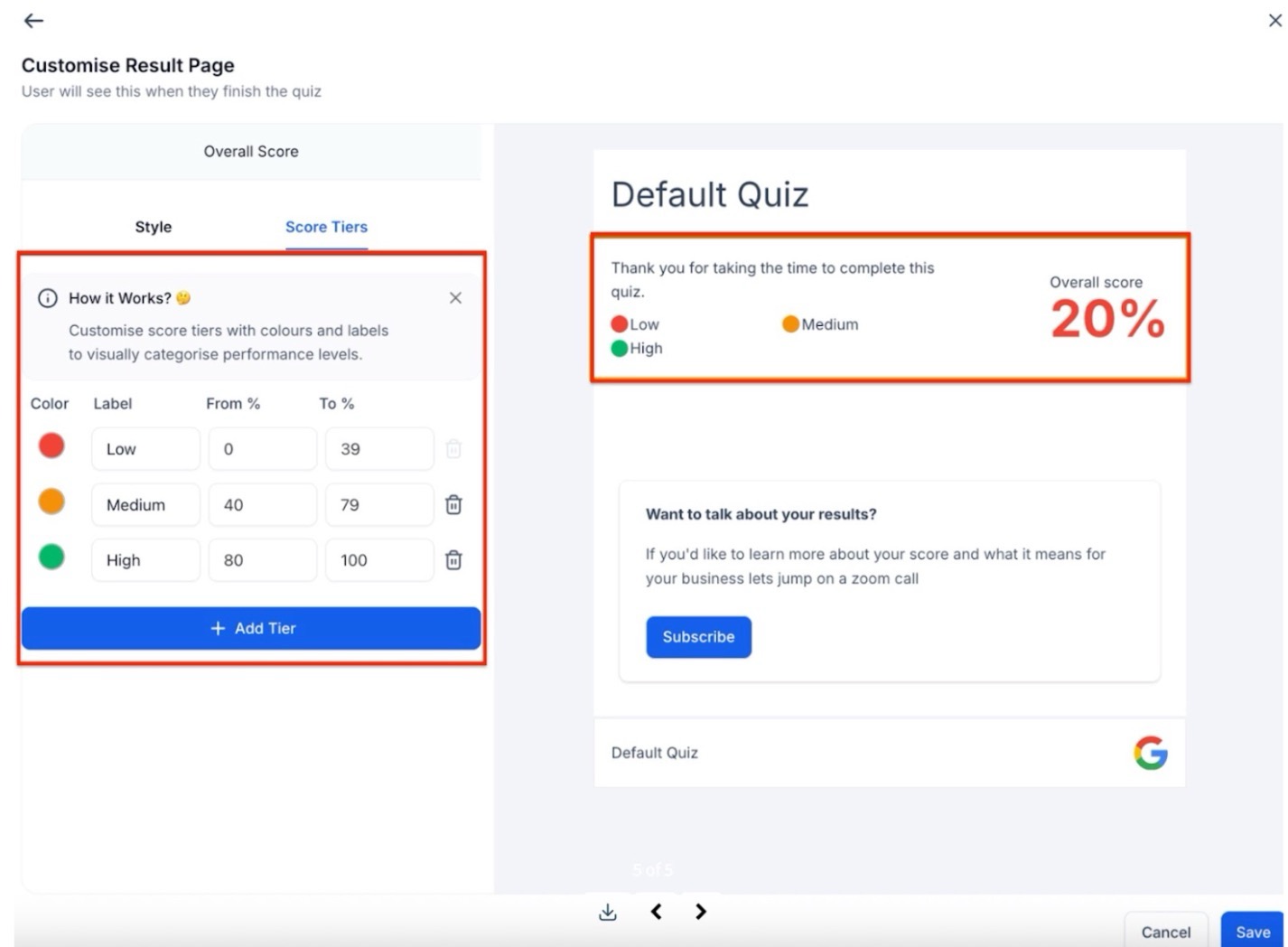
- Go to the Result Page in the quiz builder.
-
Define your score ranges. For example:
• Low: 0–40%
• Medium: 41–70%
• High: 71–100%
-
Add a custom message for each range, such as:
• Low: “There’s room for improvement. Let’s explore how we can help.”
• Medium: “You’re on the right track. Here’s how to optimize further.”
• High: “Awesome job! You nailed this. Let’s talk about next steps.”
Examples:
- Low: "You might need some improvement, but we’re here to help you get there."
- Medium: "You're making great progress! Let’s focus on fine-tuning your skills."
- High: "Excellent! You’re a pro. Let’s discuss how to take things to the next level."
Build the Result Page from Scratch
Customize the result page to make it informative and visually appealing.
Sections Available:
- Header: Customize the title, upload a logo, and adjust the layout.
- Overall Score: Show the total score, with dynamic content for different tiers (Low, Medium, High).
- Category Score: Break down performance across multiple categories.
- Individual Category: Highlight the highest or lowest scoring category.
- Call to Action (CTA): Direct users to take the next step, like booking a call or downloading a report.
- Footer: Add footer text, links, and style the section.
Best Practices
- Double-check category assignments: Ensure that the totals add up correctly, and that answers are correctly assigned to categories.
- Preview your quiz: Always test the quiz to confirm that scoring and results display correctly on both desktop and mobile.
- Match CTAs with outcomes: Ensure your Call to Action aligns with quiz results to guide users effectively to the next step.
- Test edge scores: Check the lowest and highest scores to confirm they trigger the correct messages.
FAQ's
Question: What if my quiz results don't add up correctly?
Answer: Double-check that you’ve assigned scores to the correct categories and ensure that "Overall Only" answers are properly set up.
Question: Can I add more than one result message?
Answer: Yes, you can customize messages for different score ranges (e.g., low, medium, and high).
Question: How can I display my logo on the result page?
Answer: Upload your logo in the Header section of the result page, and adjust its size as needed.
Question: Can I add images or videos to the result page?
Answer: Yes, you can add both images and videos, and choose their placement (top, bottom, left, or right).
Question: How can I test my quiz?
Answer: Use the Preview option to ensure everything looks and functions as expected before going live.
Question: Are there best practices for setting up quiz scoring?
Answer: Yes. Ensure correct category assignments, test all score ranges, preview the quiz on multiple devices, and align CTAs with participant outcomes for optimal engagement.
Question: Can an answer belong to two categories but have different point values for each?
Answer: Currently, an answer carries a single point value. However, you can assign that same value to multiple categories simultaneously. It will contribute the same number of points to the totals of every category it is linked to.
Question: How do I show participants exactly where they struggled or excelled?
Answer: Use the Category Score or Individual Category sections when building your result page. These sections allow you to break down the performance by specific topics so the user can see their strengths at a glance.
Question: Why is it important to test "edge scores"?
Answer: Testing edge scores (the absolute lowest and highest possible points) ensures that your score ranges are set up correctly and that the right trigger messages appear for participants at the extreme ends of the scale.