
Customizing Quiz Result Pages
Welcome to your step-by-step guide for mastering the enhanced quiz-building features, specifically Global Score Tier Management and Section Control. This guide will help you create, customize, and manage quiz results more efficiently, ensuring accurate scoring and a seamless quiz experience for your users.
By the end of this article, you'll be able to easily organize quiz sections, manage scores consistently, and make your quizzes more interactive and user-friendly.
Key Features and Benefits
Before we dive into the "how-to," let's take a look at the powerful features you'll be working with:
1. Section Control
- Centralized Section Management: Access and manage all result page sections from one place.
- Drag-and-Drop Functionality: Easily reorder quiz sections without rebuilding.
- Prebuilt Section Templates: Insert pre-designed blocks like "Overall Score" or "Call to Action" with one click.
- Visibility Control: Hide sections temporarily without deleting them to keep your quiz clean and organized.
2. Global Score Tiers
- Consistent Scoring: All quizzes use the same 0–100 percentage scale for a unified result presentation.
- Scoring Ranges: Organize scores into clear categories (Low, Medium, High) for accurate comparisons and automated workflows.
- Improved Automation: Use score tiers to trigger specific actions or workflows based on the results.
These features simplify quiz creation, improve accuracy in reporting, and enhance automation, saving you time and effort.
How to Set Up Quizzes with Section Control & Global Score Tiers
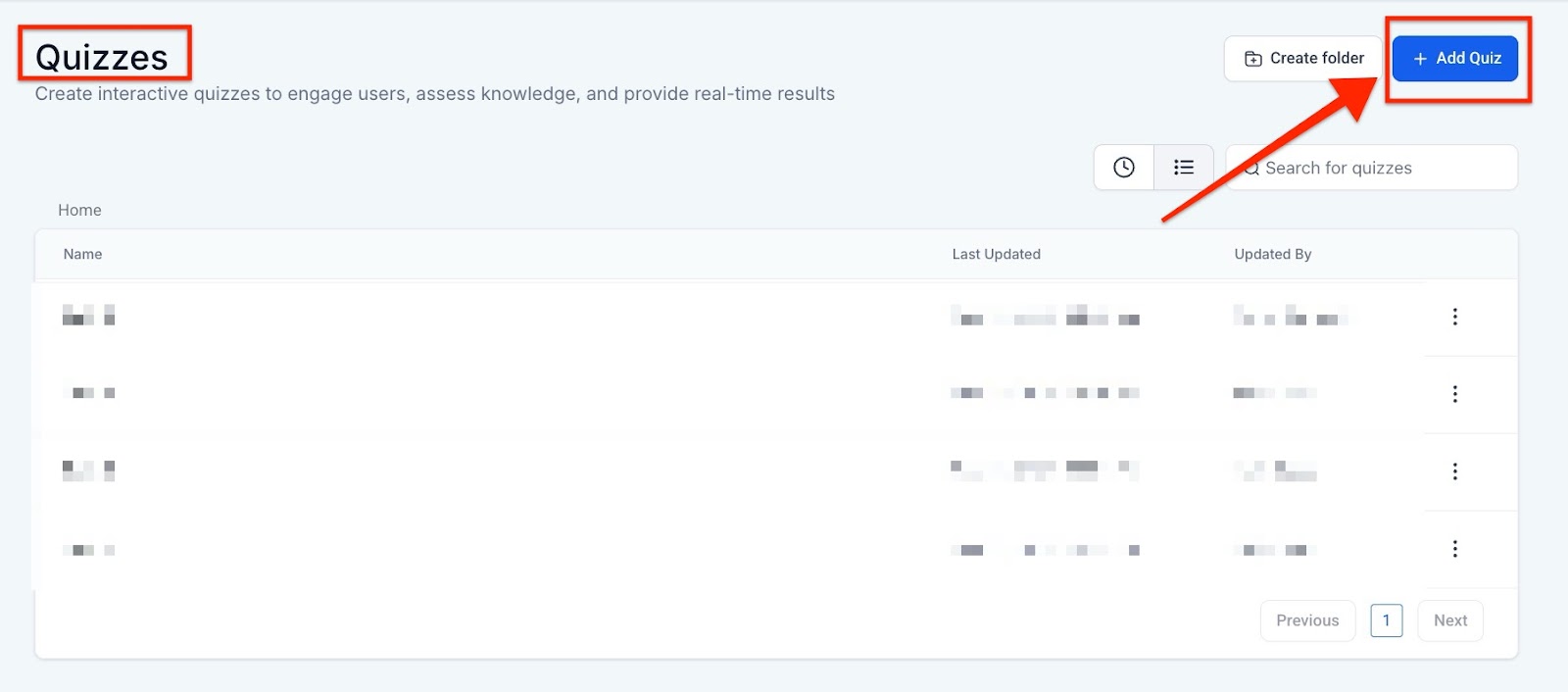
Step 1: Access the Quiz Menu
To get started, navigate to your quiz menu:
- Go to Marketing & Sales → Funnels & Pages→ Quizzes → + Add Quiz
This will open the quiz creation interface.
Step 2: Use Templates to Speed Up Quiz Creation
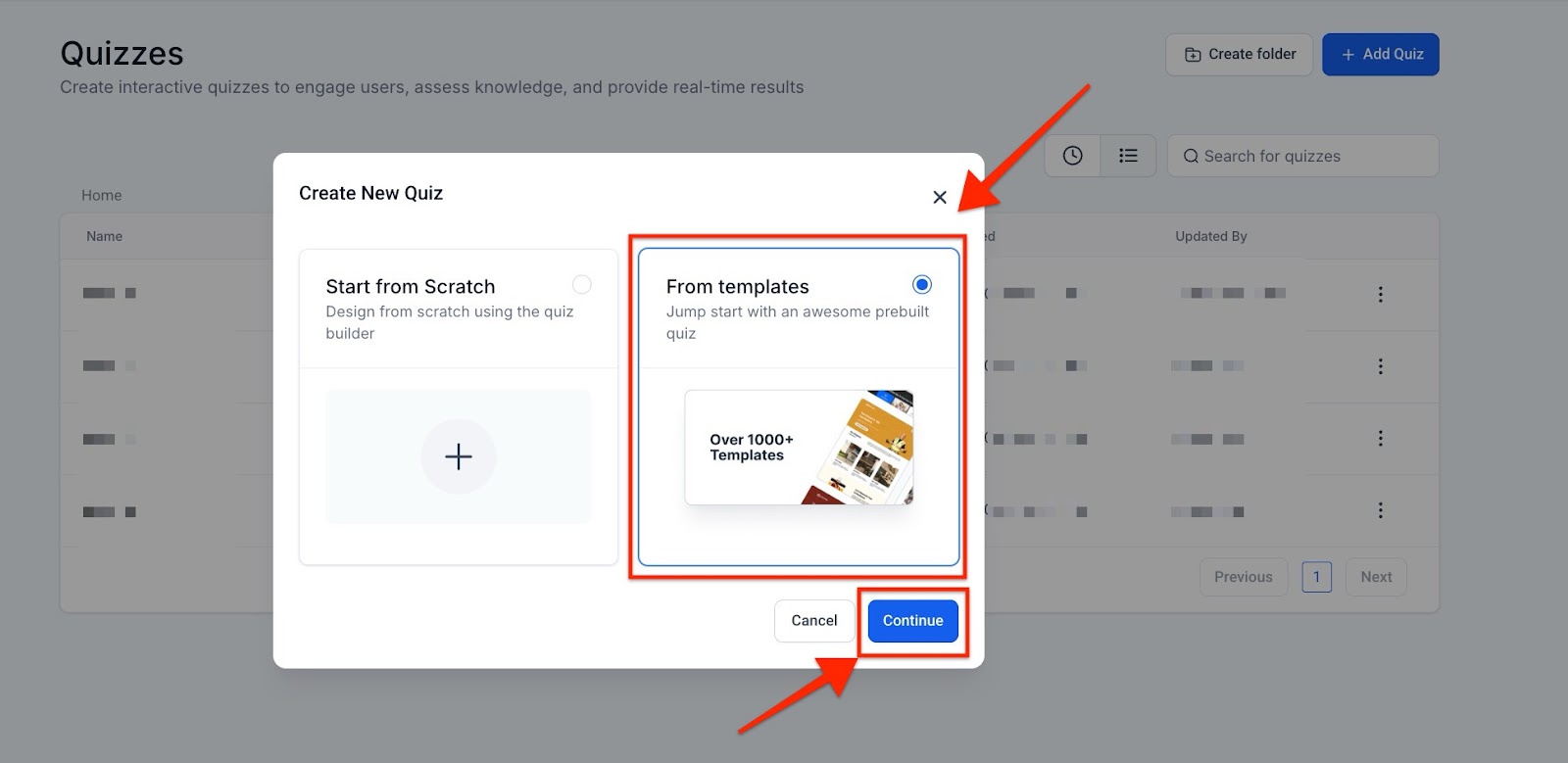
Templates are an excellent way to quickly build and customize quizzes. You can choose pre-designed blocks like "Overall Score" or "Category Score," which automatically match your quiz layout.
How to Use Templates:
- Browse through the template library and hover over a template to view its details.
- Click on "Choose Template" to apply it to your quiz.
Templates help speed up the design process, so you don't have to start from scratch.

Step 3: Access and Edit the Result Template
The Result Template is where you'll manage how quiz results are displayed, including the scoring logic and layout.
To access the Result Template:
- Scroll to the bottom of the quiz builder interface.
- Locate the "Result Template" card.
- Click on "Edit Template" to open the customization view.
This is where you can edit sections, reorder them, and adjust the scoring settings.

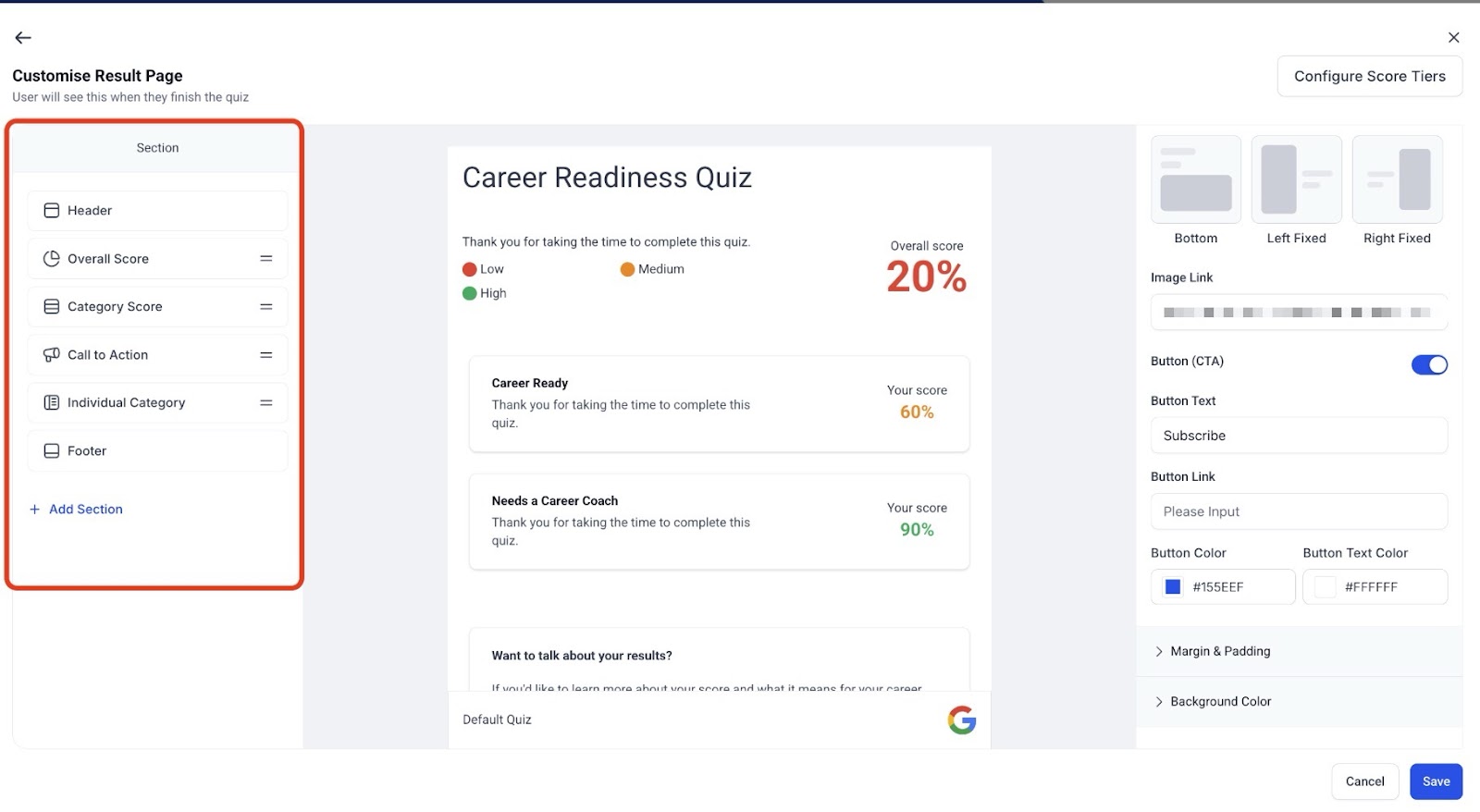
Step 4: Using the Section Visibility Panel
The Section Visibility Panel shows all the sections of your quiz result page. You can quickly view, rearrange, or hide sections from this panel.
How to Reorder Sections:
- Hover over the section name you want to move.
- Click and hold the drag handle.
- Move the section to the desired position.
- Release the handle, and the live preview will update instantly.
This drag-and-drop functionality makes it easy to organize sections without manual adjustments.
Step 5: Hide or Delete Sections
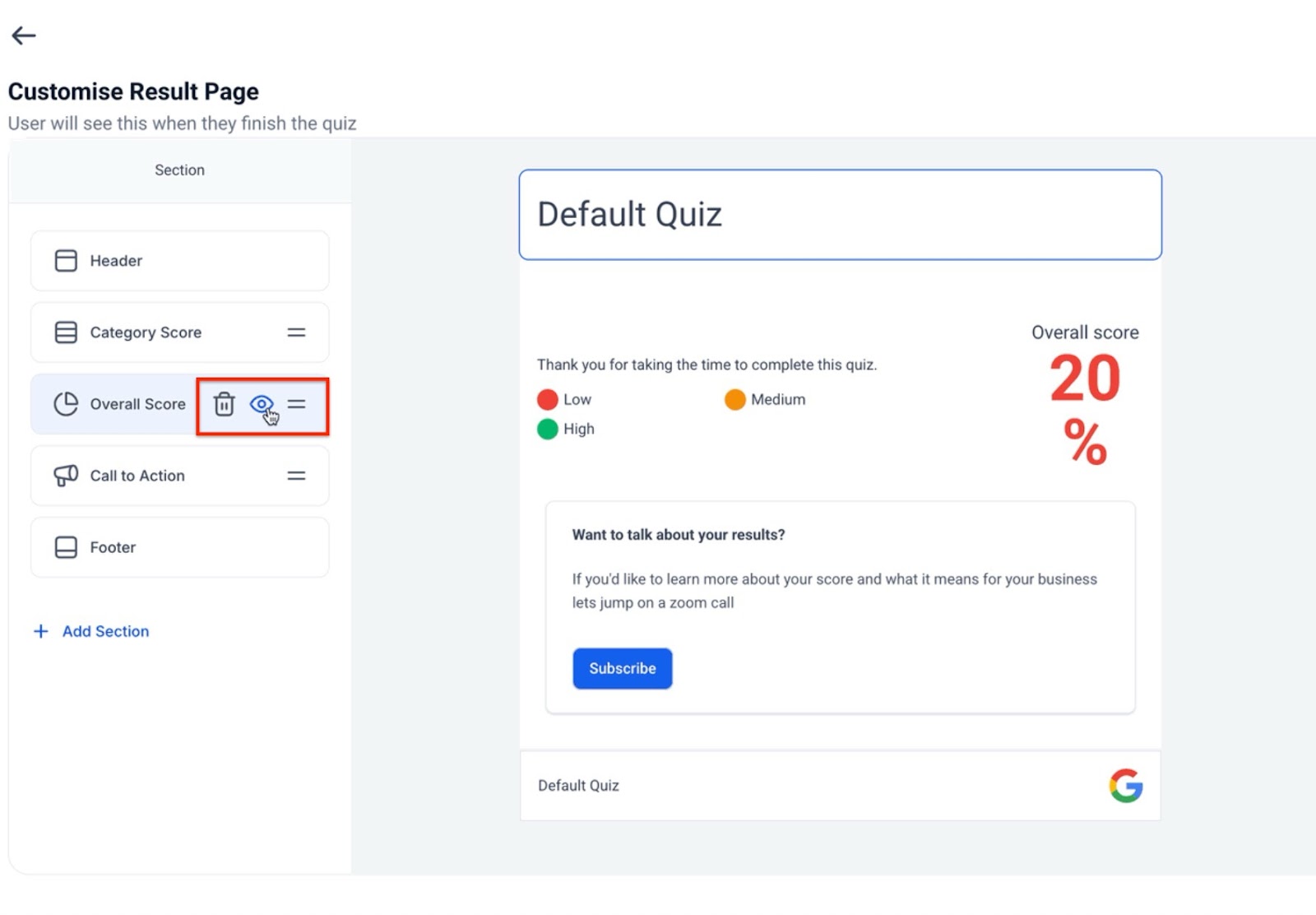
Sometimes, you may want to hide or delete sections from the result page. This feature helps keep your quiz layout clean and focused on essential content.
How to Hide a Section:
- Click on the eye icon next to the section name in the Section Visibility Panel.
- Toggle the visibility on or off.
How to Delete a Section:
- Click on the trash icon next to the section.
- Confirm the deletion to remove it permanently.
Hidden sections will remain in the configuration but will not appear on the result page for users.
Step 6: Configure Global Score Tiers
Global Score Tiers let you organize quiz results into categories (e.g., Low, Medium, High) based on the total score, using a consistent 0–100 percentage scale.
To configure score tiers:
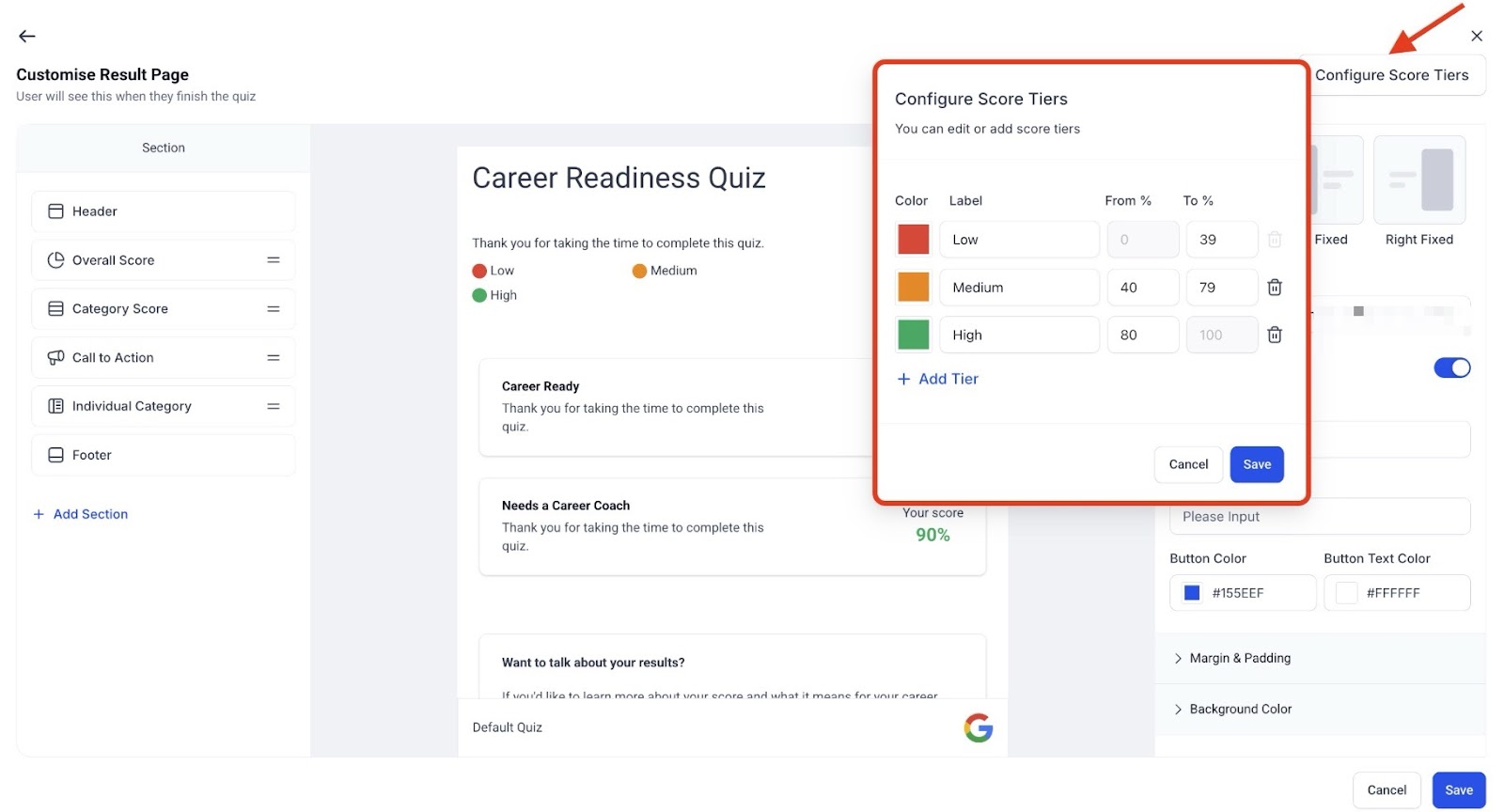
- In the result page editor, click on "Configure Score Tiers" in the top-right corner.
- Define the score ranges for each tier (e.g., Low: 0–39%, Medium: 40–79%, High: 80–100%).
- Click Save to apply these settings globally across all quizzes.
These score tiers ensure consistency in scoring, making it easier to interpret quiz results and apply automation triggers.
Step 7: Preview Your Quiz
Once you've set up your sections and scoring tiers, it’s time to preview your quiz:
- Click on Preview to see how the quiz will appear to users.
- Make any necessary adjustments to sections or score tiers.
- Once satisfied, you can publish your quiz.

FAQs
Question: Do hidden sections affect quiz scoring?
Answer: No, hidden sections are excluded from both display and scoring.
Question: Can I change score tier labels?
Answer: Yes, the labels for score tiers are customizable, but the percentage ranges must remain between 0–100.
Question: How are old quizzes handled under the new system?
Answer: Older quizzes are automatically migrated to the new global score system. However, verify the tier ranges after migration to ensure they match your preferences.
Question: Can workflows trigger from specific score tiers?
Answer: Yes, you can set up workflows that trigger based on the score tier (e.g., Low, Medium, High) by using the “Quiz Submitted” trigger.
Question: What happens if I delete a section?
Answer: Deleting a section affects future quiz takers only. Past quiz results remain unaffected.
Question: Is drag-and-drop available on mobile?
Answer: Currently, drag-and-drop functionality is only available on desktop browsers. Mobile support will be available in the future.
Question: Can I hide multiple sections at once?
Answer: Yes, you can hold Shift (or Cmd/Ctrl) to multi-select sections and toggle visibility for multiple sections at the same time.
Question: Is drag-and-drop section reordering available on mobile?
Answer: No, drag-and-drop functionality is currently only available on desktop browsers. Mobile support will be added in future updates.
Question: If I change the Global Score Tiers, will it update the results for students who already completed the quiz?
Answer: No. Changes to Global Score Tiers only apply to quiz submissions moving forward. Historical data remains locked to the settings that were active at the time the user submitted the quiz to ensure record integrity.
Question: What is the benefit of using "Global Score Tiers" instead of custom scoring?
Answer: Global Score Tiers use a unified 0–100 percentage scale. This ensures that all your quizzes are scored consistently, making it easier to compare results across different quizzes and set up reliable automation workflows.