
Documents & Contracts: Content Library
Creating professional documents like proposals, contracts, and agreements often involves repeating similar content — signature sections, pricing tables, disclaimers, and brand-styled layouts. The Content Library feature within the Documents & Contracts editor is designed to solve this by allowing you to save and reuse content effortlessly. Whether you're working solo or managing multiple locations and teams, this tool helps maintain consistency, speed up creation, and scale your workflow efficiently.
This article walks you through the key benefits, how to use the feature, and practical tips to help you get the most out of the Content Library.
Key Features and Benefits
- Save Any Element or Full Page: Store individual blocks (like pricing cards or signature sections) or entire pages for future reuse.
- Drag-and-Drop Simplicity: Instantly insert saved content into any document or template with intuitive drag-and-drop controls.
- Faster Document Assembly: Eliminate repetitive work by quickly assembling documents using pre-saved, brand-aligned content.
- Consistency Across Documents: Ensure all teams use the same legal language, formatting, and branding elements.
- Scalable Content Management: Share and update templates across an entire organization to maintain quality control.
How to Use the Content Library
Step 1: Create or Select the Content to Save
- You can save a single block (e.g., a pricing section, signature table) or all elements on a page.
-
Build your content as you normally would in the document or template editor.
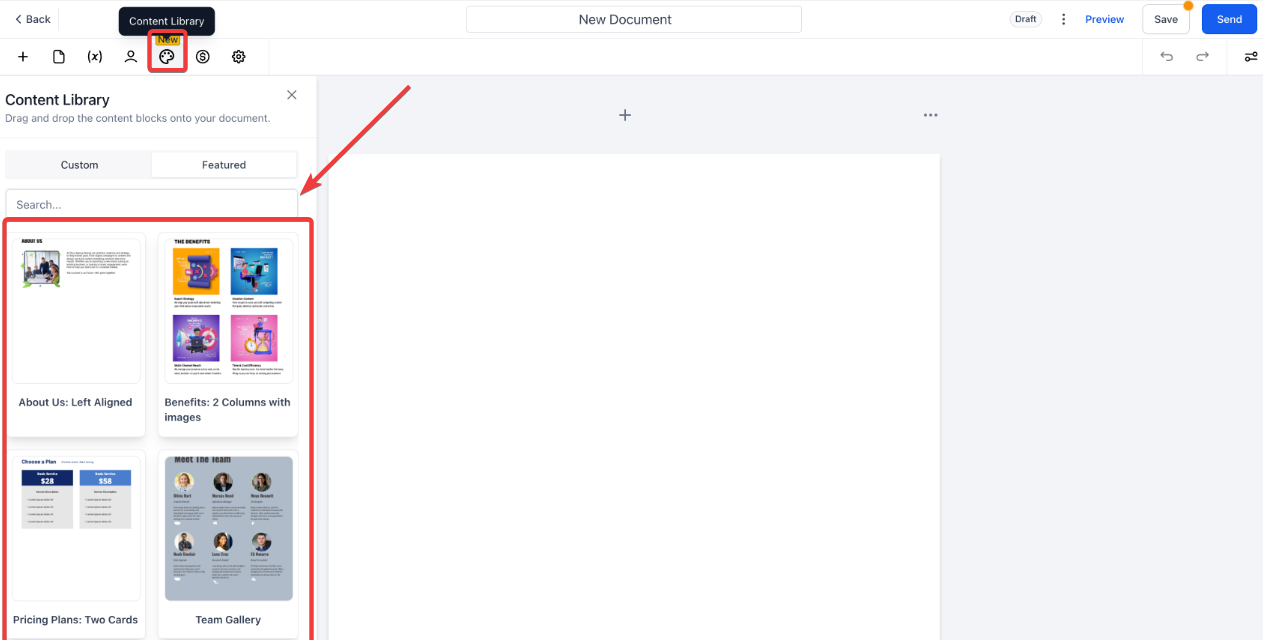
- For a block:
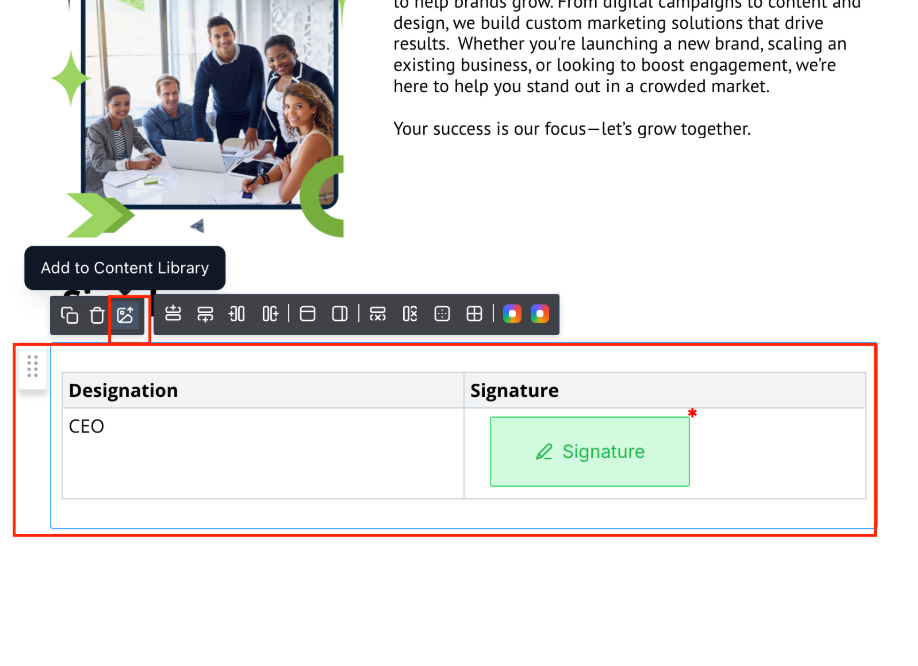
- Hover over the desired block.
-
Click "Add to Content Library".
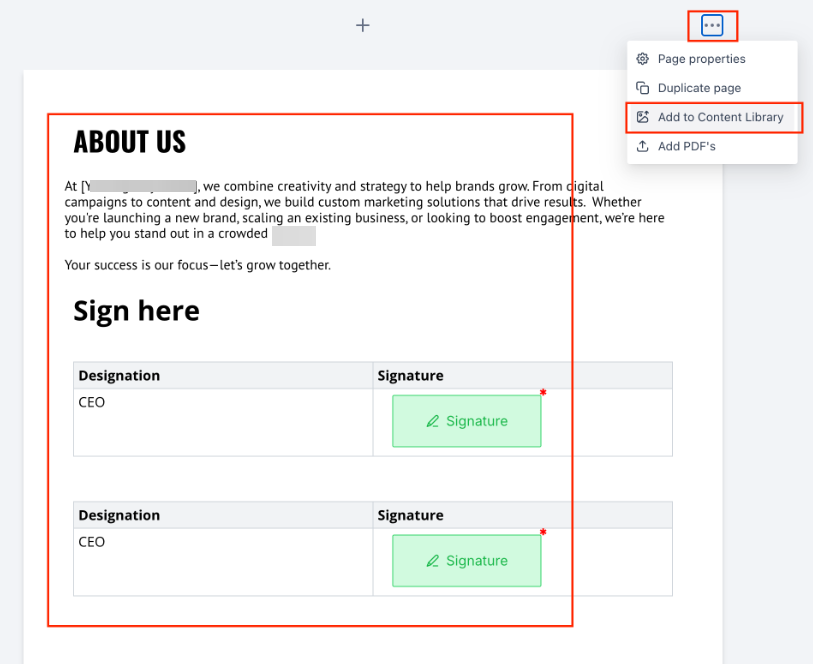
- For a page:
- Click the "⋯" menu in the top-right corner of the page.
-
Select "Add to Content Library"
Assign a name to your saved content for easy identification.
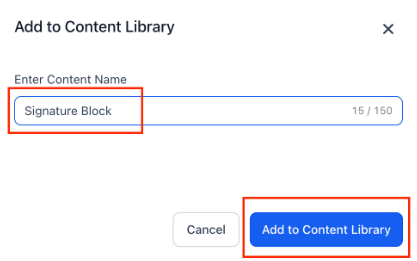
Click Save.
