
Domains: Complete Overview and Centralized Management
Establishing a professional online presence starts with your domain. Whether you are building a website, launching an email campaign, or setting up a client portal, your domain is the foundation of your brand's digital home. This guide will walk you through everything from understanding the basics to managing your addresses like a pro.
1. Understanding the Core Concepts
Before we dive into the "how-to," let’s clarify what we are working with.
What is a Domain?
A domain is the unique address people type into their browsers to find you—think of it as your digital street address (e.g., www.Mastermind.com). On our platform, your domain powers your websites, funnels, stores, and even your outgoing emails.
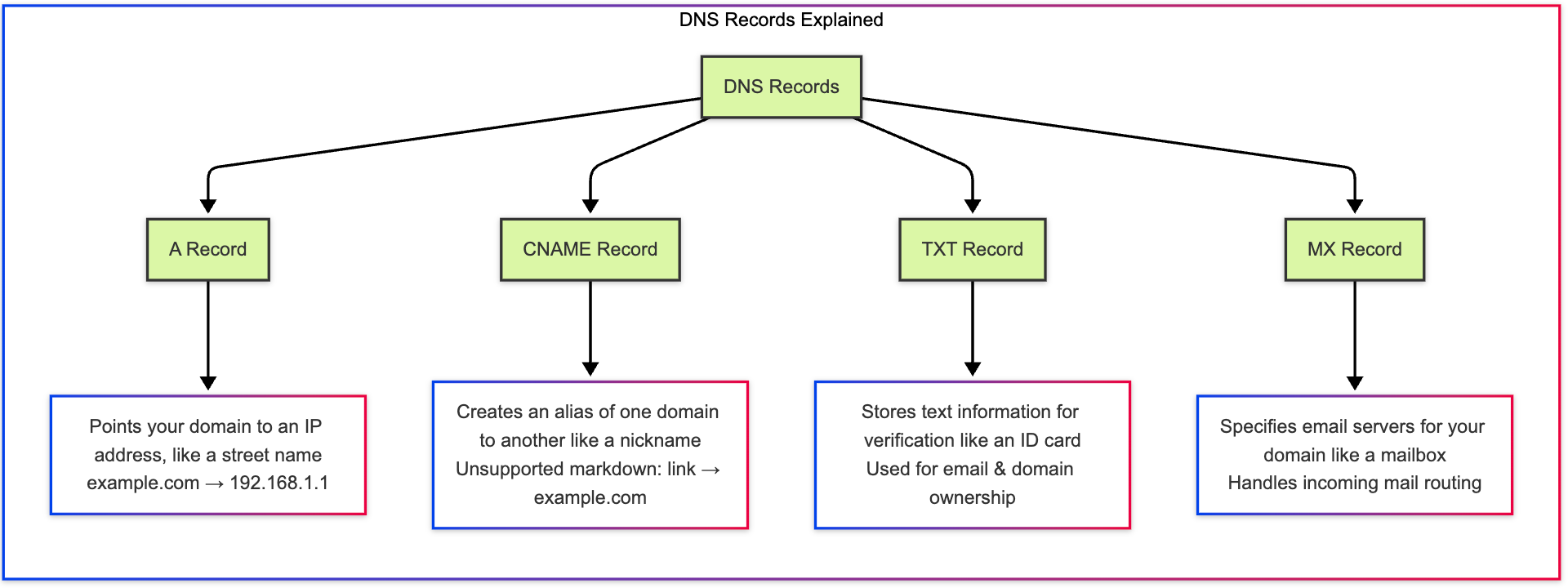
What are DNS Records?
DNS (Domain Name System) records are the "phone book" of the internet. They translate your easy-to-read domain name into machine-readable numbers (IP addresses). To connect your domain to our services, you will need to update these records so the internet knows where to send your visitors.
2. What You Can Do with Your Domain
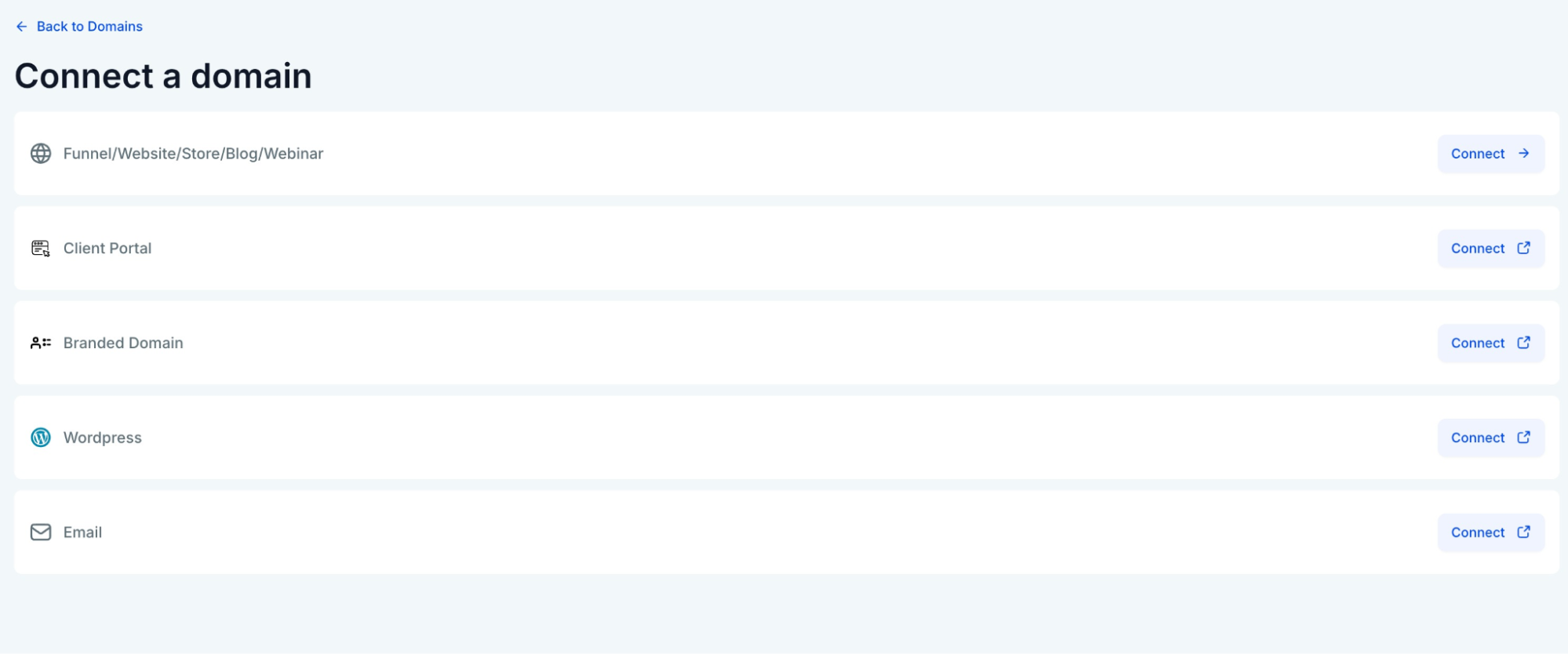
By connecting a domain to Mastermind by navigating to Settings> Domains & URL Redirects > +Connect a domain, you unlock several powerful functionalities:
3. How to Acquire Your Domain
You must own a domain before you can use it. There are two simple paths to take:
Option A: Buy Directly (Internal)
This is the most streamlined method because the system handles the technical setup for you.
- Navigate to Settings > Domains.
- Select Purchase Domain.
- Type in your desired name, check availability, and complete the purchase.
- Benefit: These domains include automatic SSL (security) and DNS management.
Option B: Use a Third-Party Provider (External)
If you already own a domain through a provider like GoDaddy or Namecheap:
- Log in to your registrar’s website.
- Locate the DNS Management section.
- You will manually enter the records provided by our platform (usually an A Record or CNAME).
4. Managing Your Domains
Once your domain is connected, you can manage it through our centralized dashboard. Here is how to navigate your management tools:
Step-by-Step: Viewing and Editing
- Locate the Dashboard: Go to Settings > Domains.
- Identify Status: Look for the green "Active" indicator. If you see a red warning, the system will provide a tooltip explaining what record is missing.
- Check Connected Products: Click on a domain to see exactly which websites or funnels are currently using it.
- Edit or Remove: Use the "three dots" menu icon on the right side of the domain entry to update settings or disconnect the domain.
Shortcut Key: Use Ctrl + F (Windows) or Cmd + F (Mac) on the domain page to quickly find a specific domain if you have a large list!
5. Root Domains vs. Subdomains
Understanding the structure of your URL helps you organize your business.
| Type | Format | Common Use |
| Root Domain | example.com | Your main homepage. |
| Subdomain | shop.example.com | Separate sections like a store or blog. |
| WWW | www.example.com | The traditional web default. |
Pro-Tip: It is best practice to choose either the Root or the WWW version as your primary address and redirect the other to it. This keeps your branding consistent and helps with search engine rankings.
5. How to Connect and Manage Your Domain
Once you have your domain, you need to tell the platform how to use it.
Step-by-Step Connection Guide
- Open Settings: Navigate to the Domains section in your dashboard.
- Add Domain: Click the "Add" button.
- Enter URL: Type in your domain (e.g., members.yourbrand.com).
- Configure DNS: * If using an External Domain, the system will provide you with an A Record or CNAME Record.
- Copy these values and paste them into your third-party registrar's DNS settings.
- Verify: Click "Verify" or "Authorize" in our platform. The system will auto-detect the records and issue an SSL certificate (the padlock icon in browsers).
Centralized Management Features
The Mastermind Business Hub domain dashboard allows you to:
- Track Status: See at a glance if your SSL is active or if a domain needs attention.
- Link Products: Easily toggle which funnel or website is attached to which domain.
- Auto-Renewal: For internal domains, toggle auto-renew to ensure you never lose your address.
6. Interactive Exercise: Knowledge Check
Can you identify the domain type? Match the following:
- support.mybusiness.com
- mybusiness.com
- www.mybusiness.com
(Answers: 1. Subdomain, 2. Root Domain, 3. WWW Subdomain)
FAQs
Question: How long does it take for my domain to start working?
Answer: This is called "propagation." While it often happens in minutes, it can take up to 24–48 hours for global DNS servers to update.
Question: Do I need a separate domain for every funnel?
Answer: No! You can use one root domain for your website and create "paths" (e.g., yourbrand.com/offer1, yourbrand.com/offer2) or use subdomains.
Question: What is an SSL and why do I need it?
Answer: SSL stands for Secure Sockets Layer. It encrypts data and gives your site the "HTTPS" prefix. Our platform provides this automatically once your domain is verified.
Question: Can I use my domain for email and a website at the same time?
Answer: Absolutely. DNS records allow you to point your "Web" traffic to a website and your "Mail" traffic to an email server simultaneously.
Question: What happens if my domain status says "Error"?
Answer: This usually means a DNS record was typed incorrectly or hasn't finished updating. Double-check your A Records and CNAMEs against the values provided in the settings.
Question: Why am I seeing a "Not Secure" warning if my SSL is active?
Answer: This sometimes happens if your website contains "Mixed Content," such as images or scripts linked via http instead of https. Ensure all elements on your page are secure, and try clearing your browser cache. Our system automatically issues the SSL, but your page content must also be compliant.
Question: Will my domain's "Name Servers" change automatically during the transfer?
Answer: During a transfer, we attempt to keep your existing name servers to prevent downtime. However, once the transfer is complete, you will have the option to switch to our internal name servers to manage all your records directly from the Mastermind dashboard.
Question: Why am I seeing a "Not Secure" warning if my SSL is active?
Answer: This sometimes happens if your website contains "Mixed Content," such as images or scripts linked via http instead of https. Ensure all elements on your page are secure, and try clearing your browser cache. Our system automatically issues the SSL, but your page content must also be compliant.