
Domain Transfer In - Approve Transfer
Below, you’ll find everything you need to know about approving your domain transfer and bringing it into your Mastermind account.
Understanding Domain Transfer Approval
Once you have initiated a domain transfer, the process enters a "Pending" phase. Think of this as a safety check. To ensure that only authorized users can move a domain, your current provider requires a final "thumbs up" from you.
Why Is This Step Necessary?
This approval acts as a security lock. It prevents unauthorized parties from moving your domain without your permission. By manually approving the request, you confirm that you are the rightful owner making this change.
Note: If you do not manually approve the request, many providers will eventually "auto-approve" the transfer, but this can take between 5 and 7 days. Approving it manually speeds this up significantly!
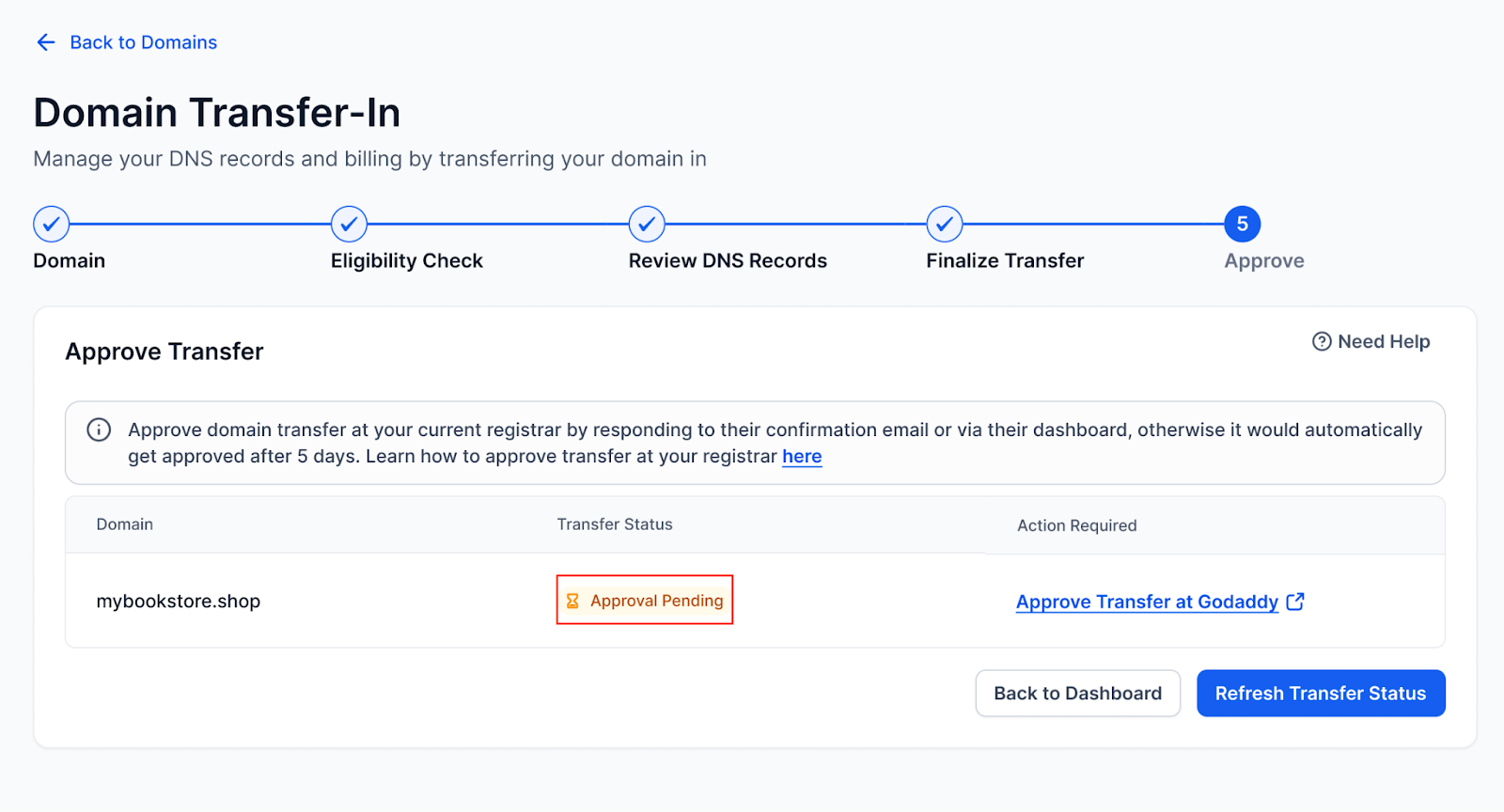
How to Approve Your Transfer
The approval process usually happens in one of two places: your email inbox or your current provider's dashboard. Here are the steps for the most common scenarios:
Method 1: Email Confirmation
Most providers will send an email to the administrative contact listed on the domain.
- Log into the email account associated with your domain registration.
- Look for an email with a subject like "Action Required: Transfer Request for [[suspicious link removed]]".
- Click the Approve or Confirm link within that email.
Method 2: Dashboard Approval
If you don't receive an email, you can usually approve the transfer directly through your current provider’s website.
1. GoDaddy
GoDaddy offers two ways to say "Yes" to your transfer.
Option A: Email Approval
- Check the email address associated with your GoDaddy account.
- Look for an email with the subject: "Confirmation of registrar transfer request."
- Open the email and click the Authorize Now button.
Option B: Dashboard Approval
- Log in to your GoDaddy Portfolio.
- Click on the Transfers menu on the left-hand side.
- Select Transfers Out.
-
Check the box next to your domain and click Approve Transfer.
2. Namecheap
Namecheap typically sends an email to the administrative contact of the domain.
- Open the email titled "Standardized Form of Authorization."
- Click the link provided in the email to go to the approval page.
- Select the option that says "I approve this transfer" and click Submit. Here is the link.
3. IONOS
- Sign in to your IONOS account.
- Navigate to the Domains & SSL section.
- Click on the specific domain name you are moving.
- Look for the Transfer tab or a prompt stating Pending Transfer.
-
Click Approve (or follow the specific link provided in the IONOS confirmation email). Here is the link.
What Happens Next?
Once you hit that "Approve" button, the heavy lifting is over!
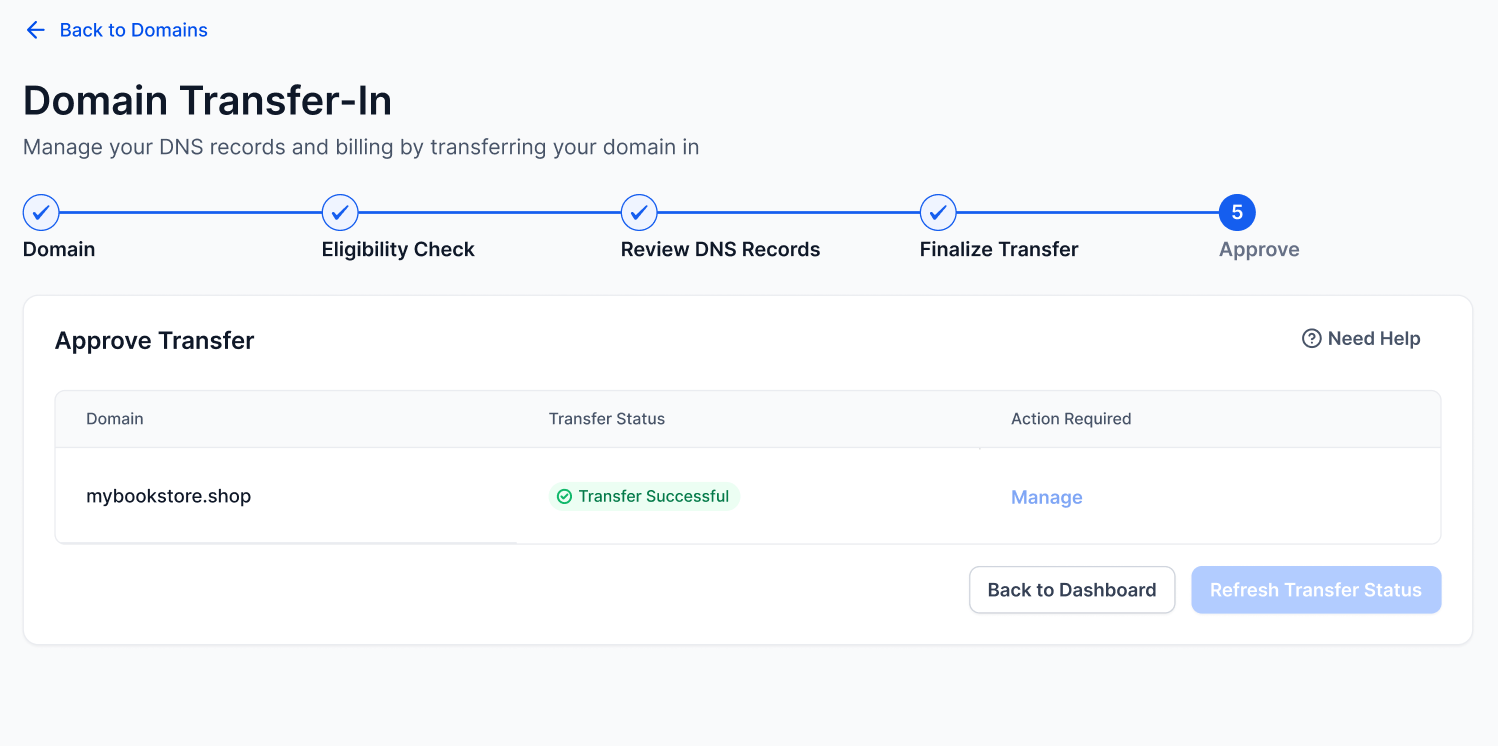
- Status Change: Your domain will move under the Mastermind registrar partner.
- Centralized Management: You will now see the domain listed under Internal Domains in your account.
- Full Control: The Manage button will become active, allowing you to handle your DNS records, renewals, and billing all in one place.
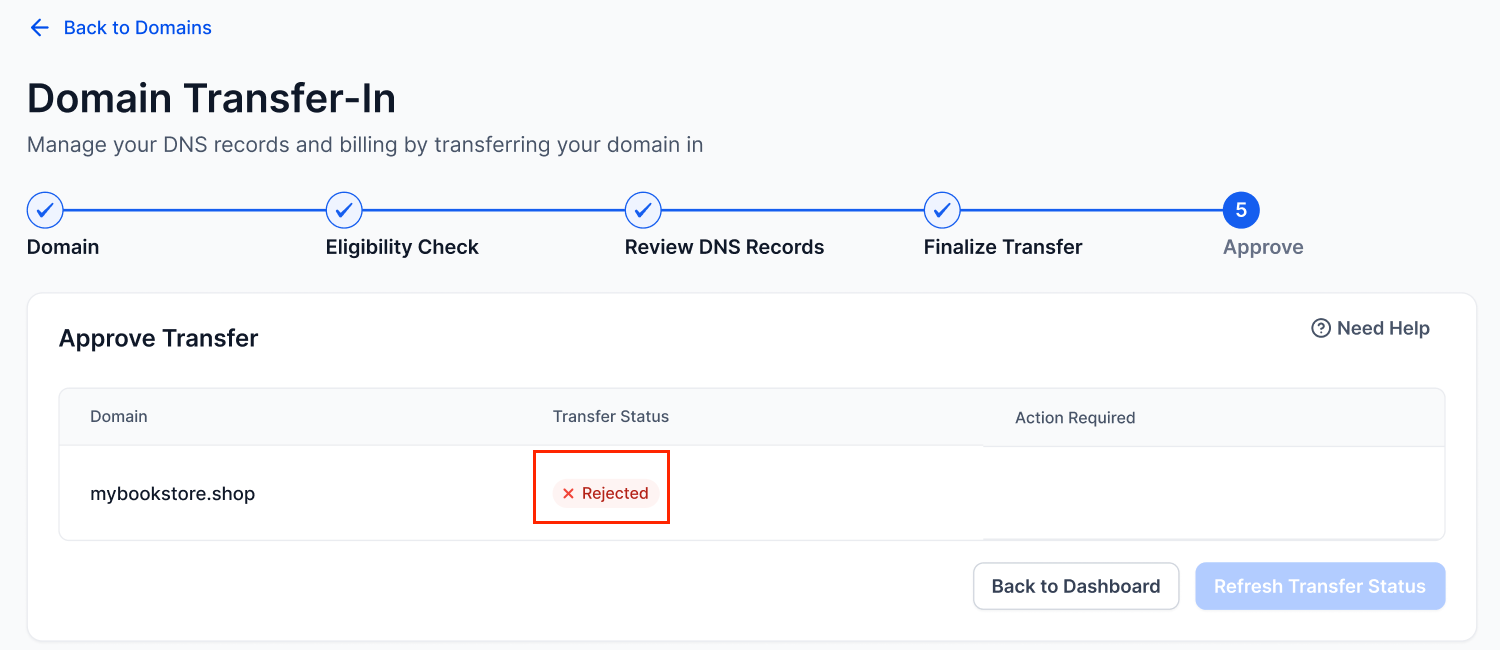
Troubleshooting: Why was my transfer rejected?
If your transfer fails, it will move to a Rejected status, and the Transfer to Us button will reappear. This usually happens for three reasons:
- Manual Cancellation: You or another account admin clicked "Decline."
- The 60-Day Lock: If you recently bought the domain or changed your contact info, ICANN rules may lock the domain for 60 days.
- Timeout: The approval wasn't completed within the registrar's required timeframe.
Interactive Exercise: Check Your Readiness
Quick Quiz: You just submitted your transfer request 10 minutes ago, but the domain still says "Pending" in your Mastermind dashboard. What is your next step?
- A) Wait 30 days.
- B) Delete the domain and start over.
- C) Check your email or current registrar dashboard to click "Approve."
(Answer: C! Manual approval is the fastest way to finish.)
FAQs
Question: Will my website go down during the transfer?
Answer: As long as your DNS records (the instructions that point your domain to your website) remain the same, there is typically no downtime.
Question: I didn't receive an approval email. What should I do?
Answer: Check your Spam/Junk folder. If it's not there, log in directly to your current registrar's dashboard and look for "Transfers Out."
Question: Can I cancel the transfer after I’ve approved it?
Answer: Once approved at the current registrar, the process moves very quickly. If you change your mind, you must contact support immediately, but there is no guarantee it can be stopped once the handoff begins.
Question: How much does it cost to approve the transfer?
Answer: Approving the transfer at your old registrar is free. Your only cost is the transfer/renewal fee already handled during the initiation phase.
Question: Why does it say my domain is locked?
Answer: Most domains have a "Transfer Lock" enabled by default to prevent theft. You must toggle this to "Off" in your current registrar's settings before the transfer can even begin.
Question: I have already approved the transfer, but the status is still "Pending" in my dashboard. Why?
Answer: Even after your manual approval, the registry (the central database for all domains) may take 24 to 48 hours to update its global records. If the status doesn't change after 2 days, double-check that your "Whois Privacy" was disabled during the process.
Question: What happens if I don't manually approve the transfer request?
Answer: If you don’t manually approve the request, many providers will eventually "auto-approve" the transfer on your behalf. however, this process is much slower and typically takes between 5 and 7 days to complete.