
Workflow Actions: Find Company & Find Object Record
Workflow automation becomes significantly more powerful when it can intelligently reference existing records. With the addition of Find Company and Find Object Record actions, users can automate decisions and actions based on existing company and custom object data without manual lookups.
This article explains how these new workflow actions function, outlines their benefits, and offers practical guidance on how to implement them effectively within your Mastermind system using incoming webhook data.
Key Features and Benefits
Expanded Record Lookup Capabilities
- Find Contact: Please see the article, “Workflow Action: Find Contact.”
- Find Company: Usable in company-based workflows.
- Find Object Record: Enabled in custom object-based workflows.
What You Can Do
- Search Existing Records
- Use key fields like Record ID, Company Domain, External ID, VIN, etc.
- Match on any custom or standard field from your Mastermind or custom object.
- Smart Tie-Breaking Logic
- Choose to match the Earliest or Latest record if more than one result is found.
- Flexible Filtering
- Apply multiple conditions using AND logic to refine your search precisely.
- Outcome-Based Workflow Branching
- Branch the automation depending on whether a matching record is found or not.
- Seamless Skipping
- If the workflow trigger already starts with the object being searched (e.g., “Company Created”), the “Find” step is automatically skipped to avoid redundancy.
How to Use: Step-by-Step Guide
Step 1: Choose Your Workflow Trigger
- Navigate to Tools & Reporting > Automations > Workflows and create a new workflow or choose to create a company-based workflow.
- Use an Inbound Webhook trigger. This will allow the incoming data (payload) to be used as search criteria.
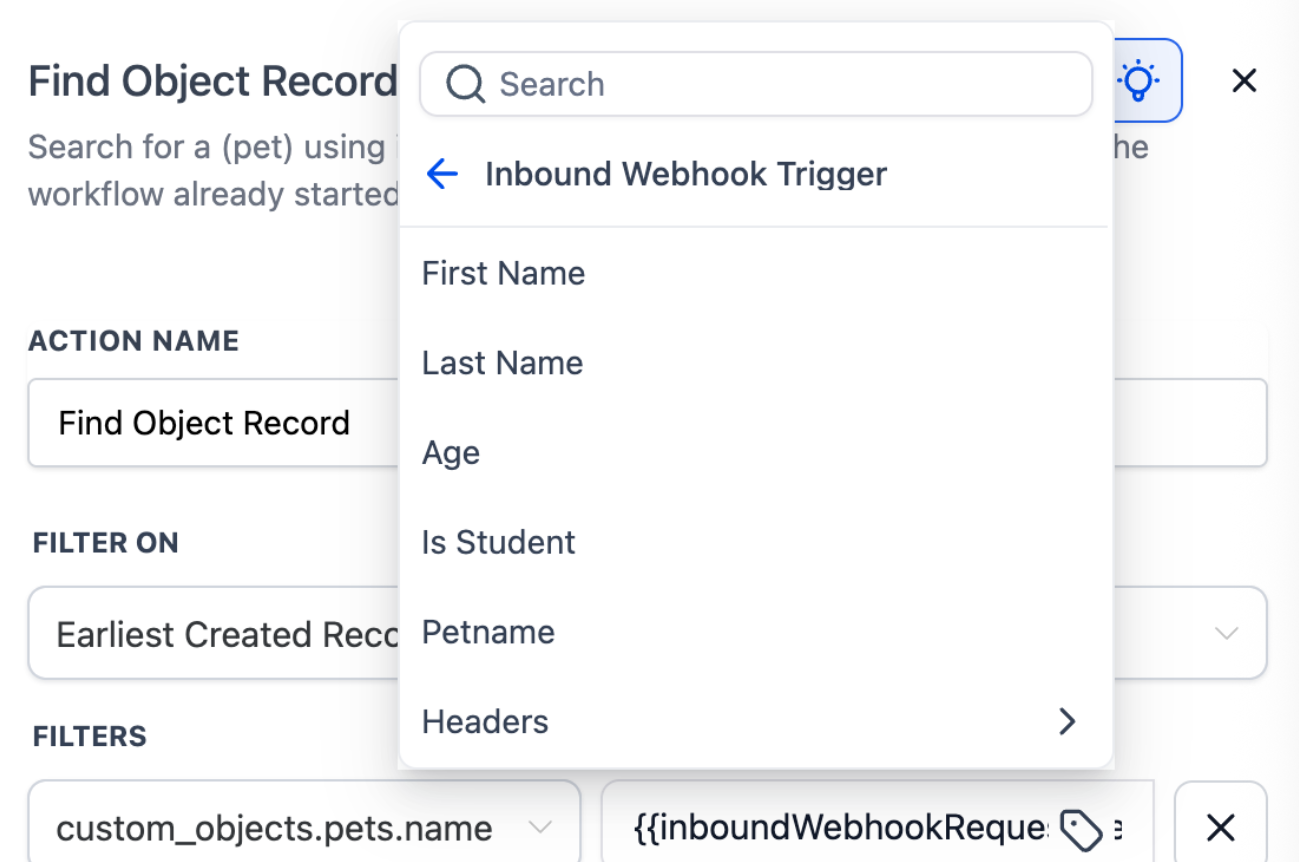
Step 2: Add a Find Action
- In the workflow editor, add either:
- Find Company, or
- Find Object Record (for custom object-based workflows).
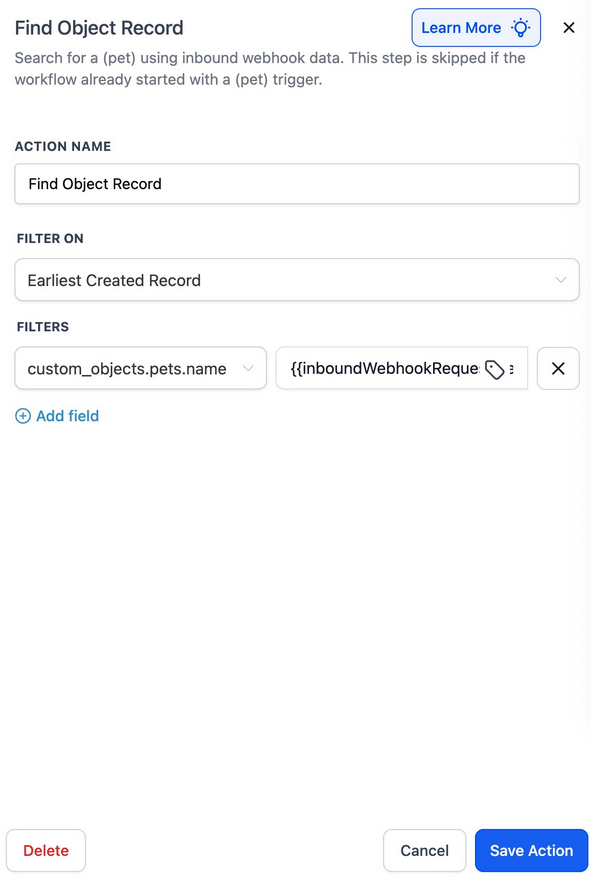
Step 3: Configure Search Filters
- Left Side: Select the field from the object (e.g., Company Domain, VIN, External ID).
- Right Side: Map it to the incoming webhook field (e.g., {{inboundWebhookRequest.body.domain}}).
Step 4: Define Tie-Breaker Rule
- Choose to filter results using:
- Earliest Record (e.g., oldest match)
- Latest Record (e.g., most recent match)
Step 5: Set Branching Outcomes
- Choose what happens when:
- A matching record is found
- A matching record is not found
This can include updating records, assigning tasks, sending notifications, or other follow-up steps.
Step 6: Save and Test Your Workflow
- Ensure your test payloads reflect real-world data for accurate results.
Pro Tips
- Use Unique Identifiers: For best accuracy, always match on unique or semi-unique fields like External ID, Domain, or VIN rather than generic fields like name or status.
- Combine Filters Wisely: For more reliable results, apply multiple filters together (e.g., Domain AND Industry) to reduce false positives.
- Fallback Logic: Always configure “Record Not Found” branches to handle edge cases—like creating a new record or logging an alert.
- Avoid Redundant Searches: If your workflow trigger already includes the record (e.g., “Company Created”), the Find step is skipped automatically. Don’t duplicate logic unnecessarily.
- Review Field Mappings: Ensure webhook field names match the expected payload format. Inconsistent naming will break the match.
FAQ's
Question: Can I search across multiple fields in one Find action?
Answer: Yes, multiple conditions can be applied using AND logic to ensure precise control over the matching criteria.
Question: What happens if more than one record matches my filters?
Answer: You can define which one to use by selecting either the Earliest or Latest match using the "Filter On" setting.
Question: What if no record is found?
Answer: The workflow will follow the "Record Not Found" branch, which you can configure to create a new record, alert a user, or stop the workflow.
Question: Are these features available for all custom objects?
Answer: Yes, Find Object Record can be used with any custom object-based workflow, provided the object is defined and has records to search.
Question: Do I need to map webhook fields manually?
Answer: Yes, you’ll need to ensure that the right-hand side of each filter references a valid webhook field (e.g., {{inboundWebhookRequest.body.external_id}}). Incorrect or missing mappings will prevent successful matches.
Question: How do I avoid redundant searches in workflows?
Answer: If the workflow trigger already includes the object being searched (e.g., “Company Created”), the "Find" step is automatically skipped to avoid redundancy.
Question: Can I branch my workflow based on whether a record is found or not?
Answer: Yes. You can define different actions for both scenarios, such as updating records, assigning tasks, sending notifications, or creating new records if none are found
Question: Is there a limit to how many "Find" actions I can have in a single workflow?
Answer: While there is no strict limit, it is best to keep workflows streamlined. You can use multiple "Find" actions if you need to locate different types of records (e.g., first find the Company, then find a related Property object) to build complex data relationships.
Question: What specific fields can I use to search for a record?
Answer: You can search using key fields such as Record ID, Company Domain, External ID, VIN, or any other custom or standard field available within your system or custom object.
Question: What is the "Smart Tie-Breaking Logic," and when should I use it?
Answer: If your search criteria return more than one matching record, this logic allows you to automatically select the Earliest (oldest) or Latest (most recent) record to move forward in the workflow.