
How To Connect your Threads Account for Social Planner
The purpose of this article is to guide users through the integration of Meta's Threads into Social Planner. With the rising popularity of new social networks, it is essential for social media managers and content creators to stay ahead of the curve. By incorporating Threads into Social Planner, users can streamline their social media management and ensure a seamless posting experience.
Key Features and Benefits
The integration of Meta Threads into Social Planner brings a range of exciting features designed to enhance your social media strategy. Here are the key benefits:
- Connection via Instagram Login: Easily connect your Threads account through Instagram, making the process quick and seamless.
- Post Composer: Create posts with ease using the intuitive post composer. Add text, images, and videos to your posts, ensuring your content is as engaging as possible.
- Flexible Scheduling and Auto-Publishing: Schedule your posts in advance and let Social Planner handle the publishing process. Utilize various options like Review Flow, RSS Auto-posting, Category Queue, and CSV Upload to automate the posting schedule.
- Save Posts as Drafts or Publish Instantly: Flexibility is key. Save your posts as drafts for later or publish them immediately, depending on your strategy.
- Centralized Social Media Management: Instead of jumping between apps, manage your Threads posts alongside your other social networks, all within Social Planner.
How to Use the Meta Threads Integration in Social Planner
Follow these easy steps to start using the Meta Threads integration within Social Planner:
- Step 1: Navigate the Social Planner
- Navigate to Marketing & Sales > Email & Social Media > Social Planner and navigate to the social networks section to find the Threads integration option.
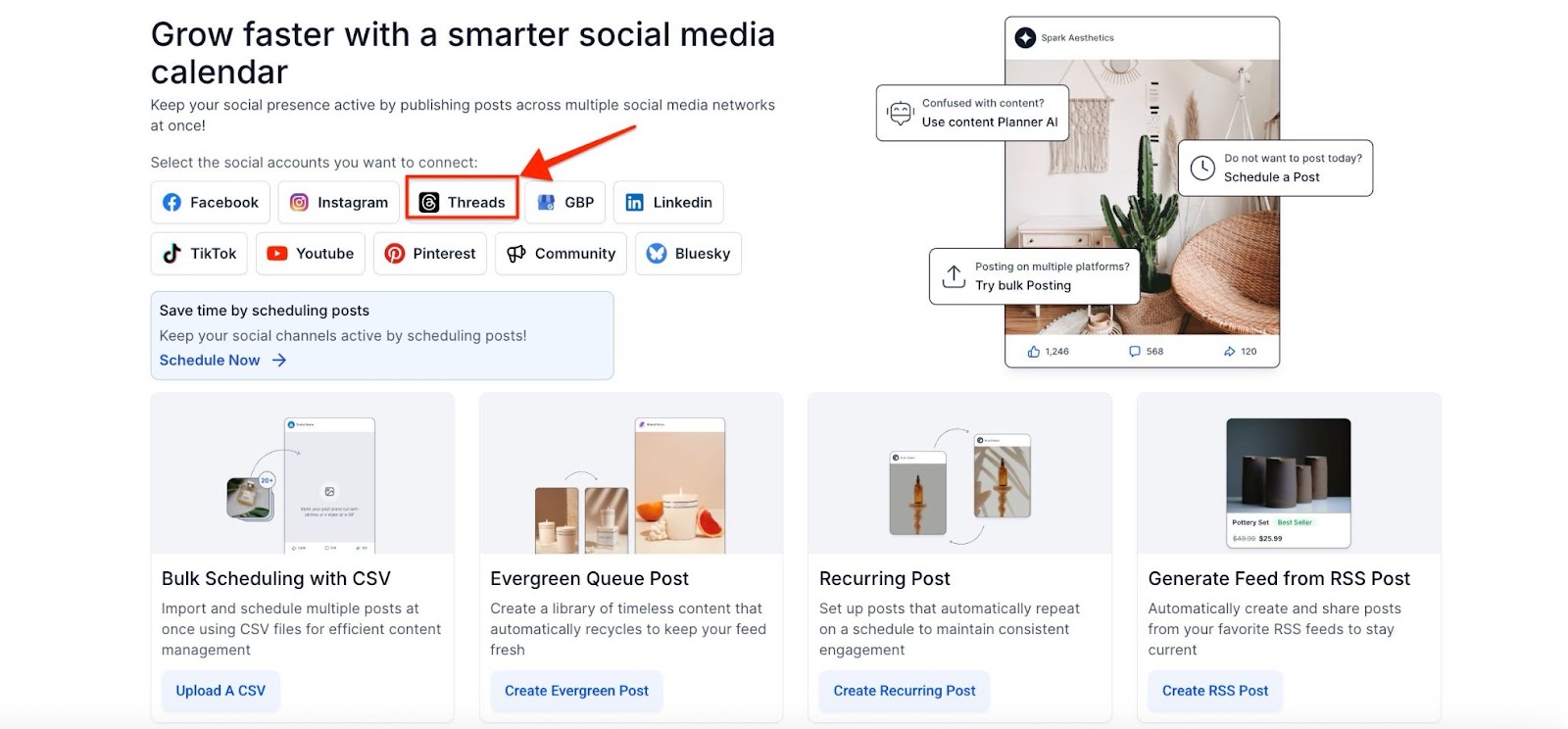
OR
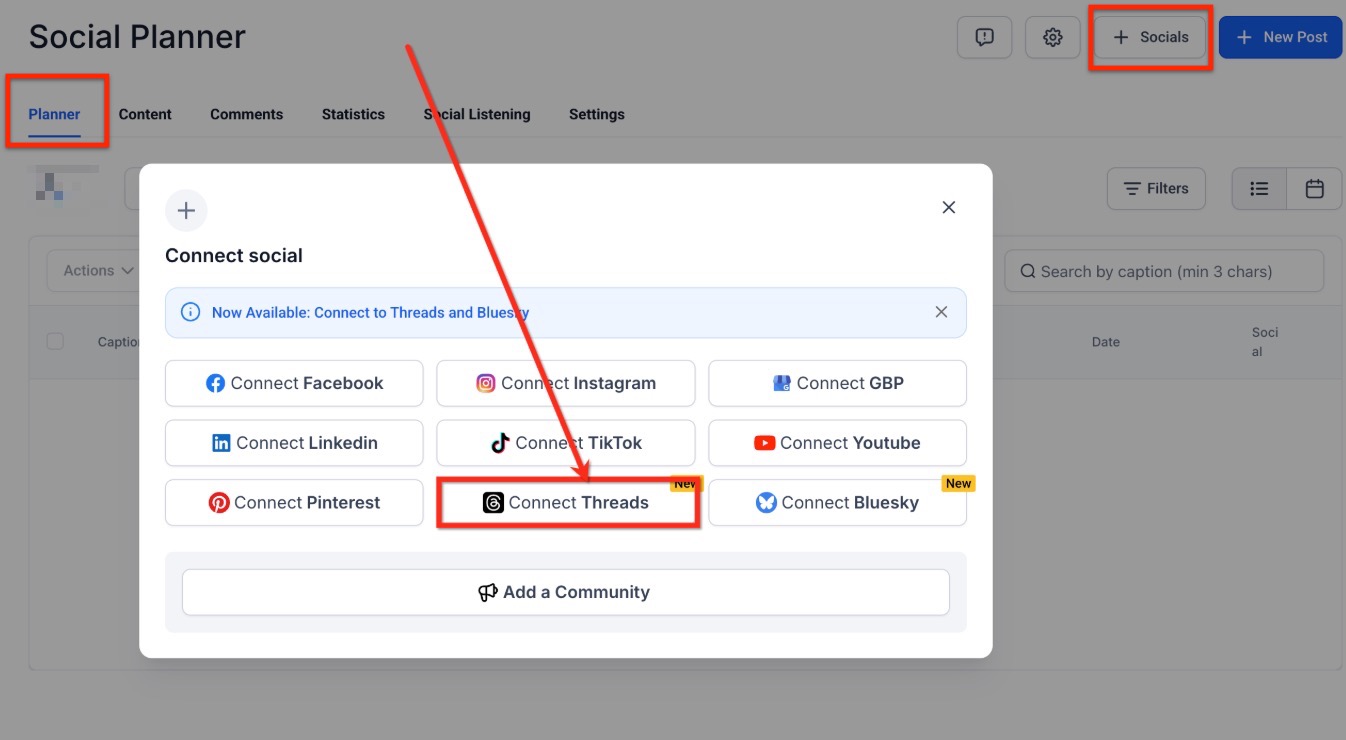
Step 2: Authenticate via Instagram Login
Click on the "Connect" button. You'll be prompted to log in using your Instagram credentials. Confirm which Threads account you want to connect with Social Planner in Mastermind. This step ensures a secure and direct connection to your Threads account.
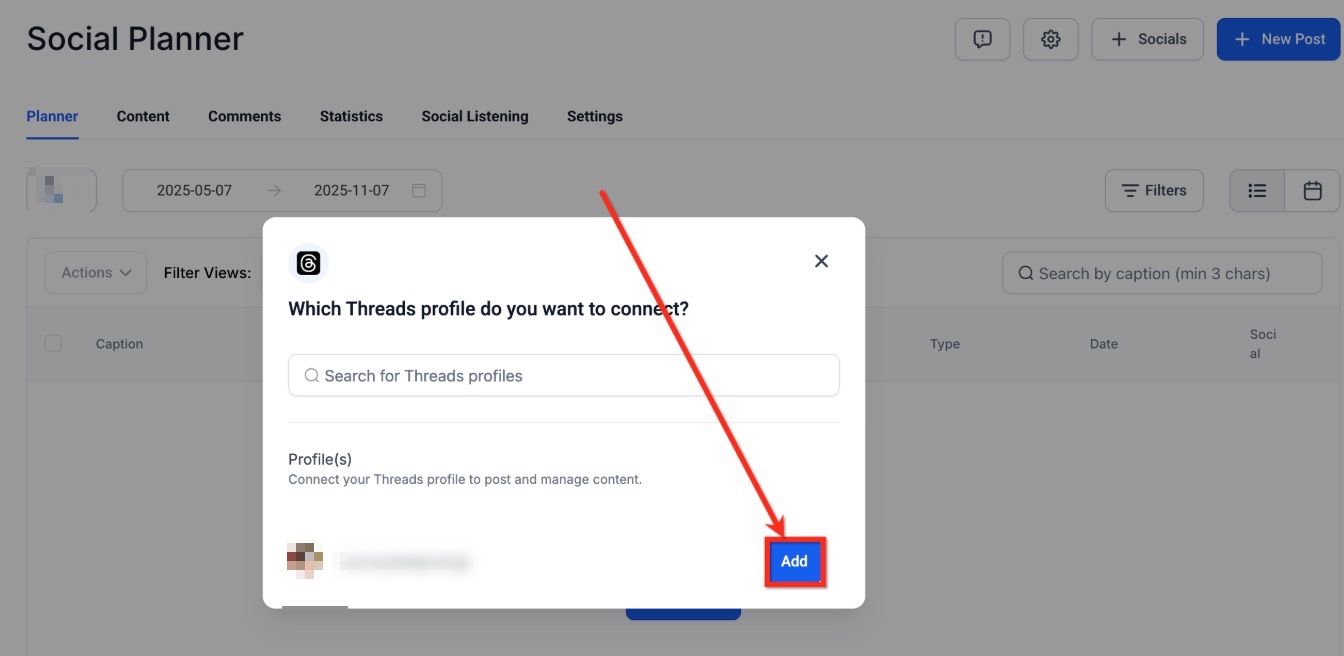
Step 3: Start Creating Posts
- Once connected, use the post composer to start creating your content. Add text, images, or videos as needed.
Step 4: Save, Schedule, or Auto-Publish
- After creating your post, choose whether to save it as a draft for later or schedule it for automatic publishing. You can also choose to post instantly if the timing aligns with your social media strategy.
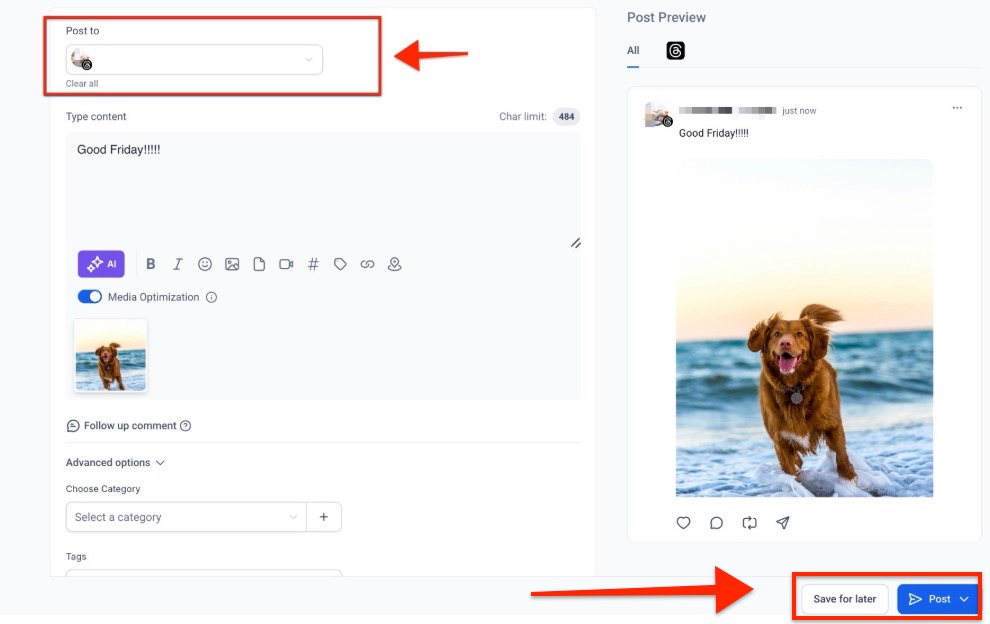
Statistics of Bluesky and Threads
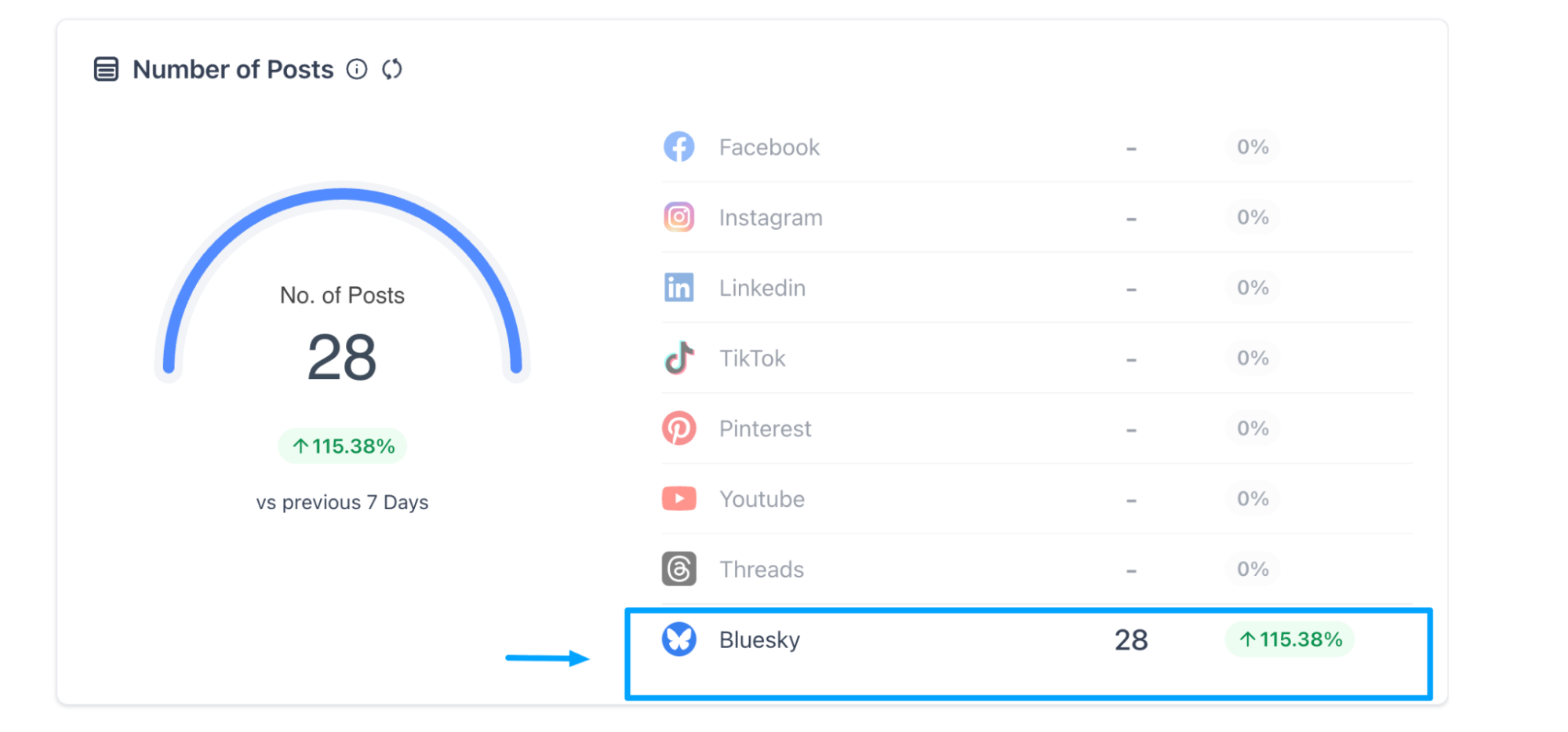
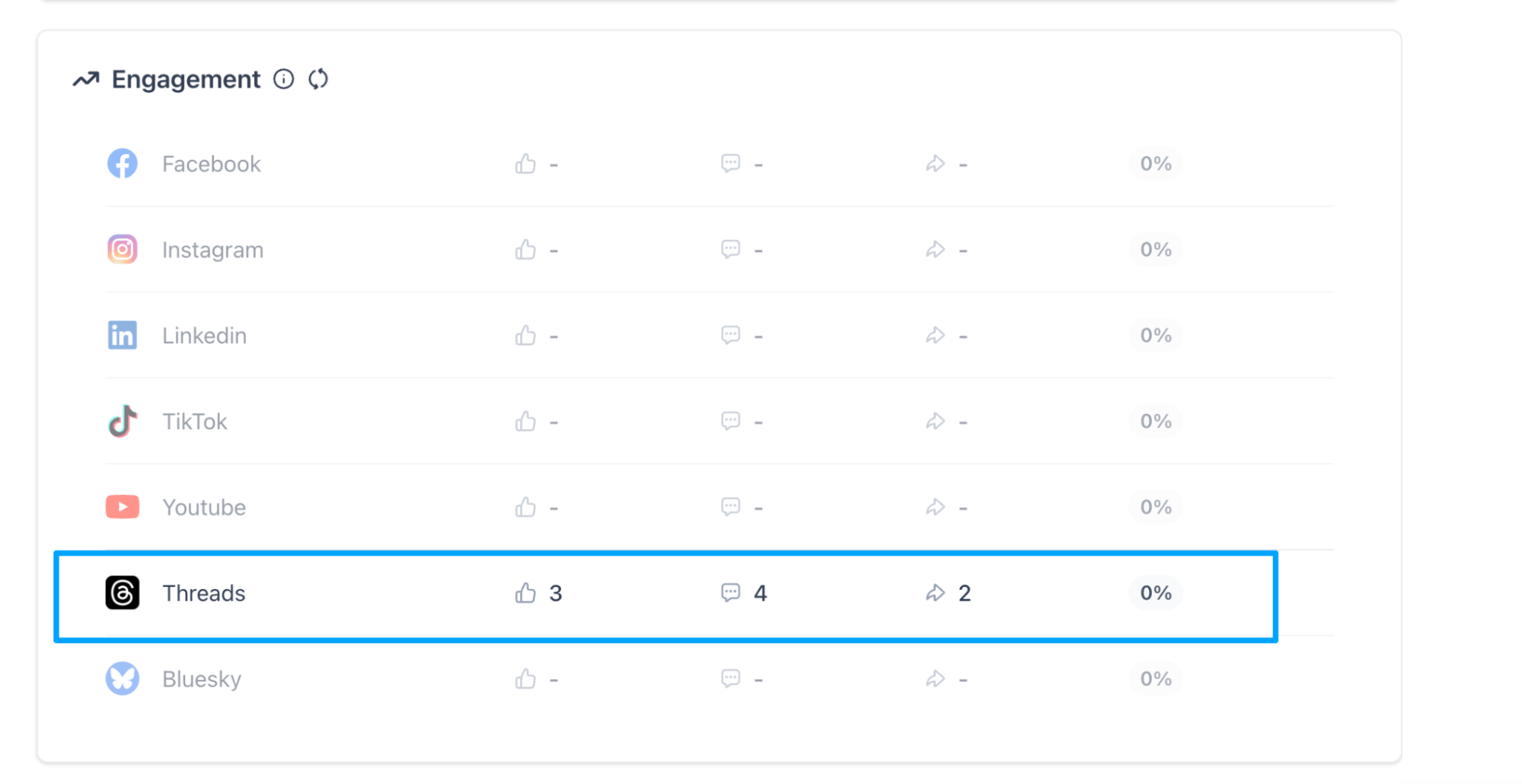
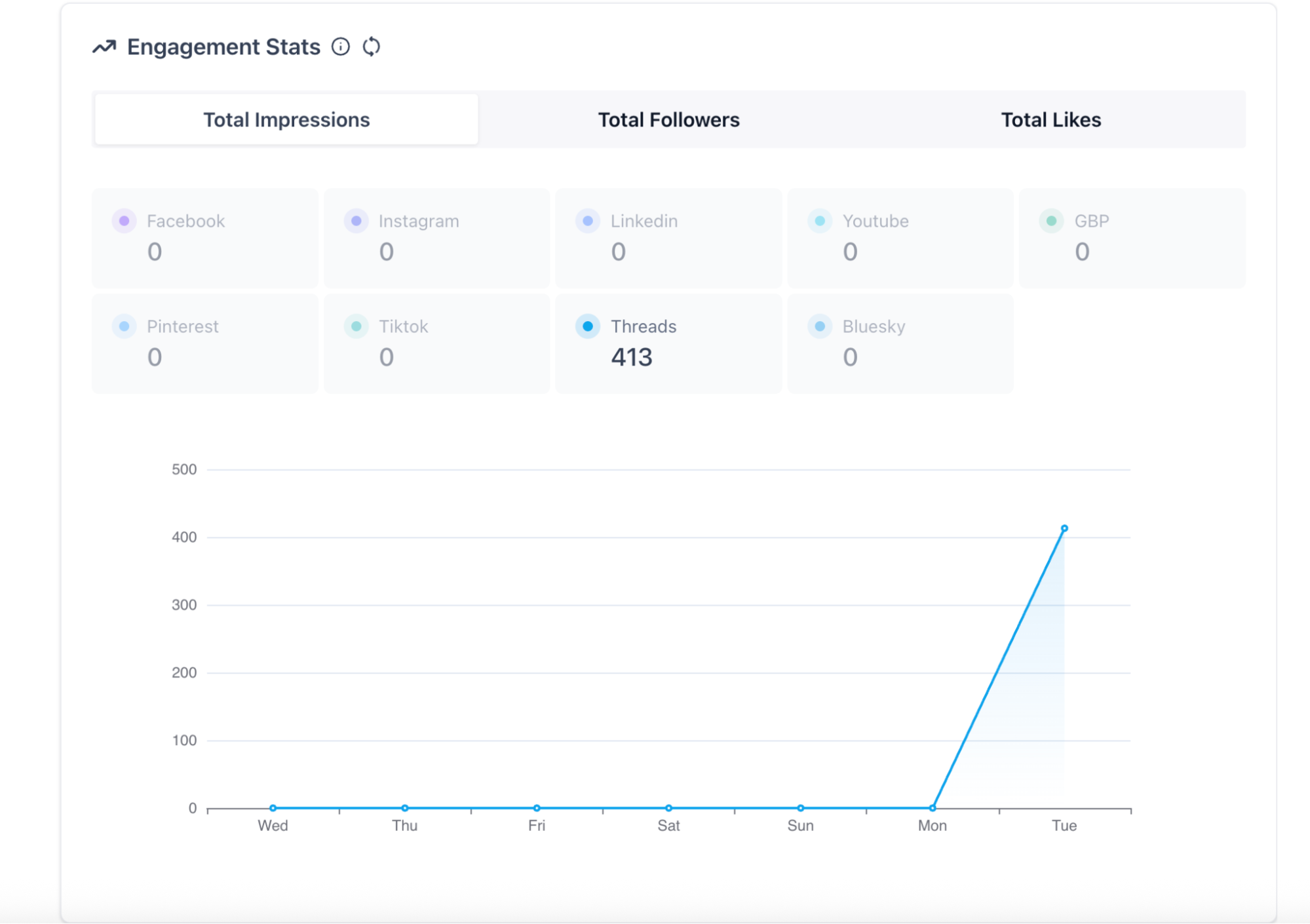
This provides a clear view of the performance of Bluesky and Threads in comparison with other social media platforms by centralizing key activity insights in one place for you. Statistics of Bluesky and Threads help teams track posting trends, understand audience interactions, and evaluate engagement without switching between multiple dashboards.
How to use
Access your Social Planner through the Marketing tab, click on statistics, and select Bluesky or Threads as the social media platform.
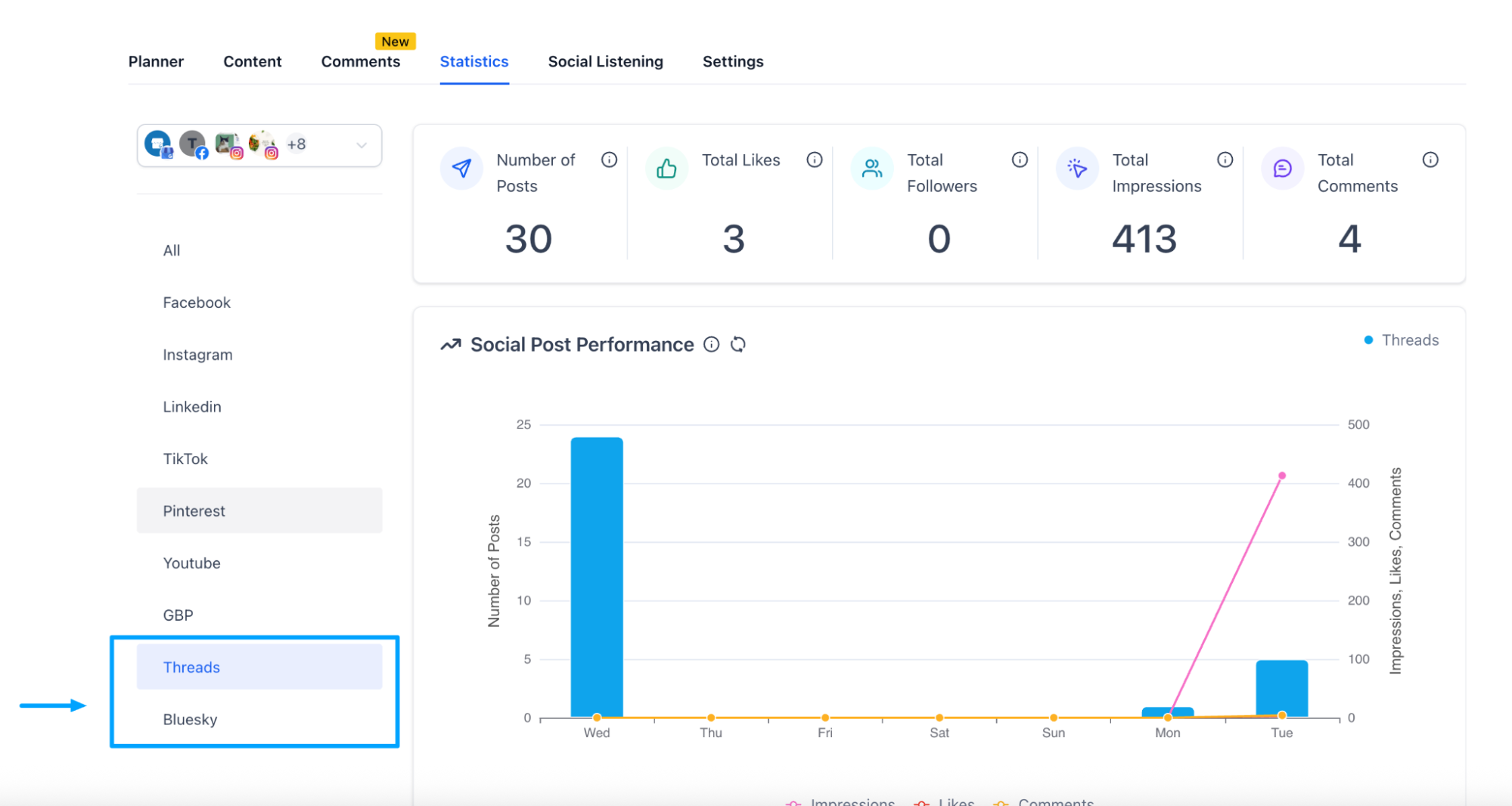
Review the available metrics such as post counts, interactions, and trend graphs.
Why It Matters
Meta’s Threads is one of the fastest-growing social networks, and integrating it into Social Planner offers a significant advantage for businesses and content creators. Here’s why it matters:
- Stay Ahead of the Trend: Early adoption of emerging platforms like Threads helps you gain a competitive edge, ensuring you're visible on new networks before they become mainstream.
- Centralized Management: Managing all your social media accounts from a single platform saves time and reduces the hassle of toggling between multiple apps.
- Enhanced Efficiency: The ability to schedule, auto-post, and manage drafts ensures that your content is always up to date, without requiring constant manual intervention.
Pro Tips
- Consistency is Key: Use scheduling and auto-publishing features to maintain a consistent presence on Threads, even during off-hours or holidays.
- Monitor Engagement: Track the performance of your Threads posts within Social Planner’s analytics to understand what resonates best with your audience.
- Experiment with Content Types: Threads, like any other social platform, have unique audience preferences. Experiment with text-based posts, images, and videos to see what generates the most interaction.
FAQ's
Question: How do I connect my Threads account to Social Planner?
Answer: Simply log into Social Planner, go to the social networks section, and select Threads. Use your Instagram credentials to authenticate and connect your account.
Question: Can I schedule posts for multiple accounts at once?
Answer: Yes, Social Planner allows you to schedule and manage posts for multiple accounts, including Threads, in one place.
Question: What types of posts can I create for Threads?
Answer: You can create text posts, image posts, and video posts. The post composer supports all standard formats.
Question: Is there a limit to how many posts I can schedule in advance?
Answer: No, Social Planner allows unlimited post scheduling, making it easy to plan your content ahead of time without restrictions.
Question: Can I see the performance of my Threads posts?
Answer: Yes, you can view performance insights, such as engagement metrics and reach, to assess the impact of your Threads posts.
Question: How does integrating Threads help my social media strategy?
Answer: It keeps you ahead of emerging platforms, streamlines account management, allows scheduling and auto-posting, and helps maintain consistent content for your audience.
Question: Can I use "Emojis" and "Hashtags" in my scheduled Threads posts?
Answer: Yes. Threads supports both emojis and hashtags. You can add them directly into the Post Composer, and they will look and function exactly as they do when posting from the Threads app.
Question: Why don't my "Deleted" posts disappear from the Social Planner?
Answer: Due to current API limitations, if you delete a post directly within the Threads app, that change won't automatically sync back to the Social Planner. We recommend managing your deletions inside the app for now.
Question: Can I compare the performance of Threads against other platforms?
Answer: Yes. By accessing the Statistics tab in Social Planner, you can view performance metrics for Threads alongside other platforms like Bluesky. This helps you track trends and audience interactions in one centralized view.
Question: Besides manual scheduling, what other automated methods can I use to publish content to Threads?
Answer: You can utilize several automation options within Social Planner to manage your Threads posting schedule, including RSS Auto-posting, Category Queues, CSV Uploads, and the Review Flow.