
How to Sell Gift Cards
Gift cards are a powerful way for businesses to increase revenue, strengthen customer loyalty, and offer flexible payment options. This article outlines a complete end-to-end gift card system that allows businesses to create, sell, send, track, and redeem gift cards across multiple checkout experiences. The goal is to help teams using Mastermind or any similar platform understand how to build and manage a fully customizable gift card program with ease, while maintaining full control over branding, payment behavior, and customer experience.
Key Features & Benefits
1. Fully Customizable Gift Card Products
Create gift card products with extensive customization options, including:
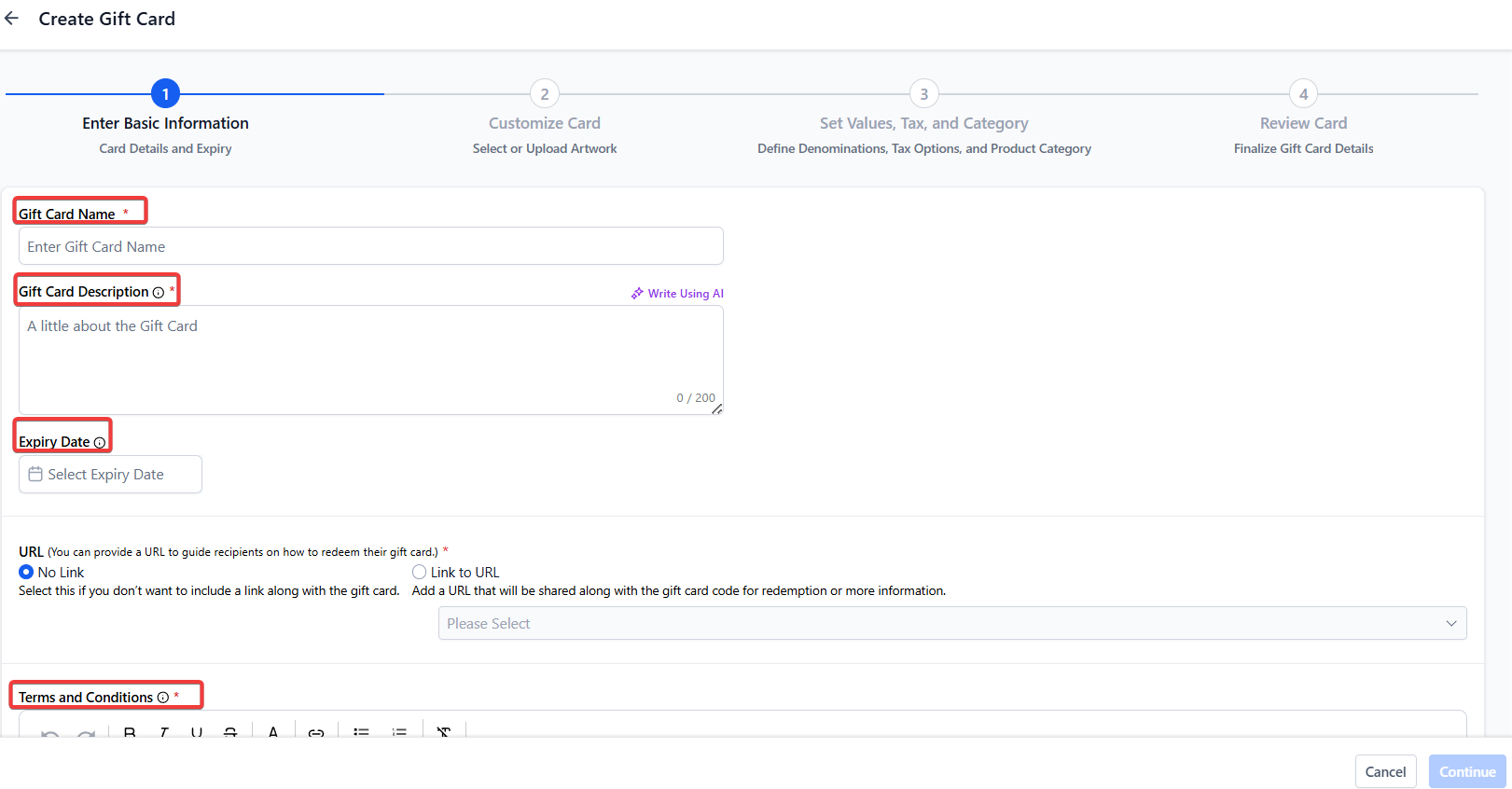
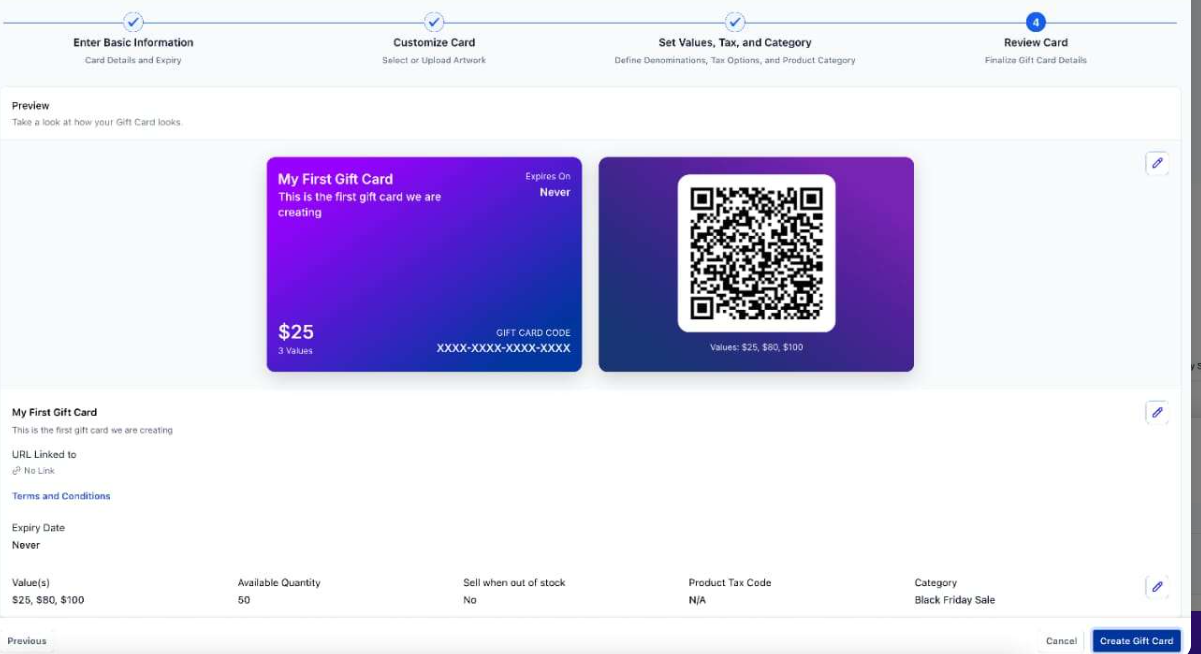
- Gift card name, description, and terms & conditions
- Optional redemption link included in gift card communications
- Optional expiry date applied to all orders generated from the product
- Custom artwork, branding, and gradient-based designs
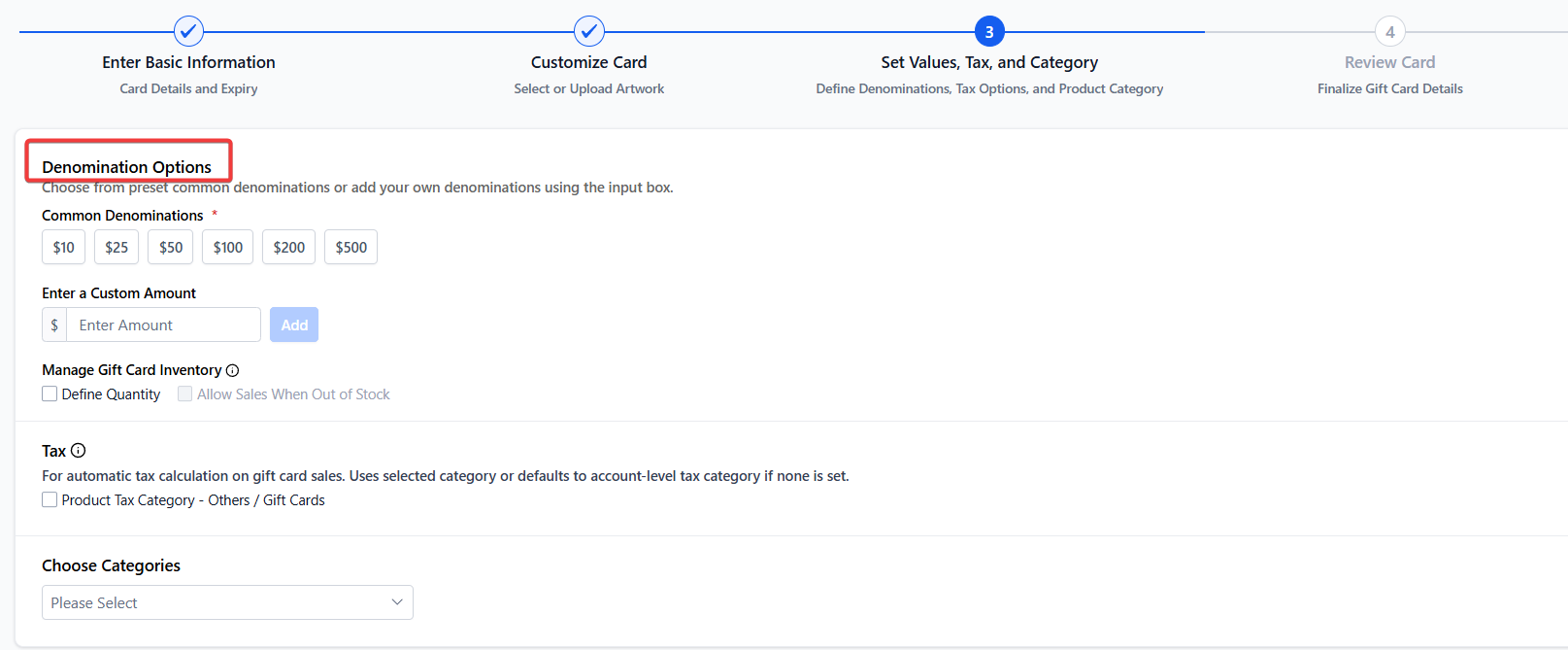
- Multiple denominations with shared inventory logic
- Optional automatic tax category
- Optional product categorization
- Full preview before final creation
Benefits:
- Offers brand-consistent digital gift cards
- Supports multiple pricing structures
- Allows clear customer expectations through terms and details
2. Sell Gift Cards Through Multiple Checkout Options
Each gift card product automatically receives dedicated checkout links available in both test and live modes. Businesses can sell gift cards through:
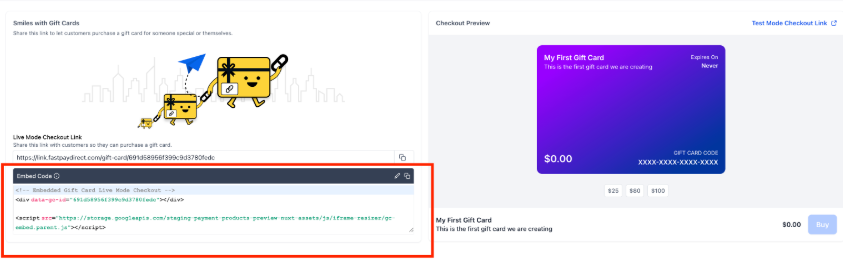
- Direct checkout links per product
- Embedded checkout code
- QR codes for in-store or promotional use
- Existing checkouts such as funnels, forms, payment links, invoices, storefronts, and more
Customer experience includes:
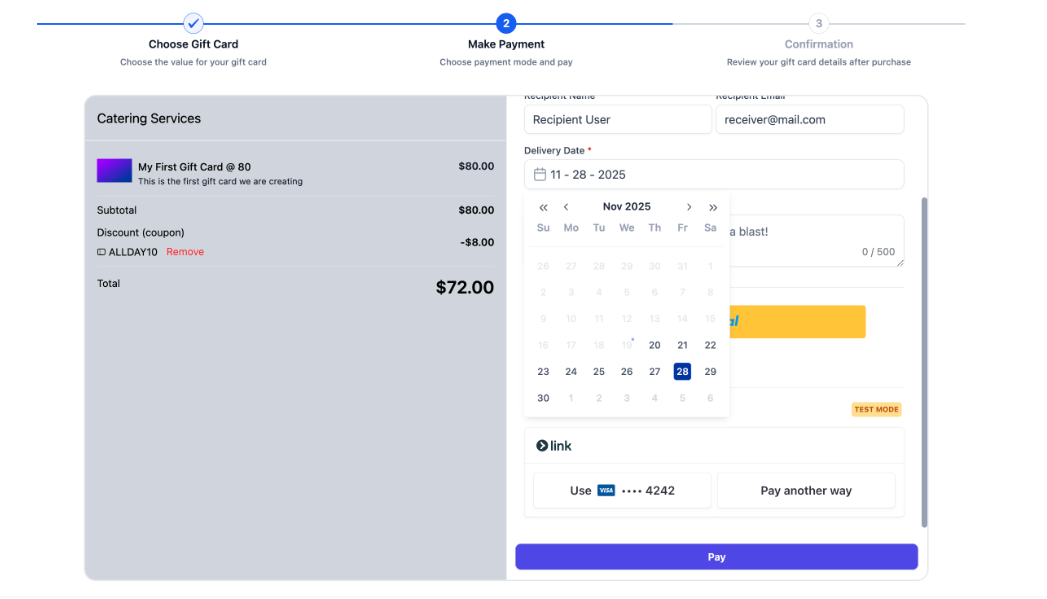
- Selecting a denomination
- Buying for self or someone else
- Choosing immediate or scheduled delivery
- Paying through supported checkout methods
Benefits:
- Multiple flexible selling options
- Works across both digital and physical environments
- Supports gifting workflows for recipients and purchasers
3. Send Gift Cards Directly (Without Payment)
Gift cards can be issued and delivered directly to customers without requiring payment useful for rewards, refunds, compensation, or loyalty initiatives.
Key capabilities:
- Select any existing customer
- Add a custom personal message
- Deliver via email, SMS, QR link, or PDF
- Optional scheduling for future activation
- Preview communications before sending
Benefits:
- Enables customer goodwill and retention programs
- Allows businesses to issue value without generating an order payment
- Automatically manages inventory
4. Track All Gift Cards in One Place
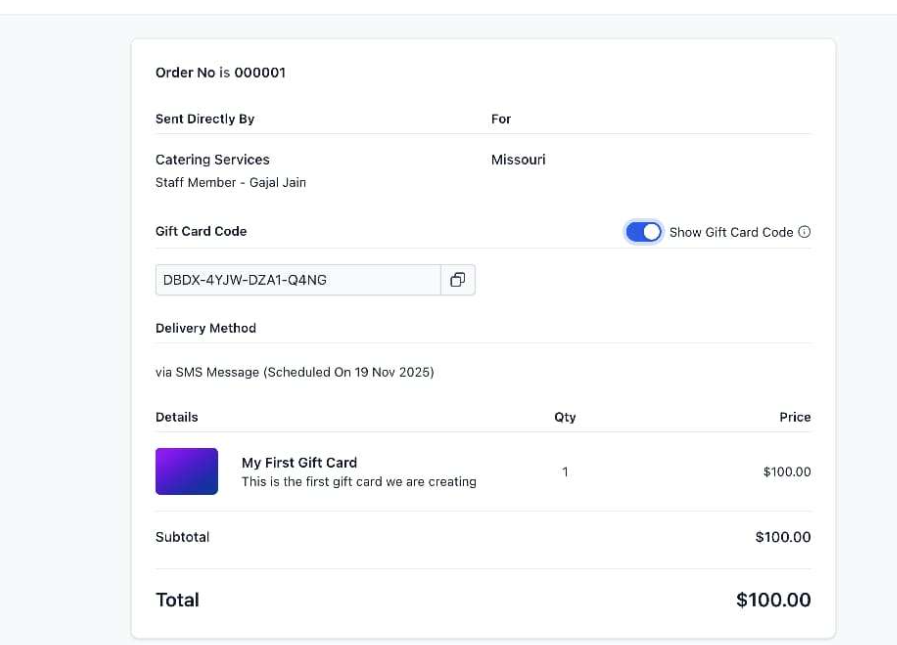
All sent or purchased gift cards appear in the Gift Card Orders section. This becomes the central hub for managing gift card lifecycle events.
View details such as:
- Purchaser information
- Recipient details
- Denomination and expiry
- Remaining balance
- Status (Scheduled, Active, Inactive)
- Delivery method
- Complete usage details with hidden gift card number
Benefits:
- Transparent tracking and management
- Full visibility of balances and statuses
- Single source of truth for all issued cards
5. Redeem Gift Cards Across Multiple Checkouts
Customers can redeem gift cards on any supported checkout that displays the gift card redemption field.
Redemption behaviors include:
- Full or partial payment coverage
- Automatic balance calculation
- Ability to combine with other payment methods
- Special handling for subscription products (requires saved payment method for future billing)
Benefits:
- Seamless customer experience
- Works across multiple checkout types
- Supports both one-time and subscription models
How to Use the Gift Card System
Step 1: Create a Gift Card Product
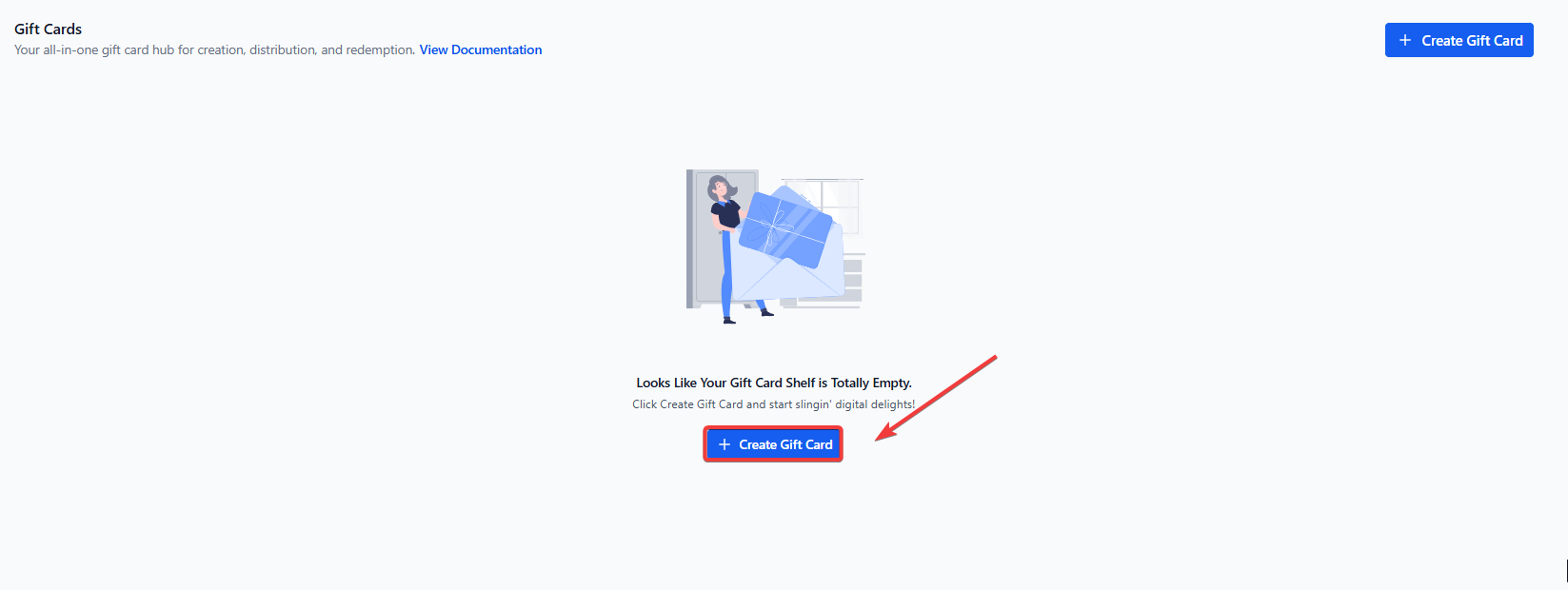
- Go to the Gift Cards area under Payments.
- Select “Create Gift Card Product.”
- Add name, description, artwork, denominations, expiry (optional), and terms.
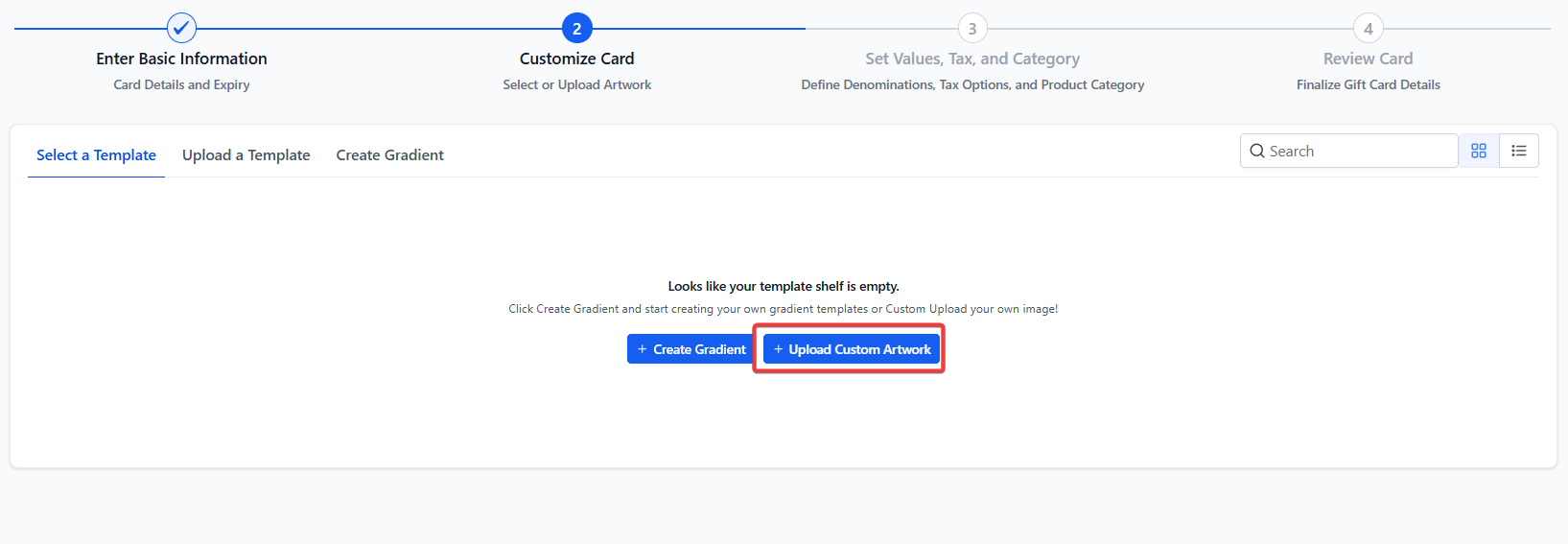
- Review the preview and finalize creation.
Step 2: Sell Gift Cards
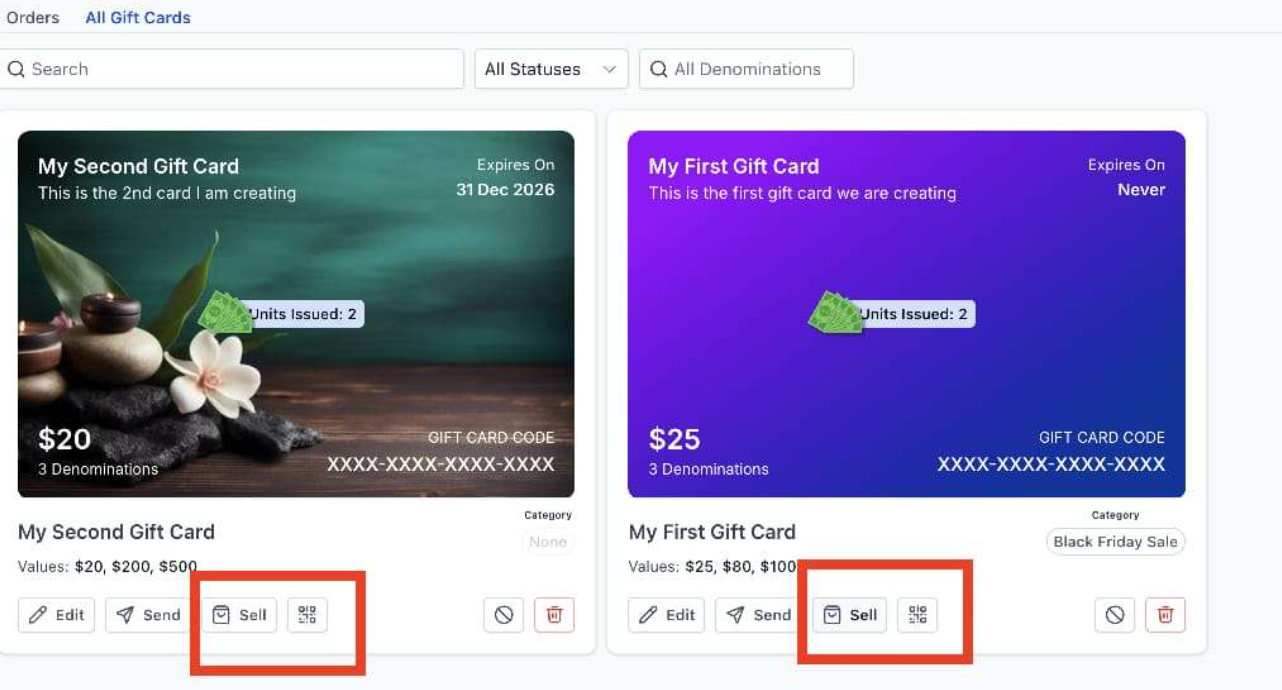
- Use the product’s dedicated checkout link, QR code, or embed code.
- Or add the gift card as a product to existing checkouts.
- Customers purchase and receive gift cards via email according to chosen delivery settings.
Step 3: Send Gift Cards (Without Payment)
- Choose “Send Gift Card” under the product.
- Select the customer, add a message, and choose a delivery method.
- Schedule or send immediately.
Step 4: Track All Gift Card Activity
- Open the Gift Card Orders tab.
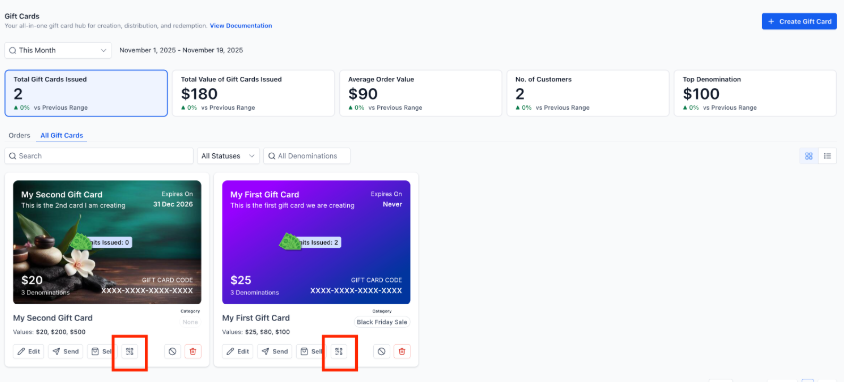
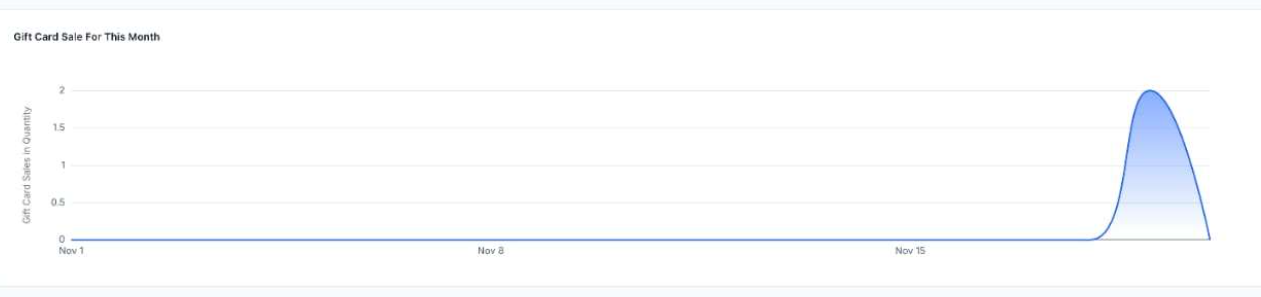
- Use filters to track balances, statuses, customer details, and redemption history.
- Click any gift card to see full details.
Step 5: Redeem Gift Cards at Checkout
- Customers enter their gift card number during checkout.
- The system applies full or partial payment automatically.
FAQ’S
Question: Can I create different inventory levels for each denomination?
Answer: No. Inventory applies equally across all denominations. For example, setting inventory to 100 means each denomination receives 100 units.
Question: Can gift cards be edited after creation?
Answer: Yes. Gift card products can be edited, archived, or deactivated at any time. Deactivation stops sales from the dedicated checkout link and store.
Question: Can customers schedule gift card delivery?
Answer: Yes. Customers purchasing for others can choose immediate or scheduled delivery. Scheduled orders remain inactive until their delivery time.
Question: Can gift cards be used for both one-time and subscription purchases?
Answer: Yes. However, if a subscription is included, customers must provide an additional payment method for future recurring charges.
Question: Where can I see all gift card transactions?
Answer: All sold or sent gift cards appear in the Gift Card Orders section, which shows statuses, balances, expiry dates, and delivery details.
Question: Can gift cards be redeemed anywhere within the system?
Answer: They can be redeemed on any checkout that supports the gift card redemption element. Redemption availability depends on whether at least one gift card product has been created and sent or purchased.
Question: Can I issue multiple gift cards at once?
Answer: Not currently. Each “Send” action supports sending one gift card to one customer at a time.
Question: Can I customize the email the customer receives with their gift card?
Answer: Absolutely. When creating the Gift Card Product, you can upload custom artwork and branding. The delivery email will use your brand colors, logo, and the specific personal message included during the purchase.
Question: Can I see a log of when and where a gift card was used?
Answer: Yes. The Gift Card Orders tab provides complete usage details, including redemption history and the current status (Scheduled, Active, or Inactive).
Question: Is it possible to give a gift card to a customer as a reward or refund without them having to pay for it?
Answer: Yes. You can use the "Send Gift Card" feature to issue a card directly to any existing customer without requiring a payment. This is a useful way to handle rewards, refunds, or loyalty initiatives while still automatically managing your inventory.