
Quiz Template Library: Create Quizzes Faster with Pre-Built Templates
Welcome to this guide on how to make the most out of the Quiz Template Library! If you're looking to create engaging and high-converting quizzes for your business or project, you've come to the right place. This feature allows you to quickly set up quizzes with pre-designed templates, saving you time and effort while ensuring professional results.
In this article, we'll walk you through everything you need to know, from selecting the right template to customizing your quiz. Let's get started!
What is the Quiz Template Library?
The Quiz Template Library is a collection of pre-made quiz templates that help you create effective quizzes for various purposes. Whether you're looking to capture leads, segment your audience, or assess knowledge, these templates give you a head start without having to design a quiz from scratch.
Key Benefits of Using the Quiz Template Library
Here are some of the top advantages of using the Template Library to create your quizzes:
- Time-saving: Get a ready-to-use quiz structure and skip the blank canvas.
- Variety of Options: Choose from quizzes for lead generation, assessments, and more.
- Goal-Oriented Templates: Templates are categorized by intent to match your specific needs.
- Fully Customizable: Edit all aspects of the quiz, including questions, answers, and design.
- Boost Engagement: Use proven quiz structures to encourage interaction.
- Perfect for Beginners: Ideal for those new to quiz creation or looking to launch quickly.
How to Use the Quiz Template Library
Creating a quiz has never been easier! Follow these simple steps to use the Template Library and launch your quiz in just minutes.
Step 1: Navigate to the Quizzes Section
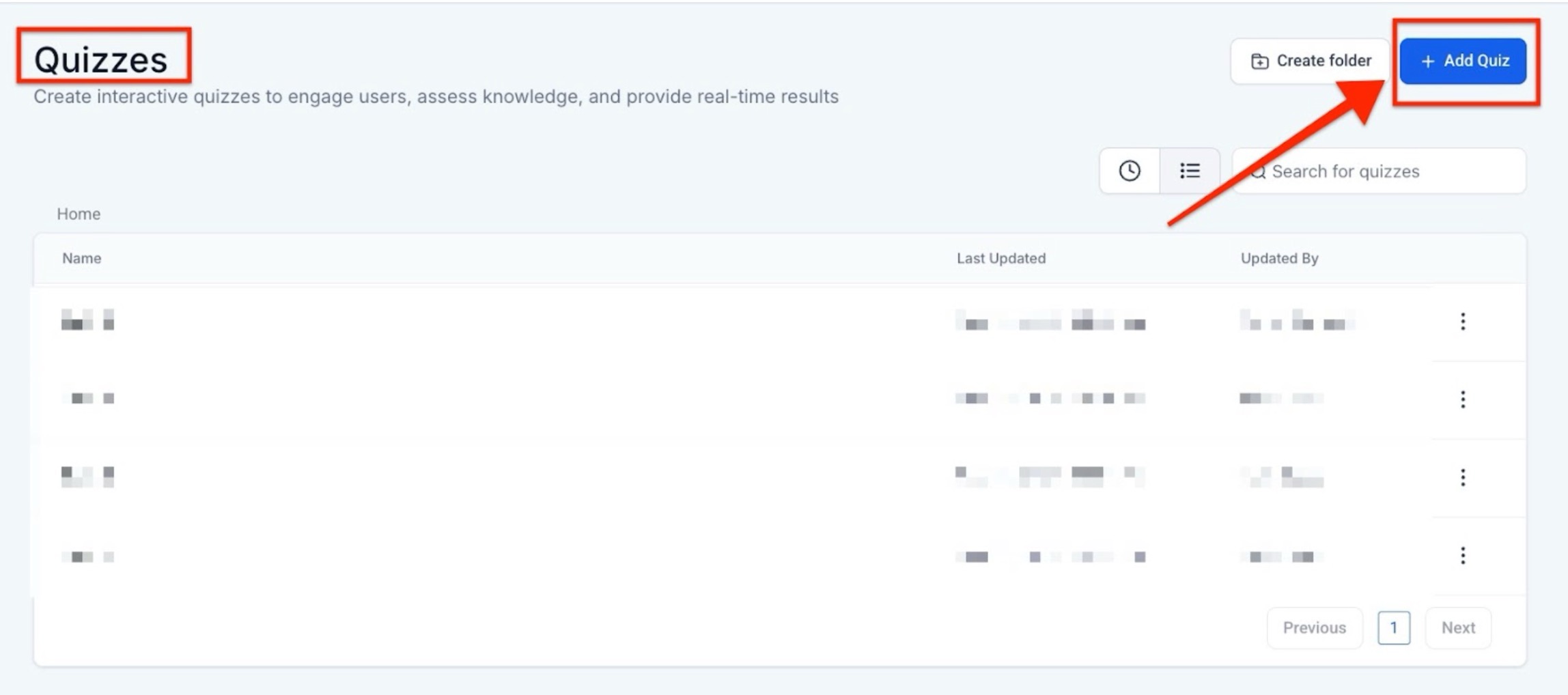
Open Quizzes by navigating to Marketing & Sales > Funnels & Pages from the left sidebar, then click Quizzes from the top menu.
Step 2: Open the Template Library
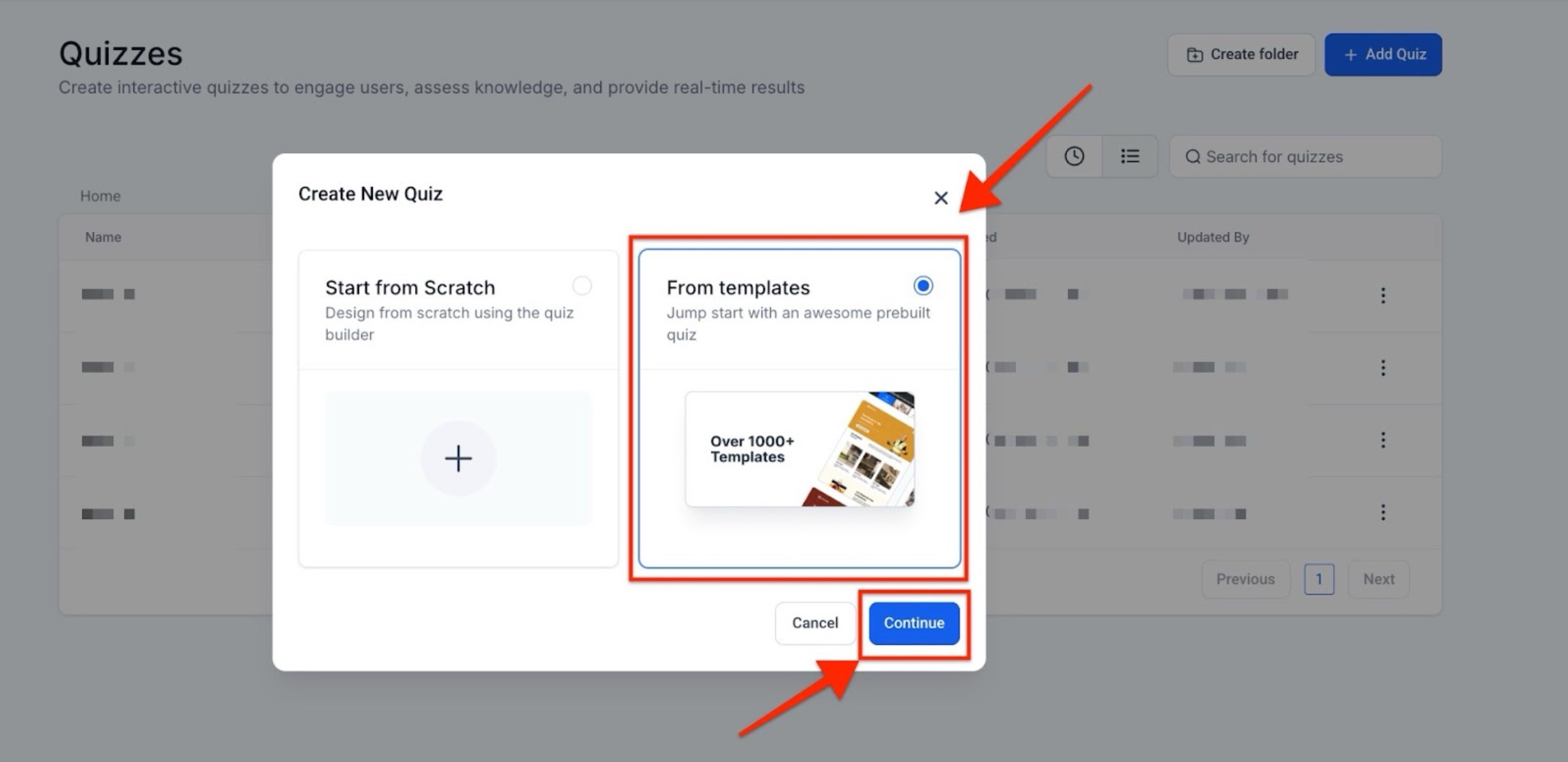
- Once in the Quizzes dashboard, look for the Add Quiz button at the top-right corner.
-
Click it, choose From Templates, and then click Continue.
-
Step 3: Browse the Available Templates
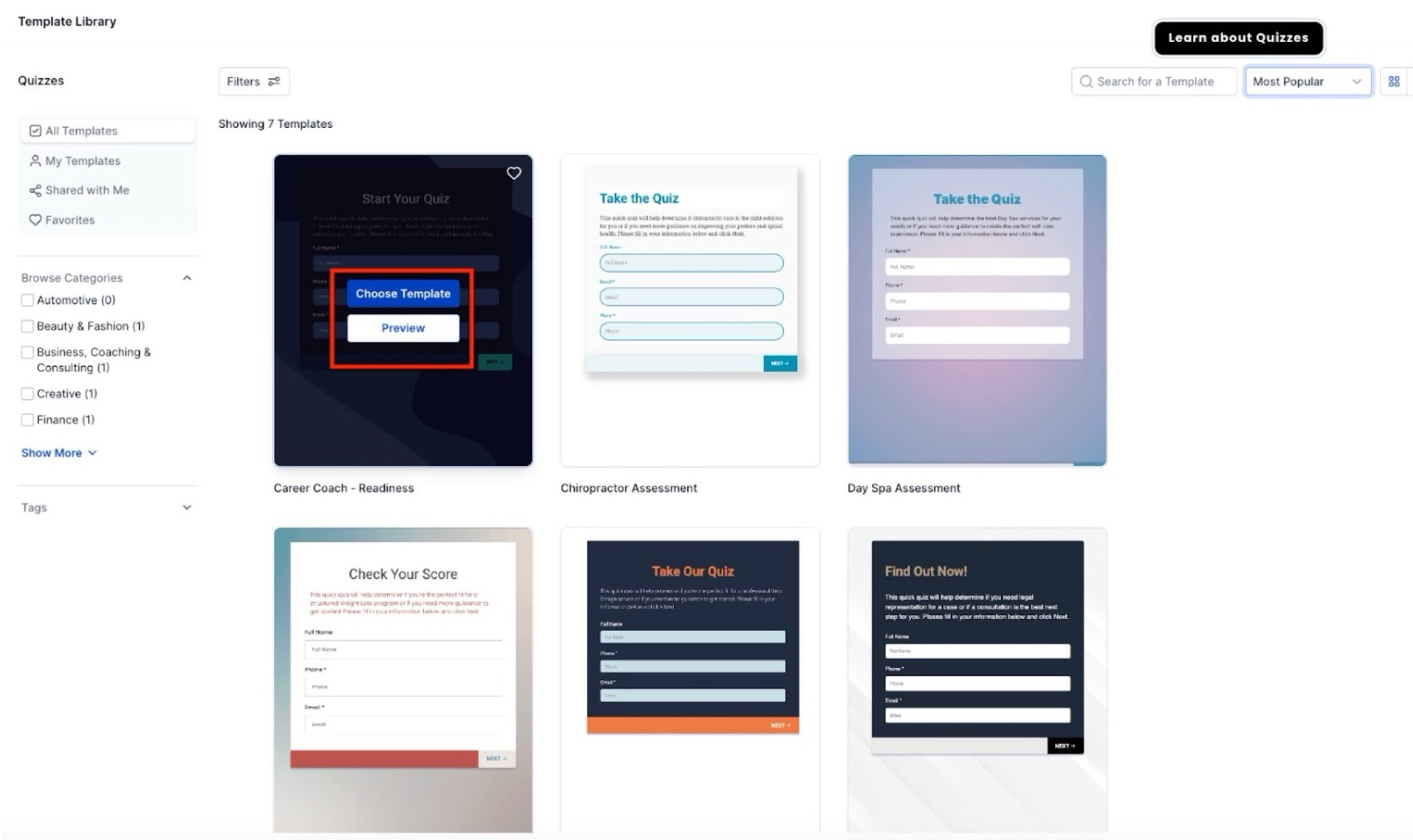
- Explore the different quiz templates available in the library. Templates are categorized based on the type of quiz, such as lead generation, assessments, or personality quizzes.
- Each template comes with a title and a brief description, so you can easily find one that matches your quiz goals.
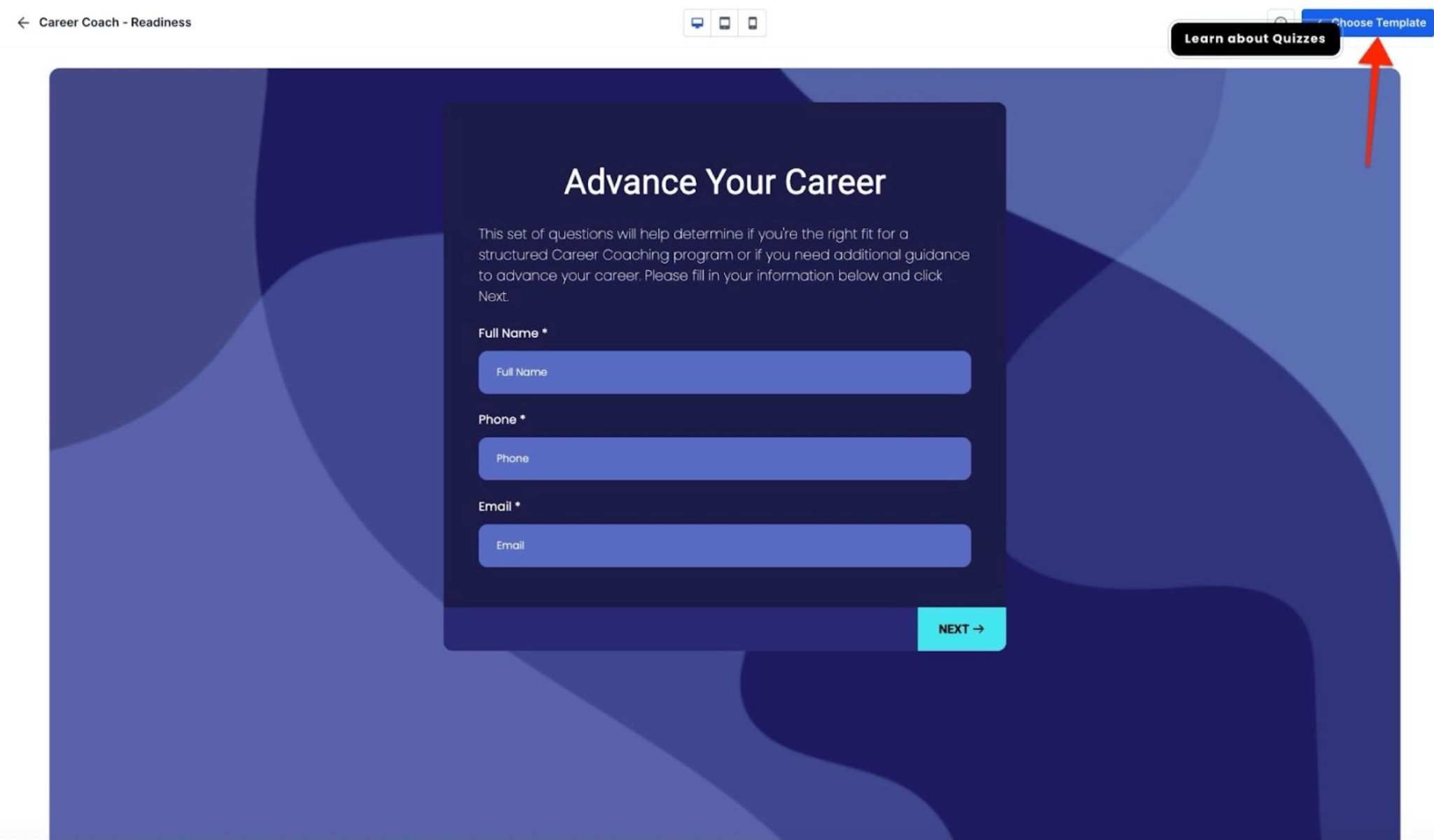
- To view a template in more detail, simply click on the Preview button. You can then click on ‘Choose Template’ if that meets your requirements.
-
Step 4: Start Editing Your Template
- After previewing a template, click on the Continue button to start customizing it.
- This will open the quiz editor with the selected template already loaded, allowing you to modify the content and design.
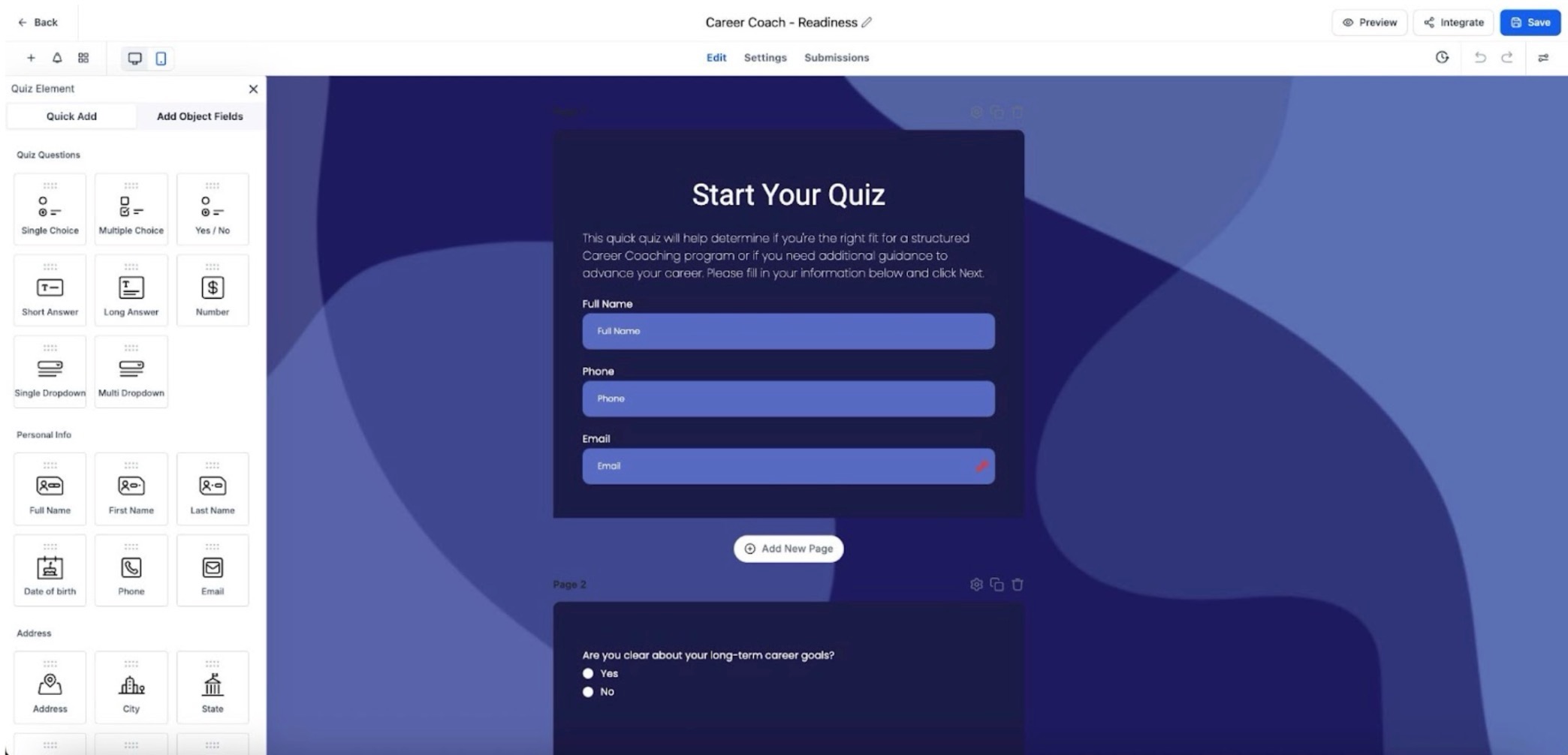
Step 5: Customize the Template
- You can now edit every part of the template:
- Questions & Answers: Adjust the wording, add new questions, or change the answers.
- Outcomes & Scoring: Modify how answers are scored and define personalized result messages.
- Design & Layout: Customize the look and feel to match your brand’s style.
- Logic: Set up conditional logic to personalize the user experience based on responses.
Pro Tip: Even though you’re starting with a template, you can make it 100% your own by tweaking every aspect of the quiz.
FAQs
Question: Can I customize the templates after selecting them?
Answer: Yes, once you click “Continue,” you can edit everything, whether they are questions, answers, styles, logic, or results.
Question: Are the templates optimized for mobile?
Answer:Absolutely! All templates are fully responsive and designed to look great on mobile devices.
Question: Can I save my own templates?
Answer:Currently, the Template Library only includes pre-made templates. Saving user-made templates isn’t available yet, but you can customize them as needed.
Question: Will using a template overwrite existing quizzes?
Answer:No, selecting a template will create a new quiz. Your existing quizzes will remain unaffected.
Question: Are there templates for lead generation?
Answer:Yes! There are several templates specifically designed for lead generation, including email opt-in and funnel integration options.
Question: How do I access the Quiz Template Library?
Answer: To access the library, navigate to the Quizzes section (usually under "Sites") on your dashboard, click the New button in the top-right corner, and select Start with Template Library from the dropdown menu.
Question: How can I see what a quiz looks like before I commit to using the template?
Answer: You can view a template in more detail by clicking the Preview button. This allows you to review the structure and content before clicking "Choose Template" to begin your project.