
Inbound Spam Call Reduction Guide
Inbound spam call reduction is a layered configuration that identifies likely spam before agents engage, quarantines repeat offenders automatically, and adds a light IVR “front door” to deter bots. Combining detection (Number Intelligence), agent input (Custom Dispositions), and automation (DND + IVR) delivers strong protection without blocking real customers.
Key Benefits of Inbound Spam Call Reduction
Understanding the outcomes helps you deploy the right balance of protection and accessibility. These benefits focus on reducing interruptions, preserving lead flow, and keeping rollback options simple.
- Fewer agent interruptions: Reduce the volume of spam that rings through to your team.
- Faster handling: Agents can mark a call as a Spam call with one tap or click.
- Automatic quarantine: A workflow places marked numbers in DND (Do Not Disturb) to prevent future inbound rings.
- Front-door screening (IVR): Simple keypress prompts repel robocalls while routing real people quickly.
- Safe-list & rollback: VIPs can bypass filters; DND can auto-clear after a manual review or a set number of days.
- Measurable impact: Track “Spam Likely” rates, IVR completion, and the reduction in agent-handled spam calls.
Core Components
1. Number Intelligence (Spam Detection & Caller ID)
Number Intelligence adds network-level signals (e.g., Spam Likely) to your call logs and phone experience. Turning it on provides early detection so you can flag or route suspicious calls before agents engage.
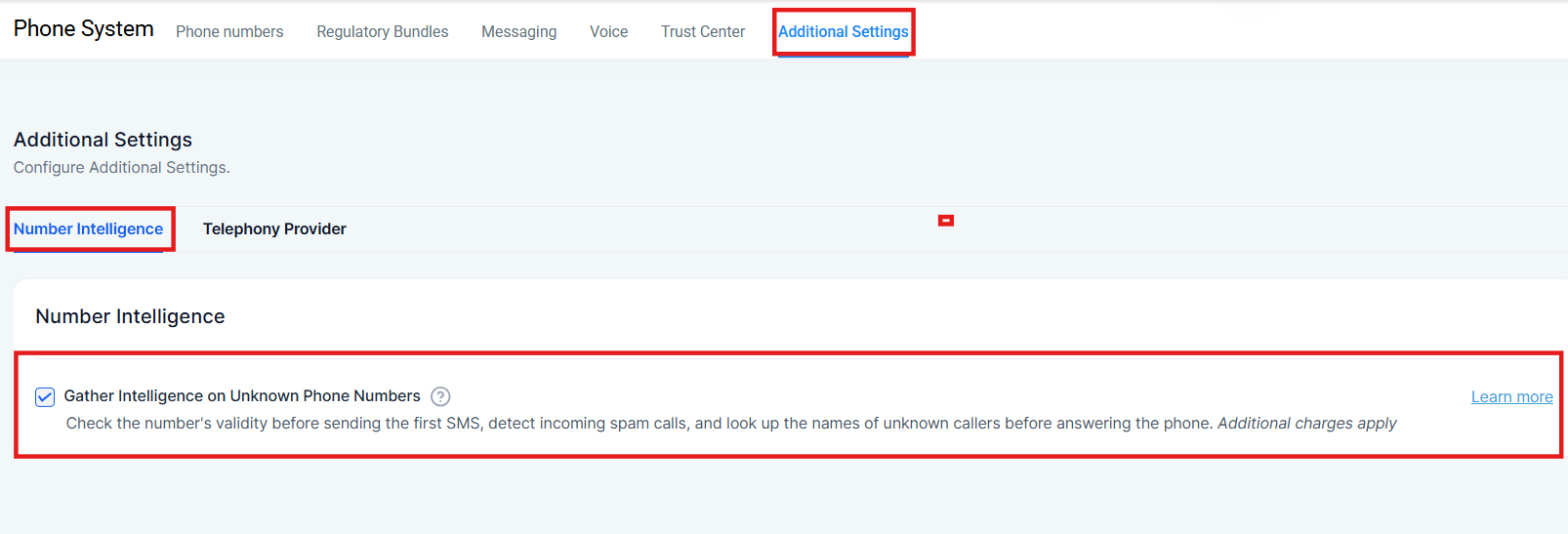
- Where to enable: Settings → Phone System → Additional Settings → Number Intelligence.
- Scope: Spam Detection and Caller Name Lookup availability are usage-based per event. Availability may vary by country; Spam Detection is currently most effective in the U.S.
- Verification: Look for Spam Likely indicators on inbound calls within your call logs and supported dialer views.
2. Custom Dispositions (Create “Spam call”)
Custom Dispositions standardize agent feedback. Adding a "Spam call" disposition lets agents consistently label unwanted calls, which your workflows can then use to auto-quarantine future attempts.
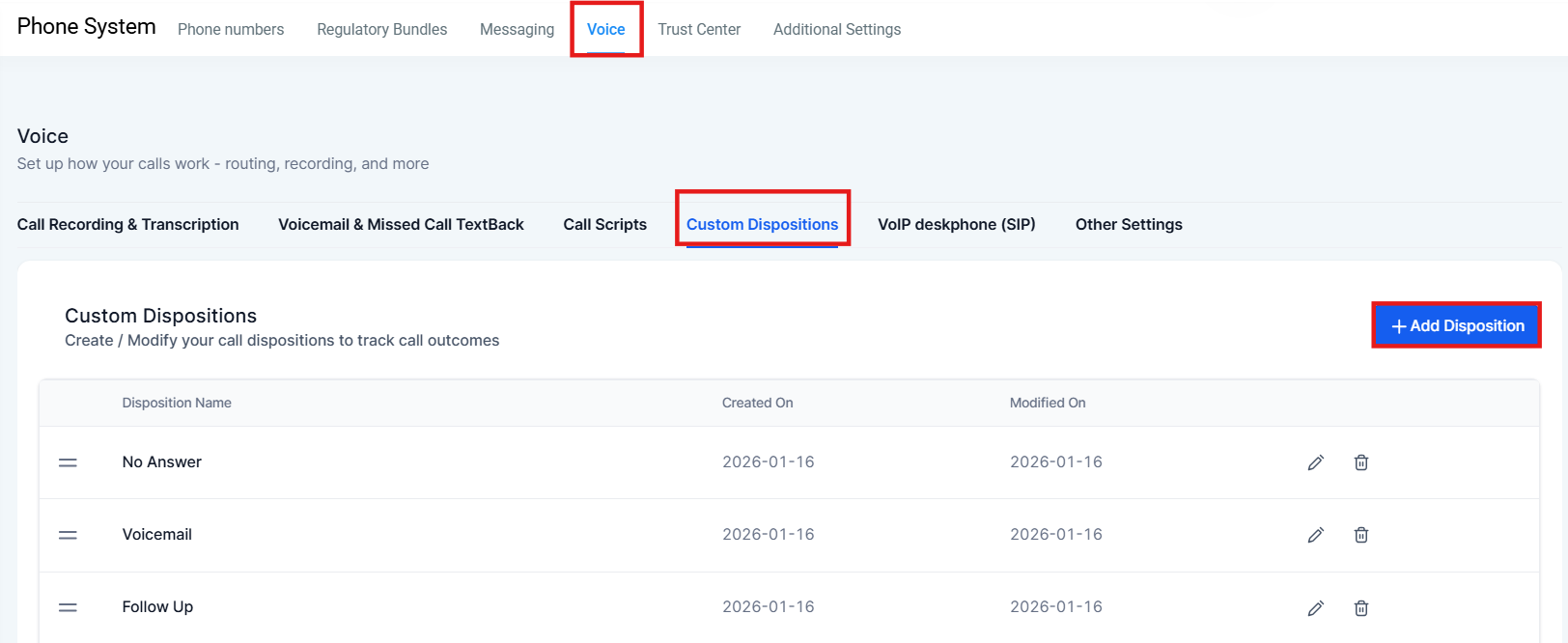
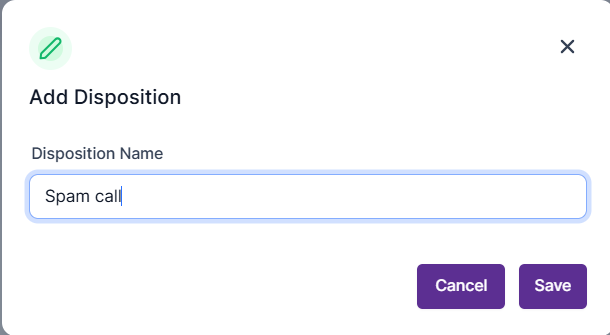
- Create the disposition: Settings → Phone System → Dispositions → Add Disposition → Name it “Spam call” → Save.
- Where agents use it: On the call end screen (web and mobile).
3. Workflow — Contact DND (Quarantine)
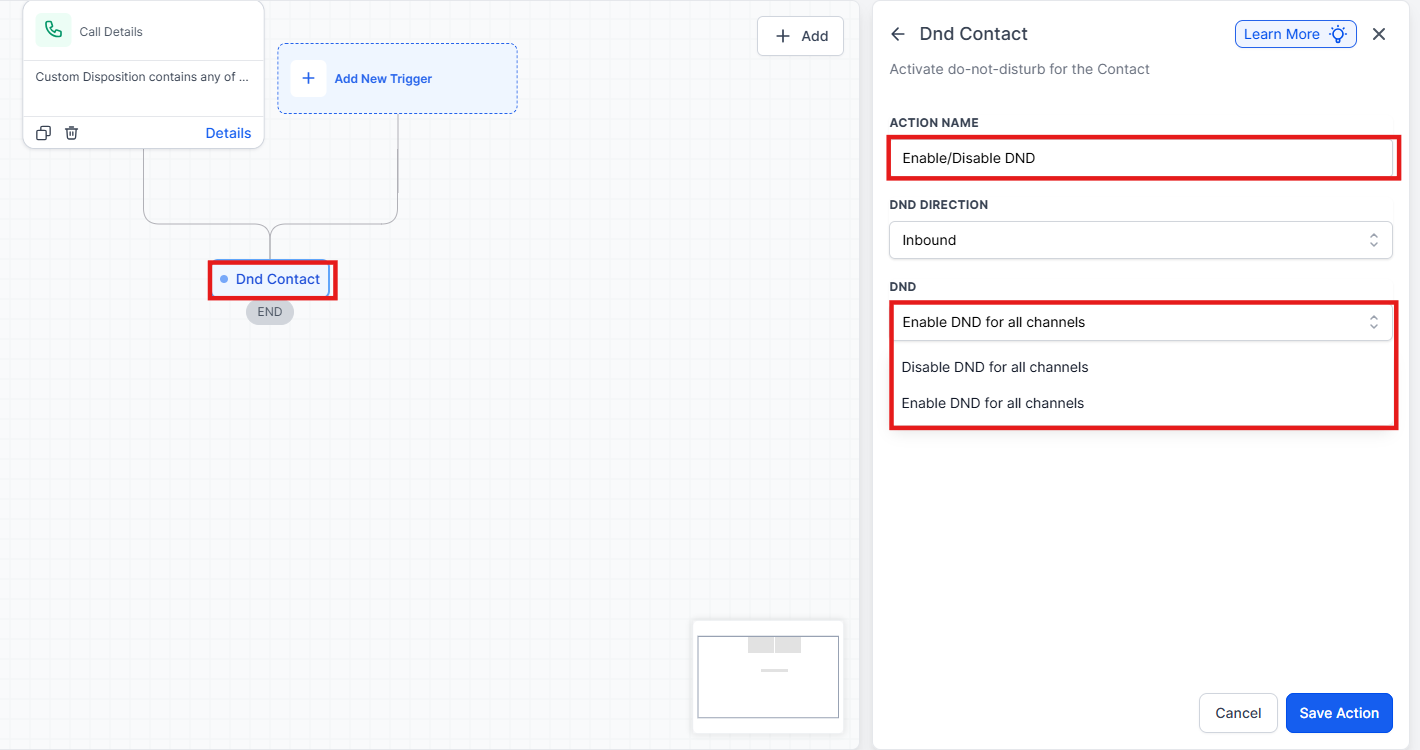
Workflows operationalize your policy. When an agent marks a call as "Spam call," a workflow can enable DND for that contact—silencing future inbound rings while preserving your ability to reach out if needed.
- Direction: Controls which way communication is blocked (set to Inbound).
- Channels: Controls what is blocked. Start conservatively with Inbound + Voice so legitimate SMS/email are not affected.
- The Recipe:
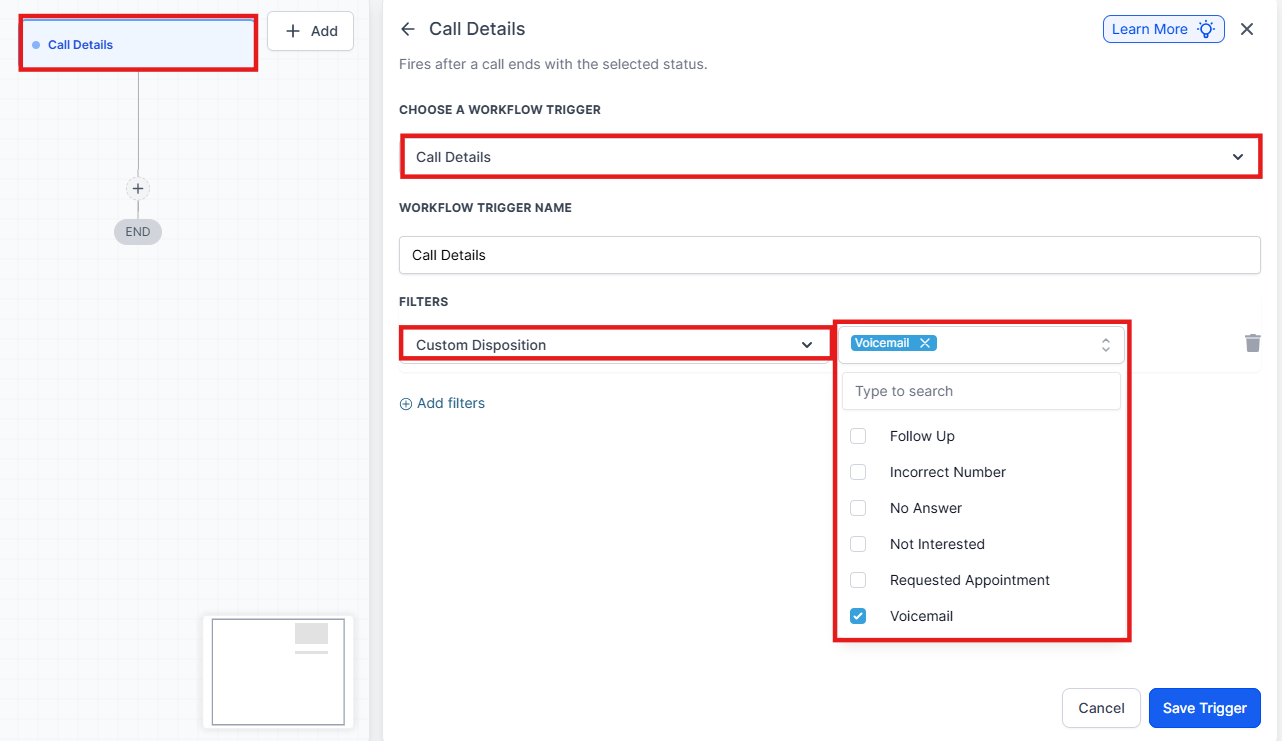
- Trigger: Call Details.
- Filter: Disposition = Spam call (and optionally Direction = Inbound).
- Action: Enable/Disable DND → Direction = Inbound → Channels = Voice.
4. Interactive Voice Response (IVR) — Optional Filter
A minimal IVR (“Press 1 to connect”) deters robocalls and routes people quickly. Keep it short to avoid friction for real customers.
- Build path:
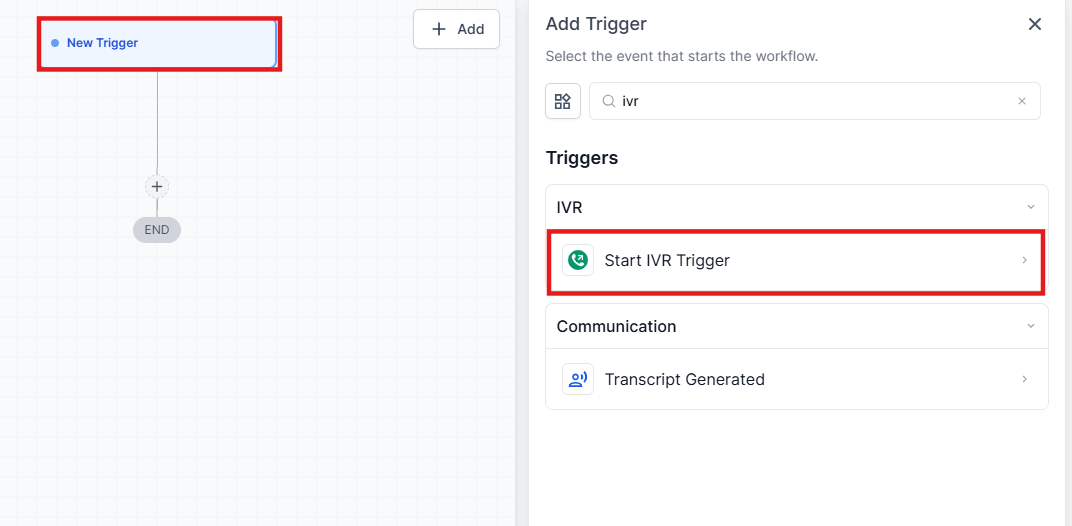
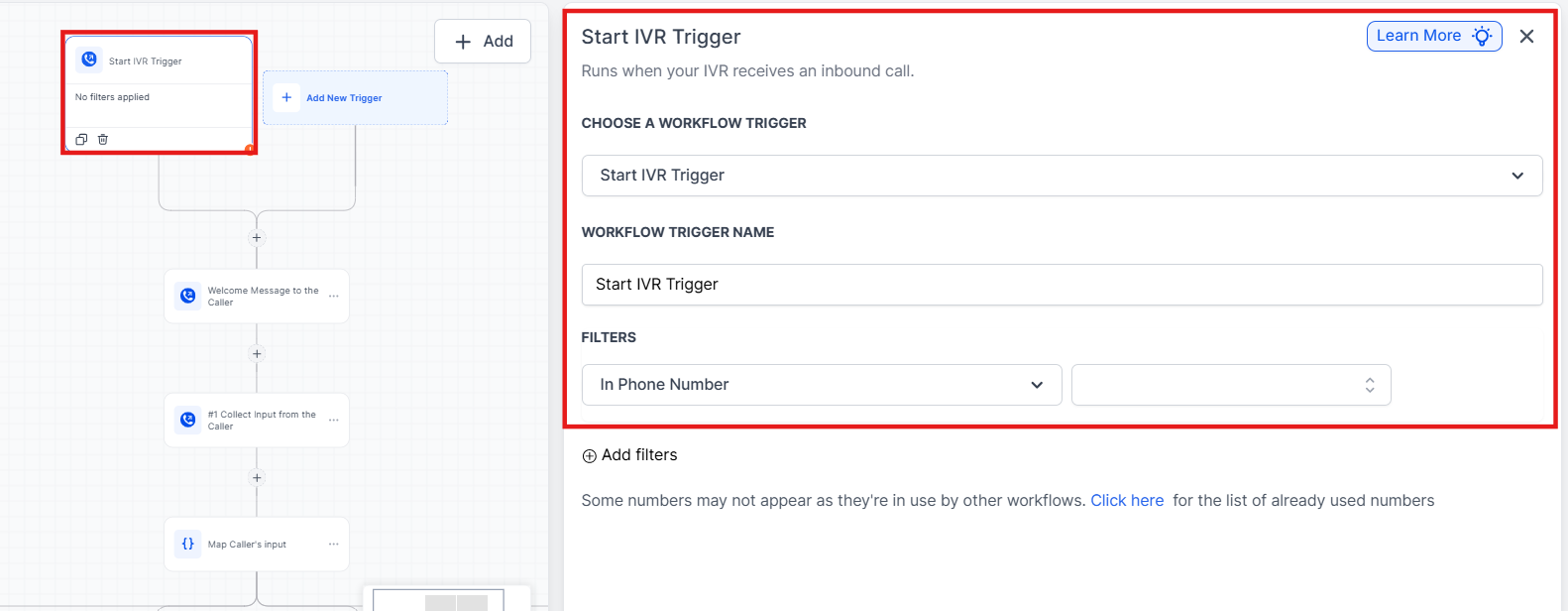
- Trigger: Start IVR (map your inbound number to this workflow).
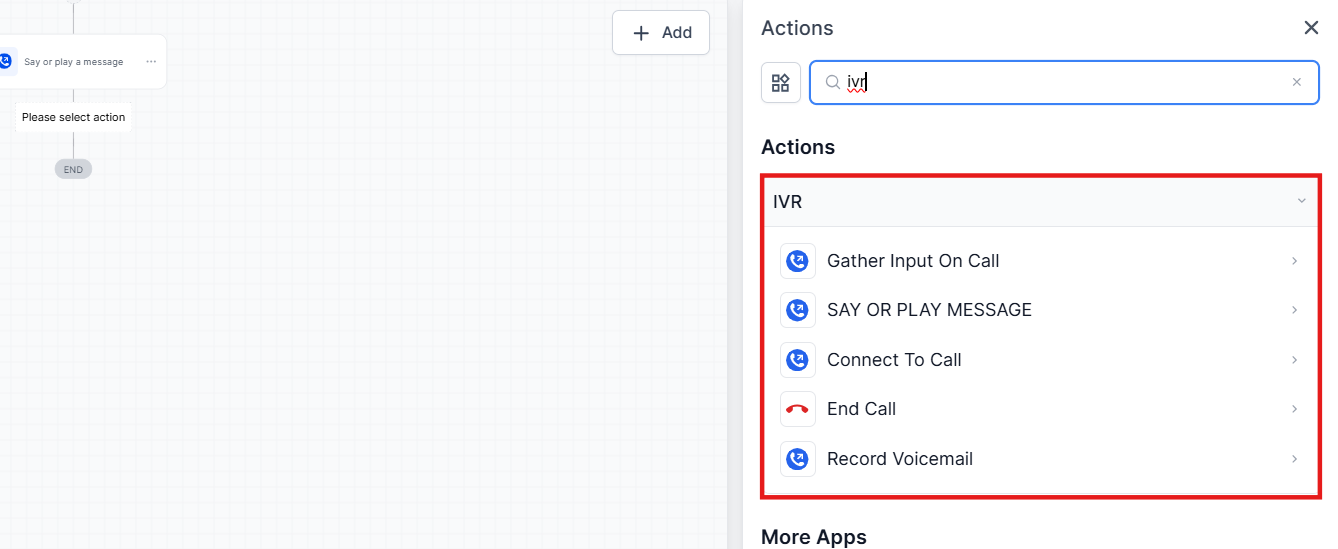
- Action: Gather Input (DTMF) → Map Input:
- 1 → Connect Call to Team/User.
- Timeout/Invalid → Repeat once, then route to Voicemail or End Call.
5. VIP/Safe List & Auto-Clear DND
To handle false positives and preserve access for key callers:
- VIP Bypass: Add a tag like "VIP" to a contact. In your DND workflow, add an If/Else condition: If contact has tag VIP → Skip DND; else → apply DND.
- Auto-Clear: Create a workflow with a Wait step (e.g., 30 days) after DND is applied to automatically disable DND or notify a reviewer to check the contact status.
6. Mobile Visibility
Seeing “Spam Likely” on mobile reassures agents that filters are working when away from the desktop. This requires the Mobile App (v3.97.3 or later).
Step-by-Step Setup Guide
- Step 1: Enable Number Intelligence: Go to Settings → Phone System → Additional Settings → Number Intelligence. Check Gather Intelligence on Unknown Phone Numbers and Save.
- Step 2: Create the Disposition: Go to Settings → Phone System → Voice → Custom Dispositions. Click + Add Disposition, set the name to Spam call, and Save.
- Step 3: Auto-enable Inbound DND: Create a Workflow with the Call Details trigger. Filter by Disposition = Spam call. Add the Enable/Disable DND action set to Inbound Calls only.
- Step 4: Use an IVR Workflow (Optional): Create a workflow with the Start IVR trigger. Use a Gather Input step asking the caller to "Press 1 to connect." If they press 1, use the Connect Call action.
- Step 5: Validate Call Flow: Go to Phone Numbers → Incoming Calls Settings. Confirm the workflow association and test with an unknown number and a VIP-tagged number.
- Step 6: Monitor & Tune: Review call logs weekly to check disposition usage and IVR completion rates.
Note: If your own business numbers are being labeled "Spam Likely," this is an outbound reputation issue. Please refer to the caller reputation best practices and registry steps to remediate your number's status.
FAQs
Question: Will Number Intelligence automatically block calls?
Answer: No. It provides “Spam Likely” signals. The actual blocking behavior is controlled by your workflows (e.g., DND) and your IVR design.
Question: Should I set DND to “All channels”?
Answer: It is safer to start with Inbound + Voice. Expanding to all channels risks suppressing legitimate SMS or emails. Only increase the scope if spam persists across all communication methods.
Question: How do I avoid blocking VIPs or important vendors?
Answer: Use a VIP or SafeList tag. Add an If/Else condition in your workflow to skip the DND action and bypass the IVR for contacts with those specific tags.
Question: What if an agent marks a real customer as a “Spam call”?
Answer: You can manually remove the DND status on the contact record or set up an auto-clear workflow that lifts the DND status after a set period.
Question: Can I send spam-labeled calls straight to voicemail?
Answer: Yes. You can route calls via an IVR timeout or add a workflow branch that specifically sends Inbound Voice calls to voicemail when the disposition equals "Spam call."
Question: Does this impact outbound dialing?
Answer: No. DND settings configured for Inbound do not block your ability to make outbound calls to that contact.
Question: Can I filter SMS spam, too?
Answer: You can apply DND to additional channels, such as SMS, in your workflow actions. It is recommended to evaluate the impact first to avoid blocking legitimate messages.
Question: Is IVR required?
Answer: No. IVR is an optional layer. Many businesses find that combining Number Intelligence with the "Spam call" disposition and a DND workflow is sufficient.