
Customizable Contact Form Messages in Chat Widget
When a visitor engages with your chat widget, asking for their contact details is a crucial step in turning a conversation into a lead. You can modify the message "Please share your contact details" according to your suitability.
Mastermind allows you to fully customize these messages. Whether the prompt appears automatically or is sent manually by one of your team members, you have total control over the phrasing.
Key Features and Benefits
The ability to edit contact request prompts offers several strategic advantages for managing digital conversations:
- Enhanced Brand Consistency: Replace generic system text with your brand’s unique voice and tone, ensuring a seamless experience for the visitor.
- Improved Conversion Rates: Personalized and contextually relevant prompts reduce friction, making visitors more likely to share their contact details.
- Reduced Confusion: By clarifying why contact information is needed, you eliminate the ambiguity often caused by hardcoded or rigid system messages.
How to Customize Your Chat Prompts
To modify the messages shown to your visitors, follow these steps within the widget builder:
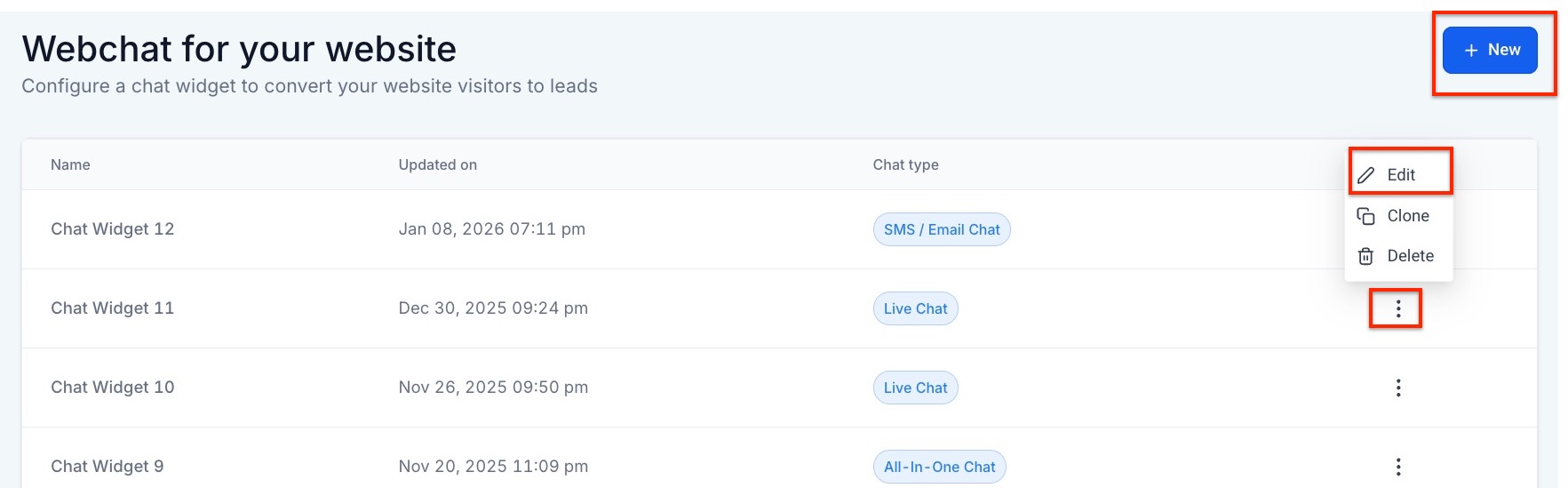
Navigate to Marketing & Sales > Funnels & Pages > Chat Widget.
Create a New Chat Widget (Live Chat or All-in-One) or edit the existing one (Live Chat or All-in-One Live Chat).
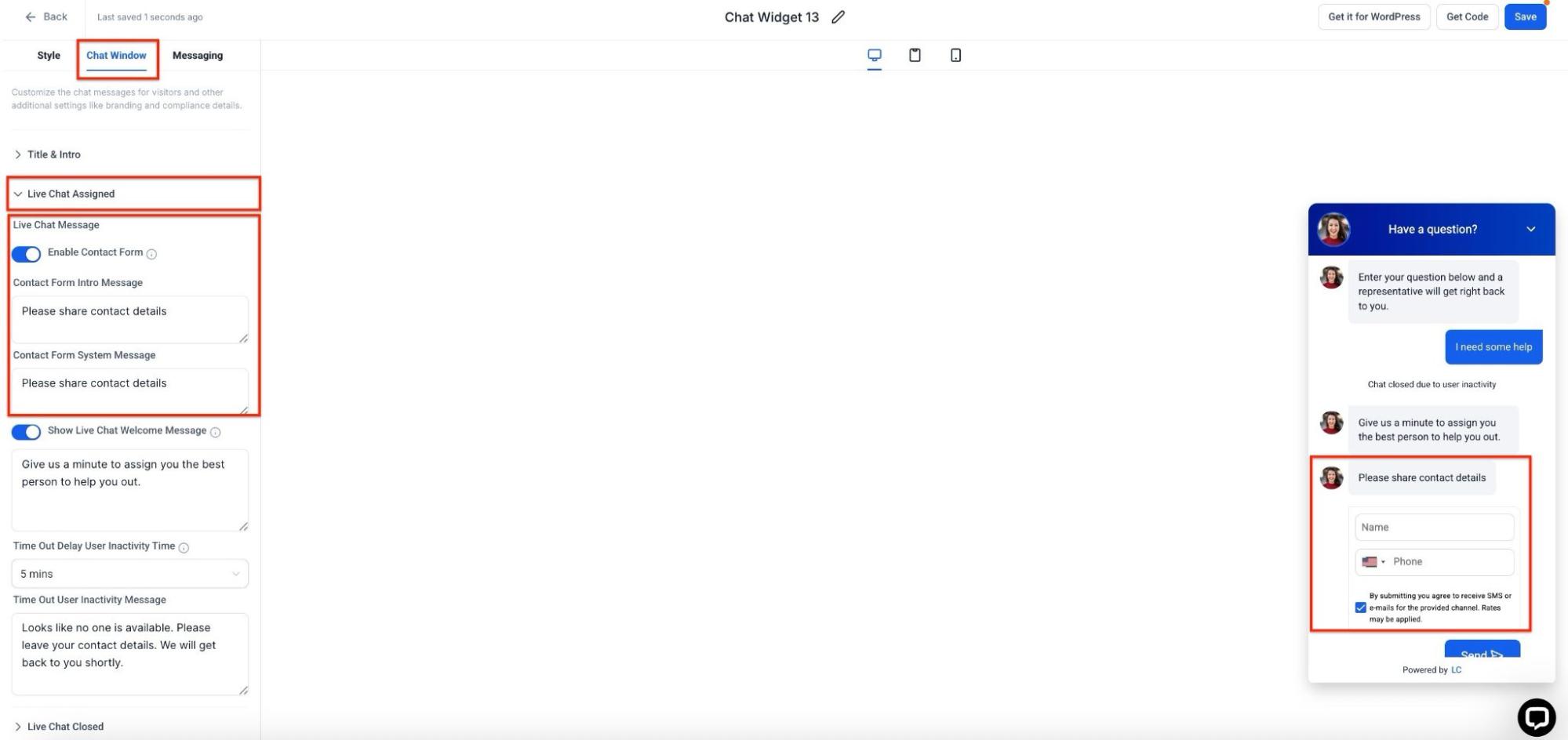
Go to ‘Chat Window’ (top right corner of the window). After this, expand ‘Live Chat Assigned’ and ensure it is toggled on. Here you can change the ‘Contact Form Intro Message’ and ‘Contact Form System Message’.
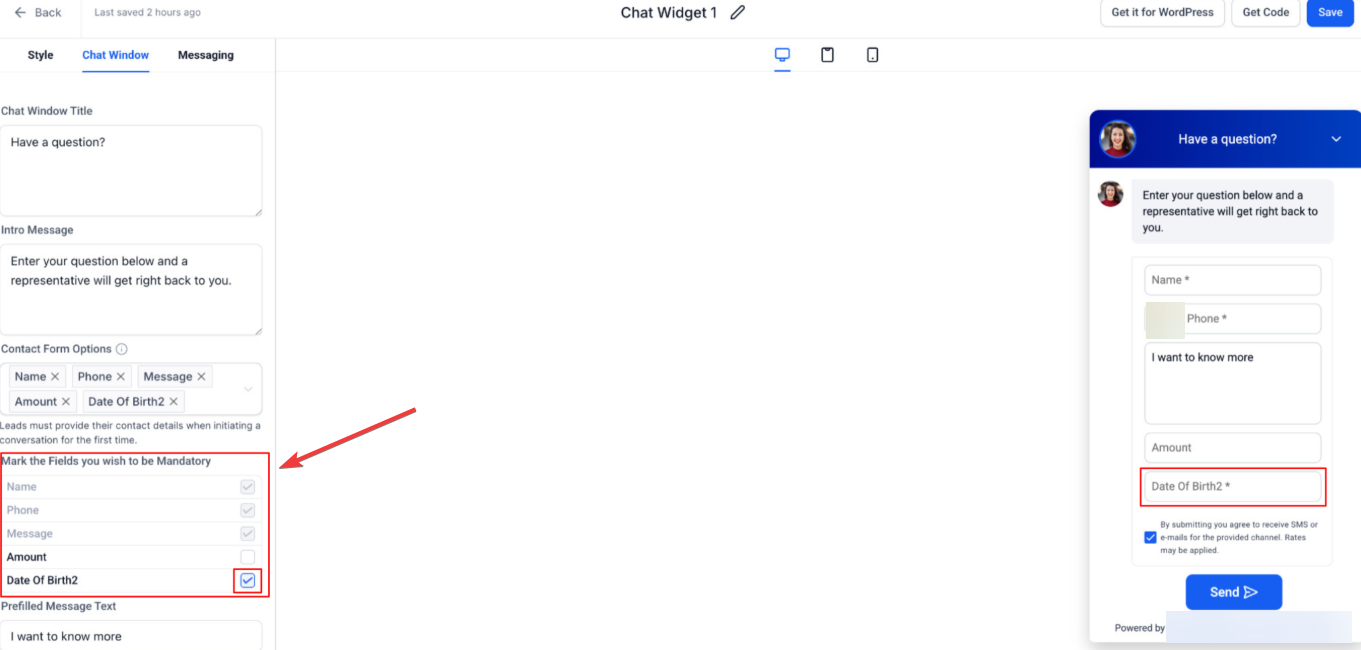
Toggle on the 'Mandatory' setting for any fields you want to require. Standard contact information is always required by the system.
In the chat widget builder, look at the left panel under the Chat Window tab. You’ll find the Contact Form System Message (Agent-Triggered) setting there. Note that this field stays visible in the builder even if the feature itself is toggled off.
You can then Save your changes to update the widget in real-time.
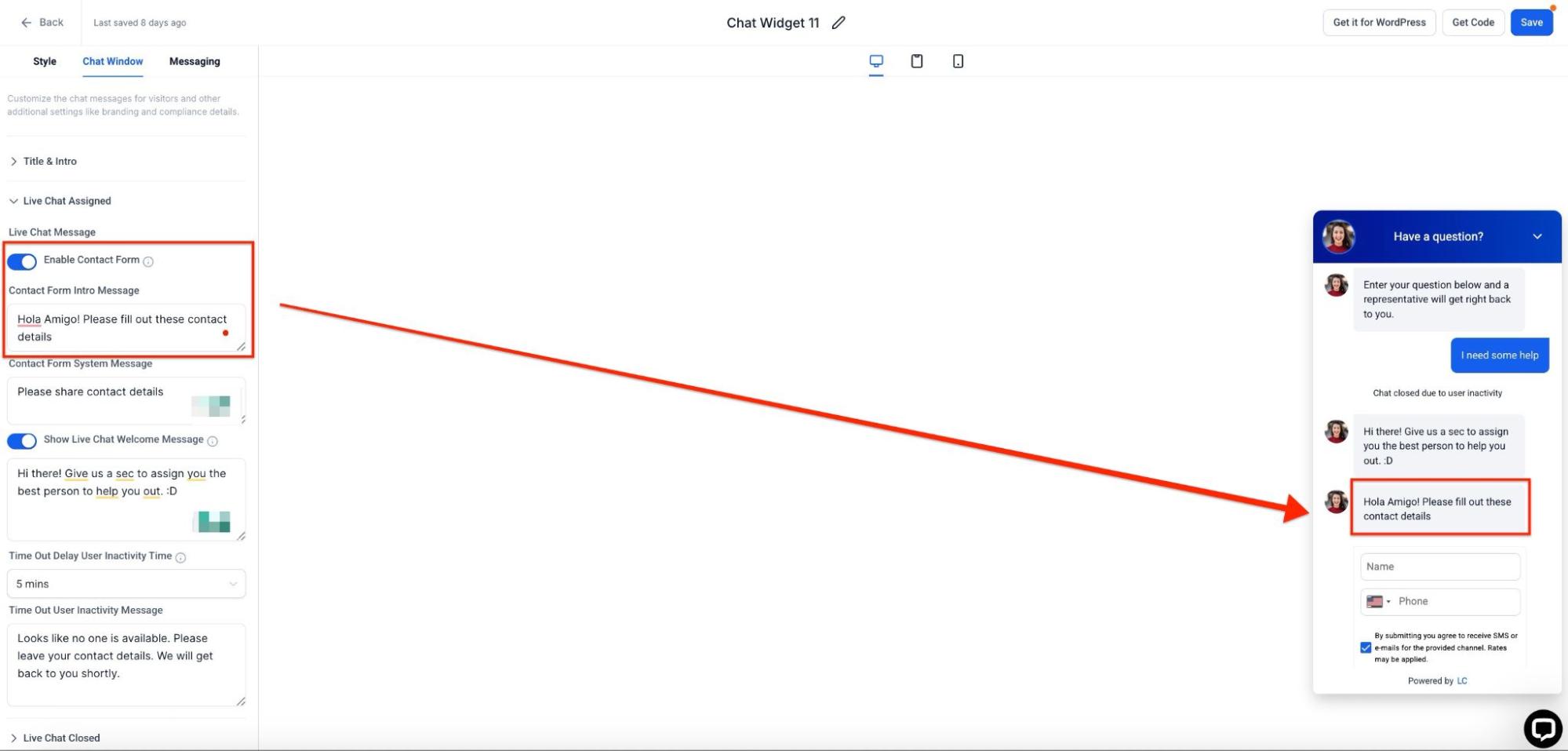
When you select “Request Contact Details” in the Conversations panel, this message will show. You can use the default text (“Please share your contact details”) or write your own. If you leave it blank, the widget will skip the intro text and go straight to the contact form.
Pro Tips for Effective Prompts
- The "Blank" Strategy: If you prefer a faster, more minimalist user interface, leave these text fields blank. The widget will skip the introductory message and render the contact form fields immediately.
- Contextual Differences: Use the Intro Message for a broad welcome (e.g., "To help us route your request, please share your details") and the System Message for a more direct, conversational tone (e.g., "I'd love to follow up with you via email; could you please provide your info?").
- Toggle Awareness: Remember that even if the automatic contact form is turned off, agents can still trigger the System Message manually during a chat.
FAQs
Question: What happens if I leave the message field blank?
Answer: The widget will skip the introductory text and display the contact form fields directly to the visitor.
Question: Does the "System Message" show up even if I have the contact form disabled?
Answer: Yes. While the automatic prompt will not appear, the System Message remains available for agents to trigger manually from the conversation panel.
Question: Which chat types support these customizable messages?
Answer: These customization options apply to both standard Live Chat configurations and All-in-One widget setups.
Question: Is there a default message if I don’t change anything?
Answer: Yes, the system defaults to "Please share your contact details" for both the automatic and agent-triggered prompts.
Question: Why would I want two different messages for the same form?
Answer: The Intro Message is for cold visitors arriving at the site, whereas the System Message is for visitors already engaged in a conversation with an agent, requiring a more personal touch.
Question: Can I make specific contact fields required for my visitors to fill out?
Answer: Yes. Within the widget builder, you can toggle on the "Mandatory" setting for any fields you want to require. However, please note that standard contact information is always required by the system by default.
Question: Where exactly can I find the setting to change the message an agent sends manually when asking for contact info?
Answer: You can find the Contact Form System Message (Agent-Triggered) setting in the left panel under the Chat Window tab within the chat widget builder. Note that this specific field remains visible in the builder even if the automatic feature is toggled off, allowing you to customize the manual prompt at any time.