
How to Create an Opportunity Forecast
The Forecast tab gives you a clear picture of your expected revenue based on the probability of closing deals. Instead of just seeing what is in your pipeline, you can see when money is likely to hit your bank account.
Practical Use Case: A business owner can use the Forecast tab to see if they will hit their sales goals for the next quarter. By identifying "High Risk" deals that are missing close dates, they can remind their team to update those files and keep the sales process moving.
(Step-by-Step):
Accessing the Forecast Dashboard
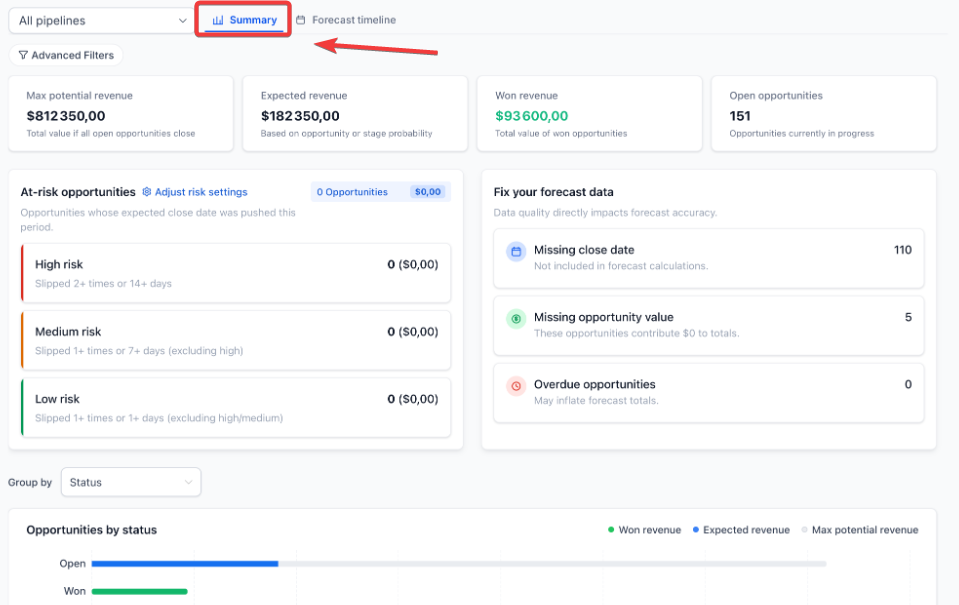
- To view your revenue predictions, navigate to Sales Pipelines > Opportunities > Forecast.
- To see a better view of your pipeline health, click on the Summary tab.
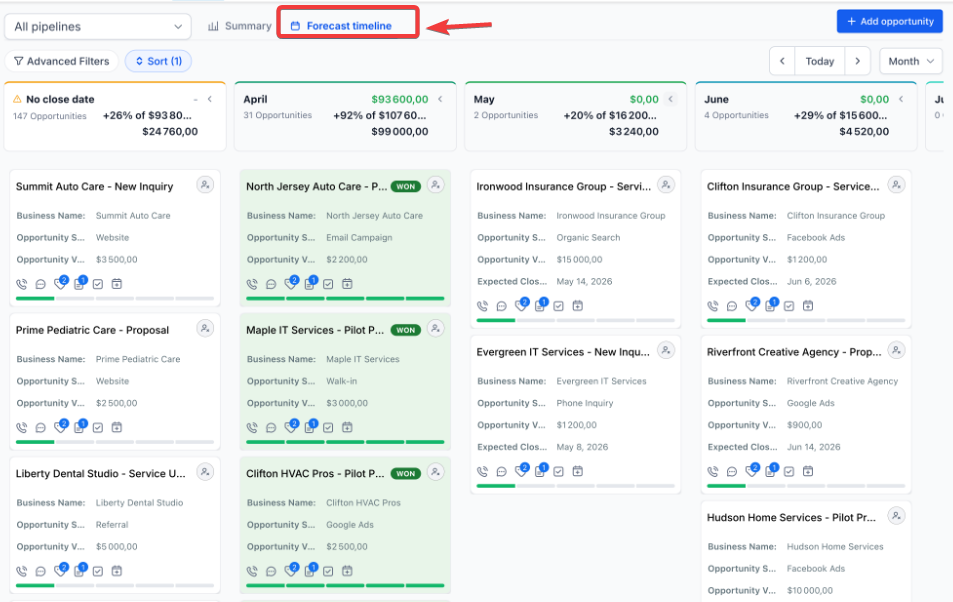
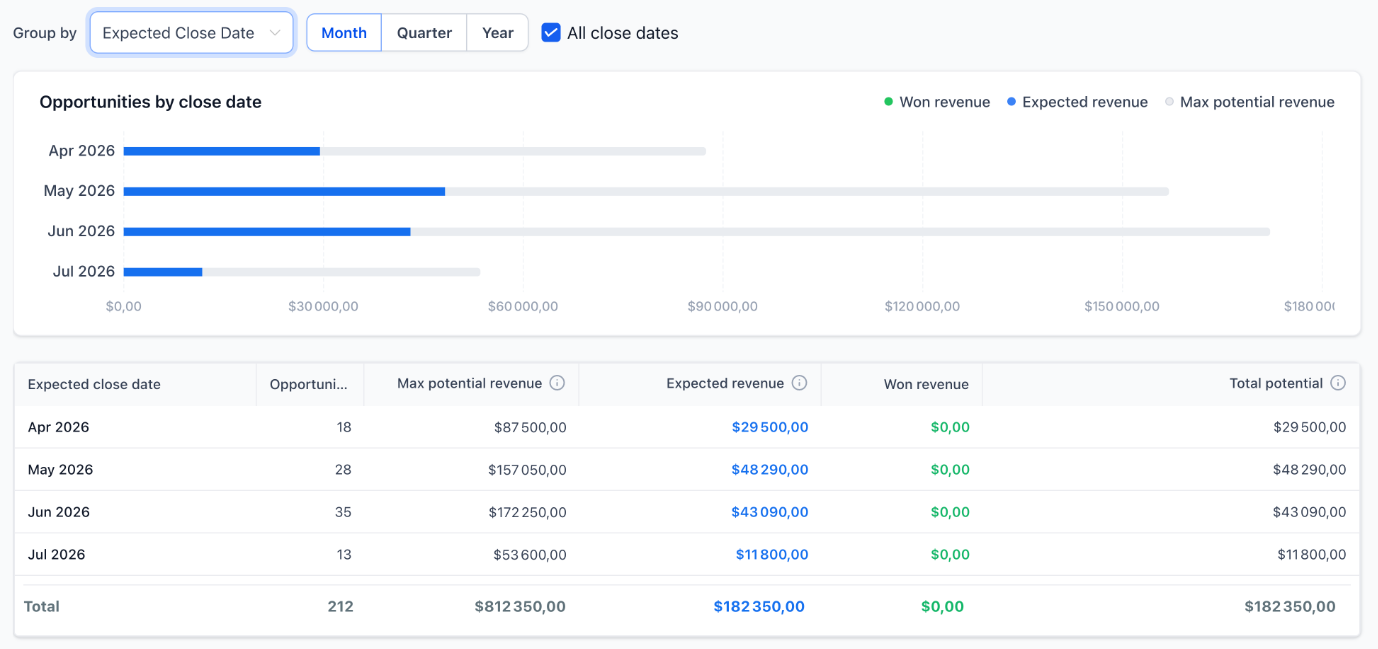
To track when deals will close over specific periods, select the Forecast Timeline view.
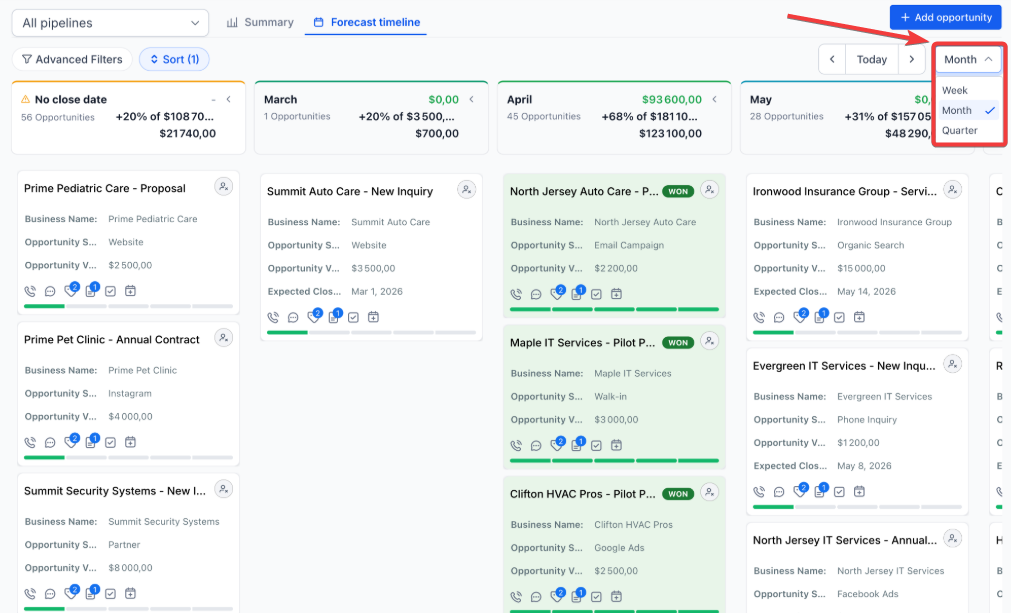
To change the timeframe of your data, use the Date Picker to select Week, Month, or Quarter.
Managing Your Revenue Data
To see which deals make up a specific number, click directly on any metric (such as Expected Revenue or Won Revenue).
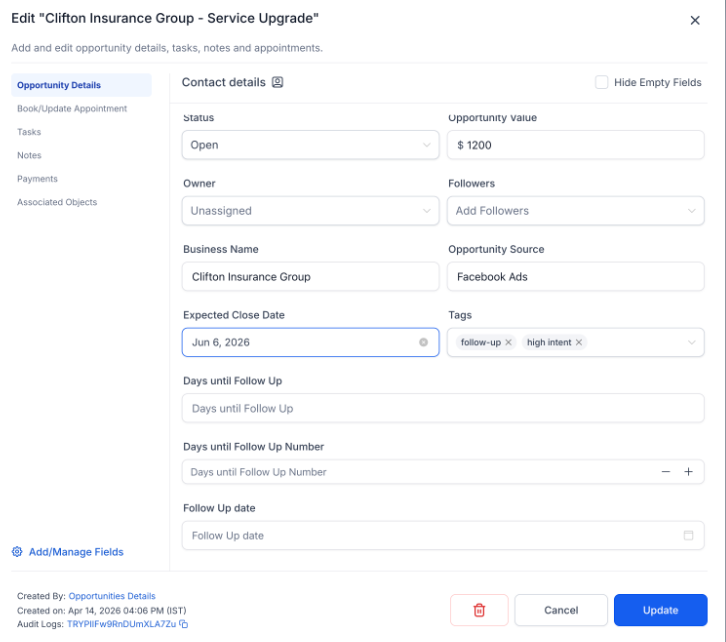
To update a closing date quickly, drag and drop an opportunity card from one month to another within the Timeline view.
To isolate specific data, use the Filters button to group by Owner, Status, or Close Date.
Improving Data Health and Assessing Risk
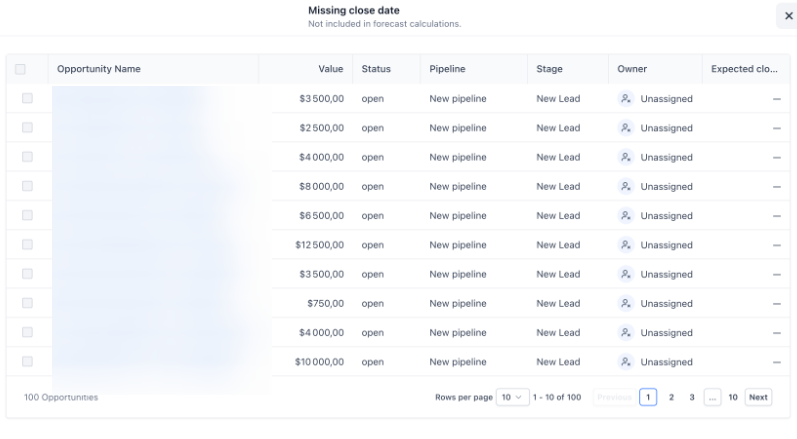
- To identify incomplete files, review the Data Hygiene cards for items like Missing Close Dates or Missing Values.
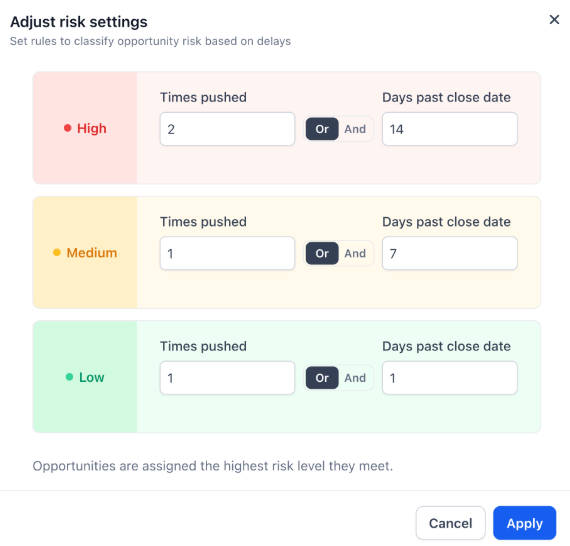
- To understand which deals are in danger of failing, look for the Risk Classification labels (High, Medium, or Low). [Insert Screenshot: The Data Hygiene section showing cards for "Missing close dates" and "Overdue deals"]
- To set your own rules for what constitutes a "risky" deal, click on Risk Settings and adjust the thresholds to match your sales cycle.
FAQs:
Question: Why is a specific deal not showing up in my forecast?
Answer: Deals must have an Expected Close Date and an Opportunity Value to be included in forecast calculations. If either field is empty, the software cannot predict that revenue.
Question: How is "Expected Revenue" calculated?
Answer: Mastermind calculates this by multiplying the total Opportunity Value by the Probability percentage assigned to that stage of your pipeline.
Question: What does "Slippage" mean in the risk settings?
Answer: Slippage refers to a deal that has stayed in the pipeline longer than expected or has had its close date moved multiple times. High slippage usually triggers a "High Risk" label.
Question: Can I customize the risk levels for my specific business?
Answer: Yes. To define what makes a deal "High" or "Low" risk, go to Risk Settings. You can set specific thresholds based on how many days a deal has been stagnant or how many times the close date has been moved.
Question: What happens to the forecast if I mark an opportunity as "Lost"?
Answer: To keep your forecast accurate, Mastermind removes "Lost" or "Abandoned" deals from your Expected Revenue calculations. These will still appear in your historical reports but will no longer count toward your future income predictions.