
What's a Follow Up Comment and How To Use it in the Social Planner
Follow up comments are the first automated comments posted on social media. You can set up these comments in the Social Planner to increase your engagement with your followers on social media.
The “Follow up Comment” feature works for following social media postings:
- Facebook Page
- Facebook Group (NOTE: account must be a Facebook Page)
- Linkedin Profile
- Linkedin Page
- Instagram Business Account
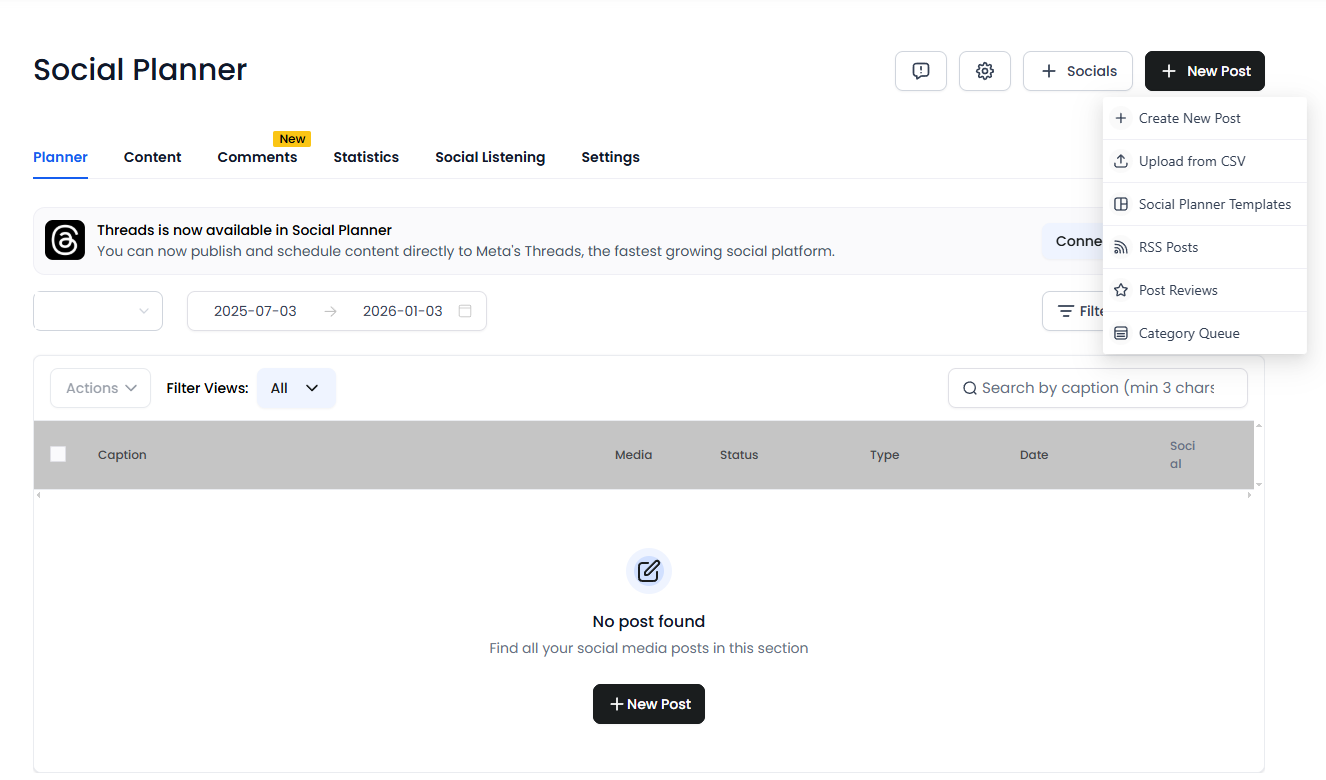
Step 1: Navigate to the Marketing & Sales > Email & Social Media tab and then Social Planner.
Step 2: Click to create a new post.
Step 3: Within the new post, click the “Follow up Comment” button to enable the feature.

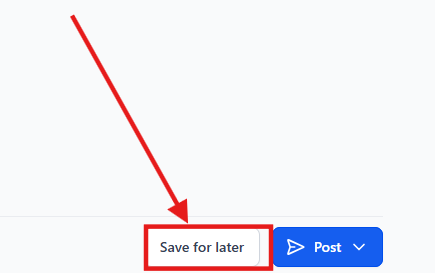
Step 4: Save and schedule or publish your post.
Use Case 1: Enhancing Engagement on New Product Announcements
Scenario: A company is launching a new product and wants to maximize engagement on its social media posts.
Steps:
- The marketing team creates a new post announcing the product on their Facebook Page, LinkedIn Page, and Instagram Business Account.
- They use the "Follow up Comment" feature to automatically post a comment that asks followers for their thoughts on the product or to share what they’re most excited about.
- Once the post is published, the automated comment is posted shortly after, encouraging followers to engage with the post.
Best Practices for Using Follow-up Comments
- Ask Questions: Keep your follow-up comments conversational. Ask questions like "What do you think of our new product?" or "Which feature are you most excited about?" to encourage responses.
- Use Call-to-Actions (CTAs): A well-placed CTA can prompt users to take action. Phrases like "Share your thoughts in the comments" or "Tag a friend who needs to see this!" work well.
- Be Authentic: Avoid sounding too salesy in your comments. Make them feel more like natural conversation starters.
- Utilize Emojis: Emojis can make your comments feel more approachable and fun, enhancing interaction rates.
FAQ
Question: What is a Follow up Comment?
Answer: Follow-up Comments are automated comments that are posted on social media immediately after your initial post, designed to increase engagement with your audience.
Question: Which social media platforms support Follow-up Comments?
Answer: The feature works on Facebook Pages, Facebook Groups (when posted by a Page), LinkedIn Profiles, LinkedIn Pages, and Instagram Business Accounts.
Question: How do I enable Follow-up Comments?
Answer: Navigate to the Marketing tab, select Social Planner, create a new post, and click the "Follow up Comment" button to enable the feature.
Question: Can follow-up Comments be used for specific campaigns?
Answer: Yes, they are particularly effective for campaigns like new product announcements, where you want to prompt followers to share their excitement or opinions.
Question: When is the follow-up Comment posted?
Answer: The automated comment is posted shortly after the original post is published.
Question: Can I schedule multiple follow-up comments for the same post?
Answer: Yes, you can add multiple follow-up comments to a post and schedule them as needed to maintain ongoing engagement.
Question: Can I edit a follow-up comment after it's posted?
Answer: No, once a follow-up comment is posted automatically, it cannot be edited. However, you can delete and repost a new follow-up comment if needed.
Question: Can I use a personal Facebook profile to post follow-up comments in a Facebook Group?
Answer: No. To use this feature within a Facebook Group, the account used must be a Facebook Page, not a personal profile.
Question: How can I make my follow-up comments feel more approachable and less like a sales pitch?
Answer: To ensure your comments feel like natural conversation starters rather than being "salesy," you should use emojis to keep the tone fun and approachable. Additionally, phrase your comments as open-ended questions to encourage authentic interaction.