
Bulk Actions - Email
Using the Bulk Actions features in your Contacts/Smart Lists section, you can perform multiple one-off actions to selected or all contacts. Here’s how to send contacts a one-off email using the bulk action feature:
Step 1: Choose Your Contacts
- Navigate to Your Customers > Contacts.
- Check the box to select contact records.
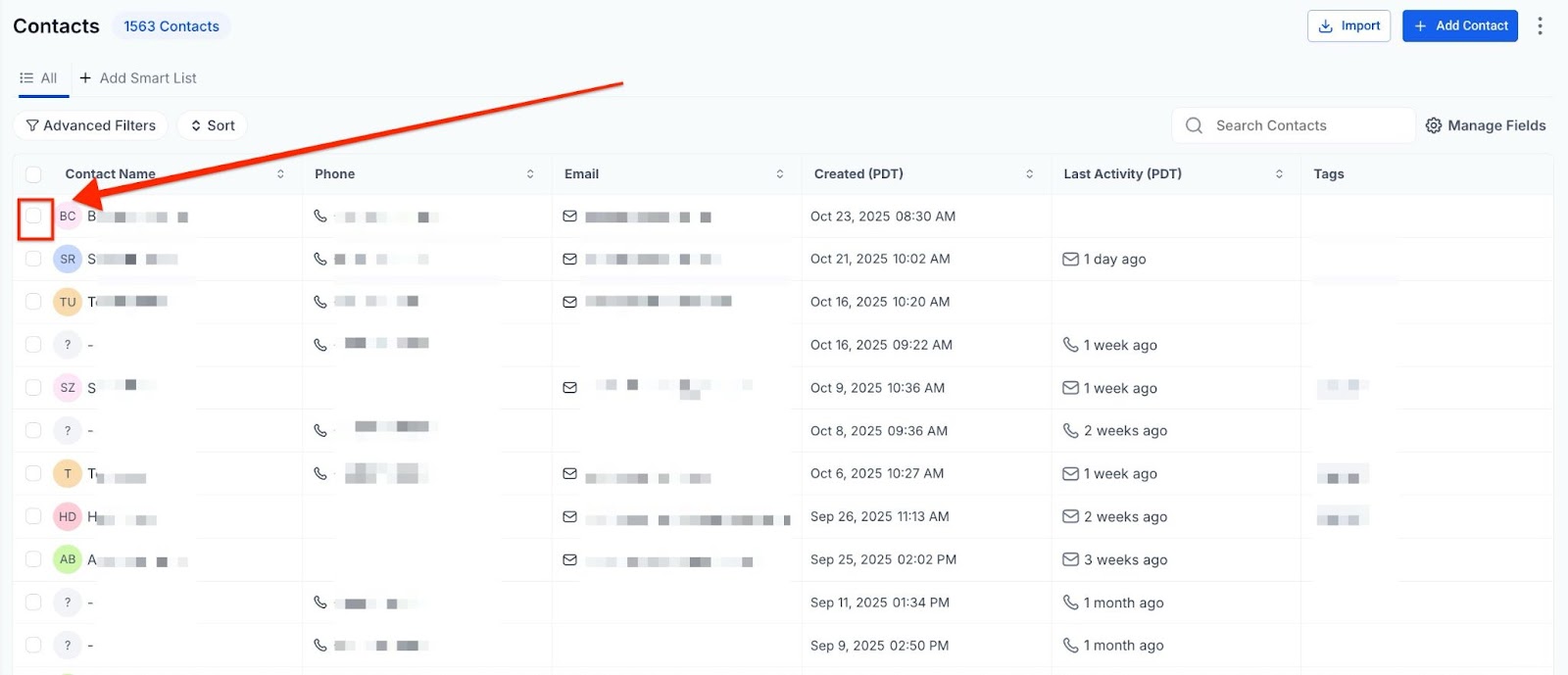
You can also check the box at the top to select all on that page, and you can click the hyperlink to select all contacts in Mastermind.
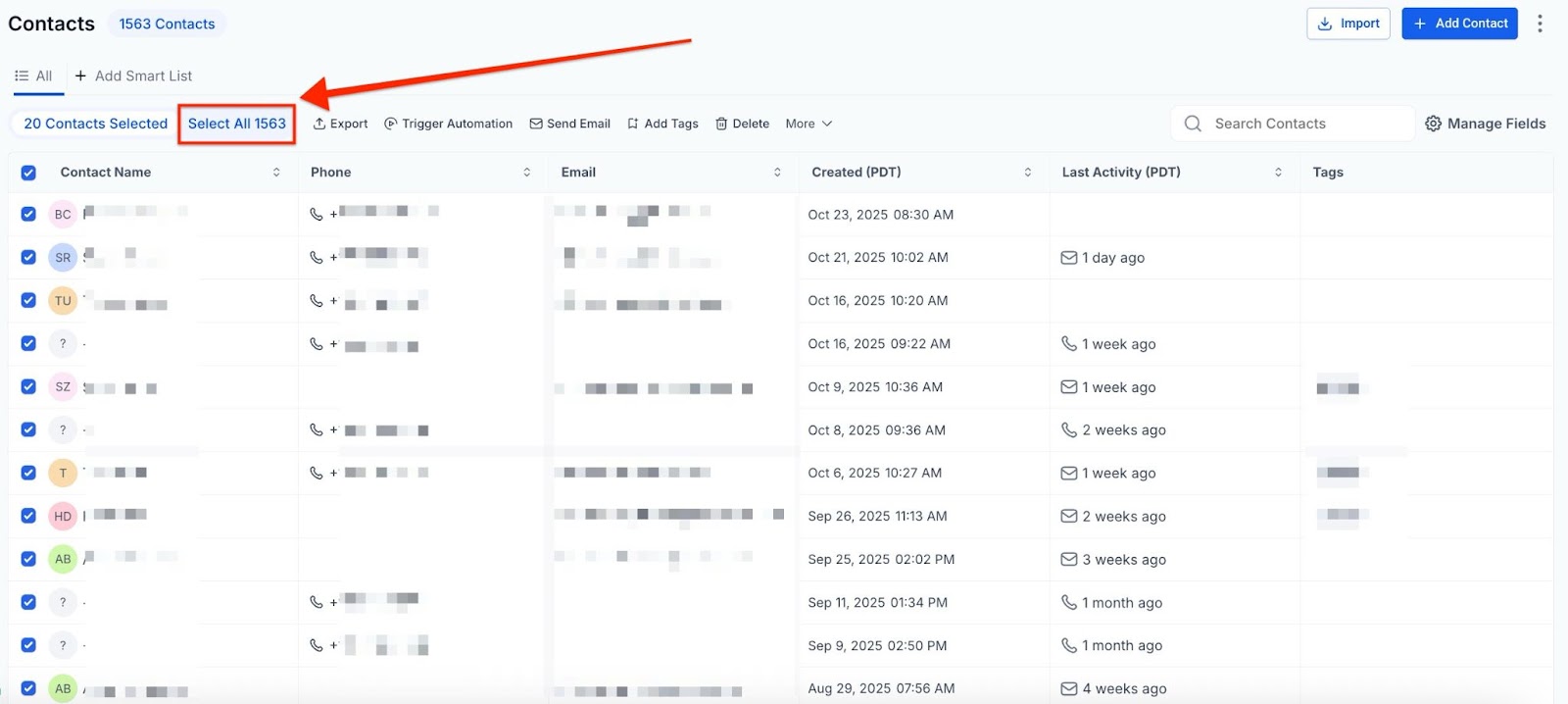
Step 2: Choose Your Action
- Choose the icon for “Send Email”.

- In the pop-up window that appears, create your email message, or choose a pre-existing template from the dropdown. You can use the formatting buttons to add a trigger link, change the font style, use custom values/merge fields, and attach a file.
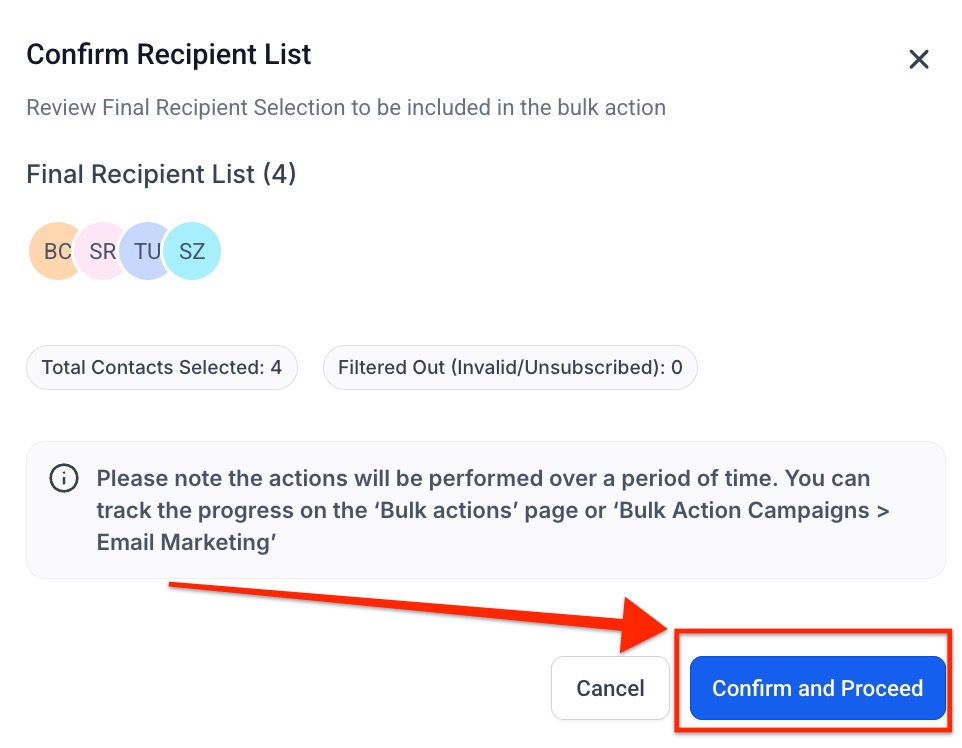
- Then choose the scheduling for this action. You can choose “send all at once” to process the action immediately, “send all at scheduled time” to process the action at one time in the future, or “send in drip mode” to process groups/batches.
Note: When scheduling a bulk action in drip mode, the "repeat after" does not repeat the entire process. Instead, it can be viewed as "run every". As shown in the example below, 100 contacts would be processed per every 5 hours. This process would repeat until all selected contacts received the drip communication. (If you had 780 contacts selected, there would be a total of 8 batches – 7 x 100 and 1 x 80).
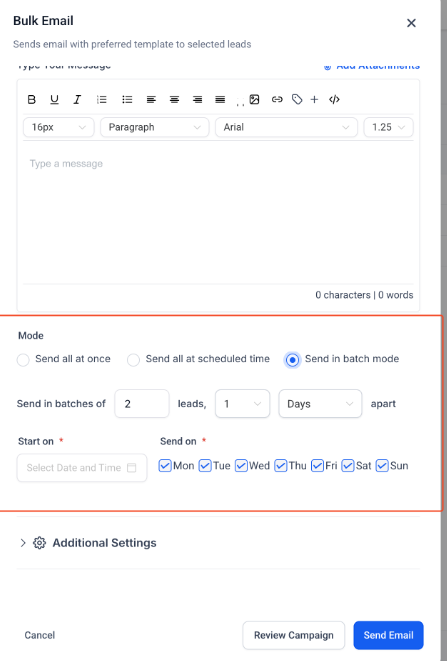
Bulk Action Campaigns: Visibility in Email Marketing
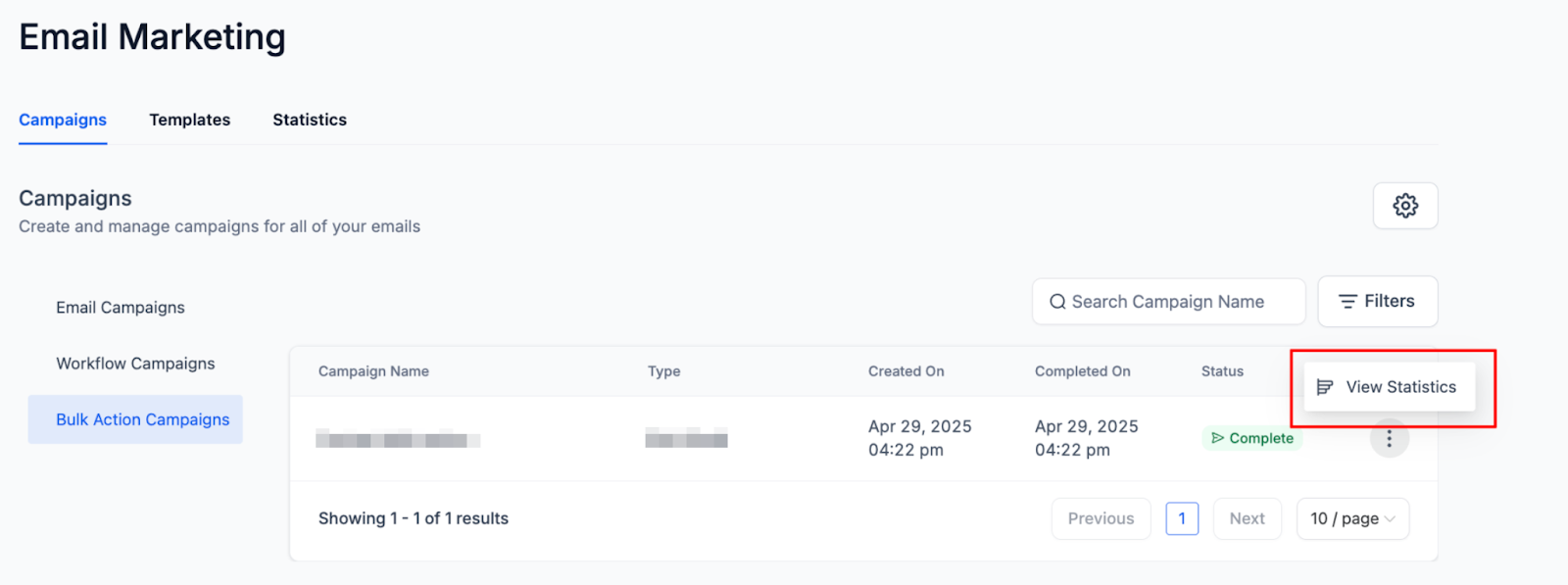
Campaigns created from Bulk Actions are also visible in the Email Marketing section, ensuring a streamlined and consistent view for all campaigns. The main benefit is centralized campaign tracking, offering improved transparency with consistent reporting and statistics across campaigns.
To use this feature: Create a campaign through Bulk Action in your Contacts, then navigate to the Email Marketing section and select "Bulk Action Campaigns" to view and manage them.

Click the three dots to access detailed stats and insights for each campaign.
FAQs
Question: How do I select multiple contacts for a bulk email?
Answer: You can select contacts by checking the box next to each record or use the select-all option at the top of the page.
Question: Can I use an email template for bulk email actions?
Answer: Yes, you can either create a new email message or choose a pre-existing template from the dropdown menu.
Question: What is drip mode, and how does it work?
Answer: Drip mode allows you to send emails in batches. For example, you can set the system to send emails to 100 contacts every 5 hours, and the process will repeat until all contacts have received the email.
Question: Can I schedule a bulk email for a future time?
Answer: Yes, you can schedule the email to be sent at a specific future time or choose to send it immediately.
Question: What happens if I schedule a bulk email in drip mode?
Answer: The system will process the emails in batches based on the interval you set, ensuring a smooth distribution of emails over time.
Question: Is it possible to attach files to a bulk email?
Answer: Yes, you can attach files to your bulk email using the formatting options in the pop-up window.
Question: What happens if I select 1,000 contacts but some don’t have an email address?
Answer: The system will automatically skip any contact record that is missing an email address. The "Bulk Action" log will show you a summary of how many were successfully processed versus how many were skipped.
Question: Why did my bulk email only send to 500 people when I selected 1,000?
Answer: The system automatically protects you by filtering out contacts who are missing an email address, those who have previously unsubscribed (DND), or those whose emails have hard-bounced in the past. You can check the bulk action logs to see exactly why specific contacts were skipped.